Claude Remote Control이란? 모바일에서 내 PC의 Claude Code를 이어 쓰는 방법
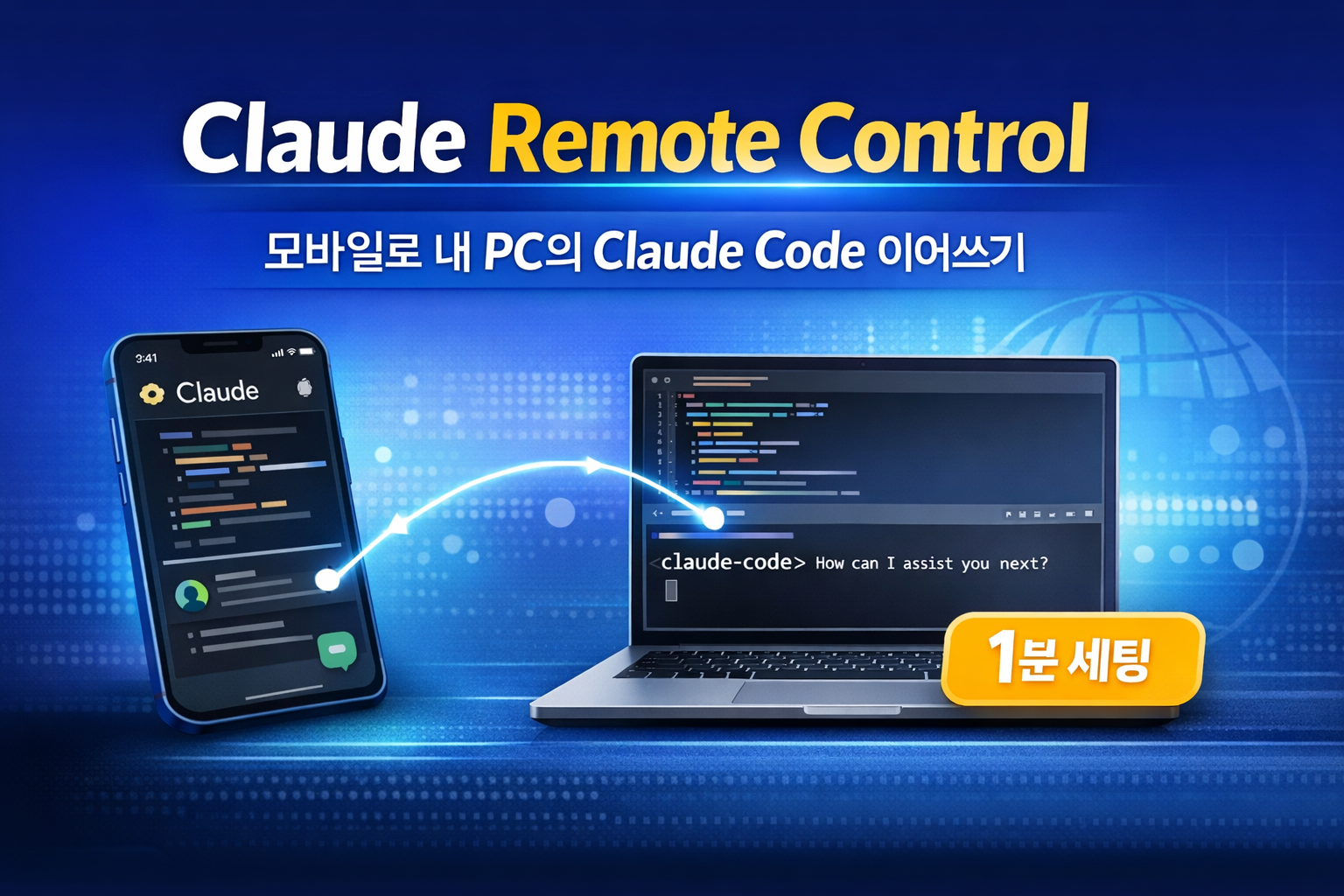
Claude Remote Control은 휴대폰이나 다른 브라우저에서 내 컴퓨터에서 실행 중인 Claude Code 세션을 이어서 제어하는 기능입니다. 중요한 점은 세션이 클라우드로 옮겨가는 것이 아니라, 계속 내 로컬 머신에서 실행된다는 점입니다. 즉, 로컬 프로젝트, CLI 도구, 개발 환경을 그대로 유지한 채 모바일에서 접속해 이어서 쓸 수 있습니다. 현재 공식 문서 기준으로 Remote Control은 모든 플랜에서 사용 가능하며, Team/Enterprise에서는 관리자가 설정에서 기능을 켜야 합니다.
왜 이 기능이 useful한가
기존 Claude Code는 터미널 중심 도구입니다. 공식 제품 페이지도 Claude Code를 개발자가 터미널, IDE, 웹, Slack 등에서 활용하는 코딩 도우미로 설명합니다. 다만 실제 코드 실행과 파일 수정은 여전히 로컬 환경에서 이뤄집니다. Remote Control은 이 로컬 세션을 폰에서 이어받게 해 주므로, 이동 중에도 작업 상태를 확인하고 짧은 지시를 내리기에 적합합니다.
Claude Remote Control의 핵심 개념
이 기능을 이해할 때 가장 중요한 문장은 이것입니다.
- Claude는 당신의 머신에서 계속 실행된다.
- 휴대폰이나 브라우저는 그 세션에 접속하는 창 역할을 한다.
- 세션 URL 또는 QR 코드로 연결할 수 있다.
claude.ai/code또는 Claude 모바일 앱과 연결된다.
즉, 모바일에서 “별도의 Claude Code 인스턴스”가 새로 돌아가는 것이 아닙니다. 데스크톱에서 돌고 있는 세션의 리모컨에 가깝습니다.
1분 세팅 가이드
공식 안내를 바탕으로 가장 빠르게 시작하는 흐름만 정리하면 아래 정도입니다.
1) Claude Code 설치
Claude Code 제품 페이지와 Anthropic의 개발 가이드는 시작 방법으로 설치 명령을 안내합니다. 웹 기준으로는 아래 설치 명령이 제시됩니다.
curl -fsSL https://claude.ai/install.sh | bash또는 Claude Code 관련 문서에서 npm 설치 경로를 따라 진행할 수 있습니다. Anthropic의 개발 가이드에는 npm install -g @anthropic-ai/claude-code도 시작 방법으로 안내되어 있습니다.
2) 로그인 후 프로젝트 폴더에서 실행
터미널에서 프로젝트 폴더로 이동한 뒤 아래 명령 중 하나를 실행합니다. Remote Control 문서는 세 가지 시작 방식을 안내합니다.
claude remote-control또는 기존 인터랙티브 세션과 함께 쓰려면:
claude --remote-control이미 Claude Code 세션 안이라면:
/remote-control3) 세션 URL 또는 QR 코드로 연결
명령을 실행하면 세션 URL이 표시됩니다. 이 URL을 다른 브라우저에서 열거나, QR 코드를 Claude 모바일 앱으로 스캔하면 됩니다. 공식 문서에 따르면 claude remote-control에서는 스페이스바로 QR 코드 표시를 토글할 수 있습니다.
4) 1분 세팅 요약
실제로는 아래 4단계면 끝입니다.
- Claude Code 설치
- 로그인
claude remote-control실행- 휴대폰에서 QR 코드 스캔 또는 URL 열기
알아둘 점
Remote Control은 편하지만, 어디까지나 로컬 세션에 접속하는 기능입니다. 그래서 다음 조건이 필요합니다.
- 내 컴퓨터가 켜져 있어야 함
- Claude Code 세션이 살아 있어야 함
- 네트워크가 유지돼야 함 공식 문서는 이 기능이 로컬 머신에서 계속 실행되며, 브라우저와 모바일 앱은 그 세션에 연결된다고 설명합니다.
또한 최신 변경사항 기준으로 claude remote-control --name "프로젝트명" 또는 /remote-control 프로젝트명처럼 세션 이름을 지정할 수 있습니다. 세션이 여러 개일 때 구분하기 편합니다. 이 기능은 2026년 3월 20일자 변경 로그에 반영되어 있습니다.
웹 개발에서는 어떻게 활용할 수 있나
웹 개발 쪽에서는 이 기능이 “코드를 모바일에서 본격적으로 작성하는 도구”라기보다, 이미 돌아가고 있는 로컬 개발 세션을 이동 중에 관리하는 보조 도구로 보는 편이 맞습니다. Claude Code 자체는 공식적으로 코드베이스를 이해하고, 여러 파일을 수정하고, CLI 도구와 함께 동작하며, 버그 수정·테스트·리팩터링·기능 구현 같은 작업에 강하다고 소개됩니다.
1) 로컬 개발 서버 상태 확인
프론트엔드 작업 중 npm run dev, vite, next dev 같은 서버를 켜 둔 상태에서, 밖에서도 Claude에게 다음처럼 시킬 수 있습니다.
- 현재 에러 로그 요약
- 빌드 실패 원인 분석
- 마지막 수정 파일 정리
- 다음 수정 제안
Claude Code는 기존 CLI 도구와 함께 동작하도록 설계되어 있으므로, 이런 식의 로컬 개발 워크플로와 잘 맞습니다.
2) 작은 프론트엔드 수정 요청
예를 들어 모바일에서 이런 지시를 줄 수 있습니다.
- 헤더 메뉴 간격만 조정
- 버튼 hover 상태 정리
- 특정 컴포넌트의 props 구조 설명
- CSS 중복 제거
- 타입 에러 하나만 고치기
Claude Code는 공식적으로 코드베이스 전체 이해, 멀티파일 수정, 기존 패턴에 맞춘 변경을 강조하고 있습니다. 그래서 작은 UI 수정이나 구조 정리 같은 작업을 원격으로 던지기 좋습니다.
3) 출퇴근 중 코드 리뷰 보조
리뷰 대기 중인 브랜치나 작업 내용을 두고 다음처럼 활용할 수 있습니다.
- 변경된 파일 요약
- 리스크 있는 부분만 추려 달라고 요청
- PR 설명문 초안 생성
- 테스트 누락 포인트 정리
Claude Code 제품 페이지는 Git, 배포, 모니터링, DB 등 명령줄 도구와 연결되는 점을 장점으로 내세웁니다. 그래서 단순 채팅보다 실제 개발 컨텍스트에 더 붙어 움직입니다.
4) 긴 작업의 진행 상황 체크
데스크톱에서 긴 리팩터링이나 버그 조사 작업을 걸어 둔 뒤, 휴대폰에서 중간 점검하는 식으로 쓸 수 있습니다.
- 지금 어디까지 분석했는지 확인
- 다음 단계만 지시
- 수정 전후 차이 요약 요청
- 실패한 테스트만 재분석 요청
이게 Remote Control의 가장 현실적인 강점입니다. “모바일로 개발”이 아니라, 돌아가는 개발 세션을 모바일에서 관리하는 것입니다.
추천 활용 시나리오
웹 개발자 기준으로는 아래 조합이 가장 실용적입니다.
- 책상에서 Claude Code로 작업 시작
- 로컬 dev 서버와 Git 상태 유지
- 외출 중 Remote Control로 진행 확인
- 급한 수정 지시
- 다시 데스크톱으로 돌아와 마무리
반대로, 아래 작업은 모바일에서 비효율적입니다.
- 대규모 레이아웃 검토
- Figma와 비교하며 정밀 UI 수정
- 긴 디버깅 세션
- 복잡한 병합 충돌 해결
이건 Remote Control의 한계라기보다, 모바일 화면과 입력 환경의 한계입니다.
마무리
Claude Remote Control은 “모바일에서 Claude Code를 새로 실행하는 기능”이 아닙니다. 내 컴퓨터에서 실행 중인 Claude Code를 폰에서 이어서 제어하는 기능입니다. 그래서 웹 개발자에게는 이동 중에도 개발 흐름을 끊지 않게 해 주는 보조 장치로 가치가 있습니다. 특히 프론트엔드나 웹앱 작업처럼 로컬 dev 서버, Git, 빌드 로그, 멀티파일 수정이 중요한 환경에서 꽤 실용적입니다.
Claude Remote Control is a feature that lets you continue controlling a Claude Code session running on your computer from a phone or another browser. The important point is that the session does not move to the cloud. It keeps running on your local machine. In other words, you can connect from mobile and keep using your local project, CLI tools, and development environment as they are. Based on the current official documentation, Remote Control is available on all plans, and in Team/Enterprise workspaces an admin must enable the feature in settings.
Why This Feature Is Useful
Claude Code has traditionally been a terminal-centered tool. The official product page also describes Claude Code as a coding assistant that developers use across the terminal, IDE, web, Slack, and other surfaces. But actual code execution and file edits still happen in the local environment. Remote Control lets you take over that local session from your phone, making it suitable for checking work status and giving short instructions while on the move.
The Core Concept of Claude Remote Control
The most important sentence for understanding this feature is this:
- Claude continues running on your machine.
- A phone or browser acts as a window into that session.
- You can connect with a session URL or QR code.
- It connects through
claude.ai/codeor the Claude mobile app.
In other words, mobile does not start a “separate Claude Code instance.” It is closer to a remote control for the session running on your desktop.
One-Minute Setup Guide
Based on the official guide, the fastest flow looks like this.
1) Install Claude Code
The Claude Code product page and Anthropic developer guide provide installation commands as a starting point. On the web, the following command is shown.
curl -fsSL https://claude.ai/install.sh | bash
Or you can follow the npm installation path in the Claude Code documentation. Anthropic’s developer guide also presents npm install -g @anthropic-ai/claude-code as a starting method.
2) Log In and Run It from the Project Folder
Move to your project folder in the terminal and run one of the following commands. The Remote Control documentation describes three ways to start.
claude remote-control
Or, if you want to use it with an existing interactive session:
claude --remote-control
If you are already inside a Claude Code session:
/remote-control
3) Connect with the Session URL or QR Code
When you run the command, a session URL appears. Open that URL in another browser, or scan the QR code with the Claude mobile app. According to the official documentation, in claude remote-control you can press the spacebar to toggle the QR code display.
4) One-Minute Setup Summary
In practice, it takes these four steps.
- Install Claude Code
- Log in
- Run
claude remote-control - Scan the QR code or open the URL from your phone
Things to Know
Remote Control is convenient, but it is still a feature for connecting to a local session. That means these conditions are required.
- Your computer must be turned on
- The Claude Code session must still be alive
- The network connection must remain available The official docs explain that the feature continues running on the local machine, while browsers and mobile apps connect to that session.
Based on recent changes, you can also name a session with claude remote-control --name "Project name" or /remote-control Project name. This is useful when you have multiple sessions. The feature is reflected in the March 20, 2026 changelog.
How Can It Be Used in Web Development?
For web development, it is better to think of this feature not as “a tool for seriously writing code on mobile,” but as an assistant tool for managing an already running local development session while away. Claude Code itself is officially introduced as strong at understanding codebases, editing multiple files, working with CLI tools, fixing bugs, testing, refactoring, and implementing features.
1) Check Local Development Server Status
When working on frontend projects with servers like npm run dev, vite, or next dev already running, you can ask Claude from outside to do things like:
- Summarize current error logs
- Analyze why a build failed
- Summarize the last modified files
- Suggest the next fix
Claude Code is designed to work together with existing CLI tools, so it fits this kind of local development workflow well.
2) Request Small Frontend Fixes
For example, from mobile you can give instructions like:
- Adjust only the spacing in the header menu
- Clean up button hover states
- Explain the props structure of a specific component
- Remove duplicate CSS
- Fix one type error
Claude Code officially emphasizes understanding the whole codebase, multi-file edits, and changes that follow existing patterns. That makes it suitable for sending small UI tweaks or structural cleanup tasks remotely.
3) Assist Code Review During Commute
For a branch waiting for review or work in progress, you can use it like this:
- Summarize changed files
- Ask for only risky areas to be identified
- Draft a PR description
- List missing test points
The Claude Code product page highlights its connection to command-line tools such as Git, deployment, monitoring, and databases. So it works closer to real development context than simple chat.
4) Check Progress on Long Tasks
You can start a long refactor or bug investigation on desktop, then check progress from your phone.
- Check how far the analysis has progressed
- Give only the next step
- Ask for a summary of before/after changes
- Reanalyze only failing tests
This is the most realistic strength of Remote Control. It is not “developing on mobile,” but managing an active development session from mobile.
Recommended Use Scenario
For web developers, the most practical combination is:
- Start work with Claude Code at your desk
- Keep the local dev server and Git state active
- Check progress with Remote Control while away
- Send urgent fix instructions
- Return to the desktop and finish
On the other hand, these tasks are inefficient on mobile.
- Large layout reviews
- Precise UI edits while comparing with Figma
- Long debugging sessions
- Complex merge conflict resolution
This is less a limitation of Remote Control and more a limitation of mobile screen size and input environment.
Closing
Claude Remote Control is not a feature that “runs Claude Code newly on mobile.” It is a feature for continuing to control Claude Code running on your computer from your phone. For web developers, it is valuable as an auxiliary device that keeps the development flow from breaking while on the move. It is especially practical in environments where local dev servers, Git, build logs, and multi-file edits matter, such as frontend and web app work.
Claude Remote Control 是一种功能,可以让你从手机或其他浏览器 继续控制正在自己电脑上运行的 Claude Code 会话。重点是,会话不会转移到云端,而是 继续在你的本地机器上运行。也就是说,你可以保持本地项目、CLI 工具和开发环境不变,只是从移动设备连接过去继续使用。按照当前官方文档,Remote Control 所有计划都可使用,而 Team/Enterprise 中需要管理员在设置中启用该功能。
为什么这个功能 useful?
过去的 Claude Code 主要是终端中心的工具。官方产品页也把 Claude Code 描述为开发者可以在 terminal、IDE、web、Slack 等环境中使用的编码助手。不过实际代码执行和文件修改仍然发生在本地环境。Remote Control 可以让手机接管这个本地会话,所以适合在移动中确认工作状态,并下达较短的指令。
Claude Remote Control 的核心概念
理解这个功能时,最重要的一句话是:
- Claude 继续在你的机器上运行。
- 手机或浏览器只是 连接到该会话的窗口。
- 可以通过 session URL 或 QR code 连接。
- 会连接到
claude.ai/code或 Claude 移动应用。
也就是说,移动端并不会启动一个“新的 Claude Code 实例”。它更接近于 桌面上正在运行的会话的遥控器。
1 分钟设置指南
根据官方说明,只整理最快开始的流程,大致如下。
1) 安装 Claude Code
Claude Code 产品页和 Anthropic 开发指南都提供安装命令作为开始方式。网页上给出的安装命令如下。
curl -fsSL https://claude.ai/install.sh | bash
或者也可以按照 Claude Code 文档中的 npm 安装路径进行。Anthropic 开发指南也把 npm install -g @anthropic-ai/claude-code 作为一种开始方式。
2) 登录后在项目文件夹中运行
在终端中进入项目文件夹,然后运行下面命令之一。Remote Control 文档介绍了三种启动方式。
claude remote-control
如果想和已有交互式会话一起使用:
claude --remote-control
如果已经在 Claude Code 会话中:
/remote-control
3) 通过 session URL 或 QR code 连接
执行命令后会显示 session URL。可以在其他浏览器中打开这个 URL,或用 Claude 移动应用扫描 QR code。根据官方文档,在 claude remote-control 中可以用空格键切换 QR code 显示。
4) 1 分钟设置总结
实际就是下面 4 步。
- 安装 Claude Code
- 登录
- 运行
claude remote-control - 在手机上扫描 QR code 或打开 URL
需要知道的点
Remote Control 很方便,但它始终是 连接到本地会话的功能。因此需要满足下面条件。
- 你的电脑必须开机
- Claude Code 会话必须仍然存活
- 网络必须保持连接 官方文档说明,该功能会继续在本地机器上运行,而浏览器和移动应用会连接到该会话。
另外,按照最新变更,可以用 claude remote-control --name "项目名" 或 /remote-control 项目名 这样的方式 指定会话名称。当会话有多个时更容易区分。这个功能已反映在 2026 年 3 月 20 日的 changelog 中。
在 Web 开发中可以怎么用?
在 Web 开发中,与其把它看成“在手机上正式写代码的工具”,不如把它看成 管理已经运行中的本地开发会话的辅助工具。Claude Code 官方介绍中强调,它擅长理解代码库、修改多个文件、配合 CLI 工具工作,以及处理 bug 修复、测试、重构、功能实现等任务。
1) 确认本地开发服务器状态
前端开发时,如果已经启动了 npm run dev、vite、next dev 这样的服务器,即使在外面也可以让 Claude 做下面的事。
- 总结当前错误日志
- 分析构建失败原因
- 整理最后修改的文件
- 建议下一步修正
Claude Code 被设计为可以和现有 CLI 工具一起工作,所以很适合这种本地开发工作流。
2) 请求小的前端修改
例如可以在手机上发送这样的指令。
- 只调整 header menu 的间距
- 整理 button hover 状态
- 解释某个 component 的 props 结构
- 删除重复 CSS
- 只修一个 type error
Claude Code 官方强调 理解整个代码库、多文件修改、遵循现有模式进行变更。因此,很适合远程发出小型 UI 修改或结构整理请求。
3) 通勤中辅助代码 review
对于等待 review 的 branch 或正在进行的工作,可以这样使用。
- 总结变更文件
- 只筛出有风险的部分
- 生成 PR 说明草稿
- 整理缺失测试点
Claude Code 产品页把与 Git、部署、监控、DB 等命令行工具连接作为优势。因此它比单纯聊天更贴近真实开发上下文。
4) 检查长任务的进度
可以在桌面上启动较长的重构或 bug 调查,然后用手机中途检查。
- 确认现在分析到哪一步
- 只指示下一步
- 请求总结修改前后的差异
- 只重新分析失败的测试
这是 Remote Control 最现实的优势。它不是“用手机开发”,而是 用手机管理正在运行的开发会话。
推荐使用场景
以 Web 开发者为例,下面的组合最实用。
- 在桌面前用 Claude Code 开始工作
- 保持本地 dev server 和 Git 状态
- 外出时用 Remote Control 确认进度
- 下达紧急修改指令
- 回到桌面后完成收尾
相反,下面这些工作在手机上效率较低。
- 大规模布局检查
- 和 Figma 对照进行精细 UI 修改
- 长时间 debugging session
- 复杂 merge conflict 解决
这与其说是 Remote Control 的限制,不如说是移动屏幕和输入环境的限制。
结语
Claude Remote Control 不是“在手机上重新运行 Claude Code 的功能”。它是 从手机继续控制自己电脑上正在运行的 Claude Code 的功能。因此,对 Web 开发者来说,它的价值在于作为一种辅助装置,让移动中也不必完全中断开发流程。特别是在 frontend 或 web app 工作中,本地 dev server、Git、build log、多文件修改很重要,所以这个功能相当实用。
Claude Remote Controlは、スマートフォンや別のブラウザから 自分のコンピューターで実行中のClaude Codeセッションを続けて操作できる機能です。重要なのは、セッションがクラウドへ移動するわけではなく、引き続きローカルマシン上で実行されるという点です。つまり、ローカルプロジェクト、CLIツール、開発環境をそのまま維持した状態で、モバイルから接続して使い続けられます。現在の公式ドキュメント基準では、Remote Controlは すべてのプランで利用可能で、Team/Enterpriseでは管理者が設定で機能を有効にする必要があります。
なぜこの機能が便利なのか
従来のClaude Codeはターミナル中心のツールです。公式プロダクトページでも、Claude Codeは開発者が terminal、IDE、web、Slack などで活用するコーディングアシスタントとして説明されています。ただし、実際のコード実行やファイル修正は依然としてローカル環境で行われます。Remote Controlはこのローカルセッションをスマートフォンから引き継げるため、移動中に作業状況を確認したり、短い指示を出したりするのに向いています。
Claude Remote Controlの基本概念
この機能を理解するときに最も重要な文はこれです。
- Claudeは あなたのマシン上で実行され続ける。
- スマートフォンやブラウザは そのセッションに接続する窓として機能する。
- セッションURLまたはQRコードで接続できる。
claude.ai/codeまたはClaudeモバイルアプリと接続される。
つまり、モバイルで「別のClaude Codeインスタンス」が新しく動くわけではありません。デスクトップで動いているセッションのリモコンに近いものです。
1分セットアップガイド
公式案内をもとに、最短で始める流れだけを整理すると次のようになります。
1) Claude Codeをインストールする
Claude CodeのプロダクトページとAnthropicの開発ガイドでは、開始方法としてインストールコマンドが案内されています。Web基準では次のインストールコマンドが提示されています。
curl -fsSL https://claude.ai/install.sh | bash
または、Claude Code関連ドキュメントのnpmインストール手順に沿って進めることもできます。Anthropicの開発ガイドでは、npm install -g @anthropic-ai/claude-code も開始方法として案内されています。
2) ログイン後、プロジェクトフォルダで実行する
ターミナルでプロジェクトフォルダへ移動し、次のいずれかのコマンドを実行します。Remote Controlドキュメントでは3つの開始方法が案内されています。
claude remote-control
既存のインタラクティブセッションと一緒に使う場合:
claude --remote-control
すでにClaude Codeセッション内にいる場合:
/remote-control
3) セッションURLまたはQRコードで接続する
コマンドを実行するとセッションURLが表示されます。このURLを別のブラウザで開くか、ClaudeモバイルアプリでQRコードをスキャンします。公式ドキュメントによると、claude remote-control ではスペースバーでQRコード表示を切り替えられます。
4) 1分セットアップのまとめ
実際には次の4ステップで終わります。
- Claude Codeをインストール
- ログイン
claude remote-controlを実行- スマートフォンでQRコードをスキャン、またはURLを開く
知っておくべきこと
Remote Controlは便利ですが、あくまで ローカルセッションに接続する機能です。そのため次の条件が必要です。
- 自分のコンピューターが起動していること
- Claude Codeセッションが生きていること
- ネットワークが維持されていること 公式ドキュメントでは、この機能はローカルマシン上で実行され続け、ブラウザとモバイルアプリがそのセッションに接続すると説明されています。
また最新の変更では、claude remote-control --name "プロジェクト名" または /remote-control プロジェクト名 のように セッション名を指定できます。複数セッションがあるときに区別しやすくなります。この機能は2026年3月20日の変更ログに反映されています。
Web開発ではどう活用できるか
Web開発では、この機能を「モバイルで本格的にコードを書くツール」と見るより、すでに動いているローカル開発セッションを移動中に管理する補助ツールと見るのが現実的です。Claude Code自体は、コードベースを理解し、複数ファイルを修正し、CLIツールと一緒に動作し、バグ修正・テスト・リファクタリング・機能実装に強いと公式に紹介されています。
1) ローカル開発サーバーの状態確認
フロントエンド作業中に npm run dev、vite、next dev のようなサーバーを起動したまま、外出先からClaudeに次のようなことを依頼できます。
- 現在のエラーログを要約
- ビルド失敗の原因を分析
- 最後に修正したファイルを整理
- 次の修正案を提示
Claude Codeは既存のCLIツールと一緒に動作するよう設計されているため、このようなローカル開発ワークフローと相性がよいです。
2) 小さなフロントエンド修正を依頼する
たとえばモバイルから次のような指示を出せます。
- ヘッダーメニューの間隔だけ調整
- ボタンのhover状態を整理
- 特定コンポーネントのprops構造を説明
- CSSの重複を削除
- 型エラーを1つだけ修正
Claude Codeは公式に コードベース全体の理解、複数ファイルの修正、既存パターンに沿った変更を強調しています。そのため、小さなUI修正や構造整理をリモートで投げるのに向いています。
3) 通勤中のコードレビュー補助
レビュー待ちのブランチや作業内容について、次のように活用できます。
- 変更ファイルを要約
- リスクのある部分だけ抽出してもらう
- PR説明文のドラフトを作成
- テスト漏れのポイントを整理
Claude Codeのプロダクトページは、Git、デプロイ、モニタリング、DBなどのコマンドラインツールと接続できる点を利点として挙げています。そのため、単なるチャットよりも実際の開発コンテキストに近い形で動きます。
4) 長い作業の進捗を確認する
デスクトップで長いリファクタリングやバグ調査を走らせておき、スマートフォンから途中確認する使い方もできます。
- 今どこまで分析したか確認
- 次のステップだけ指示
- 修正前後の差分要約を依頼
- 失敗したテストだけ再分析を依頼
これがRemote Controlの最も現実的な強みです。「モバイルで開発する」のではなく、動いている開発セッションをモバイルから管理するということです。
おすすめの活用シナリオ
Web開発者基準では、次の組み合わせが最も実用的です。
- 机でClaude Codeを使って作業を開始
- ローカルdev serverとGit状態を維持
- 外出中にRemote Controlで進捗を確認
- 急ぎの修正を指示
- 再びデスクトップに戻って仕上げる
反対に、次の作業はモバイルでは非効率です。
- 大規模なレイアウト確認
- Figmaと比較しながらの精密なUI修正
- 長いデバッグセッション
- 複雑なマージコンフリクト解決
これはRemote Controlの限界というより、モバイル画面と入力環境の限界です。
まとめ
Claude Remote Controlは「モバイルでClaude Codeを新しく実行する機能」ではありません。自分のコンピューターで実行中のClaude Codeをスマートフォンから続けて操作する機能です。そのためWeb開発者にとっては、移動中でも開発の流れを切らさない補助装置として価値があります。特にフロントエンドやWebアプリ作業のように、ローカルdev server、Git、ビルドログ、複数ファイル修正が重要な環境ではかなり実用的です。
Claude Remote Control es una función que permite seguir controlando una sesión de Claude Code que se está ejecutando en tu ordenador desde un teléfono u otro navegador. Lo importante es que la sesión no se mueve a la nube, sino que sigue ejecutándose en tu máquina local. Es decir, puedes conectarte desde el móvil y continuar usando tu proyecto local, tus herramientas CLI y tu entorno de desarrollo tal como están. Según la documentación oficial actual, Remote Control está disponible en todos los planes, y en Team/Enterprise un administrador debe activar la función en la configuración.
Por qué esta función es útil
Claude Code ha sido tradicionalmente una herramienta centrada en la terminal. La página oficial del producto también describe Claude Code como un asistente de programación que los desarrolladores usan en terminal, IDE, web, Slack y otros entornos. Sin embargo, la ejecución real del código y la modificación de archivos siguen ocurriendo en el entorno local. Remote Control permite tomar esa sesión local desde el teléfono, por lo que resulta adecuado para revisar el estado del trabajo y dar instrucciones breves mientras estás en movimiento.
El concepto central de Claude Remote Control
La frase más importante para entender esta función es esta:
- Claude sigue ejecutándose en tu máquina.
- El teléfono o navegador actúa como una ventana conectada a esa sesión.
- Puedes conectarte con una URL de sesión o un código QR.
- Se conecta mediante
claude.ai/codeo la app móvil de Claude.
En otras palabras, en el móvil no se inicia una “instancia separada de Claude Code”. Es más parecido a un control remoto para la sesión que se está ejecutando en el escritorio.
Guía de configuración en 1 minuto
Basándonos en la guía oficial, el flujo más rápido es este.
1) Instala Claude Code
La página de Claude Code y la guía de desarrollo de Anthropic muestran comandos de instalación como punto de partida. En la web se presenta este comando.
curl -fsSL https://claude.ai/install.sh | bash
También puedes seguir la ruta de instalación con npm en la documentación de Claude Code. La guía de desarrollo de Anthropic también presenta npm install -g @anthropic-ai/claude-code como método inicial.
2) Inicia sesión y ejecútalo desde la carpeta del proyecto
En la terminal, entra en la carpeta del proyecto y ejecuta uno de estos comandos. La documentación de Remote Control describe tres formas de iniciar.
claude remote-control
O, si quieres usarlo junto con una sesión interactiva existente:
claude --remote-control
Si ya estás dentro de una sesión de Claude Code:
/remote-control
3) Conecta con la URL de sesión o el código QR
Al ejecutar el comando, aparece una URL de sesión. Puedes abrir esa URL en otro navegador o escanear el código QR con la app móvil de Claude. Según la documentación oficial, en claude remote-control puedes pulsar la barra espaciadora para alternar la visualización del código QR.
4) Resumen de configuración en 1 minuto
En la práctica, son estos 4 pasos.
- Instalar Claude Code
- Iniciar sesión
- Ejecutar
claude remote-control - Escanear el código QR desde el teléfono o abrir la URL
Cosas que conviene saber
Remote Control es cómodo, pero sigue siendo una función para conectarse a una sesión local. Por eso se necesitan estas condiciones.
- Tu ordenador debe estar encendido
- La sesión de Claude Code debe seguir viva
- La red debe mantenerse conectada La documentación oficial explica que esta función sigue ejecutándose en la máquina local, mientras que el navegador y la app móvil se conectan a esa sesión.
Además, según cambios recientes, puedes asignar un nombre a la sesión con claude remote-control --name "Nombre del proyecto" o /remote-control Nombre del proyecto. Es útil cuando tienes varias sesiones. Esta función aparece reflejada en el changelog del 20 de marzo de 2026.
Cómo puede usarse en desarrollo web
En desarrollo web, conviene ver esta función no como “una herramienta para escribir código de forma seria desde el móvil”, sino como una herramienta auxiliar para gestionar una sesión local de desarrollo que ya está corriendo mientras estás fuera. Claude Code se presenta oficialmente como fuerte en entender codebases, editar varios archivos, trabajar con herramientas CLI, corregir bugs, probar, refactorizar e implementar funcionalidades.
1) Comprobar el estado del servidor local de desarrollo
Si estás trabajando en frontend con servidores como npm run dev, vite o next dev encendidos, puedes pedirle a Claude desde fuera cosas como:
- Resumir los logs de error actuales
- Analizar por qué falló el build
- Resumir los últimos archivos modificados
- Sugerir la siguiente corrección
Claude Code está diseñado para trabajar junto con herramientas CLI existentes, así que encaja bien con este tipo de flujo local de desarrollo.
2) Pedir pequeños cambios de frontend
Por ejemplo, desde el móvil puedes dar instrucciones como:
- Ajustar solo el espaciado del menú de cabecera
- Ordenar los estados hover de los botones
- Explicar la estructura de props de un componente concreto
- Eliminar CSS duplicado
- Corregir un solo error de tipos
Claude Code enfatiza oficialmente la comprensión de todo el codebase, la edición multifichero y los cambios ajustados a patrones existentes. Por eso es útil para lanzar remotamente pequeñas tareas de UI o limpieza estructural.
3) Apoyo de code review durante desplazamientos
Con una rama en revisión o trabajo pendiente, puedes usarlo así:
- Resumir archivos modificados
- Pedir que extraiga solo las partes con riesgo
- Generar un borrador de descripción de PR
- Ordenar puntos de test faltantes
La página de Claude Code destaca su conexión con herramientas de línea de comandos como Git, despliegue, monitorización y bases de datos. Por eso se mueve más pegado al contexto real de desarrollo que un chat simple.
4) Revisar el progreso de tareas largas
Puedes dejar corriendo en escritorio una refactorización larga o una investigación de bug, y revisarla desde el teléfono.
- Comprobar hasta dónde llegó el análisis
- Indicar solo el siguiente paso
- Pedir un resumen de diferencias antes/después
- Reanalizar solo los tests fallidos
Esta es la fortaleza más realista de Remote Control. No es “desarrollar en el móvil”, sino gestionar desde el móvil una sesión de desarrollo que ya está en marcha.
Escenario de uso recomendado
Para desarrolladores web, la combinación más práctica es:
- Empezar el trabajo con Claude Code en el escritorio
- Mantener el servidor dev local y el estado de Git
- Revisar el progreso con Remote Control mientras estás fuera
- Enviar instrucciones urgentes de corrección
- Volver al escritorio para terminar
En cambio, estas tareas son poco eficientes en móvil.
- Revisiones grandes de layout
- Ajustes precisos de UI comparando con Figma
- Sesiones largas de debugging
- Resolución compleja de conflictos de merge
Esto no es tanto una limitación de Remote Control como una limitación del tamaño de pantalla y del entorno de entrada del móvil.
Cierre
Claude Remote Control no es una función para “ejecutar Claude Code de nuevo en el móvil”. Es una función para seguir controlando desde el teléfono Claude Code que se está ejecutando en tu ordenador. Para desarrolladores web, tiene valor como herramienta auxiliar que ayuda a no cortar el flujo de desarrollo mientras estás en movimiento. Es especialmente práctica en entornos donde importan el dev server local, Git, los logs de build y las modificaciones multifichero, como frontend y aplicaciones web.