Linear 입문: 프로젝트 관리부터 팀 위키와 업무 협업까지

할 일은 업무 보드에, 기획서는 문서 도구에, 결정 사항은 메신저에 남아 있다면 새로 합류한 사람은 어디서부터 읽어야 할까요? Linear는 제품을 만드는 팀이 이런 정보를 연결해 일하도록 설계된 협업 도구입니다. 버그와 기능 요청을 추적하는 이슈 관리에서 출발해 프로젝트 계획, 문서, 팀 간 진행 상황 공유까지 다룹니다.
Linear를 살펴볼 때 핵심은 해야 할 일과 그 일을 하는 이유를 얼마나 쉽게 함께 찾을 수 있는가입니다. 이 글에서는 프로젝트와 문서의 연결을 중심으로 기능을 설명하고, 작은 팀이 바로 적용할 수 있는 운영 예시를 제안합니다.
기능과 요금제 조건은 2026-10-21 공식 웹사이트와 문서를 기준으로 확인했습니다. 아래 온보딩 개선 사례는 사용법을 설명하기 위한 가상 프로젝트입니다.
1. 먼저 알아둘 여섯 가지 개념
처음부터 모든 기능을 설정할 필요는 없습니다. 다음 구분만 이해해도 업무를 어디에 넣을지 판단하기 쉬워집니다.
| 개념 | 맡는 역할 | 온보딩 개선 예시 |
|---|---|---|
| Workspace | 회사나 조직의 협업 공간 | 우리 회사의 전체 업무 공간 |
| Team | 업무 흐름과 담당 범위를 정하는 팀 | 제품 팀, 모바일 팀 |
| Issue | 추적하고 완료할 개별 작업 | 가입 폼 오류 메시지 개선 |
| Project | 명확한 결과를 목표로 묶은 작업 | 신규 사용자 온보딩 개선 |
| Initiative | 여러 프로젝트를 연결하는 상위 목표 | 신규 고객의 초기 경험 개선 |
| Cycle | 일정 기간 팀이 집중할 작업 묶음 | 이번 2주 동안 처리할 이슈 |
이슈에는 담당자, 상태, 우선순위 등을 붙일 수 있습니다. 프로젝트와 사이클은 같은 이슈를 서로 다른 관점으로 정리합니다. 예를 들어 가입 폼 수정은 ‘온보딩 개선’ 프로젝트에 속하면서 ‘이번 2주’ 사이클에도 포함될 수 있습니다. 사이클을 프로젝트 아래의 폴더로 생각하지 않는 편이 좋습니다. Linear 개념 가이드
작은 조직이라면 팀 하나와 진행 중인 프로젝트 하나로 시작해 보세요. 부서 이름을 모두 복제하기보다, 실제로 우선순위와 업무 상태를 함께 관리하는 단위를 팀으로 정하는 것이 운영하기 쉽습니다.
2. 프로젝트 관리: 목표를 작업과 일정으로 연결하기
개요에 목표와 책임자를 모읍니다
프로젝트는 여러 팀이 함께 참여할 수 있습니다. 개요에는 설명, 담당 리드, 일정, 문서와 링크, 마일스톤을 모아 둘 수 있어 새 참여자가 프로젝트의 맥락을 파악하는 출발점이 됩니다. 프로젝트의 Resources에서 +를 눌러 문서를 만들거나 외부 자료를 연결합니다. 프로젝트 공식 가이드
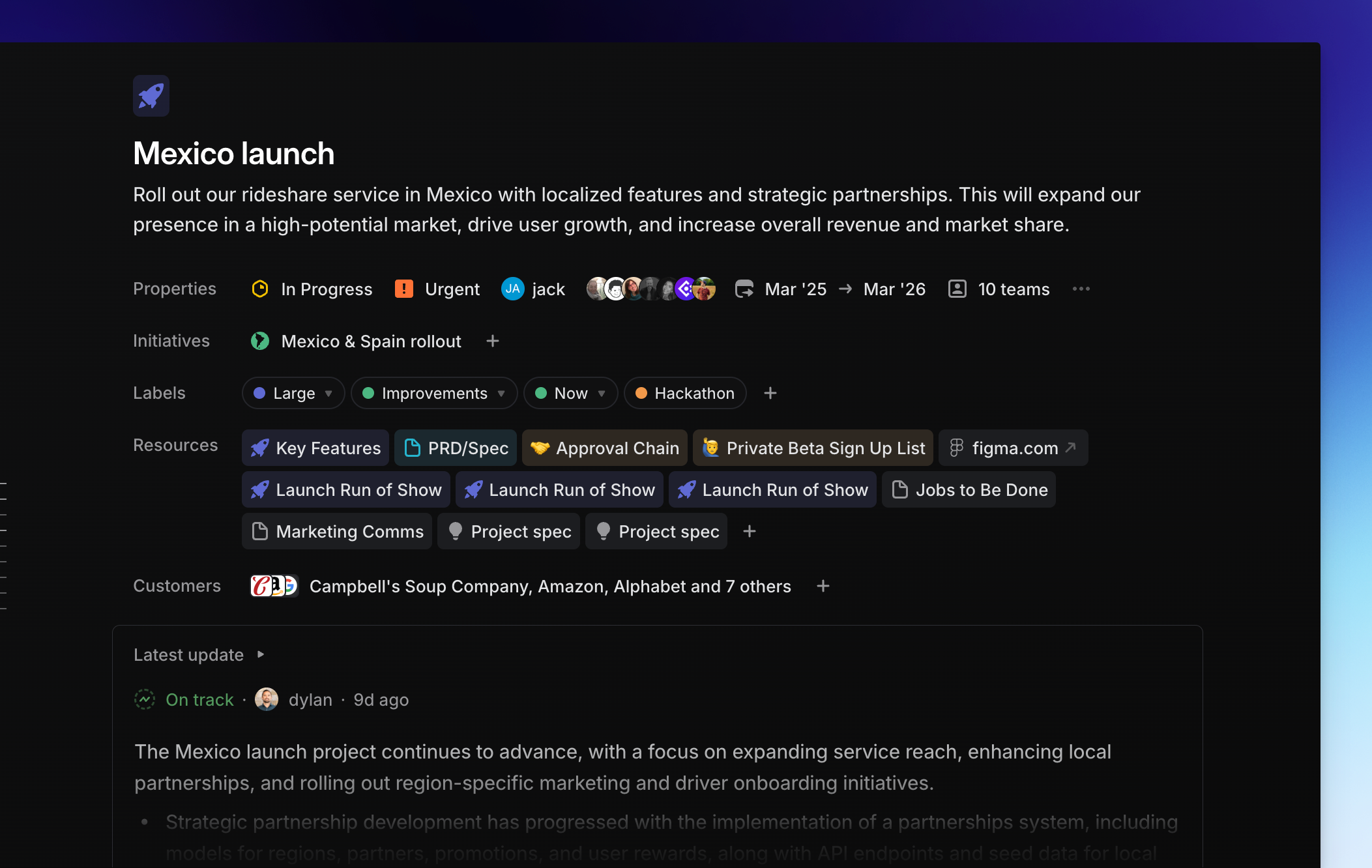
Linear 공식 문서 제공 이미지. 프로젝트의 기본 정보와 Resources, 최신 업데이트가 같은 개요에 모인다. 출처: Projects · 이미지 크게 보기
실무에서는 ‘가입 화면 개선’처럼 제목만 적기보다, “처음 가입하는 사용자가 오류를 이해하고 다음 단계로 이동할 수 있게 한다”처럼 결과를 적어 보세요. 이어서 이번 범위와 제외 범위, 성공 여부를 확인할 방법을 정하면 이슈를 나누기 쉬워집니다.
마일스톤과 사이클은 다른 질문에 답합니다
마일스톤은 ‘문제 정의 완료 → 디자인 검토 → 구현·검증 → 배포’처럼 중간 도착점을 표시하는 데 적합합니다. 사이클은 그중 이번 기간에 처리할 이슈를 정하는 장치입니다. 팀 설정에서 활성화하며, 출시일과 반드시 일치하지 않는 반복 작업 주기입니다. 사이클 설정과 동작
예를 들어 디자인 검토를 마일스톤으로 잡고, 이번 사이클에는 사용자 흐름 정리와 오류 문구 검토를 넣을 수 있습니다. 일정이 밀렸다면 사이클의 완료율만 볼 것이 아니라, 어떤 결정이나 선행 작업 때문에 다음 마일스톤에 도달하지 못하는지 확인해야 합니다.
여러 프로젝트의 순서를 볼 때는 프로젝트 목록의 Display → Timeline을 사용합니다. 마일스톤과 프로젝트 간 의존 관계를 함께 볼 수 있지만, 개별 이슈를 타임라인에 펼치는 기능은 아닙니다. 작업 하나하나의 간트 차트가 필수라면 이 차이를 먼저 확인하세요. 타임라인 공식 가이드
진행 상태와 위험을 함께 공유합니다
프로젝트 업데이트는 진행 설명과 함께 On track, At risk, Off track으로 건강 상태를 표시합니다. 정기 작성 알림도 설정할 수 있습니다. 프로젝트 업데이트 가이드
주간 업데이트는 다음 세 문장으로 시작해도 충분합니다.
- 진척: 가입 오류 문구 검토를 마쳤고 구현에 착수했습니다.
- 위험: 인증 API의 응답 형식이 확정되지 않아 통합 테스트가 막혀 있습니다.
- 다음 행동: 수요일까지 API 담당자와 형식을 확정하고 목요일에 다시 검증합니다.
이렇게 쓰면 리더는 이슈 목록을 모두 열지 않고도 개입이 필요한 부분을 파악할 수 있습니다. 완료한 작업 수와 프로젝트의 성공 가능성을 구분해서 전달하는 것이 핵심입니다.
3. 문서와 위키: 업무 옆에 팀의 지식을 두기
프로젝트 문서와 팀 문서를 나눠 씁니다
Linear의 문서는 프로젝트에만 붙는 부록이 아닙니다. 팀, 이니셔티브, 이슈, 사이클에도 문서를 연결할 수 있습니다. 따라서 특정 기능의 요구사항과 팀 전체의 운영 규칙을 다른 위치에 두고 관리할 수 있습니다. 문서 기능 가이드
다음과 같이 문서의 쓰임새를 나누는 방식을 권합니다.
| 문서 종류 | 권장 위치 | 적어 둘 내용 |
|---|---|---|
| 팀 운영 위키 | 팀 홈 | 업무 접수 기준, 리뷰 규칙, 신규 팀원 안내 |
| 프로젝트 기획서 | 프로젝트 | 사용자 문제, 목표, 범위, 검증 방법 |
| 기술적 결정 기록 | 관련 프로젝트나 이슈 | 대안, 선택 이유, 영향받는 작업 |
| 주간 회의록 | 팀 또는 프로젝트 | 결정 사항, 미해결 질문, 후속 이슈 |
팀 홈에서는 주요 문서와 링크를 고정할 수 있습니다. 온보딩 안내, 배포 절차, 회의록처럼 반복해서 찾는 자료의 입구로 활용하기 좋습니다. 팀 문서와 홈 화면
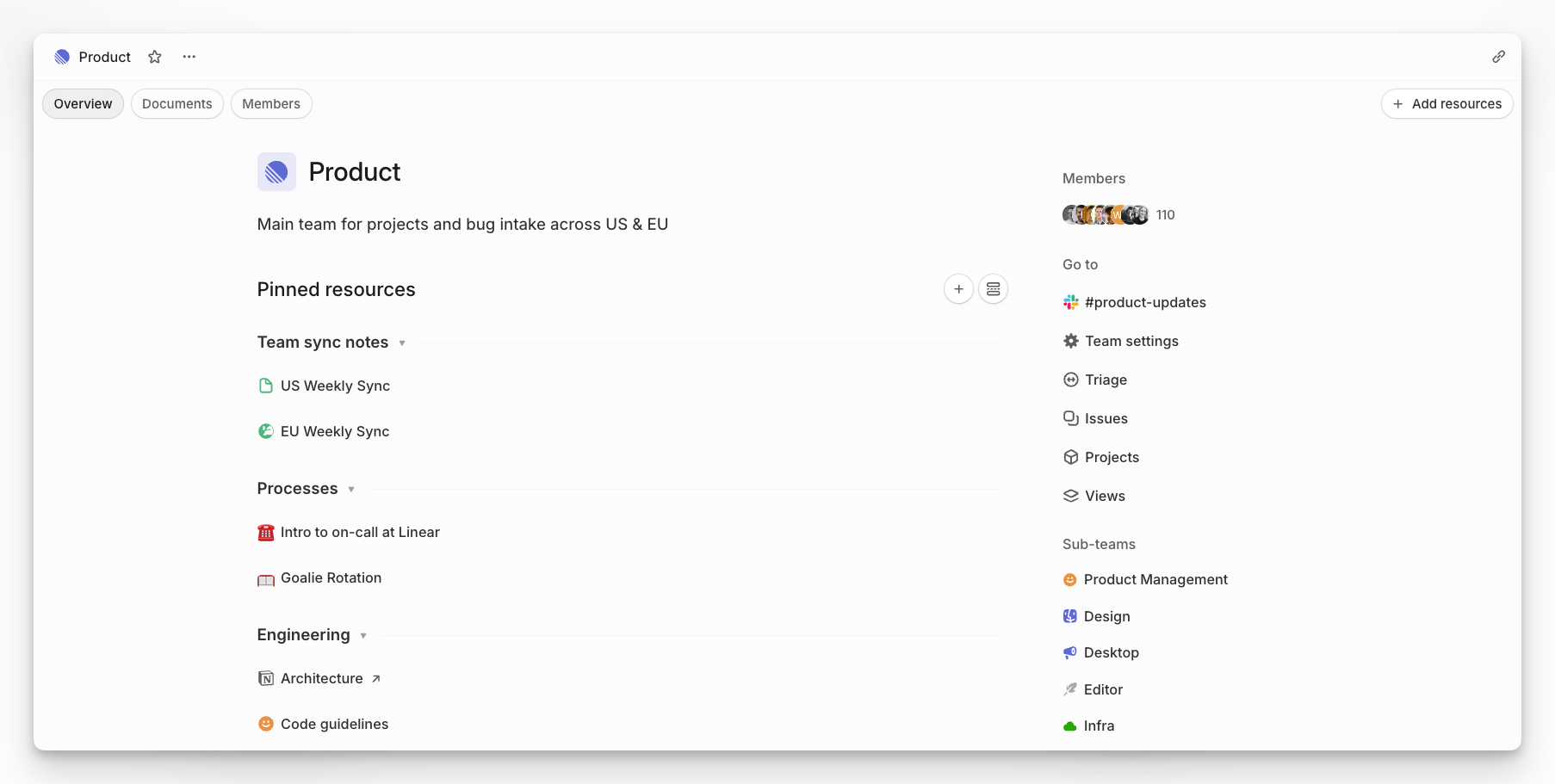
Linear 공식 문서 제공 이미지. 팀 홈의 Pinned resources가 팀 문서와 외부 자료의 안내판 역할을 한다. 출처: Teams · 이미지 크게 보기
함께 편집하고, 결정 내용을 이슈로 이어 갑니다
문서는 실시간 공동 편집, 선택한 문장에 대한 인라인 댓글, 버전 기록과 복원을 지원합니다. 문서 안에서 @로 이슈나 문서를 참조하고, 변경 알림을 구독하거나 문서 템플릿을 만들어 반복 작성에 사용할 수도 있습니다. 편집·댓글·버전 기록
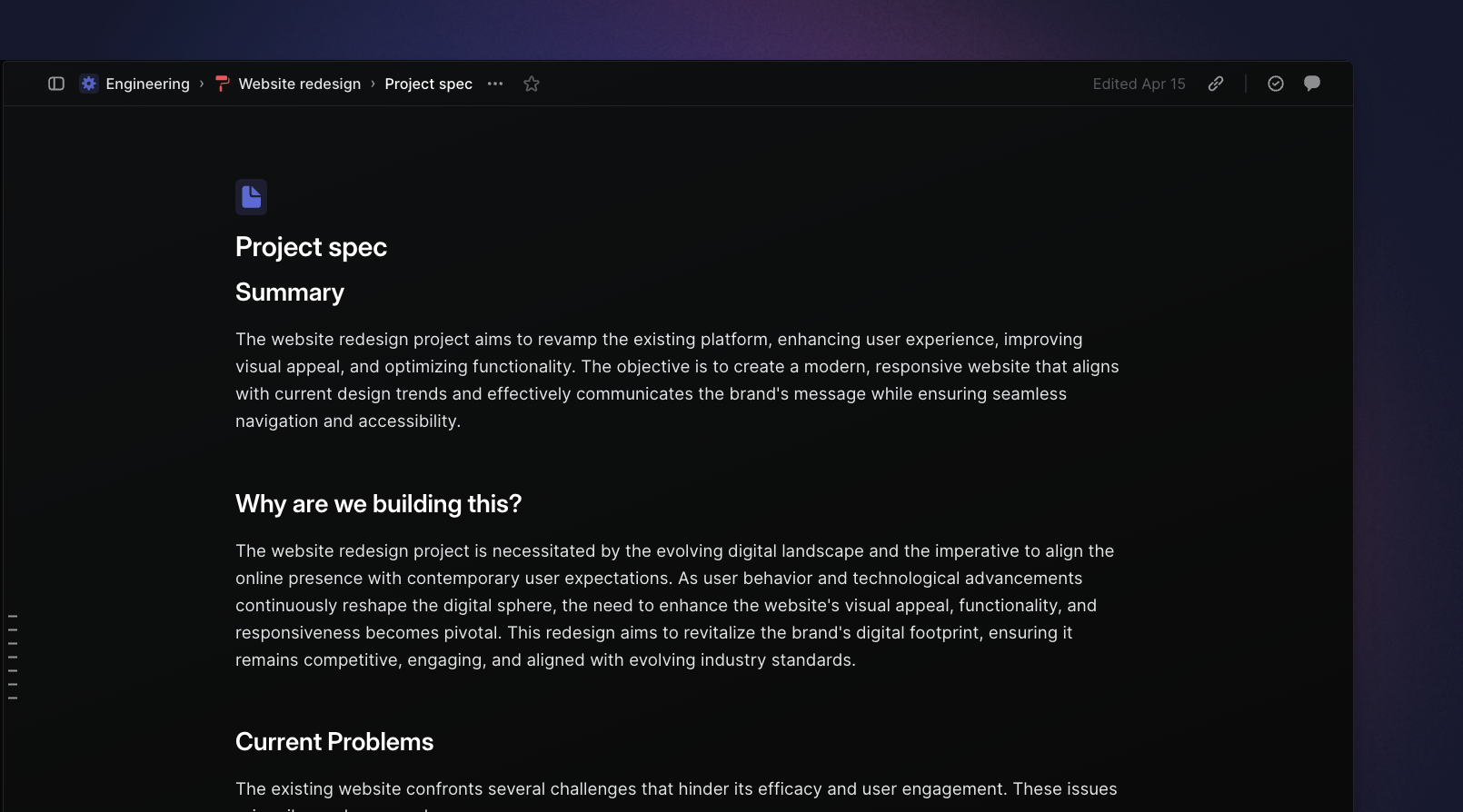
Linear 공식 문서 제공 이미지. Project spec에 배경과 문제를 정리하고 관련 업무로 연결할 수 있다. 출처: Documents · 이미지 크게 보기
예를 들어 기획서의 ‘오류 시 입력값 유지’ 문장에 디자이너가 예외 상황을 댓글로 남기고, 개발자가 조건을 보완한 뒤 구현 이슈를 연결합니다. 문서에는 결정의 이유를 남기고, 이슈에는 완료 조건과 담당자를 적습니다. 문서에 체크리스트만 길게 쌓아 두면 진행 상황을 따로 추적하기 어려워집니다.
위키의 품질은 운영 규칙에서 나옵니다
팀 문서마다 관리 담당자와 다음 검토일을 본문에 적고, 이미 결정된 정책과 논의 중인 제안을 구분해 보세요. 이는 기능의 자동 보장이라기보다 팀이 정할 편집 규칙입니다. 회의가 끝나면 결정 내용을 문서에 반영하고 후속 작업을 이슈로 연결하는 습관이 중요합니다.
전사 규정집, 복잡한 문서 분류 체계, 외부 공개 지식 포털까지 옮기려면 먼저 실제 요구사항을 점검해야 합니다. 문서 계층, 검색 방식, 공개 범위와 권한, 내보내기 방식이 팀에 맞는지 대표 문서 몇 개로 시험하세요. 이미 관리가 잘 되는 자료는 원본을 유지하고 프로젝트의 리소스 링크로 연결하는 방식도 가능합니다. 외부 자료 연결
4. 협업의 장점: 대화가 실행과 기록으로 이어집니다
기획자는 범위를 문서로 정리하고, 디자이너는 검토 의견을 남기며, 개발자는 이슈와 코드 변경을 연결합니다. 프로젝트 리드는 업데이트로 전체 상황을 공유합니다. 이 역할 분담이 자리 잡으면 같은 상태를 여러 곳에 다시 적는 일을 줄일 수 있습니다.
들어오는 요청을 검토하는 입구도 있습니다. 팀에서 Triage를 켜면 다른 팀이나 연동 도구에서 들어온 이슈를 확인하고 우선순위를 정할 수 있습니다. ‘접수됨’과 ‘이번에 하기로 결정함’을 구분하는 데 유용합니다. Triage 가이드
자주 쓰는 외부 연결은 다음 두 가지입니다.
| 연결 도구 | 가능한 흐름 | 먼저 정할 운영 규칙 |
|---|---|---|
| GitHub | PR을 이슈에 연결하고 설정한 규칙에 따라 상태 변경 | 코드 병합과 실제 배포 중 어느 시점을 완료로 볼지 |
| Slack | 메시지에서 이슈를 만들고 조건에 맞는 스레드의 댓글 동기화 | 요청을 이슈로 전환할 기준과 알림을 받을 채널 |
GitHub 연동은 이슈 상태 자동화와 이슈 동기화를 지원합니다. Slack의 메시지 작업으로 이슈를 생성하려면 해당 연동을 사용할 수 있는 Linear 사용자여야 하며, 댓글 동기화에는 채널에 Linear가 연결되어 있는 등 조건이 있습니다. 연동을 켠다고 모든 대화와 업무 상태가 자동으로 일치하는 것은 아닙니다. GitHub 연동, Slack 연동
또한 Linear Agent는 접근 권한이 있는 이슈·프로젝트·문서의 정보를 찾고 요약하거나 업무를 생성·수정하는 데 사용할 수 있습니다. Linear Agent 가이드
처음에는 “이번 프로젝트에서 아직 답하지 않은 질문을 관련 이슈와 함께 정리해 줘”처럼 범위를 좁혀 활용해 보세요. 자동으로 작업을 변경하는 흐름을 늘리기 전에, 요약의 근거와 누락을 사람이 검토하는 방식부터 정착시키는 편이 좋습니다.
5. 작은 팀의 2주 도입 예시
가상의 제품 팀이 ‘신규 사용자 온보딩 개선’ 프로젝트를 진행한다고 가정해 보겠습니다. 아래는 Linear가 강제하는 절차가 아니라 시작하기 쉬운 운영 예시입니다.
- 첫날 — 팀과 프로젝트를 만듭니다. 프로젝트 리드 한 명을 정하고 목표, 제외 범위, 검증 방법을 개요에 적습니다. 상태 이름은 대기·진행·검토·완료처럼 팀이 이해하는 소수로 시작합니다.
- 둘째 날 — 기획서와 팀 홈을 준비합니다. 프로젝트에는 문제 정의 문서를 만들고, 팀 홈에는 리뷰 규칙과 회의록을 고정합니다. 기존 디자인 원본이나 조사 자료는 링크로 연결합니다.
- 첫 주 — 이슈를 나누고 이번 작업을 고릅니다. ‘가입 폼 구현’ 하나로 묶기보다 오류 표시, 입력값 유지, 키보드 탐색처럼 검증 가능한 결과로 나눕니다. 각 이슈에 담당자, 완료 조건, 관련 문서를 연결하고 2주 사이클에 넣습니다.
- 중간 점검 — 위험과 결정을 기록합니다. 프로젝트 업데이트에 진척·위험·다음 행동을 적습니다. 범위가 바뀌면 문서와 이슈를 함께 수정하고, 추가 요청은 기존 우선순위와 비교해 수용 여부를 정합니다.
- 둘째 주 말 — 결과와 운영 방식을 돌아봅니다. 완료한 이슈 외에 실제 사용자 흐름이 개선되었는지 확인합니다. 다음 프로젝트에서도 쓸 문서 구조는 템플릿으로 남기고, 계속 찾기 어려웠던 자료는 팀 홈에서 접근하기 쉽게 정리합니다.
기획서의 첫 버전은 다음 다섯 항목이면 시작할 수 있습니다.
| 항목 | 작성 예시 |
|---|---|
| 문제 | 가입 오류가 발생하면 사용자가 원인과 복구 방법을 알기 어렵다 |
| 목표 | 오류 원인과 다음 행동을 화면에서 이해할 수 있게 한다 |
| 범위 | 오류 문구, 입력값 유지, 키보드로 오류 위치 이동 |
| 제외 범위 | 가입 단계 전체 재설계와 로그인 정책 변경 |
| 검증 | 대표 오류 시나리오와 키보드 탐색을 확인하고 사용성 테스트 결과를 기록한다 |
이슈의 완료 조건도 구체적으로 쓰세요. ‘오류 처리 완료’보다 ‘잘못 입력한 필드를 알리고, 이미 입력한 값은 유지되며, 키보드로 수정 위치에 도달할 수 있음’이 검토할 때 훨씬 유용합니다.
6. 어떤 팀에 잘 맞고, 무엇을 확인해야 할까요?
Linear는 기능 개발, 제품 개선, 디자인 검토처럼 작업을 작게 나누고 결과를 반복해서 확인하는 팀이 검토하기 좋은 도구입니다. 여러 팀이 함께 만드는 프로젝트에서 문서와 실행 상태를 연결하려는 경우에도 장점이 있습니다. 이는 앞서 살펴본 기능을 바탕으로 한 도입 판단이며, 모든 조직에서 같은 효과를 보장하는 뜻은 아닙니다.
반면 업무의 중심이 정교한 인력·원가 계산, 개별 작업 단위의 간트 차트, 전사 문서 포털이라면 핵심 시나리오부터 시험해야 합니다. 도구를 정한 뒤 팀의 모든 업무를 억지로 맞추기보다, 실제 프로젝트 하나가 어떻게 끝까지 진행되는지 확인하는 편이 좋습니다.
요금제는 가격 숫자보다 필요한 기능의 경계를 먼저 보세요. 확인일 기준으로 Free는 멤버 수 제한 없이 팀 2개와 이슈 250개를 제공하고, Basic은 팀 5개와 무제한 이슈를 제공합니다. 비공개 팀과 게스트는 Business 이상에 포함됩니다. 현재 요금제
게스트도 일반 멤버와 같은 기준으로 과금됩니다. 외부 파트너를 무료로 초대하는 방식이라고 가정하지 마세요. 게스트는 초대된 팀의 이슈·프로젝트·문서에 접근하는 구조이므로 협력사와 공유할 범위도 먼저 설계해야 합니다. 멤버와 게스트 권한
7. 처음에는 프로젝트 하나와 문서 세 개로 시작하세요
첫 도입 목표를 ‘모든 업무를 이전하기’로 잡기보다, 하나의 프로젝트에서 다음 질문에 답할 수 있는지 확인해 보세요.
- 지금 가장 중요한 일과 담당자를 바로 찾을 수 있는가?
- 이 일을 하는 이유와 최신 결정이 문서에 남아 있는가?
- 막힌 이유와 다음 행동을 회의 전에 파악할 수 있는가?
프로젝트 기획서, 팀 운영 규칙, 주간 회의록 세 문서부터 연결해 보면 충분합니다. 2주 뒤에 상태를 묻는 메시지, 문서 찾기에 걸리는 시간, 후속 작업 누락이 줄었는지 팀과 함께 확인하세요. 문서가 실제 작업에 쓰이고 작업 결과가 다시 문서에 반영될 때, Linear의 프로젝트 관리와 위키 기능을 함께 사용하는 가치가 드러납니다.
When tasks live on a board, specifications in a document tool, and decisions in chat, where should a new teammate start reading? Linear is a collaboration tool designed to connect this information for teams building products. Its scope extends from tracking bugs and feature requests to project planning, documents, and progress sharing across teams.
The central question when evaluating Linear is how easily you can find both the work to do and the reason for doing it. This guide focuses on the connection between projects and documents, with practical operating examples for a small team.
Features and plan conditions were checked against official websites and documentation on 2026-10-21. The onboarding example below is a fictional project used to explain the workflow.
1. Six concepts to learn first
You do not need to configure every feature immediately. These distinctions make it easier to decide where work belongs.
| Concept | Role | Onboarding improvement example |
|---|---|---|
| Workspace | Collaboration space for a company or organization | The company's shared work environment |
| Team | Group with its own workflow and responsibilities | Product team, mobile team |
| Issue | Individual task to track and complete | Improve signup form error messages |
| Project | Work grouped around a clear outcome | Improve new-user onboarding |
| Initiative | Broader goal connecting multiple projects | Improve the early customer experience |
| Cycle | Work a team focuses on during a set period | Issues to address over the next two weeks |
Issues can have an assignee, status, and priority. Projects and cycles organize the same issue from different perspectives: a signup form fix can belong to the onboarding project and the current two-week cycle. Avoid thinking of a cycle as a folder nested under a project. Linear concepts guide
For a small organization, start with one team and one active project. Instead of reproducing every department name, define teams around the people who actually manage priorities and workflow together.
2. Project management: connect goals to work and timing
Keep the goal and ownership in the overview
Projects can involve multiple teams. The overview brings together the description, lead, dates, documents, links, and milestones, giving new participants a place to understand the context. Use + in a project's Resources section to create a document or add external material. Official project guide
Official image from Linear documentation. Project properties, Resources, and the latest update share one overview. Source: Projects · View full-size image
Rather than only naming the project “Improve signup,” describe the outcome: “Help first-time users understand errors and move to the next step.” Then define what is in scope, what is excluded, and how you will check success. This makes the work easier to split into issues.
Milestones and cycles answer different questions
Milestones mark intermediate destinations such as problem definition, design review, implementation and validation, and release. A cycle identifies which issues the team will tackle during a particular period. It is enabled in team settings and follows a repeating cadence that does not have to match release dates. Cycle configuration and behavior
For example, design review can be a milestone, while mapping the user flow and reviewing error copy belong in the current cycle. If the schedule slips, look beyond cycle completion percentages: identify the decision or prerequisite preventing the next milestone.
To compare the sequencing of projects, choose Display → Timeline in a project view. You can see milestones and project dependencies, but this does not place individual issues on a timeline. Check this distinction first if a task-by-task Gantt chart is essential. Official timeline guide
Communicate risk alongside progress
Project updates combine a written explanation with a health indicator: On track, At risk, or Off track. You can also configure reminders to publish updates regularly. Project updates guide
A weekly update can start with three short statements.
- Progress: Error copy review is complete, and implementation has started.
- Risk: Integration testing is blocked because the authentication API response format is undecided.
- Next action: Agree on the format with the API owner by Wednesday and validate again on Thursday.
This helps leads identify where intervention is needed without opening every issue. Distinguish the number of completed tasks from the likelihood of achieving the project's goal.
3. Documents and wikis: keep team knowledge close to the work
Separate project documents from team documents
Linear documents are more than project attachments. They can also be linked to teams, initiatives, issues, and cycles. This lets you keep feature requirements and team-wide operating guidelines in different contexts. Documents guide
Consider organizing documents by their purpose.
| Document type | Suggested location | What to record |
|---|---|---|
| Team operating wiki | Team home | Intake criteria, review rules, new-member guidance |
| Project brief | Project | User problem, goal, scope, validation approach |
| Technical decision record | Related project or issue | Alternatives, rationale, affected work |
| Weekly meeting notes | Team or project | Decisions, open questions, follow-up issues |
The team home lets you pin important documents and links. It can serve as the entry point for frequently used material such as onboarding guidance, release procedures, and meeting notes. Team documents and home
Official image from Linear documentation. Pinned resources on the team home provide an entry point to team documents and external material. Source: Teams · View full-size image
Edit together and connect decisions to issues
Documents support real-time collaboration, inline comments on selected text, and version history with restoration. Use @ to reference issues or documents, subscribe to changes, and create document templates for recurring writing. Editing, comments, and version history
Official image from Linear documentation. A Project spec records context and problems and can connect to related work. Source: Documents · View full-size image
For example, a designer comments on an edge case beside “Preserve entered values after an error.” A developer refines the conditions and links the implementation issue. Keep the reasoning in the document and the acceptance criteria and assignee in the issue. A long checklist inside a document alone makes execution harder to track separately.
A useful wiki needs operating conventions
Write a maintainer and next review date in each team document, and distinguish agreed policies from proposals under discussion. These are editorial conventions your team adopts, rather than automatic guarantees of the feature. After meetings, update the document with decisions and connect follow-up work to issues.
Before moving company policies, a complex document taxonomy, or a public knowledge portal, test your actual requirements. Try representative documents to assess hierarchy, search, visibility, permissions, and export. Material that is already well maintained can stay in its original location and be linked from project resources. Linking external resources
4. Collaboration: turn conversations into action and records
Product planners define scope in documents, designers leave review feedback, and developers connect issues to code changes. The project lead shares the overall situation through updates. Once these roles are clear, the team can reduce repeated status entry across tools.
Incoming requests have a review point, too. Enabling Triage lets a team review and prioritize issues arriving from other teams or integrations. It helps distinguish “received” from “chosen for execution.” Triage guide
Two useful external connections are:
| Tool | Possible workflow | Convention to define first |
|---|---|---|
| GitHub | Link PRs to issues and change status according to configured rules | Whether completion means merged code or a deployed change |
| Slack | Create issues from messages and sync comments in eligible threads | When a request becomes an issue and which channel receives notifications |
The GitHub integration supports issue status automation and issue synchronization. Creating issues through Slack message actions requires an eligible Linear user; comment synchronization also depends on conditions such as Linear being available in the channel. Enabling an integration does not automatically reconcile every conversation and work status. GitHub integration, Slack integration
Linear Agent can also find and summarize information in accessible issues, projects, and documents, or create and update work. Linear Agent guide
Begin with a narrow request, such as “List unanswered questions in this project and link the relevant issues.” Establish human review of evidence and omissions before expanding workflows that automatically modify work.
5. A two-week adoption example for a small team
Imagine a product team running an “Improve new-user onboarding” project. The following is a suggested starting routine, not a process enforced by Linear.
- Day one — create the team and project. Choose one project lead and record the goal, exclusions, and validation approach in the overview. Start with a few understandable states such as waiting, in progress, review, and done.
- Day two — prepare the brief and team home. Create a problem-definition document in the project, then pin review rules and meeting notes on the team home. Link existing design files and research.
- Week one — split issues and choose the current work. Instead of one “Implement signup form” issue, define verifiable outcomes such as error display, preserving input, and keyboard navigation. Add an assignee, acceptance criteria, and related documents to each issue, then put them in a two-week cycle.
- Midpoint — record risks and decisions. Publish progress, risks, and next actions in a project update. When scope changes, update both documents and issues. Compare new requests against existing priorities before accepting them.
- End of week two — review outcomes and the process. Beyond completed issues, check whether the actual user flow improved. Turn reusable document structures into templates and make frequently misplaced resources easier to reach from the team home.
Five fields are enough for the first version of a project brief.
| Field | Example |
|---|---|
| Problem | Users struggle to understand signup errors and how to recover |
| Goal | Make the cause and next action understandable on screen |
| Scope | Error copy, preserving input, keyboard access to the error location |
| Out of scope | Redesigning the entire signup flow or changing login policy |
| Validation | Check representative error scenarios and keyboard navigation, and record usability test findings |
Make acceptance criteria equally concrete. “Identify the invalid field, preserve existing input, and let keyboard users reach the correction point” is much more useful in review than “Error handling complete.”
6. Which teams should consider it, and what should they check?
Linear is worth evaluating for teams that break work into small tasks and repeatedly validate outcomes, such as feature development, product improvement, and design review. It also offers advantages for connecting documentation and execution across teams. This is an adoption assessment based on the features above, not a promise of identical results in every organization.
If your core work depends on detailed staffing and cost calculations, individual-task Gantt charts, or a company-wide document portal, test those scenarios first. Follow one real project through its entire lifecycle before trying to fit every activity into the tool.
Look at feature boundaries before comparing price figures. As of the verification date, Free includes unlimited members, two teams, and 250 issues; Basic includes five teams and unlimited issues. Private teams and guests are included from Business upward. Current plans
Guests are billed as regular members. Do not assume external partners can join for free. Guests access issues, projects, and documents in the teams they are invited to, so define the scope of partner access before inviting them. Member and guest permissions
7. Start with one project and three documents
Instead of making “move all work” the first goal, use one project to answer these questions.
- Can people quickly find the most important work and its owner?
- Do documents preserve the rationale and latest decisions?
- Can the team understand blockers and next actions before a meeting?
Start by connecting a project brief, team operating guidelines, and weekly meeting notes. After two weeks, review whether status questions, time spent searching for documents, and missed follow-ups have decreased. The value of using Linear's project and wiki features together appears when documents guide real work and the results feed back into those documents.
任务在看板里,需求在文档工具里,决策留在聊天记录中,新成员应该从哪里读起?Linear 是为产品团队连接这些信息而设计的协作工具。它从缺陷和功能请求的 Issue 管理,扩展到项目规划、文档和跨团队进度沟通。
评估 Linear 时,关键在于能否轻松找到要做的工作,以及为什么要做。本文围绕项目与文档的连接介绍功能,并提供小团队可以采用的工作示例。
功能和套餐条件根据 2026-10-21 的官方网站及文档核实。下文的新用户引导案例是用于说明工作方式的虚构项目。
1. 先了解六个基本概念
无需一开始就配置所有功能。理解下面的区别,就更容易判断工作应该放在哪里。
| 概念 | 作用 | 新用户引导优化示例 |
|---|---|---|
| Workspace | 公司或组织的协作空间 | 公司的整体工作空间 |
| Team | 定义工作流程和职责范围的团队 | 产品团队、移动端团队 |
| Issue | 需要跟踪并完成的单项工作 | 改善注册表单的错误提示 |
| Project | 围绕明确成果组织的工作 | 优化新用户引导流程 |
| Initiative | 连接多个项目的上层目标 | 改善新客户的早期体验 |
| Cycle | 团队在固定时间段内集中处理的工作 | 本轮两周内要处理的 Issue |
Issue 可以设置负责人、状态和优先级。Project 与 Cycle 从不同角度组织同一项工作。例如,注册表单修改既可以属于“新用户引导优化”项目,也可以安排在当前两周的 Cycle 中。不要把 Cycle 理解为 Project 下面的文件夹。Linear 概念指南
小型组织可以从一个团队和一个进行中的项目开始。与其照搬所有部门名称,不如按照实际共同管理优先级和工作状态的人来划分团队。
2. 项目管理:把目标连接到工作与时间安排
在概览中集中目标与责任人
项目可以由多个团队共同参与。概览汇集说明、负责人、日期、文档、链接和里程碑,为新参与者提供理解背景的入口。在项目的 Resources 中点击 +,即可创建文档或添加外部资料。项目官方指南
Linear 官方文档提供的图片。项目属性、Resources 与最新进展集中在同一概览中。来源:Projects · 查看大图
实际使用时,不要只写“改善注册页面”这个标题,可以描述预期结果:“让首次注册的用户理解错误并进入下一步。”接着明确本次范围、不包含的内容以及验证成功的方法,就更容易拆分 Issue。
里程碑和 Cycle 回答不同的问题
里程碑适合标记“问题定义完成 → 设计评审 → 实现与验证 → 发布”等阶段成果。Cycle 用来决定当前时间段内处理哪些 Issue。它需要在团队设置中启用,是一种重复的工作节奏,不必与发布日期一致。Cycle 设置与运行方式
例如,可以把设计评审设为里程碑,在当前 Cycle 中安排用户流程梳理和错误文案评审。如果进度延迟,不要只看 Cycle 的完成百分比,还要找出阻碍下一个里程碑的决策或前置工作。
需要比较多个项目的先后顺序时,在项目视图中选择 Display → Timeline。它可以展示里程碑和项目依赖关系,但不会将单个 Issue 展开到时间轴上。如果逐项任务的甘特图是必要条件,应先确认这个区别。时间轴官方指南
同时传达进度与风险
项目更新可以同时包含文字说明与健康状态:On track、At risk 或 Off track,还可以设置定期发布提醒。项目更新指南
每周更新可以先从三句话开始。
- 进展:注册错误文案已完成评审,进入实现阶段。
- 风险:认证 API 的响应格式尚未确定,集成测试受阻。
- 下一步:周三前与 API 负责人确定格式,周四再次验证。
这样,负责人不用打开每个 Issue,也能判断哪里需要介入。关键是区分“完成了多少任务”和“项目目标是否有望实现”。
3. 文档与 Wiki:把团队知识放在工作旁边
区分项目文档与团队文档
Linear 文档不只是项目的附属材料,也可以关联到团队、Initiative、Issue 和 Cycle。因此,某个功能的需求与整个团队的运行规则可以放在不同的上下文中管理。文档功能指南
建议根据用途组织文档。
| 文档类型 | 建议位置 | 记录内容 |
|---|---|---|
| 团队工作 Wiki | 团队首页 | 请求受理标准、评审规则、新成员指南 |
| 项目需求文档 | 项目 | 用户问题、目标、范围、验证方法 |
| 技术决策记录 | 相关项目或 Issue | 备选方案、选择理由、受影响的工作 |
| 每周会议纪要 | 团队或项目 | 决策、未解决的问题、后续 Issue |
团队首页可以固定重要文档和链接,适合作为入职指南、发布流程、会议纪要等常用资料的入口。团队文档与首页
Linear 官方文档提供的图片。团队首页的 Pinned resources 为团队文档和外部资料提供统一入口。来源:Teams · 查看大图
共同编辑,并把决策连接到 Issue
文档支持实时协作、针对选中文本的行内评论,以及版本历史与恢复。可以用 @ 引用 Issue 或文档,订阅变更通知,也可以创建模板以便重复使用。编辑、评论与版本历史
Linear 官方文档提供的图片。Project spec 用于记录背景和问题,并可连接相关工作。来源:Documents · 查看大图
例如,设计师在“发生错误时保留已输入的值”旁边评论一个边界情况,开发者补充条件后关联实现 Issue。文档保留决策原因,Issue 记录验收标准和负责人。如果只在文档中不断增加检查清单,就难以单独跟踪执行进度。
Wiki 的质量取决于维护规则
可以在每份团队文档正文中写明维护者和下次检查日期,并区分已确定的规则与讨论中的提案。这是团队约定的编辑规则,并非功能自动提供的保证。会议结束后,把决策更新到文档,并将后续工作连接到 Issue。
如果还打算迁移公司制度、复杂的文档分类体系或公开知识门户,应先检查实际需求。用几份典型文档测试层级、搜索、可见范围、权限和导出方式。已有良好维护的资料也可以保留原件,再通过项目资源链接引用。连接外部资料
4. 协作优势:让讨论转化为执行与记录
产品策划者在文档中定义范围,设计师提供评审意见,开发者把 Issue 与代码修改关联起来,项目负责人通过更新分享整体情况。职责明确后,可以减少在多个工具中重复填写状态的工作。
新请求也有专门的审核入口。团队启用 Triage 后,可以检查来自其他团队或集成工具的 Issue,并确定优先级。这有助于区分“已收到”和“已决定执行”。Triage 指南
常用的两种外部连接如下。
| 工具 | 可以实现的流程 | 应先明确的工作规则 |
|---|---|---|
| GitHub | 将 PR 关联到 Issue,按配置规则变更状态 | 将代码合并还是实际部署视为完成 |
| Slack | 从消息创建 Issue,同步符合条件的讨论串评论 | 哪些请求需要转成 Issue,以及哪个频道接收通知 |
GitHub 集成支持 Issue 状态自动化和 Issue 同步。通过 Slack 消息操作创建 Issue,需要是可使用该集成的 Linear 用户;评论同步也有条件,例如频道中必须可以使用 Linear。启用集成并不意味着所有对话与任务状态都会自动一致。GitHub 集成、Slack 集成
Linear Agent 还可以查找和总结有权访问的 Issue、项目与文档信息,或创建、修改工作。Linear Agent 指南
初期可以限定任务范围,例如“整理这个项目中尚未回答的问题,并附上相关 Issue”。在扩大自动修改工作的流程前,先建立由人检查依据和遗漏的习惯。
5. 小团队的两周导入示例
假设一个产品团队正在推进“优化新用户引导”项目。下面是便于起步的工作示例,并非 Linear 强制要求的流程。
- 第一天——创建团队与项目。指定一位项目负责人,在概览中写明目标、排除范围和验证方法。状态先使用少量团队能理解的名称,例如等待、进行中、评审、完成。
- 第二天——准备需求文档与团队首页。在项目中创建问题定义文档,在团队首页固定评审规则和会议纪要。现有设计文件及研究资料通过链接引用。
- 第一周——拆分 Issue 并选择当前工作。不要只创建一个“实现注册表单”,而是拆成错误提示、保留输入、键盘导航等可验证成果。为每个 Issue 指定负责人、验收标准和相关文档,再安排进两周 Cycle。
- 中途检查——记录风险与决策。在项目更新中写明进展、风险和下一步。范围发生变化时,同时修改文档和 Issue;新增请求应与已有优先级比较后再决定是否接受。
- 第二周末——回顾成果与工作方式。除了统计已完成 Issue,还要确认实际用户流程是否改善。把可复用的文档结构保存为模板,并在团队首页整理那些经常找不到的资料入口。
需求文档的第一版可以从下面五项开始。
| 项目 | 示例 |
|---|---|
| 问题 | 注册出错时,用户难以理解原因与恢复方法 |
| 目标 | 在页面中清楚展示错误原因和下一步操作 |
| 范围 | 错误文案、保留输入、通过键盘到达错误位置 |
| 排除范围 | 重做整个注册流程或修改登录策略 |
| 验证 | 检查典型错误场景和键盘导航,并记录可用性测试结果 |
Issue 的验收标准也应具体。“指出无效字段、保留已有输入,并能通过键盘到达修改位置”,比“错误处理完成”更便于评审。
6. 适合哪些团队,还需要确认什么?
对于功能开发、产品改善、设计评审等需要拆分工作并反复验证成果的团队,Linear 值得评估。它也适合探索如何在跨团队项目中连接文档与执行状态。这是根据前述功能给出的选型判断,不代表所有组织都会得到同样的效果。
如果核心需求是精细的人力与成本核算、单项任务甘特图或全公司文档门户,应优先测试这些场景。先看一个真实项目如何走完整个过程,再决定是否把更多工作迁入。
比较套餐时,应先看功能边界。截至核实日期,Free 提供不限成员数、2 个团队和 250 个 Issue;Basic 提供 5 个团队和不限数量的 Issue。私有团队和访客从 Business 套餐起提供。当前套餐
访客按普通成员的标准计费。不要假定可以免费邀请外部合作伙伴。访客访问其受邀团队中的 Issue、项目和文档,因此应先设计与合作方共享的范围。成员与访客权限
7. 从一个项目和三份文档开始
首次导入时,不必把“迁移所有工作”作为目标。可以先通过一个项目回答以下问题。
- 能否立即找到当前最重要的工作及其负责人?
- 文档是否保留了工作的原因和最新决策?
- 能否在开会前了解阻碍因素和下一步行动?
先连接项目需求文档、团队工作规则和每周会议纪要即可。两周后,与团队一起检查询问状态的消息、查找文档的时间和遗漏的后续工作是否减少。当文档真正指导工作,工作结果又反馈到文档时,同时使用 Linear 项目管理与 Wiki 功能的价值才会显现。
タスクはボード、仕様は文書ツール、決定事項はチャットに残っていると、新しく参加した人は何から読めばよいのでしょうか。Linearは、プロダクトを作るチームがこうした情報をつなげて働くための協業ツールです。バグや機能要望を追跡するIssue管理から、プロジェクト計画、文書、チーム間の進捗共有まで扱います。
Linearを検討するときのポイントは、取り組む仕事と、その理由をどれだけ簡単に一緒に見つけられるかです。この記事ではプロジェクトと文書のつながりを中心に機能を紹介し、小さなチームでも始められる運用例を提案します。
機能とプランの条件は、2026-10-21時点の公式サイトとドキュメントで確認しました。以下のオンボーディング改善例は、使い方を説明するための架空のプロジェクトです。
1. 最初に押さえる六つの概念
最初からすべての機能を設定する必要はありません。次の違いを理解すれば、仕事をどこに置くか判断しやすくなります。
| 概念 | 役割 | オンボーディング改善の例 |
|---|---|---|
| Workspace | 会社や組織の共同作業空間 | 自社全体のワークスペース |
| Team | ワークフローと担当範囲を持つチーム | プロダクトチーム、モバイルチーム |
| Issue | 追跡して完了させる個別の仕事 | 登録フォームのエラーメッセージ改善 |
| Project | 明確な成果に向けてまとめた仕事 | 新規ユーザーのオンボーディング改善 |
| Initiative | 複数のプロジェクトをつなぐ上位目標 | 新規顧客の初期体験の改善 |
| Cycle | 一定期間にチームが集中する仕事 | 今回の2週間で取り組むIssue |
Issueには担当者、ステータス、優先度などを設定できます。ProjectとCycleは、同じIssueを異なる視点で整理します。登録フォームの修正なら、「オンボーディング改善」プロジェクトに所属しながら「今回の2週間」のCycleにも含められます。CycleをProject配下のフォルダーと考えないほうが理解しやすいでしょう。Linearの概念ガイド
小規模な組織では、チーム一つと進行中のプロジェクト一つから始めてみてください。すべての部署名を再現するより、実際に優先順位や仕事の状態を一緒に管理する単位をチームにすると運用しやすくなります。
2. プロジェクト管理:目標を仕事と日程につなぐ
概要に目標と責任者を集める
プロジェクトには複数のチームが参加できます。概要には説明、リード、日程、文書やリンク、マイルストーンを集約でき、新しい参加者が背景を理解する入口になります。プロジェクトのResourcesで+を押すと、文書の作成や外部資料の追加ができます。プロジェクト公式ガイド
Linear公式ドキュメントの提供画像。基本情報、Resources、最新の更新が同じ概要にまとまっています。出典:Projects · 画像を拡大して見る
実務では「登録画面の改善」という名前だけでなく、「初めて登録するユーザーがエラーを理解し、次のステップに進めるようにする」と成果を書いてみましょう。今回の対象範囲、対象外、成功を確かめる方法まで決めると、Issueに分けやすくなります。
マイルストーンとCycleは別の問いに答える
マイルストーンは「課題定義完了 → デザインレビュー → 実装・検証 → リリース」のような途中の到達点を示すのに向いています。Cycleは、その期間に取り組むIssueを決める仕組みです。チーム設定で有効にする繰り返しの作業周期で、リリース日と一致する必要はありません。Cycleの設定と動作
例えばデザインレビューをマイルストーンにして、今回のCycleにはユーザーフロー整理とエラー文言の確認を入れます。日程が遅れたら、Cycleの完了率だけでなく、どの判断や先行作業が次の到達点を妨げているかを確認しましょう。
複数プロジェクトの順序を見るには、プロジェクトビューでDisplay → Timelineを使います。マイルストーンやプロジェクト間の依存関係を確認できますが、個別のIssueをタイムラインに並べる機能ではありません。タスク単位のガントチャートが必須なら、最初にこの違いを確認してください。タイムライン公式ガイド
進捗とリスクを一緒に共有する
プロジェクト更新では、文章による説明とともにOn track、At risk、Off trackで健全性を示せます。定期的な投稿のリマインダーも設定できます。プロジェクト更新ガイド
週次更新は、次の三つの短い文章から始められます。
- 進捗:登録エラー文言のレビューを終え、実装に着手しました。
- リスク:認証APIのレスポンス形式が未確定で、結合テストが止まっています。
- 次の行動:水曜日までにAPI担当者と形式を決め、木曜日に再検証します。
これならリードはすべてのIssueを開かなくても、介入が必要な箇所を把握できます。完了した作業数と、プロジェクトが目標に到達できそうかを分けて伝えることが大切です。
3. 文書とWiki:仕事の近くにチームの知識を置く
プロジェクト文書とチーム文書を使い分ける
Linearの文書はプロジェクトの付録にとどまりません。Team、Initiative、Issue、Cycleにも関連付けられます。そのため、特定機能の要件とチーム全体の運用ルールを異なる場所で管理できます。文書機能ガイド
文書は用途に応じて整理することをおすすめします。
| 文書の種類 | 推奨する場所 | 記録する内容 |
|---|---|---|
| チーム運用Wiki | チームホーム | 依頼の受付基準、レビュールール、新メンバー向け案内 |
| プロジェクト企画書 | プロジェクト | ユーザーの課題、目標、範囲、検証方法 |
| 技術的な意思決定記録 | 関連プロジェクトやIssue | 代替案、選択理由、影響する仕事 |
| 週次議事録 | チームまたはプロジェクト | 決定事項、未解決の問い、後続Issue |
チームホームには重要な文書やリンクを固定できます。オンボーディング案内、リリース手順、議事録など、繰り返し参照する資料の入口として使えます。チーム文書とホーム画面
Linear公式ドキュメントの提供画像。チームホームのPinned resourcesが、チーム文書と外部資料の案内役になります。出典:Teams · 画像を拡大して見る
共同編集し、決定事項をIssueにつなぐ
文書はリアルタイムの共同編集、選択した文章へのインラインコメント、バージョン履歴と復元に対応しています。@でIssueや文書を参照し、変更通知を購読したり、繰り返し使う文書テンプレートを作ったりすることもできます。編集・コメント・バージョン履歴
Linear公式ドキュメントの提供画像。Project specに背景と課題をまとめ、関連する仕事へつなげられます。出典:Documents · 画像を拡大して見る
例えば「エラー時も入力値を保持する」という文章にデザイナーが例外ケースをコメントし、開発者が条件を補足して実装Issueを関連付けます。文書には決定の理由を残し、Issueには完了条件と担当者を書きます。文書内に長いチェックリストを積み重ねるだけでは、進捗を個別に追いにくくなります。
Wikiの品質は運用ルールから生まれる
各チーム文書の本文に管理担当者と次回確認日を書き、決定済みの方針と検討中の提案を区別してみましょう。これは機能が自動保証するものではなく、チームで決める編集ルールです。会議後に決定事項を文書へ反映し、後続作業をIssueにつなぐ習慣が重要です。
全社規程、複雑な文書分類、社外公開のナレッジポータルまで移すなら、先に実際の要件を確認してください。代表的な文書で階層、検索、公開範囲、権限、エクスポート方法を試しましょう。すでに適切に管理されている資料は原本を残し、プロジェクトのリソースとしてリンクする方法もあります。外部資料のリンク
4. 協業の利点:会話を実行と記録につなぐ
企画担当者は文書で範囲を定義し、デザイナーはレビュー意見を残し、開発者はIssueとコード変更をつなぎます。プロジェクトリードは更新で全体状況を共有します。この役割分担が定着すると、同じ状態を複数の場所に書き直す作業を減らせます。
新しい依頼を確認する入口もあります。チームでTriageを有効にすると、他チームや連携ツールから来たIssueを確認し、優先度を決められます。「受け付けた」と「今回取り組むと決めた」を分けるのに役立ちます。Triageガイド
よく使う外部連携として、次の二つがあります。
| ツール | 可能な流れ | 先に決める運用ルール |
|---|---|---|
| GitHub | PRをIssueに関連付け、設定したルールに従って状態を変更 | コードのマージと実際のデプロイのどちらを完了とするか |
| Slack | メッセージからIssueを作り、条件を満たすスレッドでコメントを同期 | 依頼をIssueにする基準と通知を受けるチャンネル |
GitHub連携はIssueの状態自動化とIssue同期に対応しています。Slackのメッセージ操作でIssueを作るには、その連携を利用できるLinearユーザーである必要があります。コメント同期にも、チャンネルでLinearが利用可能であることなどの条件があります。連携を有効にするだけで、すべての会話と作業状態が自動的に一致するわけではありません。GitHub連携、Slack連携
Linear Agentは、アクセス権のあるIssue・プロジェクト・文書の情報を探して要約したり、仕事を作成・更新したりする用途にも使えます。Linear Agentガイド
初めは「このプロジェクトで未回答の問いを、関連Issueと一緒に整理して」のように対象を絞りましょう。仕事を自動変更する流れを増やす前に、要約の根拠や抜けを人が確認する方法を定着させるとよいでしょう。
5. 小さなチームの2週間の導入例
架空のプロダクトチームが「新規ユーザーのオンボーディング改善」を進めるとします。以下は始めやすい運用例であり、Linearが強制する手順ではありません。
- 初日 — チームとプロジェクトを作る。リードを一人決め、目標、対象外、検証方法を概要に書きます。状態は待機・進行中・レビュー・完了など、チームが理解できる少数から始めます。
- 2日目 — 企画書とチームホームを整える。プロジェクトに課題定義文書を作り、チームホームにレビュールールと議事録を固定します。既存のデザイン原本や調査資料はリンクします。
- 1週目 — Issueを分け、今回の作業を選ぶ。「登録フォーム実装」一件にまとめず、エラー表示、入力値保持、キーボード操作など検証できる成果に分けます。各Issueに担当者、完了条件、関連文書を設定し、2週間のCycleに入れます。
- 中間確認 — リスクと決定を記録する。プロジェクト更新に進捗・リスク・次の行動を書きます。範囲が変わったら文書とIssueをともに更新し、追加依頼は既存の優先順位と比較して受け入れを判断します。
- 2週目の終わり — 成果と運用を振り返る。完了Issueだけでなく、実際のユーザーフローが改善したか確認します。再利用できる文書構造はテンプレートにし、探しにくかった資料はチームホームからアクセスしやすく整えます。
企画書の初版は、次の五項目から始められます。
| 項目 | 記入例 |
|---|---|
| 課題 | 登録エラーの原因と復旧方法をユーザーが理解しにくい |
| 目標 | 原因と次の操作を画面上で理解できるようにする |
| 対象範囲 | エラー文言、入力値保持、キーボードによるエラー箇所への移動 |
| 対象外 | 登録手順全体の再設計とログイン方針の変更 |
| 検証 | 代表的なエラーとキーボード操作を確認し、ユーザビリティテストの結果を記録する |
Issueの完了条件も具体的にしましょう。「エラー処理完了」より、「不正な項目が分かり、入力済みの値が保持され、キーボードで修正箇所に到達できる」のほうがレビューに役立ちます。
6. どんなチームに向き、何を確認すべきか
Linearは、機能開発、プロダクト改善、デザインレビューのように、仕事を小さく分けて成果を繰り返し確認するチームが検討しやすいツールです。複数チームのプロジェクトで文書と実行状況をつなぐ用途にも利点があります。これは前述の機能に基づく導入判断であり、すべての組織で同じ効果を保証するものではありません。
一方、詳細な人員・原価計算、個別タスクのガントチャート、全社文書ポータルが中心なら、主要な利用場面を先に試してください。あらゆる仕事をツールに合わせる前に、実際のプロジェクト一つが最後までどう進むかを確認するほうがよいでしょう。
料金は金額だけでなく、必要な機能の境界を確認しましょう。確認日時点でFreeはメンバー数無制限、チーム2個、Issue250件、Basicはチーム5個とIssue無制限です。非公開チームとゲストはBusiness以上に含まれます。現在のプラン
ゲストも通常メンバーと同じ基準で課金されます。外部パートナーを無料で招待できると想定しないでください。ゲストは招待されたチームのIssue・プロジェクト・文書にアクセスするため、共有範囲を先に設計する必要があります。メンバーとゲストの権限
7. 最初はプロジェクト一つと文書三つから
初回導入の目標を「すべての仕事の移行」にせず、一つのプロジェクトで次の問いに答えられるか確かめてみましょう。
- 今最も重要な仕事と担当者をすぐに見つけられるか。
- 仕事の理由と最新の決定が文書に残っているか。
- 詰まっている理由と次の行動を会議前に把握できるか。
まずは企画書、チーム運用ルール、週次議事録をつなげれば十分です。2週間後、状態を尋ねるメッセージ、文書を探す時間、後続作業の漏れが減ったかをチームで確認してください。文書が実際の仕事に使われ、その結果が文書へ戻ってくるとき、Linearのプロジェクト管理とWiki機能を組み合わせる価値が見えてきます。
Si las tareas están en un tablero, las especificaciones en una herramienta de documentos y las decisiones en el chat, ¿por dónde empieza una persona que acaba de incorporarse? Linear es una herramienta de colaboración diseñada para conectar esa información en equipos que desarrollan productos. Abarca desde el seguimiento de errores y solicitudes de funciones hasta la planificación de proyectos, la documentación y la comunicación del progreso entre equipos.
Al evaluar Linear, la pregunta clave es con qué facilidad puedes encontrar tanto el trabajo pendiente como la razón para hacerlo. Esta guía explica la conexión entre proyectos y documentos y propone ejemplos prácticos para un equipo pequeño.
Las funciones y condiciones de los planes se comprobaron en los sitios y documentos oficiales el 2026-10-21. El caso de incorporación de nuevos usuarios que aparece a continuación es un proyecto ficticio para explicar el funcionamiento.
1. Seis conceptos para empezar
No hace falta configurar todas las funciones desde el principio. Estas diferencias ayudan a decidir dónde colocar cada trabajo.
| Concepto | Función | Ejemplo de mejora de la incorporación |
|---|---|---|
| Workspace | Espacio de colaboración de una empresa u organización | El entorno de trabajo compartido de la empresa |
| Team | Equipo con su propio flujo y responsabilidades | Equipo de producto, equipo móvil |
| Issue | Trabajo individual que se sigue hasta completarlo | Mejorar los mensajes de error del registro |
| Project | Trabajo agrupado en torno a un resultado claro | Mejorar la incorporación de nuevos usuarios |
| Initiative | Objetivo superior que conecta varios proyectos | Mejorar la experiencia inicial de los clientes |
| Cycle | Trabajo en el que se concentra un equipo durante un periodo | Tareas que se abordarán en las próximas dos semanas |
Las issues pueden tener responsable, estado y prioridad. Los proyectos y los ciclos organizan una misma issue desde perspectivas distintas: una corrección del registro puede pertenecer al proyecto de incorporación y al ciclo actual de dos semanas. Conviene evitar la idea de que un ciclo es una carpeta dentro de un proyecto. Guía de conceptos de Linear
En una organización pequeña, empieza con un equipo y un proyecto activo. En lugar de reproducir todos los departamentos, organiza los equipos alrededor de las personas que realmente gestionan juntas las prioridades y los estados del trabajo.
2. Gestión de proyectos: conectar objetivos, tareas y fechas
Reúne el objetivo y la responsabilidad en la vista general
Un proyecto puede involucrar a varios equipos. Su vista general reúne descripción, responsable principal, fechas, documentos, enlaces e hitos, y ofrece un punto de entrada para entender el contexto. Usa + en la sección Resources del proyecto para crear un documento o añadir material externo. Guía oficial de proyectos
Imagen oficial de la documentación de Linear. Las propiedades del proyecto, Resources y la última actualización aparecen en la misma vista general. Fuente: Projects · Ver imagen ampliada
En vez de escribir únicamente «Mejorar el registro», describe el resultado: «Ayudar a quienes se registran por primera vez a entender los errores y avanzar al siguiente paso». Después, define el alcance, las exclusiones y cómo comprobarás el éxito. Así será más fácil dividir el trabajo en issues.
Los hitos y los ciclos responden a preguntas diferentes
Los hitos marcan resultados intermedios, como definición del problema, revisión de diseño, implementación y validación, y lanzamiento. Un ciclo determina qué issues se abordarán en un periodo concreto. Se activa en la configuración del equipo y sigue una cadencia recurrente que no tiene por qué coincidir con las fechas de lanzamiento. Configuración y funcionamiento de los ciclos
Por ejemplo, la revisión de diseño puede ser un hito, mientras que ordenar el recorrido del usuario y revisar los mensajes de error se incluyen en el ciclo actual. Si hay retrasos, no mires solo el porcentaje de finalización: identifica qué decisión o requisito previo impide alcanzar el siguiente hito.
Para comparar la secuencia de varios proyectos, selecciona Display → Timeline en una vista de proyectos. Puedes ver hitos y dependencias entre proyectos, pero no se muestran las issues individuales en esa línea temporal. Comprueba esta diferencia si necesitas un diagrama de Gantt por tarea. Guía oficial de la línea temporal
Comunica los riesgos junto con el progreso
Las actualizaciones del proyecto combinan una explicación escrita con un indicador de salud: On track, At risk u Off track. También puedes configurar recordatorios para publicarlas periódicamente. Guía de actualizaciones de proyectos
Una actualización semanal puede comenzar con tres frases breves.
- Progreso: Terminó la revisión de los mensajes de error y comenzó la implementación.
- Riesgo: Las pruebas de integración están bloqueadas porque no se ha decidido el formato de respuesta de la API de autenticación.
- Siguiente acción: Acordar el formato con la persona responsable de la API antes del miércoles y volver a validar el jueves.
Esto permite detectar dónde hace falta intervenir sin abrir todas las issues. Lo importante es distinguir entre la cantidad de tareas completadas y la probabilidad de alcanzar el objetivo del proyecto.
3. Documentos y wikis: mantener el conocimiento cerca del trabajo
Separa los documentos del proyecto y los del equipo
Los documentos de Linear no son simples anexos de un proyecto. También se pueden vincular a equipos, iniciativas, issues y ciclos. Así, los requisitos de una función y las normas generales del equipo pueden mantenerse en contextos diferentes. Guía de documentos
Una forma de organizarlos es según su propósito.
| Tipo de documento | Ubicación sugerida | Qué registrar |
|---|---|---|
| Wiki operativa del equipo | Página de inicio del equipo | Criterios de recepción, reglas de revisión, guía para nuevas incorporaciones |
| Documento de proyecto | Proyecto | Problema del usuario, objetivo, alcance y validación |
| Registro de decisiones técnicas | Proyecto o issue relacionados | Alternativas, motivos de la elección y trabajo afectado |
| Notas de reunión semanal | Equipo o proyecto | Decisiones, preguntas abiertas e issues de seguimiento |
La página de inicio del equipo permite fijar documentos y enlaces importantes. Puede funcionar como entrada a materiales consultados con frecuencia, como guías de incorporación, procedimientos de lanzamiento y notas de reunión. Documentos y página de inicio del equipo
Imagen oficial de la documentación de Linear. Pinned resources ofrece una entrada a los documentos del equipo y al material externo. Fuente: Teams · Ver imagen ampliada
Edita en colaboración y conecta las decisiones con las issues
Los documentos admiten edición colaborativa en tiempo real, comentarios sobre texto seleccionado e historial de versiones con restauración. Puedes usar @ para mencionar issues o documentos, suscribirte a cambios y crear plantillas para textos recurrentes. Edición, comentarios e historial de versiones
Imagen oficial de la documentación de Linear. Un Project spec registra el contexto y los problemas y puede conectarse con el trabajo relacionado. Fuente: Documents · Ver imagen ampliada
Por ejemplo, una diseñadora comenta una excepción junto a «Conservar los valores introducidos después de un error». Un desarrollador precisa las condiciones y enlaza la issue de implementación. El documento conserva los motivos; la issue, los criterios de aceptación y la persona responsable. Acumular una lista interminable de comprobaciones dentro de un documento dificulta seguir la ejecución por separado.
Una wiki útil necesita reglas de mantenimiento
Escribe en cada documento quién lo mantiene y cuándo debe revisarse, y distingue las políticas acordadas de las propuestas en discusión. Son convenciones editoriales del equipo, no garantías automáticas de la función. Después de una reunión, incorpora las decisiones al documento y conecta las acciones posteriores con issues.
Antes de trasladar políticas corporativas, una clasificación documental compleja o un portal público de conocimiento, prueba los requisitos reales. Usa documentos representativos para evaluar jerarquía, búsqueda, visibilidad, permisos y exportación. El material que ya está bien mantenido puede conservarse en su ubicación original y enlazarse desde los recursos del proyecto. Enlaces a recursos externos
4. Colaboración: convertir las conversaciones en acciones y registros
Quien planifica el producto define el alcance en documentos; diseño aporta comentarios; desarrollo conecta issues con cambios de código. La persona que lidera el proyecto comunica la situación general mediante actualizaciones. Una vez claras estas responsabilidades, se puede reducir la repetición de estados en varias herramientas.
Las solicitudes entrantes también tienen un punto de revisión. Al activar Triage, el equipo puede revisar y priorizar issues que llegan de otros equipos o integraciones. Ayuda a diferenciar «recibido» de «seleccionado para ejecutar». Guía de Triage
Dos conexiones externas habituales son:
| Herramienta | Flujo posible | Regla que conviene definir primero |
|---|---|---|
| GitHub | Vincular PR con issues y cambiar estados según las reglas configuradas | Si completar significa fusionar el código o desplegar el cambio |
| Slack | Crear issues desde mensajes y sincronizar comentarios en hilos compatibles | Cuándo convertir una solicitud en issue y qué canal recibe notificaciones |
La integración de GitHub admite automatización de estados y sincronización de issues. Crear issues mediante acciones de mensajes en Slack requiere ser un usuario de Linear que pueda usar la integración. La sincronización de comentarios también depende de condiciones como que Linear esté disponible en el canal. Activar una integración no hace que todas las conversaciones y estados coincidan automáticamente. Integración con GitHub, integración con Slack
Linear Agent también permite buscar y resumir información de issues, proyectos y documentos accesibles, así como crear y actualizar trabajo. Guía de Linear Agent
Empieza con una petición concreta, como «Enumera las preguntas sin resolver de este proyecto y enlaza las issues relacionadas». Antes de ampliar los procesos que modifican trabajo automáticamente, establece una revisión humana de las fuentes y las omisiones.
5. Un ejemplo de adopción de dos semanas para un equipo pequeño
Imaginemos que un equipo de producto trabaja en «Mejorar la incorporación de nuevos usuarios». Esta es una rutina sugerida para empezar, no un proceso impuesto por Linear.
- Primer día: crear el equipo y el proyecto. Elige una persona responsable del proyecto y registra el objetivo, las exclusiones y la validación en la vista general. Empieza con pocos estados comprensibles, como pendiente, en curso, revisión y completado.
- Segundo día: preparar el documento y la página del equipo. Crea un documento de definición del problema dentro del proyecto y fija las reglas de revisión y las notas de reuniones en la página del equipo. Enlaza los archivos de diseño y la investigación existentes.
- Primera semana: dividir las issues y elegir el trabajo actual. En lugar de una sola issue llamada «Implementar formulario de registro», define resultados verificables: mostrar errores, conservar valores y permitir navegación por teclado. Añade responsable, criterios de aceptación y documentos relacionados a cada issue, y colócalas en un ciclo de dos semanas.
- Revisión intermedia: registrar riesgos y decisiones. Publica progreso, riesgos y siguientes acciones en una actualización. Si cambia el alcance, modifica documentos e issues. Compara las nuevas solicitudes con las prioridades existentes antes de aceptarlas.
- Final de la segunda semana: revisar resultados y funcionamiento. Además de contar issues completadas, comprueba si mejoró el recorrido real del usuario. Convierte las estructuras documentales reutilizables en plantillas y facilita el acceso desde la página del equipo a los recursos difíciles de encontrar.
Cinco campos bastan para la primera versión del documento de proyecto.
| Campo | Ejemplo |
|---|---|
| Problema | Los usuarios no entienden los errores del registro ni cómo recuperarse |
| Objetivo | Mostrar con claridad la causa y la siguiente acción en pantalla |
| Alcance | Mensajes de error, conservación de valores y acceso por teclado al error |
| Fuera del alcance | Rediseñar todo el registro o cambiar la política de inicio de sesión |
| Validación | Comprobar errores representativos y navegación por teclado, y registrar los resultados de las pruebas de usabilidad |
Los criterios de aceptación también deben ser concretos. «Identificar el campo incorrecto, conservar los valores y permitir llegar con el teclado al punto de corrección» sirve mucho más para revisar que «Gestión de errores terminada».
6. ¿Qué equipos deberían considerarlo y qué deben comprobar?
Linear merece una evaluación en equipos que dividen el trabajo en tareas pequeñas y validan resultados de forma recurrente: desarrollo de funciones, mejoras de producto o revisiones de diseño. También ofrece ventajas para conectar documentación y ejecución entre equipos. Esta valoración se basa en las funciones descritas y no garantiza el mismo resultado en todas las organizaciones.
Si el trabajo depende de cálculos detallados de personal y costes, diagramas de Gantt por tarea o un portal documental corporativo, prueba primero esos escenarios. Observa cómo un proyecto real recorre todo su ciclo antes de intentar adaptar cada actividad a la herramienta.
Al comparar planes, mira primero sus límites funcionales. En la fecha de comprobación, Free incluye miembros ilimitados, dos equipos y 250 issues; Basic incluye cinco equipos e issues ilimitadas. Los equipos privados y los invitados están incluidos desde Business. Planes actuales
Los invitados se facturan como miembros normales. No presupongas que puedes invitar gratis a colaboradores externos. Acceden a las issues, proyectos y documentos de los equipos a los que se les invita, por lo que debes definir antes el alcance de lo compartido. Permisos de miembros e invitados
7. Empieza con un proyecto y tres documentos
En lugar de fijar como objetivo inicial «migrar todo el trabajo», utiliza un proyecto para responder estas preguntas.
- ¿Se encuentra rápidamente el trabajo más importante y a su responsable?
- ¿Los documentos conservan los motivos y las últimas decisiones?
- ¿Se entienden los bloqueos y las siguientes acciones antes de una reunión?
Empieza conectando el documento de proyecto, las normas de trabajo del equipo y las notas semanales. Después de dos semanas, revisa si disminuyeron las preguntas sobre estados, el tiempo dedicado a buscar documentos y los seguimientos olvidados. El valor de combinar los proyectos y la wiki de Linear aparece cuando los documentos orientan el trabajo real y sus resultados vuelven a la documentación.