Claude Code 로컬 vs 클라우드: 실전 활용과 토큰 사용량 가이드
Claude Code를 로컬에서 쓸지 클라우드에서 쓸지는 작업에 필요한 환경과 검토 방식으로 결정하는 편이 좋습니다. 로컬 실행과 모델 추론을 구분하고, Remote Control과 클라우드의 차이, 작업을 넘기는 절차, 토큰 사용량을 비교하고 줄이는 방법까지 살펴봅니다.
2026-10-24에 확인한 공식 문서를 기준으로 합니다. 기능과 명령은 버전·요금제·조직 정책에 따라 달라집니다. 아래 작업 예시와 비교 실험은 실무에 적용하기 위한 제안이며, 로컬·클라우드 성능을 직접 측정한 벤치마크가 아닙니다.
1. 로컬이라는 말은 코드가 실행되는 장소를 뜻한다
Claude Code 공식 웹사이트에서 소개하는 도구는 파일을 읽고 수정하고 명령을 실행하는 코딩 에이전트입니다. 요청을 받으면 필요한 정보를 읽고, 변경하고, 결과를 확인하는 과정을 반복합니다. (작동 원리)
로컬 CLI에서도 Claude 모델과 통신하기 위해 네트워크를 사용합니다. 내 컴퓨터에서 코드를 실행하는 것과 내 컴퓨터에서 모델을 추론하는 것은 별개입니다. 로컬이라고 오프라인이 되거나 토큰 사용이 없어지는 것은 아닙니다. (데이터 흐름)
| 방식 | 코드·테스트가 실행되는 곳 | 적합한 사용 방식 |
|---|---|---|
| Local | 내 컴퓨터의 작업 환경 | 화면을 보며 빠르게 수정·검증 |
| Cloud | 기본적으로 Anthropic이 관리하는 원격 환경 | 완료 조건이 명확한 작업을 맡긴 뒤 검토 |
| Local + Remote Control | 여전히 내 컴퓨터 | 같은 로컬 작업을 다른 기기에서 조작 |
브라우저를 쓰는지만으로 실행 위치를 판단하면 안 됩니다. 공식 실행 방식 비교를 확인하고, Desktop에서도 세션의 Local·Cloud 선택을 확인하세요. (Desktop 안내)
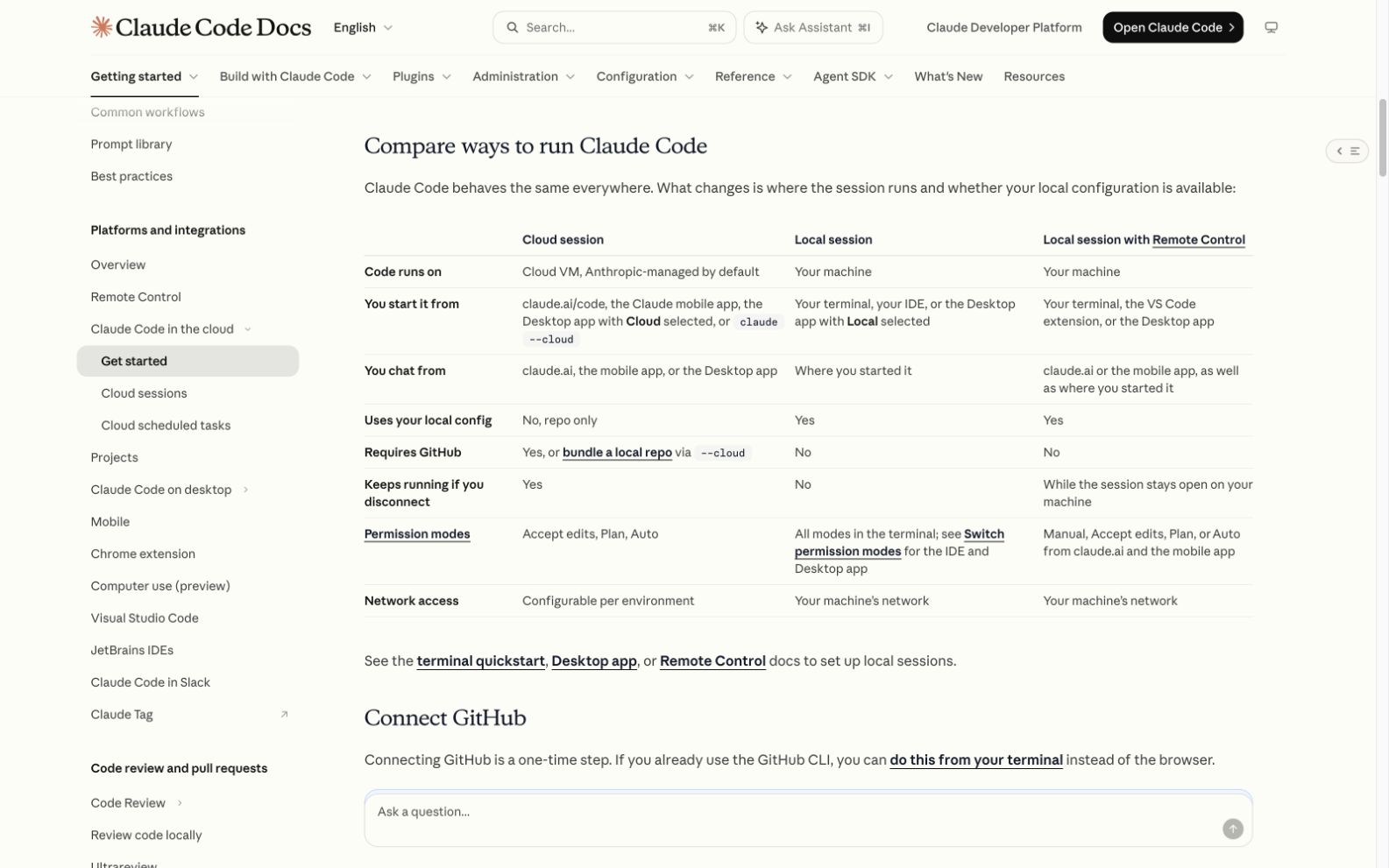
Anthropic 공개 문서의 실행 방식 비교표. 개인 계정 화면이 아닌 공식 설명이다. (출처, 2026-10-24 캡처) 이미지 크게 보기.
2. 작업에 필요한 의존성으로 환경을 고른다
다음은 기능 제한표가 아니라 작업을 배치하는 추천 기준입니다. 같은 저장소에서도 이슈마다 다른 선택이 가능합니다.
| 작업 상황 | 권장 시작점 | 실전 이유 |
|---|---|---|
| 브라우저에서 레이아웃을 계속 보며 수정 | Local | 재현 화면과 수정 결과를 바로 비교하기 편함 |
| 사내 VPN·로컬 DB·기기 시뮬레이터에 의존 | Local | 이미 작동하는 환경에서 원인을 좁히기 쉬움 |
| 독립적인 테스트 보강·문서 수정·작은 리팩터링 | Cloud | 파일 범위와 통과 조건을 전달하기 쉬움 |
| 자리에서 시작한 작업을 이동 중 확인 | Remote Control | 환경을 새로 준비할 필요가 적음 |
| 여러 모듈에 걸친 설계 변경 | 로컬 계획 → 작업별 실행 | 경계와 검증 방법을 먼저 합의하기 좋음 |
클라우드에서 테스트가 실패했을 때는 먼저 코드 오류인지 환경 차이인지 나누세요. 예를 들어 DB 주소가 노트북의 localhost를 가리키거나, OS 전용 도구가 필요하다면 동일한 프롬프트로 재시도해도 해결되지 않을 수 있습니다. 환경을 재현할 수 없다면 그 검증은 로컬에서 맡기는 편이 낫습니다.
3. 로컬에서는 재현·수정·확인을 짧게 반복한다
설치와 로그인은 공식 빠른 시작을 따릅니다. 아래 my-app은 자신의 저장소 경로로 바꾸세요.
cd my-app
claude --permission-mode plan
먼저 재현 조건과 관련 파일을 찾고, 변경 방향이 정해지면 편집을 허용하는 모드로 전환해 구현합니다. CLI 옵션은 명령줄 레퍼런스에서 확인할 수 있습니다.
프롬프트 예시:
모바일 390px에서 설정 모달의 저장 버튼이 가려진다. 관련 컴포넌트와 스타일을 찾아 원인을 설명하고 수정 계획을 제안해 줘. 구현할 때는 기존 데스크톱 배치를 유지하고, 키보드 포커스와 스크롤 동작도 확인해 줘. 완료 보고에는 변경 파일, 실행한 검사, 확인하지 못한 항목을 적어 줘.
수정 전 화면과 재현 절차를 남기고, 수정 뒤 같은 조건에서 비교하세요. 테스트 명령은 프로젝트의 실제 스크립트를 알려 주는 것이 좋습니다. 실패 로그는 핵심 오류와 재현 명령을 주고, 전체 로그 파일의 위치를 함께 제공하면 추가 조사가 필요할 때 읽을 수 있습니다. 검증 방법을 요청에 넣는 접근은 공식 권장 사항과도 맞습니다.
4. 클라우드에는 실행 가능한 작업 묶음을 넘긴다
Claude Code 웹에서 GitHub 연결, 저장소·브랜치 선택, 환경 설정을 마친 뒤 작업을 시작합니다. 처음에는 독립적인 이슈 하나로 환경이 준비됐는지 확인하세요. 계정과 조직에서 허용하는 기능은 클라우드 시작 안내를 따릅니다.
클라우드 환경에는 네트워크 범위, 환경 변수, setup script를 지정할 수 있습니다. 로컬의 개인 설정이나 서비스가 모두 복제된다고 가정하면 안 됩니다. 의존성 설치는 준비 스크립트에 넣고, 테스트 데이터와 필요한 접속 설정을 별도로 준비하세요. (환경 설정)
전달할 작업 메모에는 네 가지를 넣습니다.
- 고칠 동작과 범위: 어떤 입력에서 어떤 결과가 나와야 하는가.
- 기준 상태: 저장소·브랜치·커밋과 관련 파일 경로.
- 검증 방법: 실행 명령, 통과 기준, 재현 데이터.
- 중단 조건: 환경 오류로 같은 검사가 두 번 실패하면 원인을 보고할 것.
GitHub에서 복제하는 경로를 사용하는 경우 로컬 커밋을 먼저 push한 뒤 다음처럼 새 작업을 시작할 수 있습니다.
claude --cloud "Implement docs/tasks/settings-modal.md and report the checks run."--cloud는 새 클라우드 세션을 만듭니다. 기존 CLI 대화 전체를 옮기는 명령은 아닙니다. 로컬 저장소를 업로드하는 별도 bundle 경로도 있으므로, 시작 시 복제·업로드 안내를 확인하세요. (클라우드 전환 안내)
클라우드 결과는 diff와 테스트 보고를 검토한 뒤 로컬에서 마무리할 수 있습니다. 같은 계정과 같은 저장소의 깨끗한 checkout에서 다음 명령으로 세션을 선택합니다.
claude --teleportTeleport 뒤의 로컬 작업은 원래 클라우드 대화에 자동으로 동기화되지 않습니다. 로컬에서 계속 휴대폰으로 조작하려면 Remote Control을 사용합니다. (세션 가져오기 조건)
5. Remote Control은 로컬 환경을 그대로 이어 쓴다
기존 로컬 세션 안에서 /remote-control을 실행한 뒤 표시된 링크로 다른 기기에서 연결합니다. 지원 구독과 조직 설정이 필요하며 API 키만으로는 사용할 수 없습니다. 컴퓨터와 Claude 프로세스가 실행 중이어야 합니다. (Remote Control 공식 문서)
예를 들어 노트북의 개발 DB를 사용하는 테스트를 시작해 두고 휴대폰에서 결과를 확인할 때 유용합니다. 반대로 노트북을 종료하고도 작업을 계속 맡기려면 호스팅된 클라우드 세션이 맞습니다. 원격으로 대화하는 것과 원격 서버에서 실행하는 것을 구분하면 환경을 잘못 옮겨 다시 설정하는 일을 줄일 수 있습니다.
6. 토큰 차이는 장소보다 작업 경로에서 생긴다
공식 문서에는 모든 작업에 적용되는 “클라우드는 로컬의 몇 배”라는 고정 비율이 없습니다. 다음은 에이전트 동작에 근거한 실무적 해석입니다. 같은 요청이라도 읽는 파일, 도구 출력, 추론, 재시도 횟수가 달라지면 총사용량이 달라집니다.
| 사용량을 늘릴 수 있는 상황 | 로컬·클라우드에서 살펴볼 것 | 줄이는 방법 |
|---|---|---|
| 불필요한 탐색 | 긴 개인 지침, 무관한 도구, 불명확한 범위 | 관련 경로와 완료 조건을 먼저 지정 |
| 환경 복구 반복 | 누락된 패키지·변수·서비스 | 준비 단계와 구현 단계를 구분 |
| 긴 로그의 반복 유입 | 매번 전체 테스트 출력을 대화에 추가 | 실패 요약과 원본 로그 위치 전달 |
| 여러 에이전트·세션 | 같은 파일을 중복 조사하고 같은 검사를 반복 | 서로 독립적인 작업만 분리 |
| 과도한 추론 | 단순 수정에도 높은 effort 사용 | 검증 가능한 기본 수준에서 시작 |
쉘 명령이 오래 실행됐다는 사실 자체가 초당 모델 토큰 과금을 뜻하지는 않습니다. 명령을 고르고 결과를 읽고 다음 행동을 결정하는 모델 호출, 그리고 그 과정에 들어오는 정보가 중요합니다. 빨리 끝난 작업도 많은 에이전트를 동시에 썼다면 총사용량이 클 수 있습니다.
문맥에는 사용자가 쓴 문장 외에 지침·읽은 파일·응답 등이 들어갑니다. 하위 에이전트가 큰 자료를 읽고 요약만 돌려주면 주 대화의 문맥은 작게 유지할 수 있지만, 하위 에이전트의 작업이 무료가 되는 것은 아닙니다. (문맥 구조, 하위 에이전트)
7. 토큰 수, 캐시, 청구액을 따로 읽는다
API 비용을 볼 때는 단순 총토큰 하나보다 새 입력·캐시 쓰기·캐시 읽기·출력을 나눠 보세요. 각 항목의 토큰 수에 해당 모델·캐시 기간의 단가를 곱해 더하는 것이 기본 계산입니다. 실제 청구에는 계약과 옵션도 영향을 주므로 현재 API 가격표를 기준으로 합니다.
Prompt caching은 이전 문맥을 재사용합니다. 캐시로 읽은 토큰이 많다고 모두 새 입력 단가로 계산하면 비용을 과대평가하게 됩니다. 반대로 모델이나 설정을 바꾸거나 캐시가 만료되면 재사용 조건이 달라질 수 있습니다. (캐시 동작)
| 확인 목적 | 확인할 곳 | 해석할 때 주의할 점 |
|---|---|---|
| 현재 문맥이 얼마나 찼는가 | /context | 누적 청구 토큰과 다른 지표 |
| 세션 토큰·추정 비용·구독 사용량 | 최신 CLI의 /usage | API 비용 추정값을 구독의 추가 청구액으로 읽지 않기 |
| 실제 API 청구 | 사용 중인 제공자의 청구 화면 | 로컬 추정값과 최종 청구를 구분 |
명령은 공식 명령 목록, 사용량 화면은 비용 관리 안내를 확인하세요. 오래된 안내의 /cost만 찾기보다 자신의 CLI에서 /로 제공 명령을 확인하는 편이 정확합니다.
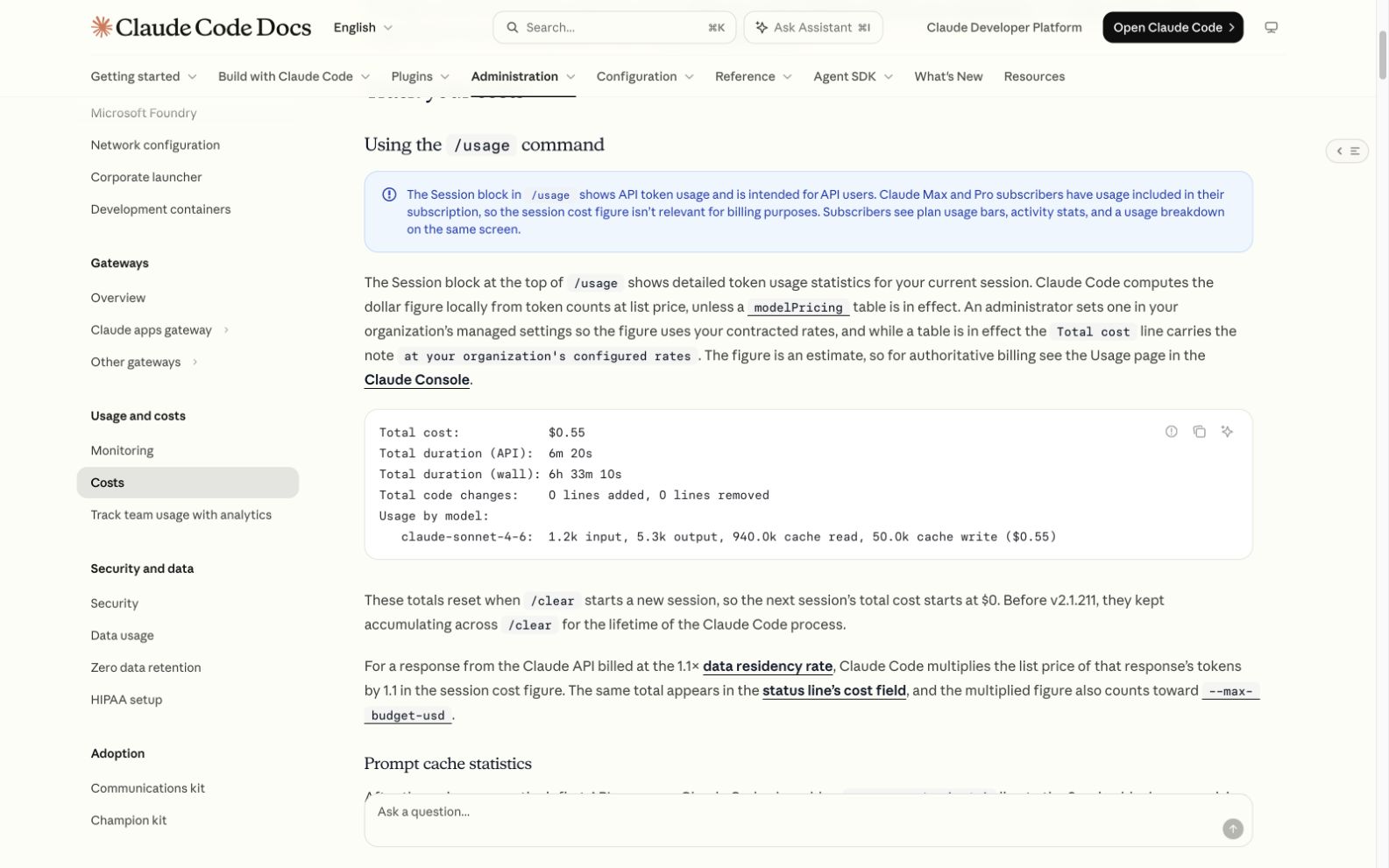
Anthropic 공개 비용 문서의 설명용 예시. 표시된 금액은 이 글의 실측 결과나 예상 견적이 아니다. (출처, 2026-10-24 캡처) 이미지 크게 보기.
구독으로 사용하는 호스팅 클라우드 작업도 Claude·Claude Code의 사용 한도에 합산되며, 공식 안내상 별도 클라우드 VM 비용은 없습니다. 이를 직접 운영하는 서버나 별도 서비스의 비용까지 무료라는 뜻으로 확장하면 안 됩니다. (클라우드 이용 안내)
로컬 CLI에 ANTHROPIC_API_KEY가 설정돼 있으면 구독 대신 API 과금 경로가 사용될 수 있습니다. 비교하기 전에 claude auth status로 로그인 방식을 확인하고 키 값 자체를 로그나 프롬프트에 붙이지 마세요. (구독과 API 인증)
8. 같은 작은 작업으로 비교하고, 결과당 사용량을 본다
처음에는 한 개의 버그 수정으로 비교하세요. 다음 절차는 자체 측정을 위한 제안입니다.
- 같은 커밋에서 로컬과 클라우드 작업을 각각 시작합니다. 첫 실행이 수정한 파일을 두 번째 실행의 출발점으로 쓰지 않습니다.
- 프롬프트·모델·effort·테스트 조건을 맞추고, 설치된 도구와 캐시 상태도 기록합니다.
- 입력·캐시·출력 토큰과 시간, 재시도, 통과한 테스트를 각각 기록합니다. 제공되지 않는 값은 추정치로 채우지 말고 미확인으로 둡니다.
- 환경 준비 실패와 실제 구현 실패를 구분합니다. 한 번의 실행만으로 일반적인 우열을 정하지 않습니다.
- “토큰이 적었는가”와 함께 “검토를 통과했는가, 사람이 얼마나 고쳤는가”를 봅니다.
추천 시작점은 일상적인 변경에 Sonnet 또는 현재 계정의 기본 모델과 보통 수준의 effort를 사용하고, 원인 분석이 막히거나 설계 판단이 어려울 때 Opus와 높은 effort를 비교하는 것입니다. 구체적인 지원 수준은 /model과 /effort에서 확인하세요. 실행 장소를 바꾼다는 이유로 effort까지 자동으로 올릴 필요는 없습니다. (모델·effort 설정)
예를 들어 로컬 작업은 10분 만에 끝났지만 사람이 30분을 고치고, 클라우드 작업은 20분이 걸려도 검토를 바로 통과했다면 단순 속도만으로 평가하기 어렵습니다. 이 시간은 설명을 위한 가정입니다. 팀에서는 작은 작업 여러 건의 기록을 모아, 검토를 통과한 결과 하나를 얻는 데 드는 사용량과 시간을 비교하세요.
9. 실전 기본 흐름은 준비 → 위임 → 검증이다
화면·기기·사내 연결에 민감한 작업은 로컬에서 재현합니다. 독립적인 변경은 요구사항과 테스트를 문서로 남겨 클라우드에 맡깁니다. 이동 중에는 필요한 실행 환경에 따라 Remote Control 또는 클라우드 세션을 선택합니다. 마지막에는 diff와 실행 결과로 완료를 확인합니다.
토큰을 아끼는 첫 조치는 더 약한 모델을 고르는 것만이 아닙니다. 잘못 준비된 환경을 반복해서 복구하게 하지 않고, 이미 확인한 사실을 다시 탐색하게 하지 않고, 완료 조건을 분명하게 만드는 것이 먼저입니다. 이 기반을 갖춘 다음 모델·effort·병렬 작업 수를 하나씩 조정하면 비용과 품질의 차이를 설명할 수 있습니다.
Choose local or cloud Claude Code around the environment and review your task needs. Distinguish local execution from model inference, understand Remote Control, hand work between environments, and learn how to compare and reduce token usage.
This guide uses official documentation checked on October 24, 2026. Features and commands vary by version, plan, and organization policy. The workflows and comparison exercise below are practical suggestions, not a benchmark we ran comparing local and cloud performance.
1. Local describes where your code runs
Claude Code is a coding agent that reads and edits files and runs commands. It gathers the information it needs, makes changes, and checks the results in a repeating loop. (How it works)
Even the local CLI uses the network to communicate with Claude models. Running code on your computer and running model inference on your computer are separate things. Local execution does not make Claude Code offline or eliminate token consumption. (Data flow)
| Approach | Where code and tests run | Useful working style |
|---|---|---|
| Local | Your computer's working environment | Make and verify changes with immediate feedback |
| Cloud | A remote environment managed by Anthropic by default | Delegate a clearly defined task, then review |
| Local + Remote Control | Still your computer | Operate the same local task from another device |
Using a browser does not by itself identify the execution environment. Check the official comparison, and check whether a Desktop session uses Local or Cloud. (Desktop guide)
Execution comparison from Anthropic's public documentation, not a personal account screen. (Source, captured October 24, 2026) View full-size image.
2. Choose around the task's dependencies
These are recommendations for assigning work, not a list of product limitations. Different issues in the same repository can call for different choices.
| Situation | Suggested starting point | Practical reason |
|---|---|---|
| Repeatedly checking a layout in the browser | Local | Compare the reproduced problem and fix directly |
| Depending on a company VPN, local database, or device simulator | Local | Narrow down the cause in an environment that already works |
| Independent tests, documentation, or a small refactor | Cloud | File scope and acceptance criteria are easy to communicate |
| Checking a task while away from your desk | Remote Control | Less environment setup to repeat |
| Design changes across several modules | Plan locally, assign execution by task | Agree on boundaries and verification first |
When a cloud test fails, first distinguish a code defect from an environment difference. A database address pointing to your laptop's localhost, or a dependency on an OS-specific tool, may not be fixed by repeating the same prompt. If the environment cannot be reproduced, keep that verification local.
3. Keep the local reproduce–edit–check loop short
Follow the official quickstart for installation and authentication. Replace my-app below with your repository path.
cd my-app
claude --permission-mode plan
First find the reproduction conditions and relevant files. Once the approach is clear, switch to a mode that allows editing and implement it. See the CLI reference for options.
Example prompt:
At a mobile width of 390px, the settings modal hides its Save button. Find the relevant component and styles, explain the cause, and propose a fix. When implementing, preserve the desktop layout and check keyboard focus and scrolling. Report changed files, checks run, and anything you could not verify.
Record the original screen and reproduction steps, then compare under the same conditions after the fix. Provide the project's actual test commands. For failures, give the key error and reproduction command together with the full log's location, so the agent can read more when needed. Including a verification method in the request also follows the official best practices.
4. Give the cloud an executable work package
In Claude Code on the web, connect GitHub, select a repository and branch, configure the environment, and start a task. Begin with one independent issue to check the setup. Follow the cloud quickstart for features allowed by your account and organization.
Cloud environments let you configure network access, environment variables, and setup scripts. Do not assume every personal setting or local service is copied. Put dependency installation in the preparation script, and prepare test data and connection settings separately. (Environment configuration)
Include four things in the handoff note:
- Behavior and scope: which input should produce which result.
- Starting state: repository, branch, commit, and relevant file paths.
- Verification: commands, passing criteria, and reproduction data.
- Stop condition: report the cause if the same check fails twice because of the environment.
When using the path that clones from GitHub, push local commits first, then start a new task:
claude --cloud "Implement docs/tasks/settings-modal.md and report the checks run."
--cloud creates a new cloud session. It does not transfer the entire existing CLI conversation. A separate bundle path can upload a local repository, so read the clone or upload notice at startup. (Cloud handoff guide)
Review the cloud diff and test report before finishing locally. From a clean checkout of the same repository, signed into the same account, select a session with:
claude --teleport
Local work after teleporting does not automatically sync back to the original cloud conversation. Use Remote Control to keep operating that local session from your phone. (Import requirements)
5. Remote Control continues your local environment
Run /remote-control inside an existing local session, then connect from another device using the displayed link. It requires an eligible subscription and organization settings; an API key alone is insufficient. Your computer and Claude process must remain running. (Remote Control documentation)
For example, start tests against your laptop's development database and check their results from your phone. If you want the task to continue after shutting down the laptop, use a hosted cloud session. Distinguishing remote conversation from remote execution helps avoid unnecessary environment transfers and setup.
6. Token differences come from the work path
The official documentation does not specify a universal “cloud uses this many times more tokens” ratio. The following is a practical interpretation of agent behavior: even with the same request, different file reads, tool outputs, reasoning, and retries can change total usage.
| Situation that can increase usage | What to inspect locally and in the cloud | How to reduce it |
|---|---|---|
| Unnecessary exploration | Long personal instructions, unrelated tools, unclear scope | Specify relevant paths and completion criteria |
| Repeated environment repair | Missing packages, variables, or services | Separate preparation from implementation |
| Repeated large logs | Full test output added to each conversation turn | Provide a failure summary and the original log path |
| Multiple agents or sessions | Duplicate file investigation and checks | Split only independent tasks |
| Excessive reasoning | High effort for a simple edit | Start at a verifiable baseline |
A shell command taking a long time does not itself mean model tokens are billed per second. What matters is the model requests that choose commands, read results, and decide the next action, along with the information entering that process. A quickly completed task can still consume a lot if many agents worked simultaneously.
Context includes instructions, files read, and responses as well as your messages. A subagent can read large material and return a summary, keeping the main conversation smaller, but its work is not free. (Context structure, Subagents)
7. Read tokens, cache usage, and billing separately
For API costs, separate new input, cache writes, cache reads, and output rather than relying on a single total. The basic calculation multiplies each category's tokens by the rate for that model and cache duration, then adds them. Contracts and options can also affect billing, so use the current API price list.
Prompt caching reuses earlier context. Charging every cache-read token at the new-input rate overestimates cost. Conversely, model or configuration changes and cache expiry can change what is reusable. (Caching behavior)
| What you want to know | Where to look | Interpretation |
|---|---|---|
| How full the current context is | /context |
Different from cumulative billed tokens |
| Session tokens, estimated cost, and subscription usage | /usage in the current CLI |
Do not interpret an API estimate as an extra subscription bill |
| Actual API charges | Your provider's billing screen | Distinguish local estimates from final billing |
Consult the command list and cost guide. Instead of looking only for /cost from older guides, type / to see the commands your CLI offers.
An explanatory example from Anthropic's public cost documentation. Its dollar amount is neither a measurement from this article nor a quote for your task. (Source, captured October 24, 2026) View full-size image.
Hosted cloud work under a subscription counts toward the same Claude and Claude Code usage limits; the documentation says there is no separate cloud VM charge. That does not make servers you operate or separate services free. (Cloud usage guide)
If ANTHROPIC_API_KEY is configured for your local CLI, it may use API billing instead of your subscription. Before comparing, check authentication with claude auth status; do not paste the key itself into logs or prompts. (Subscription and API authentication)
8. Compare a small identical task and usage per accepted result
Begin with one bug fix. This is a suggested method for your own measurements.
- Start local and cloud tasks from the same commit. Do not use the first run's modified files as the second run's starting point.
- Match the prompt, model, effort, and test criteria. Record installed tools and cache state too.
- Record input, cache, and output tokens, time, retries, and passed tests separately. Mark unavailable values as unknown rather than inventing estimates.
- Distinguish preparation failures from implementation failures. Do not generalize from one run.
- Evaluate whether the result passed review and how much a person corrected, alongside token usage.
A practical starting point is Sonnet or your account's default model with moderate effort for routine changes. Compare Opus and higher effort when diagnosis stalls or design decisions become difficult. Check supported levels in /model and /effort. Changing execution location does not require automatically increasing effort. (Model and effort settings)
Suppose a local task takes 10 minutes but needs 30 minutes of human corrections, while a cloud task takes 20 minutes and passes review immediately. Speed alone is an incomplete comparison. These times are hypothetical. Gather records across several small tasks and compare usage and time per accepted result.
9. Prepare, delegate, and verify
Reproduce screen-, device-, and company-network-dependent tasks locally. Write requirements and tests for independent changes before delegating them to the cloud. When away, choose Remote Control or a cloud session according to the execution environment you need. Confirm completion through the diff and execution results.
Saving tokens starts with more than choosing a weaker model. Avoid repeated repairs to a poorly prepared environment, repeated investigation of established facts, and unclear completion criteria. Once that foundation is in place, adjust the model, effort, and parallelism one at a time so you can explain differences in cost and quality.
选择本地还是云端 Claude Code,应从任务所需的环境和审阅方式出发。本文区分本地执行与模型推理,介绍 Remote Control、环境之间的任务交接,以及比较和减少 Token 用量的方法。
本文依据截至 2026-10-24 核实的官方文档。功能和命令会因版本、套餐及组织策略而异。下文的工作流与比较实验是实务建议,并非我们亲自运行的本地与云端性能基准测试。
1. 本地指的是代码在哪里执行
Claude Code 官方网站介绍的是能够读取和修改文件、执行命令的编程智能体。它会循环收集信息、实施修改并验证结果。(工作原理)
即使使用本地 CLI,也需要通过网络与 Claude 模型通信。在自己的电脑上执行代码,与在自己的电脑上运行模型推理,是两回事。 本地执行不等于离线,也不会消除 Token 消耗。(数据流)
| 方式 | 代码与测试执行位置 | 适合的工作方式 |
|---|---|---|
| Local | 自己电脑的工作环境 | 边看结果边快速修改、验证 |
| Cloud | 默认由 Anthropic 管理的远程环境 | 委派完成条件明确的任务,再审阅结果 |
| Local + Remote Control | 仍然是自己的电脑 | 从另一台设备操作同一个本地任务 |
不能仅凭是否使用浏览器判断执行位置。查看官方运行方式对比,在 Desktop 中也应确认会话选择了 Local 还是 Cloud。(Desktop 指南)
Anthropic 公开文档中的运行方式对比表,并非个人账号画面。(来源,截图日期:2026-10-24) 查看大图。
2. 根据任务依赖选择环境
以下是任务分配建议,不是产品功能限制表。同一仓库中的不同问题也可以选择不同环境。
| 工作情况 | 建议起点 | 实务原因 |
|---|---|---|
| 持续在浏览器中检查布局并修改 | Local | 便于直接比较复现画面与修复结果 |
| 依赖公司 VPN、本地数据库或设备模拟器 | Local | 在已经正常工作的环境中更容易缩小原因范围 |
| 独立的测试补充、文档修改或小型重构 | Cloud | 容易明确文件范围和验收条件 |
| 离开工位后查看已开始的任务 | Remote Control | 减少重复配置环境的工作 |
| 跨多个模块的设计调整 | 本地规划 → 按任务安排执行 | 先确定边界与验证方法 |
云端测试失败时,先区分代码缺陷与环境差异。例如,数据库地址仍指向笔记本的 localhost,或任务需要某个操作系统专用工具,重复相同提示可能无济于事。无法复现环境时,把相应验证留在本地更合适。
3. 在本地缩短复现、修改、验证的循环
安装与登录请按照官方快速入门。将下方的 my-app 替换为自己的仓库路径。
cd my-app
claude --permission-mode plan
先查清复现条件与相关文件,确定修改方向后,再切换到允许编辑的模式实施。CLI 选项见命令行参考。
提示示例:
在 390px 的移动端宽度下,设置弹窗的保存按钮被遮挡。找到相关组件和样式,解释原因并提出修改计划。实现时保留桌面布局,并检查键盘焦点与滚动行为。完成报告列出修改文件、执行的检查以及未能验证的项目。
记录修改前的画面与复现步骤,修改后在相同条件下比较。测试命令最好提供项目实际使用的脚本。失败时给出核心错误、复现命令及完整日志路径,让智能体在需要时进一步读取。把验证方法写进请求,也符合官方最佳实践。
4. 向云端交付可以执行的任务包
在 Claude Code 网页版连接 GitHub、选择仓库与分支、配置环境后启动任务。先用一个独立问题确认环境可用。账号和组织允许的功能,请以云端入门指南为准。
云端环境可以配置网络范围、环境变量和 setup script。不要假设所有个人设置或本地服务都会自动复制。把依赖安装放入准备脚本,另行准备测试数据和连接配置。(环境配置)
交接说明应包含四项:
- 目标行为和范围:什么输入应该产生什么结果。
- 起始状态:仓库、分支、提交及相关文件路径。
- 验证方法:执行命令、通过条件和复现数据。
- 停止条件:同一检查因环境问题失败两次后,报告原因。
使用从 GitHub 克隆的方式时,先 push 本地提交,再启动新任务:
claude --cloud "Implement docs/tasks/settings-modal.md and report the checks run."
--cloud 会创建新的云端会话,不会把现有 CLI 对话整体迁移过去。另有上传本地仓库的 bundle 路径,因此启动时应阅读克隆或上传提示。(云端交接指南)
审阅云端 diff 和测试报告后,可以在本地收尾。使用相同账号,在同一仓库的干净 checkout 中运行以下命令选择会话:
claude --teleport
Teleport 之后的本地工作不会自动同步回原云端对话。若还想从手机操作该本地会话,使用 Remote Control。(导入会话的条件)
5. Remote Control 延续现有本地环境
在已有本地会话中运行 /remote-control,然后通过显示的链接从另一台设备连接。它需要符合条件的订阅和组织设置,仅有 API 密钥无法使用。电脑和 Claude 进程必须保持运行。(Remote Control 官方文档)
例如,在笔记本上启动使用开发数据库的测试,然后用手机查看结果。如果希望关闭笔记本后任务仍继续,应使用托管云端会话。区分远程对话与远程服务器执行,可以减少错误迁移环境后重新配置的工作。
6. Token 差异来自工作路径,而不只是位置
官方文档没有给出适用于所有任务的“云端是本地多少倍”的固定比例。以下是基于智能体行为的实务分析:即使请求相同,读取文件、工具输出、推理和重试次数不同,总用量也会变化。
| 可能增加用量的情况 | 本地与云端都应检查什么 | 减少方法 |
|---|---|---|
| 不必要的探索 | 冗长个人指令、无关工具、范围不清 | 先指定相关路径和完成条件 |
| 反复修复环境 | 缺失的软件包、变量或服务 | 区分准备阶段与实现阶段 |
| 大量日志反复进入对话 | 每次加入完整测试输出 | 提供失败摘要及原始日志路径 |
| 多个智能体或会话 | 重复调查相同文件、执行相同检查 | 只拆分相互独立的任务 |
| 推理过度 | 简单修改也使用高 effort | 从可验证的基础水平开始 |
Shell 命令运行很久,并不意味着按秒收取模型 Token 费用。关键是选择命令、读取结果、决定下一步的模型请求,以及过程中进入的信息。多个智能体同时工作时,快速完成的任务也可能有较高总用量。
上下文不仅包括用户消息,还包括指令、读取的文件和回复。子智能体读取大量材料后只返回摘要,可以让主对话更精简,但它自己的工作并非免费。(上下文结构、子智能体)
7. 分开理解 Token 数、缓存与账单
评估 API 成本时,应区分新输入、缓存写入、缓存读取、输出,而不是只看总 Token。基本计算是把各类数量乘以对应模型和缓存时长的单价,再求和。合同和选项也会影响实际账单,因此应依据当前 API 价格表。
Prompt caching 会复用先前上下文。把缓存读取的 Token 全按新输入价格计算,会高估成本。反之,模型或配置变化、缓存过期,也可能改变复用条件。(缓存机制)
| 要确认什么 | 查看位置 | 解读注意点 |
|---|---|---|
| 当前上下文占用程度 | /context |
与累计计费 Token 不是同一指标 |
| 会话 Token、估算成本、订阅用量 | 最新 CLI 中的 /usage |
不要把 API 估算成本当作订阅额外账单 |
| 实际 API 费用 | 所用服务提供商的账单页面 | 区分本地估算与最终账单 |
命令参阅官方命令列表,用量界面参阅成本管理指南。与其只寻找旧教程里的 /cost,不如输入 / 查看当前 CLI 实际提供的命令。
Anthropic 公开成本文档中的说明示例。图中金额并非本文实测结果,也不是对任务费用的估价。(来源,截图日期:2026-10-24) 查看大图。
订阅下的托管云端任务也会计入 Claude 和 Claude Code 的共同用量限制;官方说明没有单独的云端 VM 费用。这不代表自行运营的服务器或其他服务也免费。(云端使用说明)
如果本地 CLI 配置了 ANTHROPIC_API_KEY,可能使用 API 计费而非订阅额度。比较前用 claude auth status 确认认证方式,不要把密钥本身粘贴进日志或提示。(订阅与 API 认证)
8. 用相同的小任务比较每个验收结果的用量
先从一个 bug 修复开始。以下是自行测量的建议流程。
- 本地与云端分别从同一提交开始。不要让第二次运行使用第一次已经修改的文件。
- 保持提示、模型、effort 和测试条件一致,也记录工具配置与缓存状态。
- 分别记录输入、缓存、输出 Token,以及时间、重试和通过的测试。没有提供的值标记为未知,不要填入猜测值。
- 区分环境准备失败与实现失败,不要根据一次运行判断普遍优劣。
- 除了 Token 数,还要看是否通过审阅、人工修正了多少。
日常修改可从 Sonnet 或账号默认模型、适中的 effort 开始;原因分析受阻或设计判断困难时,再比较 Opus 与更高 effort。支持的级别请在 /model 和 /effort 中确认。更换执行地点,不需要自动提高 effort。 (模型与 effort 配置)
假设本地任务 10 分钟完成,却需要人工再改 30 分钟;云端任务耗时 20 分钟,却直接通过审阅。单看速度很难评价。这些时间仅为假设。团队应积累多个小任务的记录,比较获得一个验收结果所需的用量与时间。
9. 实战流程:准备、委派、验证
对画面、设备或公司网络敏感的任务,在本地复现。独立修改则先写清要求和测试,再委派到云端。离开工位时,根据所需执行环境选择 Remote Control 或云端会话。最后用 diff 和运行结果确认完成。
节省 Token 的第一步不只是换更弱的模型。避免反复修复未准备好的环境、重新调查已经确认的事实,并明确完成条件。打好这个基础后,再逐项调整模型、effort 和并行任务数,才能解释成本与质量的差异。
Claude Codeをローカルとクラウドのどちらで使うかは、必要な環境と確認方法から決めるとよいでしょう。ローカル実行とモデル推論を区別し、Remote Controlとの違い、作業の引き継ぎ、トークン使用量の比較と削減方法を解説します。
2026年10月24日に確認した公式ドキュメントに基づきます。機能やコマンドはバージョン、プラン、組織のポリシーによって異なります。以下の作業例と比較実験は実務への提案であり、実測したローカル・クラウドの性能ベンチマークではありません。
1. ローカルとはコードを実行する場所のこと
Claude Code公式サイトで紹介されているのは、ファイルの読み取り・編集やコマンドの実行を行うコーディングエージェントです。必要な情報を集め、変更し、結果を確かめる処理を繰り返します。(動作の仕組み)
ローカルCLIもClaudeモデルとの通信にネットワークを使います。自分のコンピューターでコードを実行することと、モデルの推論を実行することは別です。 ローカルだからオフラインになるわけでも、トークン消費がなくなるわけでもありません。(データの流れ)
| 方式 | コード・テストの実行場所 | 適した使い方 |
|---|---|---|
| Local | 自分のコンピューターの作業環境 | 画面を確認しながら素早く修正・検証 |
| Cloud | 標準ではAnthropicが管理するリモート環境 | 完了条件が明確な作業を任せてから確認 |
| Local + Remote Control | 引き続き自分のコンピューター | 同じローカル作業を別の端末から操作 |
ブラウザーを使っているかどうかだけでは、実行場所は判断できません。公式の実行方式比較を参照し、DesktopでもセッションのLocal・Cloudの選択を確認しましょう。(Desktopガイド)
Anthropicの公開ドキュメントにある実行方式の比較表。個人アカウントの画面ではなく公式の説明です。(出典、2026年10月24日撮影) 画像を拡大。
2. 作業に必要な依存関係から環境を選ぶ
以下は作業を割り当てるための推奨基準で、製品の機能制限表ではありません。同じリポジトリでも課題ごとに異なる選択ができます。
| 作業の状況 | 推奨する開始場所 | 実務上の理由 |
|---|---|---|
| ブラウザーでレイアウトを繰り返し確認する | Local | 再現画面と修正結果をすぐ比較できる |
| 社内VPN・ローカルDB・端末シミュレーターに依存する | Local | 動作済みの環境で原因を絞りやすい |
| 独立したテスト追加・文書修正・小規模リファクタリング | Cloud | 対象ファイルと合格条件を伝えやすい |
| 席を離れてから進行中の作業を確認する | Remote Control | 環境を準備し直す手間が少ない |
| 複数モジュールにまたがる設計変更 | ローカルで計画 → 作業ごとに実行 | 境界と検証方法を先に決めやすい |
クラウドでテストが失敗したら、コードの不具合と環境差を切り分けます。DBの接続先がノートPCのlocalhostになっていたり、OS固有のツールが必要だったりすると、同じプロンプトで再試行しても解決しない場合があります。環境を再現できなければ、その検証はローカルに任せるほうが適切です。
3. ローカルでは再現・修正・確認を短く繰り返す
インストールとログインは公式クイックスタートに従います。以下のmy-appは自分のリポジトリのパスに置き換えてください。
cd my-app
claude --permission-mode plan
まず再現条件と関連ファイルを調べ、方針が決まったら編集を許可するモードに切り替えて実装します。CLIのオプションはコマンドラインリファレンスで確認できます。
プロンプト例:
モバイル幅390pxで設定モーダルの保存ボタンが隠れます。関連するコンポーネントとスタイルを探し、原因と修正計画を示してください。実装時はデスクトップの配置を維持し、キーボードフォーカスとスクロールも確認してください。完了報告には変更ファイル、実施した検査、確認できなかった項目を記載してください。
修正前の画面と再現手順を残し、修正後も同じ条件で比較します。テストはプロジェクトで実際に使うコマンドを伝えましょう。失敗時には主要なエラーと再現コマンドに加えてログ全体の保存先も示すと、必要に応じて追加調査できます。検証方法を依頼に含めることは、公式のベストプラクティスにも沿っています。
4. クラウドには実行可能な作業一式を渡す
Claude CodeのWeb画面でGitHubを接続し、リポジトリ・ブランチ・環境を選んで作業を始めます。最初は独立した課題を一つだけ任せ、環境が整っているか確認しましょう。アカウントや組織で利用できる機能はクラウド入門を参照してください。
クラウド環境にはネットワーク範囲、環境変数、setup scriptを設定できます。個人設定やローカルサービスがすべて複製されるとは限りません。依存関係のインストールは準備スクリプトに入れ、テストデータと接続設定は別途用意します。(環境設定)
引き継ぐ作業メモには四つの項目を入れます。
- 動作と範囲:どの入力でどの結果になるべきか。
- 開始状態:リポジトリ・ブランチ・コミットと関連ファイルのパス。
- 検証方法:実行コマンド、合格条件、再現データ。
- 停止条件:環境が原因で同じ検査が二度失敗したら原因を報告すること。
GitHubからクローンする経路を使う場合は、ローカルのコミットを先にpushしてから新しい作業を始めます。
claude --cloud "Implement docs/tasks/settings-modal.md and report the checks run."
--cloudは新しいクラウドセッションを作ります。既存CLIの会話全体を移すコマンドではありません。ローカルリポジトリをアップロードするbundle経路もあるため、起動時のクローン・アップロード案内を確認してください。(クラウドへの引き継ぎ)
クラウドのdiffとテスト報告を確認したら、ローカルで仕上げることもできます。同じアカウントでログインし、同じリポジトリのクリーンなcheckoutから次のコマンドでセッションを選びます。
claude --teleport
Teleport後のローカル作業は、元のクラウド会話に自動同期されません。そのローカルセッションを引き続きスマートフォンから操作するにはRemote Controlを使います。(取り込みの条件)
5. Remote Controlはローカル環境をそのまま使う
既存のローカルセッションで/remote-controlを実行し、表示されたリンクから別の端末で接続します。対応するサブスクリプションと組織設定が必要で、APIキーだけでは利用できません。コンピューターとClaudeのプロセスを起動したままにする必要があります。(Remote Control公式ドキュメント)
例えば、ノートPCの開発DBを使うテストを開始し、スマートフォンから結果を確認できます。一方、ノートPCを終了しても作業を続けたい場合は、ホスティングされたクラウドセッションが適切です。遠隔で会話することと、リモートサーバーで実行することを区別すると、不要な環境移行や再設定を減らせます。
6. トークンの差は場所より作業の進め方から生じる
公式ドキュメントには、すべての作業に適用できる「クラウドはローカルの何倍」という固定比率はありません。以下はエージェントの動作に基づく実務的な解釈です。同じ依頼でも、読み取るファイル、ツールの出力、推論、再試行が変わると総使用量も変わります。
| 使用量が増える可能性のある状況 | ローカル・クラウドで確認する点 | 減らす方法 |
|---|---|---|
| 不要な探索 | 長い個人指示、無関係なツール、不明確な範囲 | 関連パスと完了条件を先に指定 |
| 環境修復の繰り返し | パッケージ・変数・サービスの不足 | 準備と実装を分ける |
| 長いログの反復入力 | 毎回テスト出力全体を会話に追加 | 失敗の要約と元ログの場所を伝える |
| 複数エージェント・セッション | 同じファイルの調査や検査が重複 | 独立した作業だけを分離 |
| 過剰な推論 | 単純な修正にも高いeffort | 検証可能な基本レベルから開始 |
シェルコマンドの実行時間が長いこと自体は、モデルのトークンが秒単位で課金されることを意味しません。コマンドを選び、結果を読み、次の行動を決めるモデル呼び出しと、その過程に入る情報が重要です。多くのエージェントを同時に動かすと、短時間で終わっても総使用量が大きい場合があります。
文脈にはユーザーのメッセージ以外に、指示、読み取ったファイル、応答なども入ります。サブエージェントが大量の資料を読み、要約だけを返せば主会話を小さく保てますが、サブエージェントの作業が無料になるわけではありません。(文脈の構造、サブエージェント)
7. トークン数・キャッシュ・請求額を分けて読む
API費用を見るときは合計だけでなく、新規入力・キャッシュ書き込み・キャッシュ読み取り・出力を分けます。各トークン数にモデルとキャッシュ期間に対応する単価を掛け、合計するのが基本です。契約やオプションも請求に影響するため、現在のAPI料金表を基準にしてください。
Prompt cachingは以前の文脈を再利用します。キャッシュ読み取りをすべて新規入力の単価で計算すると費用を過大評価します。逆に、モデルや設定の変更、キャッシュの期限切れで再利用条件が変わることもあります。(キャッシュの仕組み)
| 確認したいこと | 確認場所 | 解釈の注意点 |
|---|---|---|
| 現在の文脈がどれだけ埋まっているか | /context |
累積の課金トークンとは別の指標 |
| セッショントークン・推定費用・サブスクリプション使用量 | 最新CLIの/usage |
API推定費用を追加請求額と読み違えない |
| 実際のAPI請求 | 利用プロバイダーの請求画面 | ローカル推定値と最終請求を区別 |
コマンドは公式一覧、使用量画面は費用管理ガイドで確認できます。古い解説の/costだけを探すより、/で自分のCLIが提供するコマンドを調べるほうが確実です。
Anthropicの公開費用ドキュメントにある説明用の例。表示額はこの記事の実測結果でも、作業費用の見積もりでもありません。(出典、2026年10月24日撮影) 画像を拡大。
サブスクリプションで利用するホスティングされたクラウド作業も、Claude・Claude Code共通の使用上限に算入されます。公式案内ではクラウドVMの別料金はありません。ただし、自分で運営するサーバーや別サービスまで無料になる意味ではありません。(クラウド利用案内)
ローカルCLIにANTHROPIC_API_KEYが設定されていると、サブスクリプションではなくAPI課金が使われる場合があります。比較前にclaude auth statusで認証方式を確認し、キーそのものをログやプロンプトに貼らないでください。(サブスクリプションとAPI認証)
8. 同じ小さな作業で、合格した結果あたりの使用量を比べる
最初は一つのバグ修正で比較します。次は自分で測定するための手順案です。
- 同じコミットからローカルとクラウドの作業を開始します。一回目が変更したファイルを二回目の出発点にしません。
- プロンプト・モデル・effort・テスト条件をそろえ、導入ツールとキャッシュ状態も記録します。
- 入力・キャッシュ・出力トークン、時間、再試行、通過したテストを別々に記録します。取得できない値は推測で埋めず未確認とします。
- 環境準備の失敗と実装の失敗を区別し、一回の実行から一般的な優劣を決めません。
- トークン数に加えて、レビューに合格したか、人がどれだけ直したかも確認します。
日常的な変更ではSonnetまたは現在のアカウントの標準モデルと、中程度のeffortから始めることを勧めます。原因分析が進まない場合や設計判断が難しい場合に、Opusや高いeffortを比較します。対応レベルは/modelと/effortで確認してください。実行場所を変えるだけでeffortを自動的に上げる必要はありません。 (モデル・effort設定)
例えばローカル作業が10分で終わっても人が30分修正し、クラウド作業は20分かかってもすぐレビューに合格したなら、速度だけでは評価できません。この時間は説明用の仮定です。小さな作業を複数記録し、合格する結果を一つ得るための使用量と時間を比較しましょう。
9. 実践の基本は準備・委任・検証
画面・端末・社内接続に依存する作業はローカルで再現します。独立した変更は要件とテストを文書にしてクラウドに任せます。移動中は必要な実行環境に応じてRemote Controlかクラウドセッションを選びます。最後にdiffと実行結果で完了を確かめます。
トークン節約の第一歩は、弱いモデルを選ぶことだけではありません。準備不足の環境を何度も修復させず、確認済みの事実を再調査させず、完了条件を明確にすることが先です。その土台ができてからモデル・effort・並列数を一つずつ調整すると、費用と品質の違いを説明できます。
Elige Claude Code local o en la nube según el entorno y la revisión que requiera la tarea. Distingue la ejecución local de la inferencia del modelo, conoce Remote Control, aprende a transferir trabajo y a comparar y reducir el consumo de tokens.
Esta guía se basa en documentación oficial consultada el 24 de octubre de 2026. Las funciones y los comandos varían según la versión, el plan y las políticas de la organización. Los flujos y el ejercicio comparativo son propuestas prácticas, no una prueba de rendimiento local frente a la nube realizada por nosotros.
1. Local indica dónde se ejecuta el código
Claude Code es un agente de programación que lee y edita archivos y ejecuta comandos. Recopila información, realiza cambios y comprueba los resultados de forma iterativa. (Cómo funciona)
Incluso la CLI local utiliza la red para comunicarse con los modelos Claude. Ejecutar código en tu ordenador y ejecutar la inferencia del modelo en él son cosas distintas. El modo local no convierte Claude Code en una herramienta sin conexión ni elimina el consumo de tokens. (Flujo de datos)
| Modalidad | Dónde se ejecutan el código y las pruebas | Forma de trabajo adecuada |
|---|---|---|
| Local | El entorno de tu ordenador | Modificar y verificar con respuesta inmediata |
| Cloud | Un entorno remoto gestionado por Anthropic por defecto | Delegar una tarea bien definida y revisar después |
| Local + Remote Control | Sigue siendo tu ordenador | Manejar la misma tarea local desde otro dispositivo |
Usar un navegador no identifica por sí solo el entorno de ejecución. Consulta la comparación oficial y comprueba si la sesión de Desktop utiliza Local o Cloud. (Guía de Desktop)
Comparación de la documentación pública de Anthropic, no una pantalla de una cuenta personal. (Fuente, captura del 24 de octubre de 2026) Ver imagen completa.
2. Elige según las dependencias de la tarea
Estas son recomendaciones para asignar trabajo, no una lista de limitaciones del producto. Distintos problemas del mismo repositorio pueden requerir opciones diferentes.
| Situación | Punto de partida recomendado | Motivo práctico |
|---|---|---|
| Revisar repetidamente una interfaz en el navegador | Local | Comparar directamente el problema y la corrección |
| Depender de VPN corporativa, base de datos local o simulador | Local | Acotar la causa en un entorno que ya funciona |
| Pruebas independientes, documentación o un pequeño refactor | Cloud | Es fácil concretar archivos y criterios de aceptación |
| Consultar una tarea al alejarte del escritorio | Remote Control | Repetir menos preparación del entorno |
| Cambiar un diseño que afecta a varios módulos | Planificar localmente y asignar la ejecución por tarea | Acordar primero los límites y la verificación |
Si una prueba falla en la nube, distingue primero un defecto del código de una diferencia de entorno. Una base de datos que apunta al localhost de tu portátil o una herramienta exclusiva de un sistema operativo quizá no se arreglen repitiendo el mismo prompt. Si no puedes reproducir el entorno, conserva esa verificación en local.
3. Acorta el ciclo local de reproducción, edición y comprobación
Sigue el inicio rápido oficial para instalar y autenticarte. Sustituye my-app por la ruta de tu repositorio.
cd my-app
claude --permission-mode plan
Identifica primero las condiciones de reproducción y los archivos relevantes. Cuando el enfoque esté claro, cambia a un modo que permita editar e impleméntalo. Las opciones están en la referencia de la CLI.
Ejemplo de prompt:
A una anchura móvil de 390px, el modal de ajustes oculta el botón Guardar. Localiza el componente y los estilos, explica la causa y propón una corrección. Al implementarla, conserva la distribución de escritorio y comprueba el foco del teclado y el desplazamiento. Informa de los archivos cambiados, las comprobaciones ejecutadas y lo que no pudiste verificar.
Guarda la pantalla original y los pasos de reproducción; después compara bajo las mismas condiciones. Proporciona los comandos de pruebas reales del proyecto. Ante un fallo, incluye el error principal, el comando para reproducirlo y la ubicación del registro completo para ampliar la investigación cuando haga falta. Incluir cómo verificar el trabajo también sigue las prácticas oficiales.
4. Entrega a la nube un conjunto de trabajo ejecutable
En Claude Code en la web, conecta GitHub, selecciona repositorio y rama, configura el entorno e inicia una tarea. Empieza con un problema independiente para comprobar la preparación. Consulta el inicio rápido de la nube para las funciones permitidas por tu cuenta y organización.
Los entornos de nube permiten configurar acceso de red, variables y setup scripts. No presupongas que se copian todos los ajustes personales o servicios locales. Instala las dependencias mediante el script de preparación y prepara por separado los datos de prueba y las conexiones. (Configuración del entorno)
Incluye cuatro elementos en la nota de traspaso:
- Comportamiento y alcance: qué entrada debe producir qué resultado.
- Estado inicial: repositorio, rama, commit y rutas relevantes.
- Verificación: comandos, criterios de éxito y datos de reproducción.
- Condición de parada: informar de la causa si la misma comprobación falla dos veces por el entorno.
Si utilizas la vía que clona desde GitHub, publica antes los commits locales y después inicia una tarea nueva:
claude --cloud "Implement docs/tasks/settings-modal.md and report the checks run."
--cloud crea una sesión nueva en la nube. No transfiere toda la conversación existente de la CLI. Existe otra vía que sube el repositorio local como bundle, por lo que debes leer el aviso de clonación o subida al iniciar. (Guía de traspaso)
Tras revisar el diff y el informe de pruebas, puedes terminar en local. Desde un checkout limpio del mismo repositorio y con la misma cuenta, selecciona la sesión con:
claude --teleport
El trabajo local posterior a Teleport no se sincroniza automáticamente con la conversación original de la nube. Para seguir manejando esa sesión local desde el teléfono, utiliza Remote Control. (Requisitos de importación)
5. Remote Control conserva tu entorno local
Ejecuta /remote-control dentro de una sesión local existente y conéctate desde otro dispositivo mediante el enlace mostrado. Requiere una suscripción compatible y la configuración correspondiente de la organización; una clave API por sí sola no basta. El ordenador y el proceso de Claude deben seguir funcionando. (Documentación de Remote Control)
Por ejemplo, puedes iniciar pruebas contra la base de datos de desarrollo del portátil y consultar los resultados desde el teléfono. Si quieres que la tarea continúe después de apagar el portátil, utiliza una sesión alojada en la nube. Distinguir conversar a distancia de ejecutar en un servidor remoto evita traslados y preparaciones innecesarios del entorno.
6. La diferencia de tokens depende del recorrido del trabajo
La documentación oficial no establece una proporción universal del tipo «la nube consume tantas veces más». Esta es una interpretación práctica del comportamiento de los agentes: incluso con la misma petición, las lecturas de archivos, las salidas de herramientas, el razonamiento y los reintentos pueden cambiar el consumo total.
| Situación que puede aumentar el consumo | Qué revisar en local y en la nube | Cómo reducirlo |
|---|---|---|
| Exploración innecesaria | Instrucciones personales largas, herramientas ajenas, alcance impreciso | Especificar rutas y criterios de finalización |
| Reparación repetida del entorno | Paquetes, variables o servicios ausentes | Separar preparación e implementación |
| Registros extensos repetidos | Añadir toda la salida de pruebas en cada turno | Dar un resumen del fallo y la ruta del registro original |
| Varios agentes o sesiones | Investigar los mismos archivos y repetir comprobaciones | Separar solo tareas independientes |
| Razonamiento excesivo | Effort alto para una edición sencilla | Empezar con un nivel base verificable |
Que un comando de shell tarde mucho no implica por sí mismo que se facturen tokens del modelo por segundo. Importan las llamadas al modelo que eligen comandos, leen resultados y deciden el siguiente paso, junto con la información que entra en ese proceso. Una tarea rápida puede consumir mucho si trabajaron numerosos agentes simultáneamente.
El contexto contiene instrucciones, archivos leídos y respuestas, además de tus mensajes. Un subagente puede leer grandes volúmenes y devolver un resumen para mantener pequeña la conversación principal, pero su trabajo no es gratuito. (Estructura del contexto, Subagentes)
7. Separa tokens, caché y facturación
Para evaluar el coste API, distingue entrada nueva, escritura de caché, lectura de caché y salida, en lugar de mirar solo un total. El cálculo básico multiplica los tokens de cada categoría por la tarifa del modelo y la duración de caché correspondientes, y suma los resultados. Los contratos y las opciones también pueden influir; consulta los precios API actuales.
Prompt caching reutiliza contexto anterior. Calcular todos los tokens leídos de caché al precio de entrada nueva sobreestima el coste. A la inversa, los cambios de modelo o configuración y la caducidad de la caché pueden alterar lo reutilizable. (Funcionamiento de la caché)
| Qué quieres saber | Dónde consultarlo | Cómo interpretarlo |
|---|---|---|
| Cuánto ocupa el contexto actual | /context |
No equivale a los tokens facturados acumulados |
| Tokens de sesión, coste estimado y uso de suscripción | /usage en la CLI actual |
No interpretar una estimación API como una factura extra de suscripción |
| Cargos API reales | Pantalla de facturación del proveedor | Distinguir estimaciones locales de facturación final |
Consulta la lista de comandos y la guía de costes. En vez de buscar únicamente /cost en tutoriales antiguos, escribe / para ver lo que ofrece tu CLI.
Ejemplo explicativo de la documentación pública de Anthropic. El importe no es una medición de este artículo ni un presupuesto para tu tarea. (Fuente, captura del 24 de octubre de 2026) Ver imagen completa.
El trabajo alojado en la nube bajo suscripción cuenta para los límites compartidos de Claude y Claude Code; la documentación indica que no existe un cargo aparte por la VM. Eso no hace gratuitos los servidores que operes ni otros servicios. (Guía de uso de la nube)
Si la CLI local tiene configurada ANTHROPIC_API_KEY, puede utilizar facturación API en vez de la suscripción. Antes de comparar, revisa la autenticación con claude auth status; no pegues la clave en registros ni prompts. (Suscripción y autenticación API)
8. Compara una tarea pequeña idéntica y el consumo por resultado aceptado
Empieza con una corrección de errores. Este es un método propuesto para medir tu propio trabajo.
- Inicia las tareas local y de nube desde el mismo commit. No uses los archivos modificados por la primera ejecución como punto de partida de la segunda.
- Iguala prompt, modelo, effort y criterios de prueba. Registra también las herramientas instaladas y el estado de caché.
- Registra por separado tokens de entrada, caché y salida, tiempo, reintentos y pruebas superadas. Marca como desconocidos los datos no disponibles, sin inventar estimaciones.
- Separa fallos de preparación de fallos de implementación. No generalices a partir de una única ejecución.
- Además del consumo, evalúa si el resultado pasó revisión y cuánto tuvo que corregir una persona.
Un punto de partida práctico es Sonnet o el modelo predeterminado de tu cuenta con un effort moderado para cambios cotidianos. Compara Opus y niveles superiores cuando el diagnóstico se atasque o las decisiones de diseño sean difíciles. Revisa los niveles admitidos en /model y /effort. Cambiar el lugar de ejecución no exige aumentar automáticamente el effort. (Configuración de modelo y effort)
Supón que una tarea local tarda 10 minutos, pero requiere 30 minutos de correcciones humanas, mientras que otra en la nube tarda 20 y pasa revisión directamente. La velocidad aislada no basta para evaluarlas. Estos tiempos son hipotéticos. Recopila varias tareas pequeñas y compara consumo y tiempo por resultado aceptado.
9. Prepara, delega y verifica
Reproduce en local las tareas sensibles a pantallas, dispositivos o conexiones corporativas. Documenta requisitos y pruebas de los cambios independientes antes de delegarlos a la nube. Cuando estés fuera, elige Remote Control o una sesión de nube según el entorno de ejecución necesario. Confirma la finalización mediante el diff y los resultados de ejecución.
Ahorrar tokens empieza por algo más que elegir un modelo menos potente. Evita reparar repetidamente un entorno mal preparado, investigar de nuevo hechos ya establecidos y trabajar sin criterios claros de finalización. Después ajusta modelo, effort y paralelismo de uno en uno para poder explicar las diferencias de coste y calidad.