Choosing an ADE: Cursor, Orca, Zed, and Today's Agent Workspaces
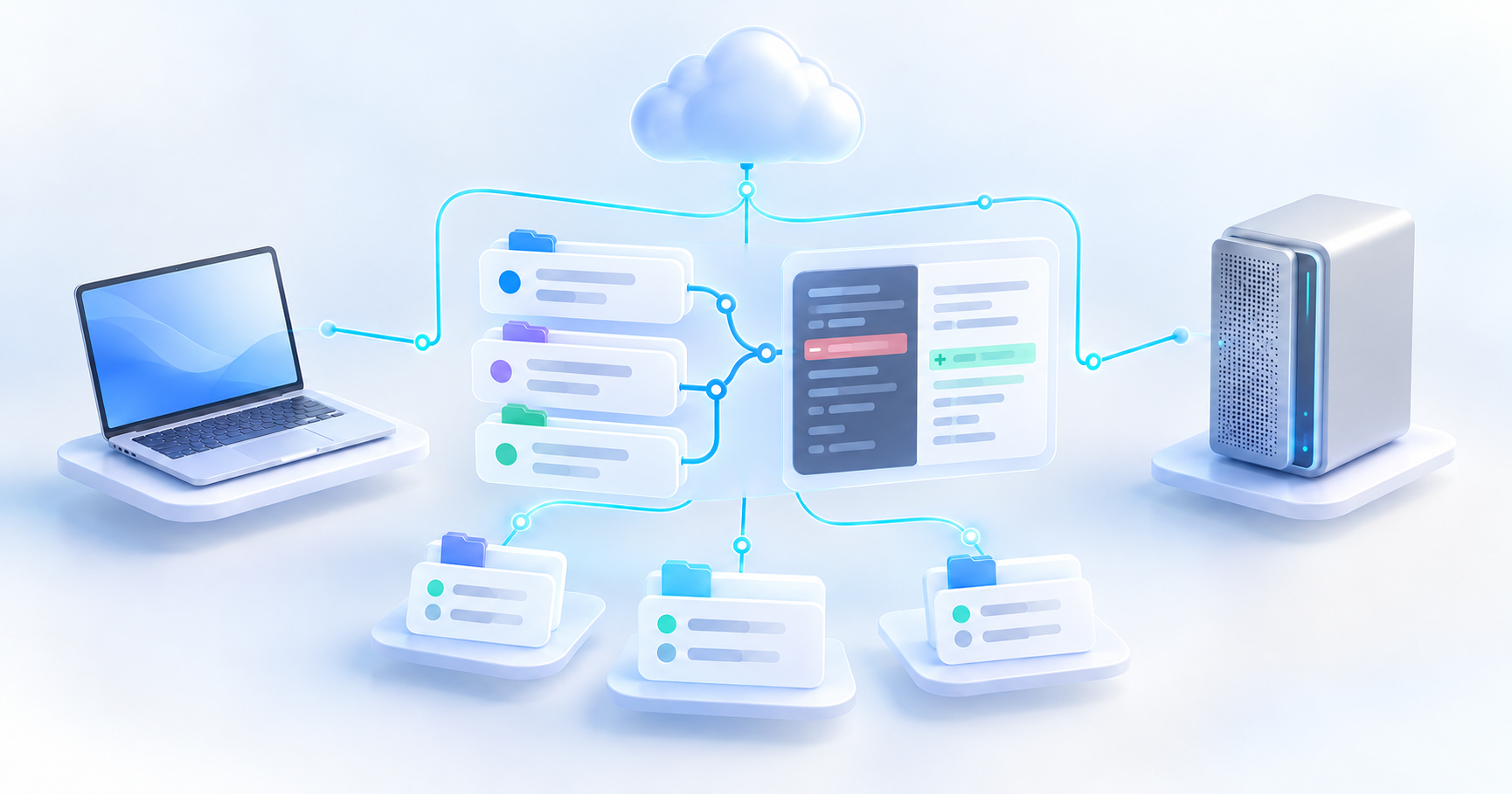
An Agent Development Environment helps you direct coding agents, inspect their work, and manage several tasks. When you want a task to continue after closing your laptop, the decisive question is which machine owns the running agent.
This guide checks official sources on 2026-10-27. It introduces major editor ecosystems and newer agent workspaces; it is a practical shortlist rather than a measured popularity ranking. Features and availability depend on version, plan, operating system, and agent integration. The comparisons are documentation-based, not an end-to-end sleep or crash benchmark of every product.
1. What is an ADE?
Here, ADE means Agent Development Environment: a workspace for assigning work to agents, separating changes, watching progress, and reviewing results. The term describes a workflow rather than a universally standardized product category.
An editor helps you change code directly. An agent CLI can read files, run tools, and propose or implement changes. An ADE adds the coordination around that work: task lists, parallel sessions, Git worktrees, previews, diffs, and sometimes remote execution. Current products combine these layers in different ways.
Keep three parts separate:
| Part | What it does | A useful question |
|---|---|---|
| Interface | Editor, desktop command center, browser, or phone | Where do I assign work and review changes? |
| Agent runtime | Runs the loop and invokes shell commands and tools | Which machine must stay awake? |
| Model service | Produces the model’s responses | Which account pays for inference? |
A model being in the cloud does not mean your repository, test process, and agent loop are also running there.
2. Seven options worth understanding
| Environment | Its main appeal | Execution choice to inspect |
|---|---|---|
| Cursor | An agent-focused editor with managed cloud execution | Local Agent, Cloud Agent, or persistent CLI |
| Orca | Several agent CLIs, worktrees, terminals, and reviews in one workspace | Local, SSH worktree, or Remote Orca Server |
| Zed | A native editor with integrated and external agents | Zed Agent, ACP integration, or terminal thread |
| VS Code with GitHub Copilot | Existing editor tooling plus multiple agent session targets | Local, Agent Host, remote host, or GitHub Cloud |
| Devin Desktop | An editor and command center for local and cloud agents | Local agent versus a Devin cloud VM |
| Google Antigravity | Agent-oriented app, editor, CLI, and review artifacts | Desktop execution versus a headless remote-control host |
| Codex in ChatGPT | Coding chats with local, worktree, and cloud environments | This computer versus a published cloud environment |
Two naming changes matter. Windsurf is now Devin Desktop, according to its current official site. Antigravity’s documentation now covers a standalone app and CLI alongside editor surfaces. A comparison based on older editor-only screenshots can miss those choices. (Devin Desktop FAQ, Antigravity overview)
3. Persistence has four different meanings
| What survives? | What that actually tells you |
|---|---|
| Conversation history | You can reopen the messages later |
| A running process | The agent or command continues while the interface disconnects |
| Remote access | Another client can view or control the host’s session |
| A host restart | The application can restore or resume work after processes have stopped |
These are different capabilities. A saved transcript does not keep a test running. Remote control does not keep a sleeping host awake. A service restarting after reboot does not preserve the exact in-flight shell process.
For unattended work, use either a managed cloud worker or a separately powered host with the appropriate runtime. A Mac mini or VPS can be that host. The laptop becomes a client.
4. Cursor: choose between cloud delegation and persistent CLI work
Cursor is a good starting point when you want to edit interactively and also hand off well-scoped tasks. Its Cloud Agents run in isolated cloud VMs with repositories, dependencies, tools, and environment setup. The official guide says your local machine does not need to remain connected. Configure repository access and the environment first, then review the resulting changes and pull requests. (Cloud Agents)
This is useful for a task such as updating documentation or adding tests while you work elsewhere. A normal local Agent conversation should not be assumed to have moved into a cloud VM just because you use the same Cursor account.
Cursor also documents persistent CLI sessions, introduced in its 2026-08-26 CLI release. On the computer that should execute the work, after following the CLI installation guide:
agent --version
agent persist --help
agent persist
Inside the persistent session:
/detachAfter reconnecting to that same host:
agent persist list
agent persist attach
Cursor’s public CLI changelog documents this command family. (Source: CLI changelog, captured 2026-10-27)
Select any documentation image in this guide to open it at full size.
Run this on an always-on remote host if your laptop will sleep. Running agent persist on the laptop keeps the execution dependent on that laptop. The older local CLI checked for this article was 2026.01.23-916f423 and did not expose persist; use the official updater when your installed build lacks it. These commands were checked against current documentation, not exercised as paid agent jobs. (Persistent-session release)
5. Orca: manage agents on a host you control
This guide means Orca from stablyai/orca, distributed at onOrca.dev, rather than another project with the same name. Orca organizes agent sessions, terminals, diffs, previews, and Git worktrees. It suits developers who already use tools such as Claude Code or Codex and want to manage several independent tasks together.
Its execution-mode guide distinguishes local work, SSH targets, Remote Orca Servers, and bring-your-own-cloud environments. A Remote Orca Server owns the runtime; an SSH worktree is a different arrangement. Do not treat every remote-looking tab as the same persistence guarantee.
For an always-on Mac mini or desktop, the simplest documented path is graphical:
- Install and update Orca on the server and client. Install the agent CLIs, repositories, and required credentials on the server.
- Put both machines on a private route, such as the same Tailscale tailnet.
- On the server, open Settings → Remote Orca Servers → New Link. Select its reachable private address and generate an access link.
- On the client, open Remote Orca Servers → Add Server and paste the link. Select the server or one of its projects before starting work.
- Keep the server awake and Orca running. The official guide explicitly says agents continue when the client laptop sleeps or disconnects.
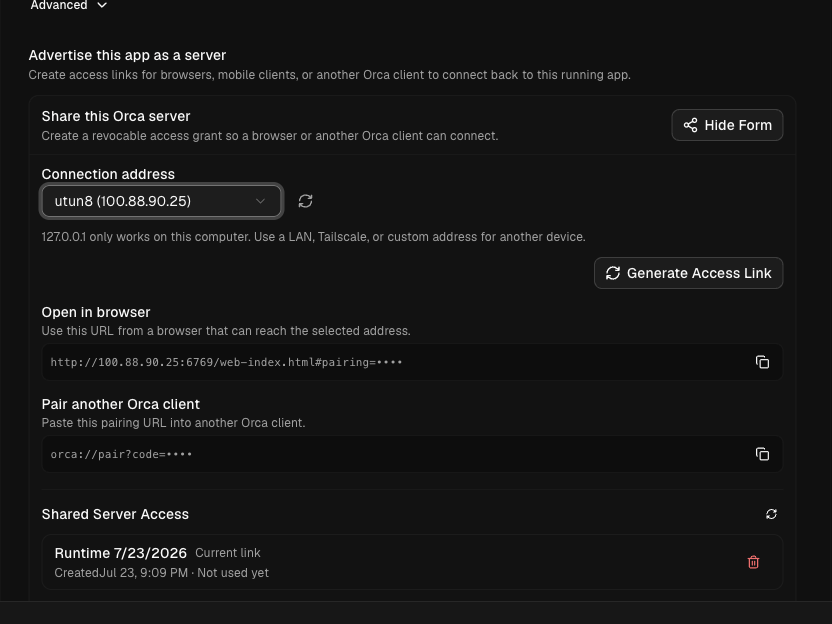
Official Orca documentation image showing the server-side pairing controls; its example link is redacted. (Source: Remote Orca Servers, accessed 2026-10-27)
Remote Orca Servers are documented as beta. The pairing link grants access to the runtime, so keep it private. Use a private network or authenticated tunnel rather than forwarding the runtime port directly to the internet. (Server setup and boundaries)
The headless alternative
On a supported macOS/Linux server with Orca and its bundled CLI installed, a trial foreground server can be started with:
orca serve --port 6768 --pairing-address 100.64.1.20Replace the example address with your server’s reachable private address. --pairing-address advertises how clients should connect; it does not create a VPN or configure access controls. Pair the client using the printed URL. This command remains in the foreground, so an ordinary SSH shell is not itself an unattended service.
After pairing, stop that trial server with Ctrl-C before switching to the service-managed path. On supported macOS/Linux installations:
orca serve service install --port 6768 --dry-run
orca serve service install --port 6768
orca serve service status
The first line previews the installation. Current documentation says the service uses a macOS LaunchAgent or Linux systemd user unit. Linux may need user lingering to survive logout; the installer reports that condition. The service commands are not currently available on Windows. Check the CLI reference and service instructions for your release. This article did not start or publish a real Orca server.
6. Zed: a capable editor with several agent integrations
Zed offers its own agent, external agents through ACP — Agent Client Protocol, parallel threads, and worktree isolation. Its current Agent Panel guide explicitly describes multiple simultaneous threads and notes that features such as history restoration vary by external-agent integration. (Parallel agents)
Choose it when fast, direct editing and reviewing agent changes inside the editor are central to your work. Its documentation supports more than the idea of a single disposable chat window.
For unattended execution, verify the exact native agent, ACP backend, or terminal process you use. The official pages checked here do not establish a universal guarantee about every integration surviving application exit. A restored thread and a still-running process are different things. If you need a CLI to survive disconnects, running it on an always-on host inside its supported persistent runtime or tmux is a separate, testable setup.
7. Four other environments to consider
VS Code with Copilot
VS Code’s current agent model includes local sessions, Copilot sessions in the Agent Host, remote sessions, and cloud work on GitHub infrastructure. Its session guide explicitly identifies Cloud as the asynchronous option that can produce a pull request while VS Code is closed. Choose it when your extensions, debugging tools, and team workflow already live in VS Code. A local background session still uses its execution machine.
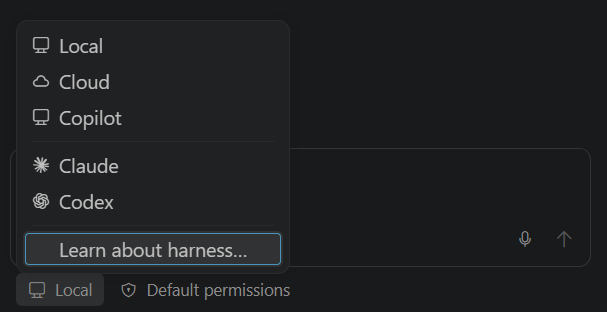
Official VS Code documentation image illustrating explicit session-target selection. (Source: Agent sessions and where agents run, accessed 2026-10-27)
Devin Desktop, formerly Windsurf
Devin Desktop retains an editor and adds an Agent Command Center for local and cloud agents. Its documentation separates local editor agents from Devin sessions on their own cloud VMs; Cascade remains one local-agent option. Choose it when you want a task board and editor together, particularly for a workflow already using Windsurf or Devin. Check the selected execution mode before stepping away.
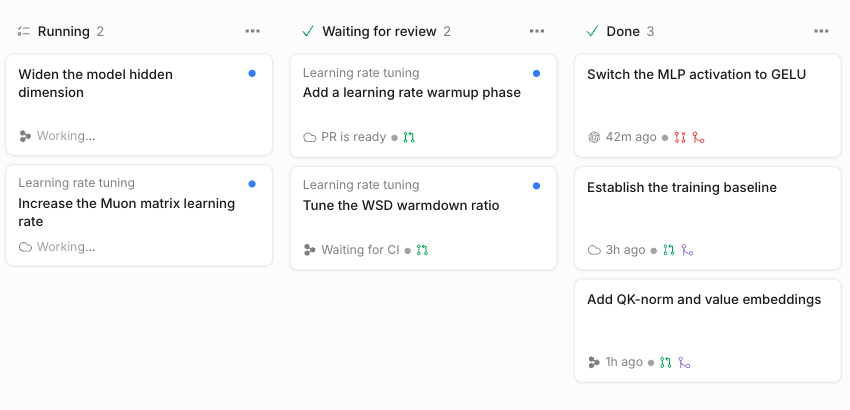
Cognition’s public product-page demonstration of the agent board, captured as published. It is a product illustration rather than this author’s live project. (Source: Devin Desktop, captured 2026-10-27)
Google Antigravity
Antigravity now spans an app, editor interfaces, CLI, and SDK, with agent coordination and review artifacts such as plans and browser recordings. Its Remote Control guide distinguishes an interactive connection from a headless background daemon. Choose it when the Google agent ecosystem and those review workflows fit your projects. Remote control still depends on the execution host remaining on; it does not automatically relocate local files or commands into managed cloud compute.
Codex in ChatGPT
The current official environment guide describes Local, Worktree, and Cloud coding chats in the ChatGPT desktop app. Local and Worktree run on your computer; Cloud uses a published environment. Choose it for a Codex-centered coding workflow with those environment choices. Its remote-connection guide also distinguishes connected-host access from cloud work: a host going asleep or unavailable affects access to that host’s tools and files.
8. A first experiment that reveals the real differences
Use a disposable repository or a small branch, with one agent initially. Give every environment the same request: add one small test, run the focused test command, and summarize the diff. Keep credentials and dependency setup comparable.
Before the paid agent task, you can check terminal continuity with a harmless, 60-second timestamp command on the intended host:
python3 -u -c 'import time; [(print(time.strftime("%H:%M:%S"), flush=True), time.sleep(5)) for _ in range(12)]'Disconnect only the client, then reconnect. Check whether output progressed during the gap. Next, repeat with one small agent task: a surviving terminal alone does not prove the full agent workflow continued.
Record whether the task was running, waiting for approval, paused by a usage limit, or finished. An agent waiting for an answer can be perfectly connected while making no progress. Test application quit separately from closing a chat tab. Test host restart separately again, using only disposable work.
For a plain CLI, tmux provides a simple reference workflow:
ssh devbox
tmux new -s ade-demo
Start the CLI inside that remote session. Detach with Ctrl-b, then d. After reconnecting to the same host:
tmux attach -t ade-demotmux preserves a terminal session on its host. It does not keep that host running through sleep or reboot, and it does not turn an editor’s native agent into a detached CLI session.
9. Choose the workflow, then check the total cost
| Your main need | A sensible first trial |
|---|---|
| Edit closely with one agent | Cursor, Zed, or your existing VS Code setup |
| Compare several agent CLIs and isolated changes | Orca, or another environment’s worktree workflow |
| Close the laptop and review a PR later | Explicit cloud execution in Cursor, VS Code/Copilot, Devin, or Codex |
| Keep your own Mac mini or VPS as the worker | Orca Remote Server, Cursor persistent CLI, or a supported remote/headless runtime |
| Coordinate Google agent workflows and artifacts | Antigravity |
Count the workspace app, model/agent usage, and execution-host costs separately. Adding a command center does not make the underlying agent calls free. Cloud tasks need their own dependencies, credentials, and reachable services. A worktree separates checkouts; use an appropriate sandbox or VM when you need an execution security boundary. For Claude-backed workflows, the subscription/API billing comparison explains why the active credential matters.
After each trial, review the actual diff and test evidence before merging. Compare useful work completed, recovery after a disconnect, review effort, and total spend. Start with one environment and one execution host you can explain clearly, then add parallelism when the workflow is reliable.
Agent Development Environment는 코딩 에이전트에 일을 맡기고 결과를 검토하며 여러 작업을 관리하는 환경이다. 노트북을 닫은 뒤에도 작업을 이어 가고 싶다면 에이전트가 실제로 어느 컴퓨터에서 실행되는지부터 확인해야 한다.
공식 자료는 2026-10-27에 확인했다. 주요 편집기 생태계와 새로운 에이전트 작업환경을 소개하는 실용 목록이며, 시장점유율을 측정한 인기 순위는 아니다. 기능과 이용 가능 여부는 버전, 요금제, 운영체제, 에이전트 연동에 따라 다르다. 모든 제품의 절전·충돌 상황을 직접 비교한 벤치마크가 아니라 공식 문서를 바탕으로 정리했다.
1. ADE란 무엇인가
이 글에서 ADE는 Agent Development Environment를 뜻한다. 에이전트에 작업을 배정하고 변경사항을 분리하며 진행 상황과 결과를 검토하는 작업공간이다. 엄격하게 표준화된 제품 분류라기보다 작업 방식을 설명하는 용어다.
편집기는 사람이 코드를 직접 수정하도록 돕는다. 에이전트 CLI는 파일을 읽고 도구를 실행해 수정을 제안하거나 수행한다. ADE는 그 주위에 작업 목록, 병렬 세션, Git worktree, 미리보기, diff, 경우에 따라 원격 실행까지 더한다. 현재 제품들은 이 층들을 서로 다른 방식으로 결합한다.
다음 세 요소를 나눠 생각하자.
| 요소 | 하는 일 | 확인할 질문 |
|---|---|---|
| 인터페이스 | 편집기·데스크톱 관제 화면·브라우저·휴대폰 | 어디서 작업을 맡기고 변경사항을 검토하는가? |
| 에이전트 런타임 | 반복 작업을 수행하고 셸 명령·도구 호출 | 어느 컴퓨터를 계속 켜 둬야 하는가? |
| 모델 서비스 | 모델의 응답 생성 | 어느 계정에 추론 비용이 청구되는가? |
모델이 클라우드에 있다고 해서 저장소, 테스트 프로세스, 에이전트 반복 작업까지 클라우드에서 실행되는 것은 아니다.
2. 알아둘 만한 일곱 가지 선택지
| 환경 | 주요 장점 | 확인할 실행 방식 |
|---|---|---|
| Cursor | 관리형 클라우드 실행도 제공하는 에이전트 중심 편집기 | 로컬 Agent·Cloud Agent·지속 실행 CLI |
| Orca | 여러 에이전트 CLI·worktree·터미널·리뷰를 한곳에 배치 | 로컬·SSH worktree·Remote Orca Server |
| Zed | 자체·외부 에이전트가 통합된 네이티브 편집기 | Zed Agent·ACP 연동·터미널 스레드 |
| GitHub Copilot을 사용하는 VS Code | 기존 개발 도구와 여러 에이전트 세션 대상 결합 | 로컬·Agent Host·원격 호스트·GitHub Cloud |
| Devin Desktop | 로컬·클라우드 에이전트를 관리하는 편집기와 관제 화면 | 로컬 에이전트·Devin 클라우드 VM |
| Google Antigravity | 에이전트 중심 앱·편집기·CLI와 검토 산출물 | 데스크톱 실행·헤드리스 원격 제어 호스트 |
| ChatGPT의 Codex | 로컬·worktree·클라우드 환경을 고르는 코딩 대화 | 현재 컴퓨터·게시된 클라우드 환경 |
이름과 제품 구성의 변화도 중요하다. 현재 공식 사이트에 따르면 Windsurf의 새 이름은 Devin Desktop이다. Antigravity 문서도 편집기 외에 독립 앱과 CLI를 다룬다. 예전 편집기 화면만 기준으로 비교하면 이런 선택지를 놓칠 수 있다. (Devin Desktop FAQ, Antigravity 개요)
3. 지속성에는 네 가지 다른 의미가 있다
| 무엇이 남는가? | 실제로 알 수 있는 것 |
|---|---|
| 대화 기록 | 나중에 메시지를 다시 열 수 있다 |
| 실행 중인 프로세스 | 인터페이스가 끊겨도 에이전트·명령이 계속 실행된다 |
| 원격 접근 | 다른 클라이언트에서 호스트 세션을 보고 제어할 수 있다 |
| 호스트 재시작 후 복구 | 프로세스가 멈춘 뒤 앱이 작업을 복원하거나 재개할 수 있다 |
서로 다른 기능이다. 저장된 대화가 테스트 프로세스를 계속 돌려 주지는 않는다. 원격 제어가 절전 상태의 호스트를 계속 깨워 두는 것도 아니다. 재부팅 후 서비스가 다시 시작한다고 기존 셸 프로세스가 그대로 남아 있는 것도 아니다.
자리를 비운 동안 실행하려면 관리형 클라우드 작업자나 적절한 런타임이 설치된 별도의 켜진 호스트가 필요하다. Mac mini나 VPS를 호스트로 쓰고 노트북을 클라이언트로 사용할 수 있다.
4. Cursor: 클라우드 위임과 CLI 지속 실행 중 선택하기
Cursor는 직접 편집하면서 범위가 명확한 작업은 따로 맡기고 싶은 경우 좋은 출발점이다. Cloud Agents는 저장소, 의존성, 도구, 환경 설정을 갖춘 격리된 클라우드 VM에서 실행된다. 공식 안내는 로컬 컴퓨터가 계속 연결돼 있을 필요가 없다고 설명한다. 먼저 저장소 접근과 환경을 설정하고, 결과 변경사항과 PR을 검토한다. (Cloud Agents)
다른 일을 하는 동안 문서를 고치거나 테스트를 추가하는 작업에 적합하다. 같은 Cursor 계정을 쓴다고 일반 로컬 Agent 대화가 자동으로 클라우드 VM으로 옮겨졌다고 생각하면 안 된다.
Cursor는 2026-08-26 CLI 릴리스에 도입한 지속 실행 CLI 세션도 문서화했다. CLI 설치 안내를 따른 뒤 실제 작업을 실행할 컴퓨터에서 확인한다.
agent --version
agent persist --help
agent persist
지속 실행 세션 안에서는 다음을 입력한다.
/detach
같은 호스트에 다시 연결한 뒤 실행한다.
agent persist list
agent persist attach
Cursor 공개 CLI 변경 기록에 이 명령들이 안내되어 있다. (출처: CLI 변경 기록, 2026-10-27 캡처)
이 글의 문서 이미지를 선택하면 원본 크기로 열 수 있다.
노트북을 절전시킬 예정이라면 항상 켜 둔 원격 호스트에서 실행한다. 노트북에서 agent persist를 실행하면 여전히 그 노트북에 의존한다. 이 글에서 확인한 구형 로컬 CLI는 2026.01.23-916f423이었고 persist를 제공하지 않았다. 설치 버전에 기능이 없다면 공식 업데이트 도구를 이용한다. 예제는 최신 문서와 대조했으며 유료 에이전트 작업으로 실행하지 않았다. (지속 실행 세션 릴리스)
5. Orca: 내가 관리하는 호스트에서 에이전트 운영하기
여기서 Orca는 onOrca.dev가 배포하는 stablyai/orca의 Orca를 뜻하며 동명 프로젝트와 구분한다. 에이전트 세션, 터미널, diff, 미리보기, Git worktree를 정리하는 환경이다. Claude Code나 Codex 같은 도구를 이미 사용하며 독립 작업 여러 개를 한곳에서 관리하고 싶은 개발자에게 어울린다.
실행 방식 안내는 로컬, SSH 대상, Remote Orca Server, 직접 준비하는 클라우드 환경을 구분한다. Remote Orca Server는 런타임을 소유하며, SSH worktree는 다른 구성이다. 원격으로 보이는 모든 탭이 동일한 지속성을 제공한다고 해석하면 안 된다.
항상 켜 두는 Mac mini나 데스크톱에서는 다음의 GUI 방식이 가장 간단한 공식 경로다.
- 서버와 클라이언트에 Orca를 설치·업데이트한다. 에이전트 CLI, 저장소, 필요한 인증 정보는 서버에 준비한다.
- 같은 Tailscale tailnet 등 비공개 경로로 두 컴퓨터를 연결한다.
- 서버에서 Settings → Remote Orca Servers → New Link를 연다. 접근 가능한 사설 주소를 선택하고 접근 링크를 만든다.
- 클라이언트에서 Remote Orca Servers → Add Server를 열고 링크를 붙여 넣는다. 작업 전 해당 서버나 서버의 프로젝트를 선택한다.
- 서버를 켜 두고 Orca를 실행 상태로 유지한다. 공식 문서는 클라이언트 노트북이 절전되거나 연결이 끊겨도 에이전트가 계속 실행된다고 명시한다.
Orca 공식 문서의 서버 페어링 설정 이미지. 예시의 접근 링크는 가려져 있다. (출처: Remote Orca Servers, 2026-10-27 확인)
Remote Orca Servers는 베타로 문서화되어 있다. 페어링 링크는 런타임 접근 권한을 주므로 비공개로 보관한다. 런타임 포트를 인터넷에 직접 열기보다 사설 네트워크나 인증된 터널을 사용한다. (서버 설정과 경계)
헤드리스 방식
지원되는 macOS/Linux 서버에 Orca와 번들 CLI를 설치했다면 전경 시험 서버를 실행할 수 있다.
orca serve --port 6768 --pairing-address 100.64.1.20
예시 주소를 서버의 실제 접근 가능한 사설 주소로 바꾼다. --pairing-address는 클라이언트가 접속할 주소를 알리는 옵션이며 VPN이나 접근 통제를 설정해 주지 않는다. 출력된 URL로 클라이언트를 페어링한다. 이 명령은 전경에서 실행되므로 일반 SSH 셸 자체가 무인 운영 서비스가 되는 것은 아니다.
페어링 후 Ctrl-C로 시험 서버를 중지한 뒤 서비스 관리 방식으로 전환한다. 지원되는 macOS/Linux 설치에서 사용한다.
orca serve service install --port 6768 --dry-run
orca serve service install --port 6768
orca serve service status
첫 줄은 설치 내용을 미리 보여 준다. 현재 문서에 따르면 macOS LaunchAgent 또는 Linux systemd 사용자 유닛을 사용한다. Linux에서 로그아웃 후에도 유지하려면 사용자 lingering 설정이 필요할 수 있으며 설치 도구가 이를 알려 준다. 서비스 명령은 현재 Windows에서 제공되지 않는다. 내 릴리스의 CLI 레퍼런스와 서비스 안내를 확인한다. 이 글을 위해 실제 Orca 서버를 실행하거나 공개하지는 않았다.
6. Zed: 여러 에이전트 연동을 갖춘 편집기
Zed는 자체 에이전트, ACP — Agent Client Protocol을 통한 외부 에이전트, 병렬 스레드, worktree 격리를 제공한다. 현재 Agent Panel 안내는 여러 스레드의 동시 실행을 명시하며 기록 복원 같은 기능은 외부 에이전트 연동별로 다를 수 있다고 설명한다. (병렬 에이전트)
빠른 직접 편집과 편집기 안에서 에이전트 변경사항을 검토하는 흐름이 중요하다면 살펴볼 만하다. 현재 문서는 단순히 한 번 쓰고 버리는 채팅 창 하나보다 다양한 기능을 설명한다.
무인 실행이 필요하면 실제 사용하는 네이티브 에이전트, ACP 백엔드, 터미널 프로세스를 확인해야 한다. 확인한 공식 문서만으로 모든 연동이 앱 종료 후에도 실행된다고 보장할 수는 없다. 복원된 스레드와 계속 실행 중인 프로세스는 다르다. CLI가 연결 해제 후에도 살아 있어야 한다면, 항상 켜 둔 호스트에서 지원되는 지속 실행 런타임이나 tmux로 실행하는 것은 별도로 시험할 수 있는 구성이다.
7. 함께 고려할 네 가지 환경
Copilot을 사용하는 VS Code
현재 VS Code의 에이전트 모델은 로컬 세션, Agent Host의 Copilot 세션, 원격 세션, GitHub 인프라의 클라우드 작업을 포함한다. 세션 안내는 VS Code를 닫아도 PR을 만들 수 있는 비동기 선택지로 Cloud를 명시한다. 기존 확장, 디버깅 도구, 팀 업무가 VS Code에 있다면 자연스러운 선택이다. 로컬 백그라운드 세션은 여전히 그 실행 컴퓨터를 사용한다.
실행 대상을 명시적으로 선택하는 VS Code 공식 문서 이미지. (출처: 에이전트 세션과 실행 위치, 2026-10-27 확인)
기존 Windsurf의 새 이름, Devin Desktop
Devin Desktop은 편집기를 유지하면서 로컬·클라우드 에이전트를 위한 Agent Command Center를 더한다. 공식 문서는 편집기에서 실행하는 로컬 에이전트와 개별 클라우드 VM에서 실행하는 Devin 세션을 구분하며, Cascade도 로컬 에이전트 선택지로 남아 있다. 작업 보드와 편집기를 함께 쓰고 싶거나 기존 Windsurf·Devin 업무 흐름이 있다면 어울린다. 자리를 비우기 전 선택한 실행 방식을 확인한다.
Cognition 공개 제품 페이지의 에이전트 보드 데모를 게시된 모습대로 캡처했다. 작성자의 실제 프로젝트가 아닌 제품 설명용 화면이다. (출처: Devin Desktop, 2026-10-27 캡처)
Google Antigravity
현재 Antigravity는 앱, 편집기 인터페이스, CLI, SDK를 아우르며 에이전트 조정과 계획·브라우저 녹화 같은 검토 산출물을 제공한다. Remote Control 안내는 대화형 연결과 헤드리스 백그라운드 데몬을 구분한다. Google 에이전트 생태계와 검토 방식이 내 프로젝트에 맞는다면 살펴볼 만하다. 원격 제어도 실행 호스트가 켜져 있어야 하며 로컬 파일이나 명령을 관리형 클라우드 컴퓨팅으로 자동 이전하지 않는다.
ChatGPT의 Codex
현재 공식 환경 안내는 ChatGPT 데스크톱 앱에서 Local, Worktree, Cloud 코딩 대화를 설명한다. Local·Worktree는 내 컴퓨터에서 실행하고 Cloud는 게시된 환경을 사용한다. 이 환경 선택지를 활용하는 Codex 중심 코딩 흐름에 맞는다. 원격 연결 안내도 연결된 호스트 접근과 클라우드 작업을 구분한다. 호스트가 절전되거나 이용 불가 상태가 되면 그 호스트의 도구·파일에 대한 접근이 영향을 받는다.
8. 차이를 드러내는 첫 실험
일회용 저장소나 작은 브랜치에서 에이전트 하나로 시작한다. 모든 환경에 같은 요청을 준다. 작은 테스트 하나를 추가하고, 해당 테스트 명령을 실행한 뒤 diff를 요약하도록 한다. 인증과 의존성 설정도 비교 가능한 수준으로 맞춘다.
유료 에이전트 작업 전에 실제 실행 호스트에서 무해한 60초 타임스탬프 명령으로 터미널 지속성을 확인할 수 있다.
python3 -u -c 'import time; [(print(time.strftime("%H:%M:%S"), flush=True), time.sleep(5)) for _ in range(12)]'
클라이언트만 끊었다가 다시 연결해 그동안 출력이 진행됐는지 확인한다. 이어서 작은 에이전트 작업 하나로 반복한다. 터미널이 살아남았다는 사실만으로 전체 에이전트 작업도 이어졌다고 결론 낼 수는 없다.
실행 중, 승인 대기, 사용량 한도로 일시 중지, 완료 중 어떤 상태였는지 기록한다. 답변을 기다리는 에이전트는 정상 연결 상태에서도 진행하지 않을 수 있다. 채팅 탭을 닫는 것과 앱을 종료하는 것을 따로 시험한다. 호스트 재시작도 일회용 작업으로 별도 시험한다.
일반 CLI에는 tmux가 단순한 비교 기준이 된다.
ssh devbox
tmux new -s ade-demo
원격 세션 안에서 CLI를 시작한다. Ctrl-b를 누른 뒤 d로 분리한다. 같은 호스트에 다시 연결한 뒤 실행한다.
tmux attach -t ade-demo
tmux는 해당 호스트의 터미널 세션을 유지한다. 절전·재부팅 중에도 호스트를 계속 작동시키지는 않으며, 편집기의 네이티브 에이전트를 분리된 CLI 세션으로 바꾸지도 않는다.
9. 작업 방식을 고르고 총비용 확인하기
| 가장 중요한 요구 | 첫 시험에 적합한 선택 |
|---|---|
| 에이전트 하나와 밀접하게 편집 | Cursor·Zed·기존 VS Code 환경 |
| 여러 CLI와 분리된 변경사항 비교 | Orca 또는 다른 환경의 worktree 흐름 |
| 노트북을 닫고 나중에 PR 검토 | Cursor·VS Code/Copilot·Devin·Codex의 명시적인 클라우드 실행 |
| 내 Mac mini·VPS를 작업자로 유지 | Orca Remote Server·Cursor 지속 실행 CLI·지원되는 원격/헤드리스 런타임 |
| Google 에이전트 업무와 산출물 조정 | Antigravity |
작업환경 앱, 모델·에이전트 사용량, 실행 호스트 비용을 나눠 계산한다. 관제 화면을 추가해도 실제 에이전트 호출이 무료가 되지는 않는다. 클라우드 작업에도 의존성, 인증 정보, 접근 가능한 서비스가 필요하다. Worktree는 checkout을 분리하며, 실행 보안 경계가 필요하면 적절한 sandbox나 VM을 사용한다. Claude 기반 흐름에서는 구독·API 과금 비교가 활성 인증 정보의 중요성을 설명한다.
각 시험이 끝나면 머지 전에 실제 diff와 테스트 근거를 검토한다. 완료한 유용한 작업, 연결 해제 후 복구, 리뷰 부담, 총지출을 비교한다. 내가 실행 위치를 분명하게 설명할 수 있는 환경 하나와 호스트 하나로 시작하고, 흐름이 안정된 다음 병렬 실행을 늘린다.
Agent Development Environment 帮助你指挥编程代理、检查成果并管理多个任务。若想合上笔记本后工作仍继续,决定性问题是:哪台机器拥有正在运行的代理。
本文于 2026-10-27 核对官方资料,介绍主要编辑器生态与新兴代理工作环境。这是一份实用候选清单,而非测量市场份额的流行度排名。功能与可用性取决于版本、套餐、操作系统及代理集成。比较依据文档,并非对每款产品进行过完整的休眠或崩溃基准测试。
1. 什么是 ADE?
这里的 ADE 指 Agent Development Environment:用来给代理分配任务、隔离修改、查看进度和审核结果的工作空间。它描述一种工作方式,并不是统一标准化的产品类别。
编辑器帮助人直接修改代码。代理 CLI 可以读取文件、调用工具,提出或实施修改。ADE 则围绕这些工作增加任务列表、并行会话、Git worktree、预览、diff,有时还包括远程执行。当前产品以不同方式组合这些层次。
先区分三个部分:
| 部分 | 作用 | 值得问的问题 |
|---|---|---|
| 界面 | 编辑器、桌面指挥中心、浏览器或手机 | 我在哪里分配工作、审核修改? |
| 代理运行时 | 执行循环、调用 shell 命令与工具 | 哪台机器必须保持唤醒? |
| 模型服务 | 生成模型响应 | 哪个账户支付推理费用? |
模型位于云端,不代表仓库、测试进程和代理循环也在那里运行。
2. 值得了解的七个选项
| 环境 | 主要吸引力 | 需要确认的执行方式 |
|---|---|---|
| Cursor | 面向代理的编辑器,并提供托管云执行 | 本地 Agent、Cloud Agent 或持久 CLI |
| Orca | 在同一工作空间管理多个代理 CLI、worktree、终端和审核 | 本地、SSH worktree 或 Remote Orca Server |
| Zed | 支持内置及外部代理的原生编辑器 | Zed Agent、ACP 集成或终端线程 |
| 带 GitHub Copilot 的 VS Code | 现有编辑器工具与多种代理会话目标 | 本地、Agent Host、远程主机或 GitHub Cloud |
| Devin Desktop | 本地与云端代理的编辑器及指挥中心 | 本地代理或 Devin 云端 VM |
| Google Antigravity | 面向代理的应用、编辑器、CLI 与审核产物 | 桌面执行或无界面远程控制主机 |
| ChatGPT 中的 Codex | 可选择本地、worktree 和云环境的编程对话 | 当前电脑或已发布的云环境 |
两项名称和产品形态变化值得注意。当前官网说明,Windsurf 已更名为 Devin Desktop。Antigravity 文档也涵盖编辑器之外的独立应用和 CLI。仅参考旧编辑器截图,可能会漏掉这些选择。(Devin Desktop FAQ、Antigravity 概览)
3. 持续性有四种不同含义
| 保留了什么? | 实际说明什么 |
|---|---|
| 对话历史 | 以后可以重新打开消息 |
| 运行中的进程 | 界面断开时,代理或命令仍在执行 |
| 远程访问 | 另一个客户端可以查看或控制主机上的会话 |
| 主机重启后的恢复 | 进程停止后,应用可以恢复或续接工作 |
这些是不同能力。保存的对话不会让测试继续运行。远程控制不会让休眠主机保持唤醒。服务在重启后重新启动,也不会保留原来那一个执行中的 shell 进程。
需要无人值守执行时,应选择托管云执行器,或另一台保持开机并运行适当运行时的主机。Mac mini 或 VPS 可以承担这个角色,笔记本则成为客户端。
4. Cursor:选择云端委派或持久 CLI
如果既想交互编辑,也想委派范围明确的任务,Cursor 是一个合适起点。其 Cloud Agents 在隔离的云端 VM 中运行,具备仓库、依赖、工具和环境配置。官方指南说明,本地机器不必持续联网。先配置仓库访问与环境,再审核生成的修改和 PR。(Cloud Agents)
这适合在你忙其他事情时更新文档或补充测试。使用同一个 Cursor 账户,并不代表普通本地 Agent 对话已经自动迁移到云端 VM。
Cursor 还提供 2026-08-26 CLI 版本引入的持久 CLI 会话。按照 CLI 安装指南操作后,在真正执行工作的机器上运行:
agent --version
agent persist --help
agent persist
在持久会话内部输入:
/detach
重新连接同一台主机后运行:
agent persist list
agent persist attach
Cursor 公开 CLI 更新日志记录了这组命令。(来源:CLI 更新日志,2026-10-27 截取)
点击本文中的文档图片,可打开原尺寸版本。
如果笔记本将休眠,应在常开的远程主机上执行。在笔记本本机运行 agent persist,仍依赖那台笔记本。本文检查到的旧版本本地 CLI 为 2026.01.23-916f423,没有提供 persist;已安装版本缺少功能时,请使用官方更新工具。这些命令依据当前文档核对,没有作为付费代理任务运行。(持久会话版本说明)
5. Orca:在自己控制的主机上管理代理
本文指的是 onOrca.dev 发布的 stablyai/orca 项目,不是其他同名项目。Orca 组织代理会话、终端、diff、预览和 Git worktree。它适合已经使用 Claude Code 或 Codex 等工具,并希望集中管理多个独立任务的开发者。
其运行模式指南区分本地、SSH 目标、Remote Orca Server 和自带云环境。Remote Orca Server 拥有运行时;SSH worktree 是另一种安排。 不要把所有看起来是远程的标签页都当作相同的持续性保证。
对于常开的 Mac mini 或桌面主机,官方记录的最简单方式是图形界面:
- 在服务器和客户端安装并更新 Orca。在服务器准备代理 CLI、仓库和必要凭据。
- 通过同一 Tailscale tailnet 等私有路径连接两台机器。
- 在服务器打开 Settings → Remote Orca Servers → New Link。选择可达的私有地址并生成访问链接。
- 在客户端打开 Remote Orca Servers → Add Server,粘贴链接。开始工作前选择该服务器或其项目。
- 保持服务器唤醒且 Orca 运行。官方指南明确说明,客户端笔记本休眠或断开后,代理仍继续运行。
Orca 官方文档中的服务器配对控件图片,示例访问链接已遮盖。(来源:Remote Orca Servers,2026-10-27 查阅)
Remote Orca Servers 在文档中标为 beta。配对链接会授予运行时访问权,因此应保密。使用私有网络或经过认证的隧道,不要直接把运行时端口转发到公网。(服务器设置与边界)
无界面运行方式
在受支持、已安装 Orca 及其随附 CLI 的 macOS/Linux 服务器上,可启动一个前台试用服务器:
orca serve --port 6768 --pairing-address 100.64.1.20
将示例地址替换为服务器实际可达的私有地址。--pairing-address 告知客户端应如何连接,不会创建 VPN 或设置访问控制。用输出的 URL 配对客户端。此命令保持前台运行,普通 SSH shell 本身不会因此变成无人值守服务。
配对后,先用 Ctrl-C 停止试用服务器,再切换到服务管理方式。在受支持的 macOS/Linux 安装中运行:
orca serve service install --port 6768 --dry-run
orca serve service install --port 6768
orca serve service status
第一行预览安装操作。当前文档说明,该服务使用 macOS LaunchAgent 或 Linux systemd 用户单元。Linux 可能需要开启用户 lingering 才能在注销后继续运行,安装程序会提示这一情况。目前 Windows 不提供这些服务命令。请核对对应版本的 CLI 参考与服务说明。本文没有启动或公开实际 Orca 服务器。
6. Zed:支持多种代理集成的编辑器
Zed 提供内置代理、通过 ACP — Agent Client Protocol 接入的外部代理、并行线程和 worktree 隔离。当前 Agent Panel 指南明确介绍同时运行多个线程,并指出历史恢复等功能取决于外部代理集成。(并行代理)
如果你的重点是快速直接编辑,以及在编辑器内审核代理修改,Zed 值得考虑。当前文档描述的能力,已超出一个用完即关的聊天窗口。
需要无人值守执行时,要确认使用的具体原生代理、ACP 后端或终端进程。本文检查的官方页面并未保证所有集成都能在应用退出后继续运行。恢复的对话线程与仍在运行的进程是两回事。如果需要 CLI 在断线后继续运行,可在常开主机上通过其支持的持久运行时或 tmux 执行;这是可以单独验证的配置。
7. 另外四种值得考虑的环境
VS Code 与 Copilot
VS Code 当前的代理模型包括本地会话、Agent Host 中的 Copilot 会话、远程会话,以及 GitHub 基础设施上的云端任务。会话指南明确将 Cloud 描述为可在 VS Code 关闭后继续生成 PR 的异步选项。如果扩展、调试工具和团队流程已经在 VS Code 中,这是自然的选择。本地后台会话仍使用其执行机器。
VS Code 官方文档图片,展示显式选择会话目标。(来源:代理会话与运行位置,2026-10-27 查阅)
Devin Desktop,原 Windsurf
Devin Desktop 保留编辑器,同时增加管理本地及云端代理的 Agent Command Center。官方文档区分编辑器内本地代理和独立云端 VM 上的 Devin 会话;Cascade 仍是本地代理选项之一。如果想把任务看板与编辑器放在一起,尤其已经使用 Windsurf 或 Devin,可优先考虑。离开前检查选中的执行方式。
按原样截取的 Cognition 公开产品页面代理看板演示。这是产品说明画面,不是作者的实际项目。(来源:Devin Desktop,2026-10-27 截取)
Google Antigravity
Antigravity 现已涵盖应用、编辑器界面、CLI 与 SDK,并提供代理协调和计划、浏览器录屏等审核产物。Remote Control 指南区分交互连接与无界面后台守护进程。如果 Google 代理生态和这类审核流程符合项目需求,可以考虑。远程控制仍依赖执行主机保持开机,不会自动把本地文件或命令迁移到托管云计算。
ChatGPT 中的 Codex
当前官方环境指南介绍 ChatGPT 桌面应用中的 Local、Worktree 和 Cloud 编程对话。Local 与 Worktree 在你的电脑运行,Cloud 使用已发布环境。它适合希望在这些环境间选择、以 Codex 为中心的编程流程。远程连接指南也区分连接主机访问与云端工作:主机休眠或不可用会影响对该主机工具和文件的访问。
8. 用第一次实验看清真实差别
从一次性仓库或小分支、一个代理开始。给各环境相同请求:添加一个小测试,运行对应测试命令,然后总结 diff。尽量保持凭据与依赖设置可比。
付费代理任务之前,可以先在目标主机用一条无害的 60 秒时间戳命令检查终端持续性:
python3 -u -c 'import time; [(print(time.strftime("%H:%M:%S"), flush=True), time.sleep(5)) for _ in range(12)]'
只断开客户端,然后重连,检查间隔期间输出是否继续。接着用一个小代理任务重复:终端存活本身不能证明完整代理流程也继续了。
记录任务处于运行、等待批准、因使用限额暂停还是已完成。等待回答的代理可以连接正常却没有进展。关闭聊天标签和退出应用要分开测试;主机重启也应另行测试,并只使用可丢弃的工作。
对于普通 CLI,tmux 是一个简单的参考流程:
ssh devbox
tmux new -s ade-demo
在该远程会话内启动 CLI。按 Ctrl-b,再按 d 脱离。重新连接同一主机后运行:
tmux attach -t ade-demo
tmux 在所在主机上保留终端会话。它不会让主机在休眠或重启中持续执行,也不会把编辑器原生代理变成脱离界面的 CLI 会话。
9. 先选工作流程,再核对总成本
| 主要需求 | 合理的首次试用选择 |
|---|---|
| 紧密配合一个代理编辑 | Cursor、Zed 或现有 VS Code 配置 |
| 比较多个代理 CLI 与隔离修改 | Orca,或其他环境的 worktree 流程 |
| 合上笔记本,稍后审核 PR | Cursor、VS Code/Copilot、Devin 或 Codex 的明确云端执行模式 |
| 用自己的 Mac mini 或 VPS 执行 | Orca Remote Server、Cursor 持久 CLI,或支持的远程/无界面运行时 |
| 协调 Google 代理工作与产物 | Antigravity |
分别计算工作环境应用、模型/代理使用量和执行主机费用。增加指挥中心不会让底层代理调用免费。云任务也需要自己的依赖、凭据及可达服务。Worktree 隔离检出目录;需要执行安全边界时,应使用适当沙箱或 VM。对于 Claude 流程,订阅与 API 计费比较说明了当前凭据为什么重要。
每次试用后,合并前先审核真实 diff 和测试证据。比较有效工作量、断线恢复、审核负担与总支出。从一个你能清楚解释执行位置的环境和主机开始,流程可靠后再增加并行任务。
Agent Development Environmentは、コーディングエージェントへの指示、成果の確認、複数タスクの管理を支える環境です。ノートPCを閉じた後も仕事を続けたいなら、決め手は 実行中のエージェントをどのコンピューターが保持しているか です。
公式資料は 2026-10-27 に確認しました。主要なエディターのエコシステムと新しいエージェント環境を紹介する実用的な候補集であり、市場シェアを測定した人気ランキングではありません。機能と利用可否はバージョン、プラン、OS、エージェント連携によって異なります。全製品でスリープやクラッシュを実測した比較ではなく、公式ドキュメントに基づく整理です。
1. ADEとは何か
ここでの ADEはAgent Development Environment の略です。エージェントへの作業割り当て、変更の分離、進捗確認、結果レビューを行うワークスペースを指します。統一された厳密な製品区分というより、作業の進め方を表す言葉です。
エディターは人がコードを直接変更する道具です。エージェントCLIはファイルを読み、ツールを実行し、変更を提案・実装します。ADEはその周囲に、タスク一覧、並列セッション、Git worktree、プレビュー、diff、ときにはリモート実行を加えます。現在の製品はこれらの層をさまざまに組み合わせています。
3つの部分を分けて考えましょう。
| 部分 | 役割 | 確認したいこと |
|---|---|---|
| インターフェース | エディター、デスクトップ管理画面、ブラウザー、スマートフォン | どこで指示し、変更をレビューするか? |
| エージェントのランタイム | 反復処理、シェルコマンドやツールの呼び出し | どのコンピューターを起動し続ける必要があるか? |
| モデルサービス | モデルの応答を生成 | どのアカウントに推論料金が発生するか? |
モデルがクラウドにあることと、リポジトリ、テストプロセス、エージェントの処理ループもクラウドで動くことは別です。
2. 知っておきたい7つの選択肢
| 環境 | 主な魅力 | 確認する実行方式 |
|---|---|---|
| Cursor | マネージドなクラウド実行も備えるエージェント中心のエディター | ローカルAgent、Cloud Agent、永続CLI |
| Orca | 複数のエージェントCLI、worktree、端末、レビューを一元化 | ローカル、SSH worktree、Remote Orca Server |
| Zed | 内蔵・外部エージェントに対応するネイティブエディター | Zed Agent、ACP連携、ターミナルスレッド |
| GitHub Copilotを使うVS Code | 既存の開発ツールと複数のセッション実行先 | ローカル、Agent Host、リモートホスト、GitHub Cloud |
| Devin Desktop | ローカル・クラウドエージェント用エディターと管理画面 | ローカルエージェント、DevinのクラウドVM |
| Google Antigravity | エージェント向けアプリ、エディター、CLI、レビュー成果物 | デスクトップ実行、ヘッドレスのリモート制御ホスト |
| ChatGPTのCodex | ローカル、worktree、クラウドを選べるコーディングチャット | このコンピューター、公開済みクラウド環境 |
名称と製品構成の変化にも注目です。現在の公式サイトによると Windsurfの新名称はDevin Desktop です。Antigravityのドキュメントも、エディターに加えて独立アプリとCLIを扱っています。古いエディター画面だけを基準にすると、こうした選択肢を見落とします。(Devin Desktop FAQ、Antigravity概要)
3. 永続性には4つの異なる意味がある
| 何が残るか? | 実際にわかること |
|---|---|
| 会話履歴 | 後でメッセージを開き直せる |
| 実行中のプロセス | UIが切断されてもエージェントやコマンドが動き続ける |
| リモートアクセス | 別のクライアントからホストのセッションを確認・操作できる |
| ホスト再起動後の復旧 | プロセス停止後、アプリが仕事を復元・再開できる |
これらは別の機能です。保存された会話がテストを動かし続けるわけではありません。リモート制御がスリープ中のホストを起こし続けるわけでもありません。再起動後にサービスが起動しても、その前のシェルプロセスがそのまま残ることにはなりません。
無人で実行するには、マネージドなクラウドワーカーか、適切なランタイムを動かす別の起動中ホストを使います。Mac miniやVPSをホストにし、ノートPCをクライアントにできます。
4. Cursor:クラウド委任と永続CLIを選び分ける
Cursorは、対話的に編集しながら範囲の明確な仕事を委任したい場合の出発点になります。Cloud Agents は、リポジトリ、依存関係、ツール、環境設定を備えた分離されたクラウドVMで実行されます。公式ガイドは、手元のコンピューターを接続し続ける必要がないと説明しています。先にリポジトリへのアクセスと環境を整え、生成された変更やPRをレビューします。(Cloud Agents)
別の仕事をしている間にドキュメント更新やテスト追加を進める、といった用途です。同じCursorアカウントを使っているだけで、通常のローカルAgentの会話がクラウドVMに移ったとは考えないでください。
Cursorは 2026-08-26 のCLIリリースで導入した 永続CLIセッション も文書化しています。CLIインストールガイドに従った後、実際に仕事を動かすコンピューターで実行します。
agent --version
agent persist --help
agent persist
永続セッション内で入力します。
/detach
同じホストへ再接続してから実行します。
agent persist list
agent persist attach
Cursorの公開CLI更新履歴でこのコマンド群を確認できます。(出典:CLI更新履歴、2026-10-27撮影)
本記事のドキュメント画像を選ぶと、原寸で開けます。
ノートPCをスリープさせるなら、常時稼働するリモートホストで使います。ノートPC上でagent persistを実行すれば、そのPCへの依存は残ります。本記事で確認した古いローカルCLIは2026.01.23-916f423で、persistを提供していませんでした。手元のバージョンに機能がない場合は公式アップデーターを利用してください。例は最新ドキュメントと照合しており、有料エージェントジョブとして実行していません。(永続セッションのリリース)
5. Orca:自分で管理するホスト上のエージェントを運用する
本記事のOrcaは、onOrca.devが配布する stablyai/orcaのOrca であり、同名の別プロジェクトではありません。エージェントセッション、端末、diff、プレビュー、Git worktreeを整理します。Claude CodeやCodexなどをすでに使い、独立した仕事をまとめて管理したい開発者に向いています。
実行方式のガイドでは、ローカル、SSHターゲット、Remote Orca Server、持ち込みクラウド環境を区別しています。Remote Orca Serverはランタイムを保持し、SSH worktreeは別の構成です。 リモートに見えるすべてのタブを、同じ永続性の保証と捉えないでください。
常時稼働のMac miniやデスクトップなら、公式に案内される最も簡単な経路はGUIです。
- サーバーとクライアントにOrcaをインストールし、更新します。エージェントCLI、リポジトリ、必要な認証情報はサーバーに準備します。
- 同じTailscale tailnetなど、プライベートな経路で2台を接続します。
- サーバーでSettings → Remote Orca Servers → New Linkを開きます。到達可能なプライベートアドレスを選び、アクセスリンクを生成します。
- クライアントでRemote Orca Servers → Add Serverを開き、リンクを貼り付けます。作業前にサーバーかそのプロジェクトを選択します。
- サーバーを起動・接続状態に保ち、Orcaを動かし続けます。公式ガイドは、クライアントのノートPCがスリープ・切断してもエージェントが動き続けると明記しています。
Orca公式ドキュメントのサーバー側ペアリング設定画像。例のリンクは伏せられています。(出典:Remote Orca Servers、2026-10-27確認)
Remote Orca Serversは ベータ として案内されています。ペアリングリンクはランタイムへのアクセス権を与えるため、非公開で扱います。ポートを直接インターネットに公開するのではなく、プライベートネットワークや認証されたトンネルを使ってください。(サーバー設定と境界)
ヘッドレスという選択肢
対応するmacOS/LinuxサーバーにOrcaと同梱CLIを入れたら、試用用のフォアグラウンドサーバーを開始できます。
orca serve --port 6768 --pairing-address 100.64.1.20
例のアドレスは、サーバーの到達可能なプライベートアドレスに置き換えます。--pairing-addressはクライアントの接続先を知らせるもので、VPNやアクセス制御を設定するものではありません。出力されたURLでクライアントをペアリングします。このコマンドはフォアグラウンドで動く ため、普通のSSHシェル自体が無人運用サービスになるわけではありません。
ペアリング後、試用サーバーをCtrl-Cで止めてからサービス管理方式に切り替えます。対応するmacOS/Linux環境で実行します。
orca serve service install --port 6768 --dry-run
orca serve service install --port 6768
orca serve service status
最初の行はインストール内容をプレビューします。現在の文書では、macOSのLaunchAgentかLinuxのsystemdユーザーユニットを使います。Linuxでログアウト後も維持するにはユーザーのlingeringが必要な場合があり、インストーラーがその状態を知らせます。これらのサービスコマンドは現在Windowsでは提供されていません。自分のリリースのCLIリファレンスとサービス手順を確認してください。本記事のために実際のOrcaサーバーを開始・公開していません。
6. Zed:複数のエージェント連携を持つエディター
Zedは独自エージェント、ACP — Agent Client Protocol による外部エージェント、並列スレッド、worktree分離を提供します。現在のAgent Panelガイドは複数スレッドの同時実行を説明し、履歴復元などの機能は外部エージェント連携によって異なると明記しています。(並列エージェント)
素早い直接編集と、エディター内での変更レビューが中心なら検討する価値があります。現在のドキュメントは、単なる使い捨てのチャットウィンドウ以上の機能を示しています。
無人実行が必要なら、実際に使うネイティブエージェント、ACPバックエンド、端末プロセスを確認します。今回の公式ページだけでは、全連携がアプリ終了後も動くという一律の保証は確認できません。復元されたスレッドと、実行が続いているプロセスは別です。CLIを切断後も維持したい場合は、常時稼働ホスト上で対応する永続ランタイムやtmuxを使う構成を別途テストできます。
7. ほかに検討したい4つの環境
Copilotを使うVS Code
現在のVS Codeは、ローカルセッション、Agent Host内のCopilotセッション、リモートセッション、GitHubインフラ上のクラウド作業を含みます。セッションガイドは、VS Codeを閉じてもPRを作成できる非同期の選択肢としてCloudを説明しています。拡張機能、デバッグツール、チームの作業がすでにVS Codeにあるなら自然な候補です。ローカルのバックグラウンドセッションは、依然として実行先のコンピューターを使います。
明示的な実行先選択を示すVS Code公式ドキュメント画像。(出典:エージェントセッションと実行場所、2026-10-27確認)
旧Windsurf、Devin Desktop
Devin Desktopはエディターを残しながら、ローカル・クラウドのエージェントをまとめるAgent Command Centerを加えています。公式文書は、エディター内のローカルエージェントと、専用クラウドVM上のDevinセッションを区別しています。Cascadeもローカルエージェントの選択肢として残ります。タスクボードとエディターを一緒に使いたい場合、特にWindsurfやDevinをすでに利用しているなら候補です。離席前に選んだ実行方式を確認します。
Cognitionの公開製品ページに掲載されたエージェントボードを、そのまま撮影したもの。著者の実プロジェクトではなく製品紹介用の画面です。(出典:Devin Desktop、2026-10-27撮影)
Google Antigravity
Antigravityは現在、アプリ、エディター画面、CLI、SDKにまたがり、エージェント調整と、計画・ブラウザー録画などのレビュー成果物を扱います。Remote Controlガイドは対話型接続とヘッドレスのバックグラウンドデーモンを区別しています。Googleのエージェント環境やレビュー方法がプロジェクトに合うなら検討できます。リモート制御にも稼働中の実行ホストが必要であり、ローカルのファイルやコマンドがマネージドなクラウド計算環境へ自動移転するわけではありません。
ChatGPTのCodex
現在の公式環境ガイドは、ChatGPTデスクトップアプリのLocal、Worktree、Cloudというコーディングチャットを説明しています。LocalとWorktreeは自分のコンピューターで動き、Cloudは公開済み環境を使います。これらを選び分けるCodex中心の作業に向いています。リモート接続ガイドも、接続ホストへのアクセスとクラウド作業を区別します。ホストのスリープや利用不能は、そのホストのツールやファイルへのアクセスに影響します。
8. 違いがわかる最初の実験
使い捨てのリポジトリか小さなブランチで、まず1エージェントから始めます。どの環境にも同じ依頼を出しましょう。小さなテストを1つ追加し、対象のテストコマンドを実行し、diffを要約する、という依頼です。認証と依存関係も比較できる状態にそろえます。
有料エージェントの作業前に、対象ホストで無害な60秒のタイムスタンプコマンドを使い、端末の継続性を確認できます。
python3 -u -c 'import time; [(print(time.strftime("%H:%M:%S"), flush=True), time.sleep(5)) for _ in range(12)]'
クライアントだけを切断して再接続し、その間も出力が進んだか確認します。次に小さなエージェントタスクで繰り返してください。端末が残っただけでは、エージェントの全処理も続いたとは証明できません。
実行中、承認待ち、利用上限による一時停止、完了のどれだったか記録します。回答待ちのエージェントは接続が正常でも進まないことがあります。チャットタブを閉じることとアプリ終了は別に試し、ホスト再起動も使い捨ての作業で別途試します。
通常のCLIには、tmuxが簡単な比較基準になります。
ssh devbox
tmux new -s ade-demo
そのリモートセッション内でCLIを始めます。Ctrl-bの後にdで切り離します。同じホストに再接続して実行します。
tmux attach -t ade-demo
tmuxはホスト上の端末セッションを維持します。スリープや再起動中もホストを動かし続けるわけではなく、エディターのネイティブエージェントを切り離されたCLIに変えるものでもありません。
9. 作業方式を選び、総費用を確認する
| 主な要望 | 最初に試す候補 |
|---|---|
| 1つのエージェントと密に編集する | Cursor、Zed、既存のVS Code環境 |
| 複数CLIと分離した変更を比べる | Orca、またはほかの環境のworktree機能 |
| ノートPCを閉じ、後でPRをレビューする | Cursor、VS Code/Copilot、Devin、Codexの明示的なクラウド実行 |
| 自分のMac miniやVPSを実行機にする | Orca Remote Server、Cursor永続CLI、対応するリモート/ヘッドレスランタイム |
| Googleのエージェント作業と成果物を調整する | Antigravity |
ワークスペースのアプリ、モデル・エージェント使用量、実行ホストの費用 を別々に数えます。管理画面を加えても、実際のエージェント呼び出しは無料になりません。クラウドの仕事にも依存関係、認証情報、到達可能なサービスが必要です。Worktreeはcheckoutを分離する仕組みなので、実行のセキュリティ境界が必要なら適切なサンドボックスやVMを使います。Claudeを使う構成では、サブスクとAPI課金の比較が有効な認証情報の重要性を説明しています。
試用後はマージ前に実際のdiffとテストの根拠を確認します。有用な仕事の完了量、切断後の復旧、レビュー負担、総支出を比べましょう。実行場所を明確に説明できる1つの環境と1つのホストから始め、安定してから並列性を増やします。
Un Agent Development Environment te ayuda a dirigir agentes de programación, inspeccionar su trabajo y gestionar varias tareas. Si quieres que una tarea continúe después de cerrar el portátil, la pregunta decisiva es qué máquina mantiene el agente en ejecución.
Esta guía contrasta fuentes oficiales el 2026-10-27. Presenta grandes ecosistemas de editores y nuevos espacios de trabajo para agentes; es una selección práctica, no un ranking basado en cuotas de mercado medidas. Las funciones dependen de la versión, el plan, el sistema operativo y la integración del agente. La comparación se basa en documentación, no en una prueba completa de suspensión o fallos de todos los productos.
1. ¿Qué es un ADE?
Aquí, ADE significa Agent Development Environment: un espacio para asignar trabajo a agentes, separar cambios, seguir el progreso y revisar resultados. El término describe una forma de trabajar, no una categoría de producto estandarizada universalmente.
Un editor te ayuda a cambiar código directamente. Una CLI de agente puede leer archivos, ejecutar herramientas y proponer o implementar cambios. Un ADE añade la coordinación: listas de tareas, sesiones paralelas, Git worktrees, vistas previas, diffs y, en algunos casos, ejecución remota. Los productos actuales combinan estas capas de formas distintas.
Separa tres partes:
| Parte | Qué hace | Una pregunta útil |
|---|---|---|
| Interfaz | Editor, centro de control de escritorio, navegador o móvil | ¿Dónde asigno trabajo y reviso cambios? |
| Entorno de ejecución del agente | Ejecuta el bucle e invoca comandos y herramientas | ¿Qué máquina debe permanecer despierta? |
| Servicio de modelos | Produce las respuestas del modelo | ¿Qué cuenta paga la inferencia? |
Que el modelo esté en la nube no implica que el repositorio, las pruebas y el bucle del agente también se ejecuten allí.
2. Siete opciones que conviene conocer
| Entorno | Su principal atractivo | Qué ejecución debes comprobar |
|---|---|---|
| Cursor | Editor centrado en agentes con ejecución administrada en la nube | Agent local, Cloud Agent o CLI persistente |
| Orca | Varias CLI de agentes, worktrees, terminales y revisiones en un espacio | Local, SSH worktree o Remote Orca Server |
| Zed | Editor nativo con agentes integrados y externos | Zed Agent, integración ACP o hilo de terminal |
| VS Code con GitHub Copilot | Herramientas existentes del editor y varios destinos de sesión | Local, Agent Host, host remoto o GitHub Cloud |
| Devin Desktop | Editor y centro de control para agentes locales y en la nube | Agente local o VM de Devin en la nube |
| Google Antigravity | App, editor, CLI y artefactos de revisión orientados a agentes | Ejecución de escritorio o host de control remoto sin interfaz |
| Codex en ChatGPT | Chats de programación con entornos local, worktree y cloud | Este ordenador o un entorno publicado en la nube |
Hay dos cambios de nombre y producto importantes. Windsurf ahora se llama Devin Desktop, según su web oficial actual. La documentación de Antigravity también abarca una app independiente y una CLI junto a las interfaces de editor. Comparar solo capturas de editores antiguos puede ocultar esas opciones. (FAQ de Devin Desktop, Resumen de Antigravity)
3. Persistencia tiene cuatro significados distintos
| ¿Qué se conserva? | Qué demuestra realmente |
|---|---|
| Historial de conversación | Puedes volver a abrir los mensajes |
| Un proceso en ejecución | El agente o comando continúa al desconectarse la interfaz |
| Acceso remoto | Otro cliente puede ver o controlar la sesión del host |
| Recuperación tras reiniciar el host | La aplicación puede restaurar o reanudar trabajo después de detenerse los procesos |
Son capacidades diferentes. Un historial guardado no mantiene una prueba en marcha. El control remoto no mantiene despierto un host suspendido. Que un servicio arranque después de un reinicio no conserva el mismo proceso de shell que estaba ejecutándose.
Para trabajo desatendido, usa un ejecutor administrado en la nube o un host independiente encendido con el entorno de ejecución adecuado. Un Mac mini o un VPS pueden ser ese host. El portátil pasa a ser el cliente.
4. Cursor: delegación cloud o CLI persistente
Cursor es un buen punto de partida si quieres editar de forma interactiva y delegar tareas bien delimitadas. Sus Cloud Agents se ejecutan en VM aisladas en la nube, con repositorios, dependencias, herramientas y configuración de entorno. La guía oficial indica que tu máquina local no necesita seguir conectada. Configura primero el acceso al repositorio y el entorno, y revisa los cambios y pull requests resultantes. (Cloud Agents)
Sirve para actualizar documentación o añadir pruebas mientras haces otra cosa. Una conversación normal con el Agent local no pasa automáticamente a una VM cloud por usar la misma cuenta de Cursor.
Cursor también documenta sesiones CLI persistentes, introducidas en su versión de CLI del 2026-08-26. Tras seguir la guía de instalación, ejecuta esto en el ordenador que hará el trabajo:
agent --version
agent persist --help
agent persist
Dentro de la sesión persistente:
/detach
Al reconectarte al mismo host:
agent persist list
agent persist attach
El registro público de cambios de Cursor documenta esta familia de comandos. (Fuente: cambios de la CLI, captura del 2026-10-27)
Selecciona cualquier imagen de documentación para abrirla a tamaño completo.
Hazlo en un host remoto siempre encendido si el portátil va a suspenderse. Ejecutar agent persist en el portátil mantiene la dependencia de ese portátil. La CLI local antigua comprobada para este artículo era 2026.01.23-916f423 y no ofrecía persist; usa el actualizador oficial si tu versión no lo incluye. Los comandos se contrastaron con la documentación actual y no se ejecutaron como tareas de agente de pago. (Versión con sesiones persistentes)
5. Orca: agentes en un host que tú controlas
Esta guía trata de Orca de stablyai/orca, distribuido en onOrca.dev, no de otro proyecto con el mismo nombre. Orca organiza sesiones de agentes, terminales, diffs, vistas previas y Git worktrees. Encaja si ya utilizas herramientas como Claude Code o Codex y quieres gestionar varias tareas independientes juntas.
Su guía de modos de ejecución distingue trabajo local, destinos SSH, Remote Orca Servers y entornos en tu propia nube. Un Remote Orca Server mantiene el entorno de ejecución; un SSH worktree es otra configuración. No atribuyas la misma garantía de persistencia a cualquier pestaña que parezca remota.
Para un Mac mini o un ordenador de escritorio siempre encendido, la vía gráfica más sencilla documentada es:
- Instala y actualiza Orca en servidor y cliente. Prepara las CLI de agentes, repositorios y credenciales necesarias en el servidor.
- Conecta ambas máquinas por una ruta privada, como la misma tailnet de Tailscale.
- En el servidor, abre Settings → Remote Orca Servers → New Link. Elige su dirección privada accesible y genera un enlace de acceso.
- En el cliente, abre Remote Orca Servers → Add Server y pega el enlace. Selecciona el servidor o uno de sus proyectos antes de empezar.
- Mantén el servidor despierto y Orca en ejecución. La guía oficial dice expresamente que los agentes continúan si el portátil cliente se suspende o desconecta.
Imagen oficial de documentación de Orca con los controles de emparejamiento del servidor; el enlace de ejemplo está oculto. (Fuente: Remote Orca Servers, consultada el 2026-10-27)
Remote Orca Servers está documentado como beta. El enlace de emparejamiento concede acceso al entorno, así que mantenlo privado. Usa una red privada o un túnel autenticado en lugar de exponer directamente el puerto a internet. (Configuración y límites del servidor)
La alternativa sin interfaz gráfica
En un servidor macOS/Linux compatible con Orca y su CLI incluida, puedes iniciar un servidor de prueba en primer plano:
orca serve --port 6768 --pairing-address 100.64.1.20
Sustituye la dirección de ejemplo por la dirección privada accesible del servidor. --pairing-address anuncia cómo deben conectarse los clientes; no crea una VPN ni configura controles de acceso. Empareja el cliente con la URL mostrada. Este comando permanece en primer plano: un shell SSH normal no es por sí mismo un servicio desatendido.
Después de emparejar, detén el servidor de prueba con Ctrl-C antes de pasar a la vía administrada como servicio. En instalaciones macOS/Linux compatibles:
orca serve service install --port 6768 --dry-run
orca serve service install --port 6768
orca serve service status
La primera línea muestra una vista previa de la instalación. La documentación actual indica que el servicio usa un LaunchAgent de macOS o una unidad de usuario systemd de Linux. Linux puede necesitar lingering para seguir funcionando tras cerrar sesión; el instalador lo indica. Estos comandos de servicio todavía no están disponibles en Windows. Consulta la referencia CLI y las instrucciones de servicio de tu versión. Este artículo no inició ni publicó un servidor Orca real.
6. Zed: un editor con varias integraciones de agentes
Zed ofrece su propio agente, agentes externos mediante ACP — Agent Client Protocol, hilos paralelos y aislamiento con worktrees. Su guía actual del Agent Panel describe expresamente varios hilos simultáneos y señala que funciones como restaurar el historial dependen de la integración externa. (Agentes paralelos)
Considéralo si tu prioridad es editar directamente con rapidez y revisar cambios del agente dentro del editor. La documentación actual describe más posibilidades que una única ventana de chat desechable.
Para ejecución desatendida, verifica el agente nativo, backend ACP o proceso de terminal concreto que utilices. Las páginas oficiales revisadas no establecen una garantía universal de que toda integración sobreviva al cierre de la aplicación. Un hilo restaurado y un proceso que sigue ejecutándose son cosas distintas. Si necesitas que una CLI sobreviva a desconexiones, ejecutarla en un host siempre encendido dentro de su entorno persistente compatible o de tmux es una configuración separada que puedes comprobar.
7. Otros cuatro entornos a considerar
VS Code con Copilot
El modelo actual de VS Code incluye sesiones locales, sesiones Copilot en Agent Host, sesiones remotas y trabajo cloud en infraestructura de GitHub. Su guía de sesiones identifica Cloud como la opción asíncrona que puede producir un pull request mientras VS Code está cerrado. Es una elección natural si tus extensiones, depuración y trabajo de equipo ya viven en VS Code. Una sesión local en segundo plano sigue usando su máquina de ejecución.
Imagen oficial de VS Code que ilustra la selección explícita del destino de sesión. (Fuente: sesiones de agentes y dónde se ejecutan, consultada el 2026-10-27)
Devin Desktop, antes Windsurf
Devin Desktop conserva el editor y añade un Agent Command Center para agentes locales y cloud. Su documentación separa los agentes locales del editor de las sesiones Devin en VM propias en la nube; Cascade sigue siendo una opción local. Encaja si buscas un tablero de tareas junto al editor, sobre todo si ya trabajas con Windsurf o Devin. Comprueba el modo de ejecución seleccionado antes de alejarte.
Demostración del tablero de agentes de la página pública de Cognition, capturada tal como se publica. Es una ilustración del producto, no un proyecto real del autor. (Fuente: Devin Desktop, captura del 2026-10-27)
Google Antigravity
Antigravity abarca ahora app, interfaces de editor, CLI y SDK, con coordinación de agentes y artefactos de revisión como planes y grabaciones del navegador. Su guía de Remote Control distingue una conexión interactiva de un daemon de fondo sin interfaz. Considéralo si el ecosistema de agentes de Google y esas revisiones encajan en tus proyectos. El control remoto sigue dependiendo de que el host esté encendido; no traslada automáticamente los archivos o comandos locales a cómputo cloud administrado.
Codex en ChatGPT
La guía oficial actual de entornos describe chats de programación Local, Worktree y Cloud en la app de escritorio de ChatGPT. Local y Worktree se ejecutan en tu ordenador; Cloud usa un entorno publicado. Encaja en un flujo centrado en Codex con esas opciones de ejecución. La guía de conexiones remotas también distingue acceso a un host conectado de trabajo cloud: si el host se suspende o deja de estar disponible, se ve afectado el acceso a sus herramientas y archivos.
8. Un primer experimento que revela las diferencias
Usa un repositorio desechable o una rama pequeña y comienza con un solo agente. Da a todos los entornos la misma petición: añadir una prueba pequeña, ejecutar su comando específico y resumir el diff. Mantén comparables las credenciales y las dependencias.
Antes de la tarea de agente de pago, puedes comprobar la continuidad del terminal con este comando inofensivo de marcas de tiempo durante 60 segundos en el host elegido:
python3 -u -c 'import time; [(print(time.strftime("%H:%M:%S"), flush=True), time.sleep(5)) for _ in range(12)]'
Desconecta solo el cliente y reconéctalo. Comprueba si la salida avanzó durante ese intervalo. Después repite con una tarea pequeña de agente: que sobreviva el terminal no demuestra que continuase todo el flujo del agente.
Anota si la tarea estaba ejecutándose, esperando aprobación, pausada por un límite de uso o terminada. Un agente que espera respuesta puede estar bien conectado sin avanzar. Prueba por separado cerrar una pestaña de chat y salir de la aplicación. Prueba también por separado reiniciar el host, siempre con trabajo desechable.
Para una CLI normal, tmux ofrece un flujo de referencia sencillo:
ssh devbox
tmux new -s ade-demo
Inicia la CLI dentro de esa sesión remota. Desconéctate con Ctrl-b y después d. Tras reconectarte al mismo host:
tmux attach -t ade-demo
tmux conserva una sesión de terminal en su host. No mantiene el host en ejecución durante la suspensión o el reinicio, ni convierte el agente nativo de un editor en una sesión CLI separada.
9. Elige el flujo y comprueba el coste total
| Tu necesidad principal | Una primera prueba razonable |
|---|---|
| Editar de cerca con un agente | Cursor, Zed o tu configuración actual de VS Code |
| Comparar varias CLI de agentes y cambios aislados | Orca o el flujo con worktrees de otro entorno |
| Cerrar el portátil y revisar un PR más tarde | Ejecución cloud explícita en Cursor, VS Code/Copilot, Devin o Codex |
| Usar tu Mac mini o VPS como ejecutor | Orca Remote Server, CLI persistente de Cursor o un entorno remoto/sin interfaz compatible |
| Coordinar agentes y artefactos de Google | Antigravity |
Cuenta por separado la aplicación de trabajo, el consumo de modelos/agentes y el coste del host de ejecución. Añadir un centro de control no vuelve gratuitas las llamadas del agente. Las tareas cloud necesitan sus dependencias, credenciales y servicios accesibles. Un worktree separa los checkouts; utiliza un sandbox o VM adecuado si necesitas una frontera de seguridad de ejecución. Para flujos con Claude, la comparación de suscripción y API explica por qué importa la credencial activa.
Tras cada prueba, revisa el diff real y las evidencias de los tests antes de fusionar. Compara trabajo útil terminado, recuperación de desconexiones, esfuerzo de revisión y gasto total. Empieza con un entorno y un host cuya ejecución puedas explicar claramente; añade paralelismo cuando el flujo sea fiable.