Host Multiple Private Websites and a Hermes Dashboard with Tailscale Serve

Use Tailscale Serve to reach multiple local websites and a password-protected Hermes dashboard, with correct HTTPS ports, Host checks, and troubleshooting. The setup below keeps applications on loopback and gives each one a root URL on a different HTTPS port.
This guide was checked on 2026-10-26 against official documentation, the local Tailscale 1.104.2 CLI help, and Hermes dashboard source at commit 509cc4202678db815a2addbc7983515643d59e2e. Installed Hermes packages can lag behind that source. The commands are instructions for your host; writing this article did not change your tailnet, expose services, or test a live remote login.
1. What the original proposal gets right—and what needs changing
Tailscale Serve can reverse-proxy local applications to devices allowed to reach them in your tailnet. Hermes Agent has a browser administration dashboard, including configuration, credentials, sessions, and other sensitive controls. It needs application authentication as well as network access control.
| Original claim | Corrected guidance |
|---|---|
| A Tailscale hostname can trigger Invalid Host header | Correct for a request whose forwarded hostname Hermes does not trust; confirm which backend returns the error |
Set HERMES_DASHBOARD_PUBLIC_URL | Correct for versions implementing it, but a non-loopback public hostname also engages the authentication gate |
Use 0.0.0.0 --insecure as a safe workaround | Remove this recommendation. All-interface binding can expose the service on LAN interfaces; current Hermes treats --insecure as deprecated and ineffective |
| Use one HTTPS port per site | A useful simple approach; public and backend port numbers need not match |
| Reset Serve before adding sites | Unnecessary by default; reset removes the device’s existing Serve configuration |
| Subpaths always break applications | Too broad. They work when base paths, redirects, assets, and WebSockets are configured consistently |
These corrections follow the Hermes dashboard documentation, its Host/auth boundary implementation, and the Serve command reference.
2. The layout: one machine, several local applications
Use your real machine’s full MagicDNS name wherever this example says your-machine.tail1234.ts.net.
| Application | Local HTTP backend | Browser URL through Serve |
|---|---|---|
| Website A, for example an existing Vite project | http://127.0.0.1:5173 | https://your-machine.tail1234.ts.net/ |
| Hermes dashboard | http://127.0.0.1:9199 | https://your-machine.tail1234.ts.net:9199/ |
| Optional website B | http://127.0.0.1:4321 | https://your-machine.tail1234.ts.net:8443/ |
Serve terminates HTTPS on the Tailscale side and proxies to the selected loopback HTTP service. The Hermes listener and Serve can both use the number 9199 because they listen on different addresses. Alternatively, map external 8443 to backend 9199; then Hermes’s configured URL must contain :8443.
Serve is for private tailnet access. Tailscale Funnel publishes to the internet and is a different feature. This tutorial uses Serve, not Funnel.
3. Prepare the host, client, and HTTPS name
Install Tailscale on the hosting machine and on the device you will use to open the sites. Sign in and confirm the host is online. Find its full DNS name in the device details; do not guess the tail…ts.net suffix. Check MagicDNS and HTTPS certificate setup.
On the hosting machine, inspect the tools and existing rules:
tailscale version
tailscale serve --help
tailscale serve status
hermes --version
hermes dashboard --help
If Serve asks you to enable HTTPS through a setup URL, complete the official flow. Review any optional Funnel-related settings separately. On macOS, ensure the tailscale CLI belongs to the installed app variant. The Serve reference notes that App Store and standalone system-extension variants can share ports but not files/directories; this tutorial shares ports.
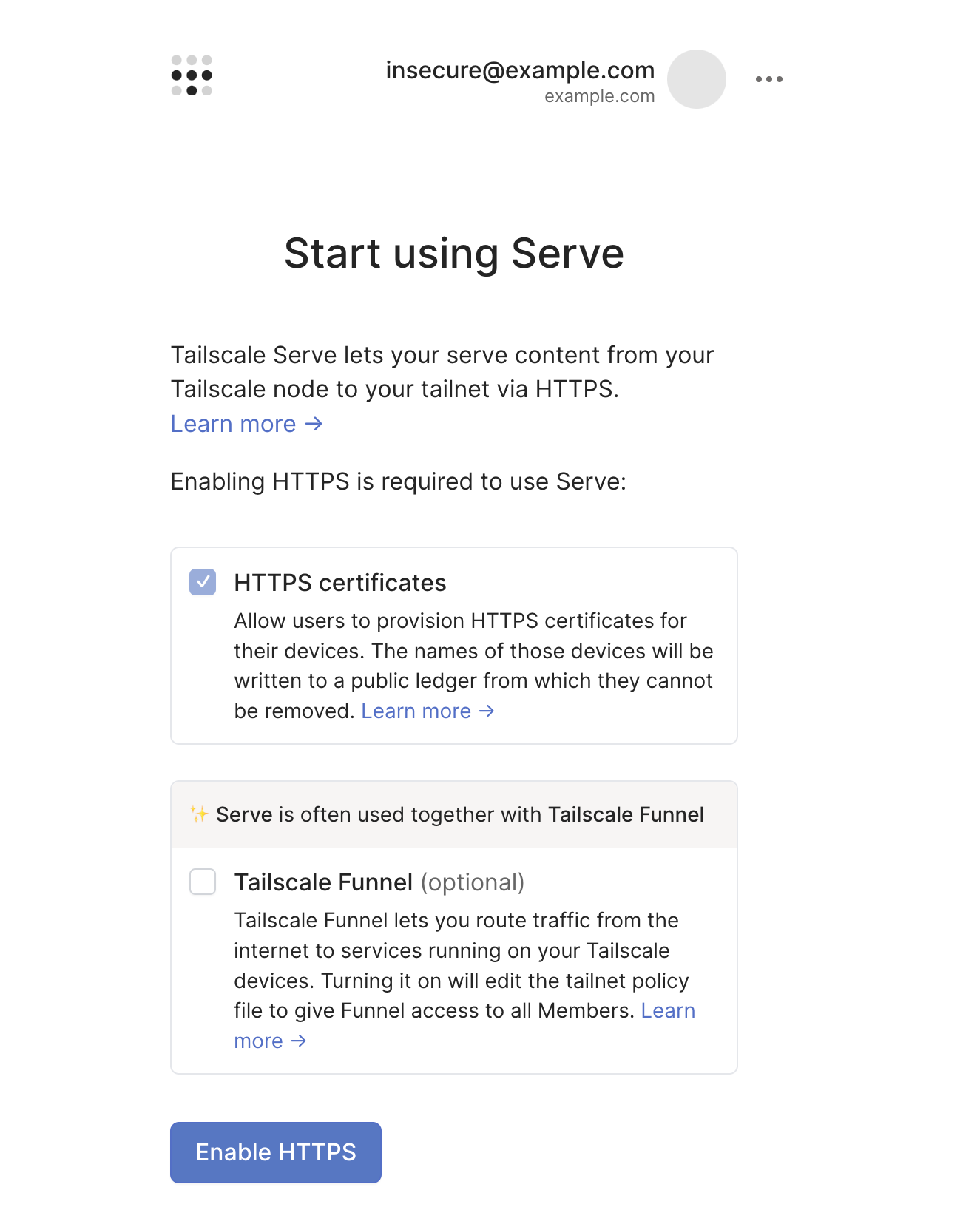
Official Tailscale documentation image of the Serve setup flow; it is not a capture of the reader’s tailnet. (Source: Serve overview, checked 2026-10-26)
Before adding a listener, inspect whether its port is already configured. Keep a private copy of the status if you need a rollback reference. Do not begin with tailscale serve reset: other sites on the device can depend on those rules.
4. Make website A work locally first
Keep its server listening on 127.0.0.1:5173 and check it before adding a proxy:
curl -I http://127.0.0.1:5173/For an existing Vite project, merge the following server options into its existing vite.config.js or vite.config.ts; retain its plugins and other settings:
import { defineConfig } from 'vite';

export default defineConfig({
  server: {
    host: '127.0.0.1',
    port: 5173,
    strictPort: true,
    allowedHosts: ['your-machine.tail1234.ts.net'],
  },
});
allowedHosts contains a hostname, without a scheme, port, or path. strictPort avoids silently switching to another backend port. Do not use allowedHosts: true to bypass a Host error. Vite’s explicit allowlist exists to protect the development server from DNS rebinding. (Vite server options)
This is a private development-server example. Long-term hosting should use the application’s supported production build/server rather than assuming a dev server is a production service.
5. Start Hermes with an explicit URL and authentication
Hermes’s documented default port is 9119. This walkthrough deliberately uses 9199; they are not interchangeable unless every backend reference is updated. First check that your installed version supports the settings in the current dashboard guide.
For a temporary test in macOS’s zsh, open a dedicated terminal and run the following. The password prompt avoids putting the password literal into the command history:
export HERMES_DASHBOARD_PUBLIC_URL="https://your-machine.tail1234.ts.net:9199"
export HERMES_DASHBOARD_BASIC_AUTH_USERNAME="admin"
read -rs "HERMES_DASHBOARD_BASIC_AUTH_PASSWORD?Dashboard password: "
printf '\n'
export HERMES_DASHBOARD_BASIC_AUTH_PASSWORD
hermes dashboard --host 127.0.0.1 --port 9199 --no-open
Use a strong unique password and leave this process running. The password remains in this process environment; this is not persistent secret storage. For a long-lived setup, follow the official username/password provider instructions for a password hash and stable session-signing secret, stored outside the website repository. Without a stable secret, restarting the dashboard invalidates sessions. The built-in shared-password provider is intended for trusted networks/VPN use; this is not a public-internet deployment recipe.
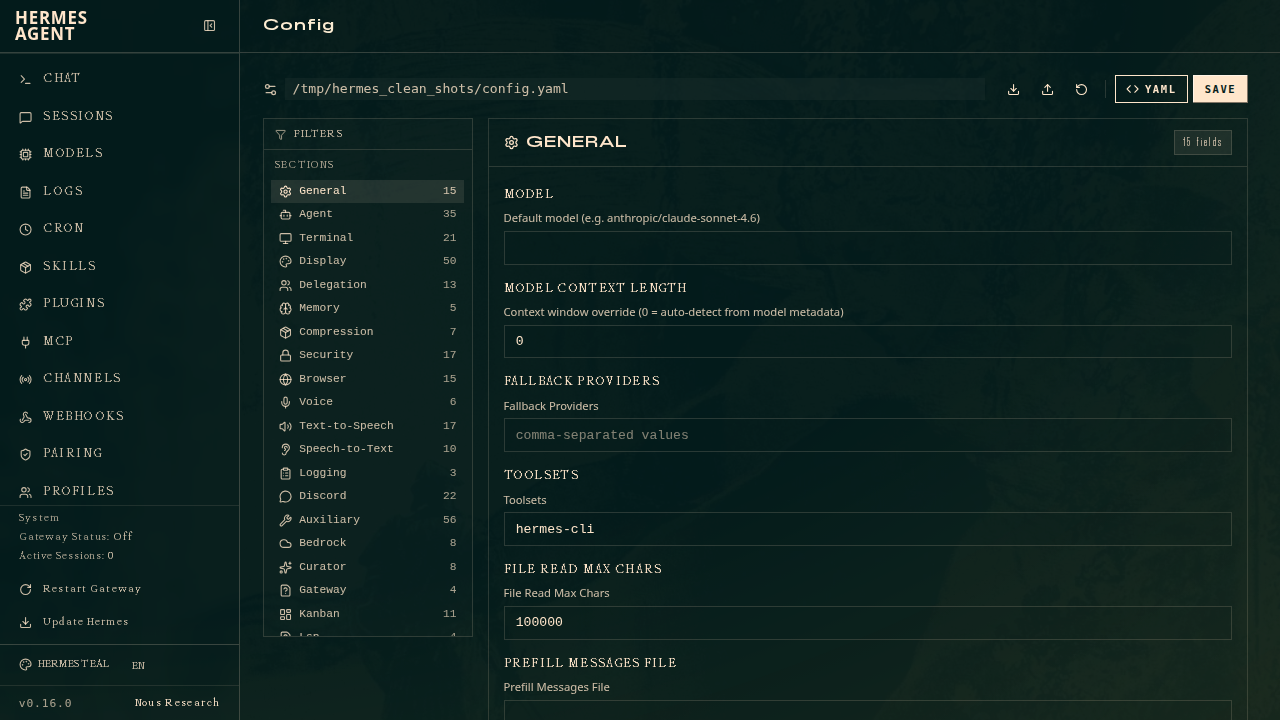
Official Hermes documentation image of the configuration dashboard. It illustrates the administration surface being protected, not a successful login on the reader’s machine; UI details vary by release. (Source: Hermes dashboard guide, checked 2026-10-26)
In another terminal, check the status with the browser-facing Host value:
curl -sS -H 'Host: your-machine.tail1234.ts.net:9199' \
  http://127.0.0.1:9199/api/status
For the password configuration, expect auth_required: true and an available basic provider. A successful public status response is a health check, not proof that protected APIs or WebSockets are accessible. If Hermes refuses to start because authentication is unconfigured, fix the provider rather than weakening the bind address.
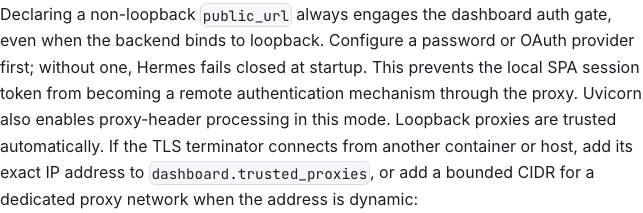
Captured public official documentation: declaring the external URL also changes the authentication requirement. (Source: Public URL override, captured 2026-10-26)
6. Why this resolves Invalid Host header
The backend’s bind address and the HTTP Host are different things. Serve connects to 127.0.0.1, but its HTTP proxy normally preserves the browser’s Host. Hermes’s DNS-rebinding guard sees the Tailscale hostname rather than localhost. The configured public URL adds that exact hostname to the trusted set; it does not disable the guard for arbitrary hosts. (Tailscale proxy implementation, Hermes boundary implementation)
Use the full URL, including https:// and the external port. In the checked Hermes source, Host validation extracts the hostname; the complete URL also matters for redirects and the browser-facing application URL. Do not invent an --allowed-hosts option: it is absent from the installed CLI help checked for this article. Version-specific options must be confirmed in that version’s help.
Avoid the proposed --host 0.0.0.0 --insecure workaround. All-interface binding broadens network exposure, and current Hermes does not let --insecure bypass authentication. A private tailnet does not automatically restrict a service also listening on the LAN.
7. Add the HTTPS listeners independently
With both backends healthy and the chosen external ports available, run these on the same host:
tailscale serve --bg --https=443 http://127.0.0.1:5173
tailscale serve --bg --https=9199 http://127.0.0.1:9199
tailscale serve status
The two commands configure different HTTPS listeners; the second does not need to replace the first. An optional third site can use:
tailscale serve --bg --https=8443 http://127.0.0.1:4321The route information should correspond to the following illustrative layout; actual status formatting varies:
https://your-machine.tail1234.ts.net/
  -> http://127.0.0.1:5173

https://your-machine.tail1234.ts.net:9199/
  -> http://127.0.0.1:9199
Tailscale manages HTTPS certificates for the configured tailnet DNS name when HTTPS is enabled. --bg persists the Serve configuration; it does not start or supervise Vite or Hermes. Those processes and the hosting machine must stay available. (Serve CLI reference)
8. Verify from a second device
On a device connected to Tailscale and permitted by the tailnet policy:
- Open website A at the root HTTPS URL. Check its assets and navigation.
- Open Hermes at the URL with
:9199. Confirm a login is required in a fresh private browser window, then sign in. - Open a session or chat to verify the WebSocket-backed features, not only the initial HTML.
- If using Vite, check that an edit refreshes the page. Hardcoded HMR host/port settings can still point to localhost and need correcting.
Review the host’s Tailscale access policy. Permit only the intended users/devices to reach the Serve listener ports, here TCP 443 and 9199, adding 8443 only if used. Existing policies can be broader than expected. Network permission and Hermes login are separate checks; Serve’s identity headers do not automatically become a Hermes login.
9. Ports, paths, and hostname isolation
Separate ports are convenient because each application keeps / as its root. Subpaths such as /hermes can work when the application and proxy agree on asset bases, redirects, cookies, and WebSocket paths. Current Hermes documents prefix support; “every dashboard breaks under a subpath” is inaccurate.
However, different ports are not complete application isolation. They are different browser origins, but cookies are not isolated by port. Avoid placing an untrusted website beside a sensitive dashboard on the same hostname. If you need clearer separation, consider distinct hosting nodes or Tailscale Services, with its own setup and access policy. (Cookie port limitation: RFC 6265)
10. Diagnose and remove only the affected listener
| Symptom | First check |
|---|---|
| Invalid Host header / blocked host | Which backend produced it; correct Hermes public URL or Vite hostname allowlist |
| Hermes refuses to start | A non-loopback public URL requires a configured authentication provider |
| 401 or login loop | Credentials, auth provider, session cookies, external HTTPS URL and proxy headers |
| 502 from Serve | Backend process, correct loopback address and port, local curl test |
| HTML loads but chat fails | WebSocket authentication and Host/Origin validation; status alone is insufficient |
| Certificate or DNS error | Full actual ts.net name, HTTPS setup, client Tailscale connection and access policy |
| Wrong site appears | Inspect Serve status and whether a dev server switched ports |
To stop only Hermes’s Serve listener:
tailscale serve --https=9199 off
tailscale serve status
This removes that listener without shutting down the Hermes backend or deliberately removing the 443 site. Use tailscale serve reset only when you intend to clear the device’s entire Serve setup. For unattended operation, configure the application’s supported service manager with the same URL and authentication settings; the temporary export commands above do not configure an existing daemon.
Tailscale Serve로 로컬 웹사이트 여러 개와 비밀번호를 설정한 Hermes 대시보드에 접속해 보자. HTTPS 포트, Host 검사와 문제 해결을 함께 설명한다. 앱은 loopback에 유지하고, 각 사이트에 서로 다른 HTTPS 포트의 루트 URL을 제공하는 구성이다.
2026-10-26 기준 공식 문서, 로컬 Tailscale 1.104.2 도움말, Hermes 커밋 509cc4202678db815a2addbc7983515643d59e2e 기준 대시보드 소스를 확인했다. 설치 패키지는 해당 소스보다 뒤처질 수 있다. 아래는 운영자가 실행할 안내이며, 글 작성 과정에서 실제 tailnet 설정을 바꾸거나 서비스를 노출하거나 원격 로그인을 시험하지 않았다.
1. 기존 설명에서 맞는 부분과 고칠 부분
Tailscale Serve는 로컬 앱을 tailnet에서 접근이 허용된 기기로 연결하는 리버스 프록시다. Hermes Agent의 웹 관리 화면에는 설정·자격 증명·세션 등 민감한 제어 기능이 있다. 네트워크 접근 제어와 별도로 앱 인증이 필요하다.
| 기존 설명 | 수정할 안내 |
|---|---|
| Tailscale 호스트명 때문에 Invalid Host header가 발생할 수 있음 | 전달된 호스트를 Hermes가 신뢰하지 않는 경우 맞음. 어느 백엔드의 오류인지 먼저 확인 |
HERMES_DASHBOARD_PUBLIC_URL 설정 |
지원 버전에서는 맞지만, loopback이 아닌 공개 호스트명은 인증 게이트도 활성화 |
0.0.0.0 --insecure가 안전한 우회책 |
권장하지 않음. LAN에도 노출될 수 있으며 현재 Hermes의 --insecure는 폐기된 무효 옵션 |
| 사이트마다 HTTPS 포트 사용 | 간단한 접근법. 외부 포트와 백엔드 포트가 같을 필요는 없음 |
| 사이트 추가 전에 Serve reset | 기본 절차로 불필요. 장비의 기존 Serve 설정을 제거함 |
| 하위 경로는 항상 앱을 깨뜨림 | 과도한 일반화. base path·리다이렉트·자산·WebSocket을 일관되게 설정하면 가능 |
Hermes 대시보드 문서, Host·인증 경계 구현, Serve 명령 참고를 기준으로 고쳤다.
2. 한 장비에서 로컬 앱 여러 개 연결하기
예시의 your-machine.tail1234.ts.net은 자신의 장비에 부여된 실제 전체 MagicDNS 이름으로 바꾼다.
| 앱 | 로컬 HTTP 백엔드 | Serve를 통한 브라우저 주소 |
|---|---|---|
| 웹사이트 A, 예를 들어 기존 Vite 프로젝트 | http://127.0.0.1:5173 |
https://your-machine.tail1234.ts.net/ |
| Hermes 대시보드 | http://127.0.0.1:9199 |
https://your-machine.tail1234.ts.net:9199/ |
| 선택 사항: 웹사이트 B | http://127.0.0.1:4321 |
https://your-machine.tail1234.ts.net:8443/ |
Serve가 Tailscale 쪽 HTTPS를 처리하고 선택한 loopback HTTP 서비스로 전달한다. Hermes와 Serve가 모두 9199를 써도 서로 다른 주소에서 수신하므로 함께 사용할 수 있다. 외부 8443을 백엔드 9199에 연결해도 되며, 이때 Hermes URL에는 :8443이 들어가야 한다.
Serve는 사설 tailnet 접속용이다. Tailscale Funnel은 인터넷 공개 기능으로 구분된다. 이 실습은 Funnel이 아닌 Serve를 사용한다.
3. 호스트·클라이언트·HTTPS 이름 준비하기
호스팅할 장비와 접속할 기기에 Tailscale을 설치하고 로그인한다. 호스트가 온라인인지 확인하고 장비 상세 정보에서 전체 DNS 이름을 찾는다. tail…ts.net 부분을 추측하지 않는다. MagicDNS와 HTTPS 인증서 설정을 확인한다.
호스팅 장비에서 도구와 기존 규칙을 살펴본다.
tailscale version
tailscale serve --help
tailscale serve status
hermes --version
hermes dashboard --help
Serve가 HTTPS 활성화 URL을 안내하면 공식 설정 흐름을 완료한다. 선택적인 Funnel 설정은 별도로 검토한다. macOS에서는 설치한 앱 종류에 맞는 tailscale CLI인지 확인한다. Serve 참고 문서는 App Store판과 standalone system-extension판에서 포트 공유는 가능하지만 파일·디렉터리 공유는 불가하다고 설명한다. 이 글은 포트를 공유한다.
Tailscale 공식 문서가 제공한 Serve 초기 설정 이미지. 독자의 실제 tailnet 캡처가 아니다. (출처: Serve 개요, 2026-10-26 확인)
새 수신 포트를 추가하기 전에 이미 설정되어 있는지 확인하고, 필요하면 상태 출력을 개인적으로 보관한다. tailscale serve reset부터 실행하지 않는다. 같은 장비의 다른 사이트가 기존 규칙을 사용 중일 수 있다.
4. 웹사이트 A를 로컬에서 먼저 확인하기
서버를 127.0.0.1:5173에서 실행하고 프록시 추가 전에 시험한다.
curl -I http://127.0.0.1:5173/
기존 Vite 프로젝트라면 vite.config.js 또는 vite.config.ts에 다음 server 항목을 병합한다. 기존 플러그인과 다른 설정은 유지한다.
import { defineConfig } from 'vite';

export default defineConfig({
  server: {
    host: '127.0.0.1',
    port: 5173,
    strictPort: true,
    allowedHosts: ['your-machine.tail1234.ts.net'],
  },
});
allowedHosts에는 scheme·포트·경로가 없는 호스트명만 넣는다. strictPort는 사용 중인 포트를 피해 백엔드가 다른 포트로 조용히 옮겨가는 일을 막는다. Host 오류를 우회하려고 allowedHosts: true로 바꾸지 않는다. 명시적 허용 목록은 개발 서버의 DNS rebinding 방어를 위한 설정이다. (Vite 서버 옵션)
이는 사설 개발 서버 예시다. 장기간 호스팅에는 해당 앱의 프로덕션 빌드·서버 운영 방식을 사용한다. 개발 서버를 곧바로 운영 서비스로 간주하지 않는다.
5. Hermes에 URL과 인증을 함께 설정하기
공식 기본 포트는 9119다. 이 실습은 의도적으로 9199를 사용한다. 백엔드 참조를 모두 바꾸지 않고 두 숫자를 섞어 쓰면 안 된다. 설치 버전이 현재 대시보드 문서의 설정을 지원하는지 확인한다.
macOS zsh에서 임시로 시험할 때는 전용 터미널을 열어 다음을 실행한다. 비밀번호를 직접 명령에 적지 않고 프롬프트로 받는다.
export HERMES_DASHBOARD_PUBLIC_URL="https://your-machine.tail1234.ts.net:9199"
export HERMES_DASHBOARD_BASIC_AUTH_USERNAME="admin"
read -rs "HERMES_DASHBOARD_BASIC_AUTH_PASSWORD?Dashboard password: "
printf '\n'
export HERMES_DASHBOARD_BASIC_AUTH_PASSWORD
hermes dashboard --host 127.0.0.1 --port 9199 --no-open
강력하고 고유한 비밀번호를 사용하고 프로세스를 켜 둔다. 비밀번호는 프로세스 환경에 남으므로 영구 비밀 저장소를 구성한 것은 아니다. 장기 운영에서는 공식 username/password 제공자 안내대로 비밀번호 해시와 고정 세션 서명 secret을 웹사이트 저장소 밖에 보관한다. 고정 secret이 없으면 재시작 시 세션이 무효화된다. 기본 공유 비밀번호 제공자는 신뢰하는 네트워크·VPN용이며, 이 글은 인터넷 직접 공개 절차가 아니다.
Hermes 공식 문서의 설정 대시보드 이미지. 보호할 관리 기능을 보여 주며 독자의 로그인 성공 화면이 아니다. UI는 버전마다 달라질 수 있다. (출처: Hermes 대시보드 안내, 2026-10-26 확인)
다른 터미널에서 브라우저가 사용하는 Host로 상태를 확인한다.
curl -sS -H 'Host: your-machine.tail1234.ts.net:9199' \
  http://127.0.0.1:9199/api/status
비밀번호 구성에서는 auth_required: true 값과 basic 제공자가 보여야 한다. 공개 상태 API의 정상 응답은 상태 점검이지, 보호된 API와 WebSocket 사용까지 증명하지 않는다. 인증 미설정 때문에 시작을 거부하면 바인딩을 느슨하게 바꾸지 말고 인증 제공자를 설정한다.
공개 공식 문서 캡처. 외부 URL 선언은 인증 요구에도 영향을 준다. (출처: Public URL override, 2026-10-26 캡처)
6. Invalid Host header가 해결되는 이유
백엔드 수신 주소와 HTTP Host는 다르다. Serve는 127.0.0.1로 연결하지만 일반 HTTP 프록시에서는 브라우저의 Host를 유지한다. Hermes의 DNS rebinding 방어에는 localhost 대신 Tailscale 호스트명이 들어온다. public URL 설정은 그 정확한 호스트명을 신뢰 목록에 추가하며 임의 호스트에 대한 검사를 끄지 않는다. (Tailscale 프록시 구현, Hermes 경계 구현)
https://와 외부 포트를 포함한 전체 URL을 사용한다. 확인한 Hermes 소스는 Host에서 호스트명을 추출해 검증하며, 전체 URL은 리다이렉트와 브라우저 접속 주소에도 중요하다. --allowed-hosts 옵션을 임의로 쓰지 않는다. 이번에 확인한 설치 CLI 도움말에는 없었다. 버전별 옵션은 해당 버전 도움말로 확인해야 한다.
제시된 --host 0.0.0.0 --insecure 우회책은 피한다. 모든 인터페이스 바인딩은 노출 범위를 넓히며 현재 --insecure는 인증을 우회하지 않는다. Tailscale이 사설이라는 이유만으로 LAN에서도 듣는 서비스까지 자동 제한되지는 않는다.
7. HTTPS 수신 포트를 각각 추가하기
두 백엔드가 정상이고 외부 포트가 비어 있으면 같은 호스트에서 실행한다.
tailscale serve --bg --https=443 http://127.0.0.1:5173
tailscale serve --bg --https=9199 http://127.0.0.1:9199
tailscale serve status
각각 다른 HTTPS 수신 포트를 설정하므로 두 번째 명령이 첫 번째를 대체할 필요는 없다. 세 번째 사이트가 있다면 다음처럼 추가한다.
tailscale serve --bg --https=8443 http://127.0.0.1:4321
경로 정보는 다음 예시 구조에 대응해야 한다. 실제 status 표시 형식은 버전에 따라 다르다.
https://your-machine.tail1234.ts.net/
  -> http://127.0.0.1:5173

https://your-machine.tail1234.ts.net:9199/
  -> http://127.0.0.1:9199
HTTPS가 켜져 있으면 Tailscale이 설정된 tailnet DNS 이름의 인증서를 관리한다. --bg는 Serve 설정을 유지하지만 Vite나 Hermes를 실행·감독하지는 않는다. 해당 프로세스와 호스팅 장비가 계속 사용 가능해야 한다. (Serve CLI 참고)
8. 두 번째 기기에서 검증하기
Tailscale에 연결되어 있고 정책상 접근이 허용된 기기에서 확인한다.
- 루트 HTTPS URL로 사이트 A를 열고 자산과 화면 이동을 확인한다.
:9199가 있는 Hermes 주소를 새 시크릿 창에서 열어 로그인이 요구되는지 확인한 뒤 로그인한다.- 첫 HTML뿐 아니라 세션·채팅을 열어 WebSocket 기능도 시험한다.
- Vite를 사용하면 편집 후 새로 고침이 되는지 확인한다. HMR host·port가 localhost로 고정되어 있으면 수정해야 할 수 있다.
호스트의 Tailscale 접근 정책을 확인한다. 의도한 사용자·기기만 Serve 수신 포트, 여기서는 TCP 443·9199에 접근하도록 하고 8443은 사용할 때만 추가한다. 기존 정책은 예상보다 넓을 수 있다. 네트워크 권한과 Hermes 로그인은 별도 검사다. Serve의 사용자 식별 헤더가 자동으로 Hermes 로그인으로 바뀌지는 않는다.
9. 포트·하위 경로·호스트명 분리
포트를 나누면 앱마다 /를 루트로 유지해 편하다. /hermes 같은 하위 경로도 앱과 프록시가 자산 기준 경로, 리다이렉트, 쿠키, WebSocket 경로에 합의하면 사용할 수 있다. 현재 Hermes도 prefix 지원을 문서화하고 있으므로 모든 대시보드가 하위 경로에서 깨진다는 설명은 틀리다.
다만 서로 다른 포트가 완전한 앱 격리는 아니다. 브라우저 origin은 다르지만 쿠키는 포트별로 격리되지 않는다. 신뢰하지 않는 사이트를 민감한 대시보드와 같은 호스트명에 두지 않는다. 더 명확한 분리가 필요하면 별도 호스팅 노드나 Tailscale Services를 검토하되 각자의 설정·정책이 필요하다. (쿠키 포트 제약: RFC 6265)
10. 원인을 나눠 보고 해당 수신 포트만 제거하기
| 증상 | 먼저 확인할 것 |
|---|---|
| Invalid Host header / blocked host | 오류를 낸 백엔드, Hermes public URL 또는 Vite 허용 호스트 |
| Hermes 시작 거부 | 외부 public URL에 필요한 인증 제공자 설정 |
| 401·로그인 반복 | 자격 증명, 제공자, 세션 쿠키, 외부 HTTPS URL, 프록시 헤더 |
| Serve의 502 | 백엔드 실행 여부, loopback 주소·포트, 로컬 curl |
| HTML은 열리지만 채팅 실패 | WebSocket 인증과 Host/Origin 검사. status만으로 부족 |
| 인증서·DNS 오류 | 실제 전체 ts.net 이름, HTTPS 설정, 클라이언트 연결과 정책 |
| 다른 사이트가 표시됨 | Serve status와 개발 서버의 포트 변경 여부 |
Hermes의 Serve 수신 포트만 멈추려면:
tailscale serve --https=9199 off
tailscale serve status
이 명령은 Hermes 백엔드를 종료하지 않고 해당 수신 포트를 제거하며, 443 사이트 전체를 지우는 절차도 아니다. 장비의 전체 Serve 구성을 없애려는 경우에만 tailscale serve reset을 사용한다. 무인 운영에서는 앱이 지원하는 서비스 관리 방식에 같은 URL·인증 설정을 넣는다. 위의 임시 export는 이미 실행 중인 데몬을 재설정하지 않는다.
通过 Tailscale Serve 访问多个本地网站和启用密码的 Hermes 仪表盘,正确处理 HTTPS 端口、Host 检查和排错。下文让应用继续监听回环地址,每个站点通过不同 HTTPS 端口保留根路径。
本文按 2026-10-26 的官方文档、本机 Tailscale 1.104.2 帮助及 Hermes 提交 509cc4202678db815a2addbc7983515643d59e2e 核对。安装包可能落后于该源码。这些是供你操作的步骤;撰写文章没有修改 tailnet、开放服务或测试真实远程登录。
1. 原方案哪些正确,哪些要修改
Tailscale Serve可将本地应用反向代理给 tailnet 中获准访问的设备。Hermes Agent提供管理配置、凭据、会话等敏感功能的网页,需要应用认证和网络访问控制两层保护。
| 原说法 | 修正 |
|---|---|
| Tailscale 主机名可能触发 Invalid Host header | 当 Hermes 不信任转发的主机名时成立;先确认错误来自哪个后端 |
设置 HERMES_DASHBOARD_PUBLIC_URL |
支持该功能的版本可用,但非回环主机名也会开启认证门禁 |
0.0.0.0 --insecure 是安全替代方案 |
删除此建议;监听所有接口可能暴露到 LAN,目前 --insecure 已弃用且无效 |
| 每个站点使用独立 HTTPS 端口 | 是简单方案,外部与后端端口无需相同 |
| 添加前先 reset | 默认无需;它会清除该设备现有 Serve 配置 |
| 子路径一定破坏应用 | 过于绝对;基础路径、重定向、资源和 WebSocket 一致配置后可以使用 |
依据为 Hermes 仪表盘文档、Host/认证边界实现和 Serve 命令参考。
2. 一台机器运行多个本地应用
将示例中的 your-machine.tail1234.ts.net 全部替换成主机真实的完整 MagicDNS 名称。
| 应用 | 本地 HTTP 后端 | 经 Serve 访问的浏览器地址 |
|---|---|---|
| 网站 A,例如已有 Vite 项目 | http://127.0.0.1:5173 |
https://your-machine.tail1234.ts.net/ |
| Hermes 仪表盘 | http://127.0.0.1:9199 |
https://your-machine.tail1234.ts.net:9199/ |
| 可选网站 B | http://127.0.0.1:4321 |
https://your-machine.tail1234.ts.net:8443/ |
Serve 在 Tailscale 一侧终止 HTTPS,再转发到指定回环 HTTP 服务。Hermes 与 Serve 可同时使用数字 9199,因为监听地址不同。也可把外部 8443 映射到后端 9199,但此时 Hermes URL 必须包含 :8443。
Serve 用于私有 tailnet 访问。Tailscale Funnel是面向互联网的公开功能。本文使用 Serve,不是 Funnel。
3. 准备主机、客户端与 HTTPS 名称
在主机与访问设备安装 Tailscale,登录并确认主机在线。从设备详情获取完整 DNS 名称,不要猜测 tail…ts.net 后缀。检查 MagicDNS和 HTTPS 证书设置。
在托管主机上查看工具和现有规则:
tailscale version
tailscale serve --help
tailscale serve status
hermes --version
hermes dashboard --help
如 Serve 提供启用 HTTPS 的设置 URL,完成官方流程;可选 Funnel 设置另行审核。macOS 上确认 CLI 与所装应用版本类型匹配。Serve 参考说明 App Store 及独立 system-extension 版本能共享端口,但不能共享文件/目录。本文共享端口。
Tailscale 官方文档的设置图片,不是读者 tailnet 的截图。(来源:Serve 概览,2026-10-26 核对)
添加监听器前检查端口是否已配置,需要回退记录时私下保存状态。不要先运行 tailscale serve reset,其他网站可能依赖现有规则。
4. 先确认网站 A 在本地正常
让服务器监听 127.0.0.1:5173,添加代理前检查:
curl -I http://127.0.0.1:5173/
已有 Vite 项目可将以下 server 选项合并到 vite.config.js 或 vite.config.ts,保留现有插件及其他设置:
import { defineConfig } from 'vite';

export default defineConfig({
  server: {
    host: '127.0.0.1',
    port: 5173,
    strictPort: true,
    allowedHosts: ['your-machine.tail1234.ts.net'],
  },
});
allowedHosts 只写主机名,不含 scheme、端口或路径。strictPort 防止端口占用时悄悄换端口。不要用 allowedHosts: true 绕过 Host 错误;明确白名单用于抵御开发服务器的 DNS rebinding。(Vite 服务器选项)
这是私有开发服务器示例。长期托管应采用应用支持的生产构建和服务器方式,不把开发服务器自动视为生产服务。
5. 为 Hermes 同时设置 URL 与认证
Hermes 文档默认端口是 9119,本文明确改用 9199。只有同步修改所有后端引用,才能替换这两个数字。先核对安装版本是否支持当前仪表盘文档的设置。
在 macOS zsh 中临时测试时,打开专用终端执行下列命令。密码通过提示输入,避免明文写进命令历史:
export HERMES_DASHBOARD_PUBLIC_URL="https://your-machine.tail1234.ts.net:9199"
export HERMES_DASHBOARD_BASIC_AUTH_USERNAME="admin"
read -rs "HERMES_DASHBOARD_BASIC_AUTH_PASSWORD?Dashboard password: "
printf '\n'
export HERMES_DASHBOARD_BASIC_AUTH_PASSWORD
hermes dashboard --host 127.0.0.1 --port 9199 --no-open
使用强且独有的密码,并保持进程运行。密码仍在进程环境中,这不是持久密钥存储。长期部署按官方密码提供者指南,使用密码哈希和稳定的会话签名 secret,放在网站仓库之外。缺少固定 secret 时,重启会使会话失效。内置共享密码提供者面向可信网络/VPN,此处不是互联网直接公开方案。
Hermes 官方配置界面图片,说明需要保护的管理功能,并非读者主机的登录成功截图;各版本界面可能不同。(来源:Hermes 仪表盘,2026-10-26 核对)
另开终端,使用浏览器侧的 Host 检查状态:
curl -sS -H 'Host: your-machine.tail1234.ts.net:9199' \
  http://127.0.0.1:9199/api/status
密码方案应显示 auth_required: true 及可用的 basic 提供者。公开状态接口正常只代表健康检查成功,不证明受保护 API 与 WebSocket 可用。认证未配置导致启动被拒绝时,应修复认证提供者,而非放宽监听地址。
公开官方文档截图:声明外部 URL 也改变认证要求。(来源:Public URL override,2026-10-26 截图)
6. 为什么能修复 Invalid Host header
监听地址与 HTTP Host 不同。Serve 连接 127.0.0.1,但普通 HTTP 代理保留浏览器 Host。Hermes 的 DNS rebinding 检查看到的是 Tailscale 主机名而非 localhost。public URL 将该精确主机名加入信任集合,并未对任意主机关闭检查。(Tailscale 代理实现、Hermes 边界实现)
使用包含 https:// 和外部端口的完整 URL。核对的 Hermes 源码从 Host 中提取主机名验证,完整 URL 也影响重定向及浏览器地址。不要凭空使用 --allowed-hosts;本次查看的安装版 CLI 帮助里没有它。版本专属选项必须查该版本帮助。
避免 --host 0.0.0.0 --insecure 方案。所有接口监听扩大暴露面,当前 --insecure 也不绕过认证。私有 tailnet 不会自动限制同时监听 LAN 的服务。
7. 分别添加 HTTPS 监听器
两个后端正常、外部端口可用后,在同一主机运行:
tailscale serve --bg --https=443 http://127.0.0.1:5173
tailscale serve --bg --https=9199 http://127.0.0.1:9199
tailscale serve status
两个命令配置不同的 HTTPS 监听器,第二个无需替换第一个。第三站点可选:
tailscale serve --bg --https=8443 http://127.0.0.1:4321
路由应对应以下示例结构;实际状态格式可能不同:
https://your-machine.tail1234.ts.net/
  -> http://127.0.0.1:5173

https://your-machine.tail1234.ts.net:9199/
  -> http://127.0.0.1:9199
启用 HTTPS 后,Tailscale 管理所配置 tailnet DNS 名称的证书。--bg 持久化 Serve 配置,不会启动或监督 Vite、Hermes;应用进程和主机必须持续可用。(Serve CLI 参考)
8. 在第二台设备验证
在已连 Tailscale 且政策允许的设备上:
- 打开网站 A 的根 HTTPS URL,检查资源和导航。
- 新开隐私窗口访问带
:9199的 Hermes,确认要求登录,再登录。 - 打开会话或聊天,验证 WebSocket 功能,而非只看初始 HTML。
- 使用 Vite 时确认编辑触发刷新;硬编码为 localhost 的 HMR host/port 可能需要调整。
检查主机的 Tailscale 访问策略。只允许预期用户、设备访问 Serve 监听端口,此处 TCP 443、9199,使用第三站点时再加 8443。已有策略可能比预想宽泛。网络授权与 Hermes 登录是独立检查,Serve 身份头不会自动变成 Hermes 登录。
9. 端口、路径与主机名隔离
分端口方便各应用保留 /。只要应用与代理对资源基础路径、重定向、cookie、WebSocket 路径配置一致,/hermes 等子路径也可用。当前 Hermes 有前缀支持文档,不能说所有仪表盘都不支持子路径。
但不同端口不等于完全隔离应用。浏览器 origin 不同,cookie 却不按端口隔离。不要把不可信网站与敏感仪表盘放在同一主机名。需要更明确隔离时,可考虑独立节点或 Tailscale Services,并单独配置及控制访问。(Cookie 端口限制:RFC 6265)
10. 分层排错,只移除相关监听器
| 症状 | 首先检查 |
|---|---|
| Invalid Host header / blocked host | 哪个后端返回;Hermes public URL 或 Vite 主机白名单 |
| Hermes 拒绝启动 | 非回环 public URL 所需的认证提供者 |
| 401 或登录循环 | 凭据、提供者、会话 cookie、外部 HTTPS URL 和代理头 |
| Serve 返回 502 | 后端进程、回环地址及端口、本地 curl |
| HTML 正常但聊天失败 | WebSocket 认证、Host/Origin;状态接口不足以证明正常 |
| 证书/DNS 错误 | 真实完整 ts.net 名称、HTTPS 设置、客户端连接与策略 |
| 出现错误站点 | Serve 状态及开发服务器是否换端口 |
只停止 Hermes 的 Serve 监听器:
tailscale serve --https=9199 off
tailscale serve status
它移除该监听器,不关闭 Hermes 后端,也不是删除 443 站点的操作。仅在确实要清空整台设备 Serve 配置时才使用 tailscale serve reset。无人值守运行应把相同 URL、认证配置加入应用支持的服务管理方式;临时 export 不会重新配置已运行的守护进程。
Tailscale Serveで複数のローカルサイトとパスワード付きHermesダッシュボードに接続します。HTTPSポート、Host検証、トラブル対策を整理し、アプリはloopbackのまま、外部は別々のHTTPSポートでルートURLを提供します。
公式文書、ローカルのTailscale 1.104.2 のヘルプ、Hermesコミット 509cc4202678db815a2addbc7983515643d59e2e を 2026-10-26 に確認しました。導入パッケージはこのソースより古い場合があります。以下は利用者向けの手順であり、執筆中に実際のtailnet設定変更、公開、リモートログイン試験は行っていません。
1. 元の提案の正しい点と修正点
Tailscale Serveは、ローカルアプリをtailnet内で許可された機器へリバースプロキシします。Hermes Agentの管理画面には設定、認証情報、セッションなどの重要な操作があり、ネットワーク制御に加えてアプリ認証も必要です。
| 元の説明 | 修正した案内 |
|---|---|
| Tailscale名でInvalid Host headerになる | 転送先のHostをHermesが信頼しない場合は正しい。エラーを返すバックエンドを確認 |
HERMES_DASHBOARD_PUBLIC_URL を設定 |
対応版では正しいが、非loopbackのホスト名は認証ゲートも有効にする |
0.0.0.0 --insecure は安全な回避策 |
推奨から除外。LANにも公開され得る。現在の --insecure は非推奨・無効 |
| サイトごとにHTTPSポートを分ける | 簡単な方式。外部ポートとバックエンドの番号は別でもよい |
| 追加前にServeをreset | 通常は不要。既存のデバイス全体のServe設定を消す |
| サブパスは必ず壊れる | 過度な一般化。base path、リダイレクト、アセット、WebSocketをそろえれば使える |
根拠は Hermes文書、Host・認証の境界実装、Serveコマンド参考です。
2. 1台のマシンに複数のアプリ
例の your-machine.tail1234.ts.net はすべて実際の完全なMagicDNS名に置き換えます。
| アプリ | ローカルHTTP | Serve経由のURL |
|---|---|---|
| サイトA。例:既存Viteプロジェクト | http://127.0.0.1:5173 |
https://your-machine.tail1234.ts.net/ |
| Hermes管理画面 | http://127.0.0.1:9199 |
https://your-machine.tail1234.ts.net:9199/ |
| 任意のサイトB | http://127.0.0.1:4321 |
https://your-machine.tail1234.ts.net:8443/ |
ServeがTailscale側でHTTPSを終端し、指定のloopback HTTPへ転送します。HermesとServeが同じ 9199 を使っても、待受アドレスが違うため共存できます。外部 8443 から内部 9199 への転送も可能ですが、その場合HermesのURLは :8443 にします。
Serveは非公開tailnet向けです。Tailscale Funnelはインターネット公開の別機能です。本記事は Serve を使います。
3. ホスト・クライアント・HTTPS名を準備する
ホストと閲覧機器へ Tailscaleを導入してログインし、ホストがオンラインか確認します。端末詳細から完全なDNS名を取得し、tail…ts.net の部分は推測しません。MagicDNSと HTTPS証明書設定を確認します。
ホスティングするマシンで既存の状態を調べます。
tailscale version
tailscale serve --help
tailscale serve status
hermes --version
hermes dashboard --help
ServeがHTTPS有効化URLを示したら、公式の手順を完了します。任意のFunnel設定は別途確認してください。macOSでは導入したアプリ種別に合うCLIを使います。Serve参考によるとApp Store版とstandalone system-extension版はポート共有に対応しますが、ファイル・ディレクトリ共有には対応しません。ここではポートを共有します。
公式文書のServe初期設定画像。読者のtailnetを撮影したものではありません。(出典:Serve概要、2026-10-26確認)
追加前にポートの既存設定を調べ、必要なら状態を個人的に保存します。最初に tailscale serve reset を実行しないでください。 他サイトが既存ルールに依存する可能性があります。
4. サイトAを先にローカルで動かす
127.0.0.1:5173 で待ち受け、プロキシ追加前に確認します。
curl -I http://127.0.0.1:5173/
既存の Viteプロジェクトでは、次のserver設定を vite.config.js または vite.config.ts に統合します。プラグインや他の設定を残します。
import { defineConfig } from 'vite';

export default defineConfig({
  server: {
    host: '127.0.0.1',
    port: 5173,
    strictPort: true,
    allowedHosts: ['your-machine.tail1234.ts.net'],
  },
});
allowedHosts はscheme、ポート、パスを含まないホスト名です。strictPort は使用中ポートから自動で移るのを防ぎます。Hostエラーを allowedHosts: true で回避しないでください。明示的リストはDNS rebinding対策です。(Viteサーバー設定)
これは非公開の開発サーバー例です。長期運用ではアプリが対応する本番ビルド・サーバーを使い、開発サーバーを本番サービスとみなしません。
5. HermesへURLと認証を同時に設定する
Hermesの既定ポートは 9119 です。本文では意図的に 9199 を使い、すべての参照を変更せずに混ぜてはいけません。導入版が 現在の文書の設定に対応するか確認します。
macOSのzsh で一時的に試す場合、専用端末で以下を実行します。パスワードをコマンド履歴に直接残さない入力方式です。
export HERMES_DASHBOARD_PUBLIC_URL="https://your-machine.tail1234.ts.net:9199"
export HERMES_DASHBOARD_BASIC_AUTH_USERNAME="admin"
read -rs "HERMES_DASHBOARD_BASIC_AUTH_PASSWORD?Dashboard password: "
printf '\n'
export HERMES_DASHBOARD_BASIC_AUTH_PASSWORD
hermes dashboard --host 127.0.0.1 --port 9199 --no-open
強く固有のパスワードを使い、プロセスを起動したままにします。パスワードはプロセス環境に残るため、永続的な秘密管理ではありません。長期運用は公式password providerの案内に従い、パスワードハッシュと固定のセッション署名secret をサイトのリポジトリ外に保存します。固定secretがなければ再起動でセッションが失効します。共有パスワード方式は信頼できるネットワーク/VPN用で、インターネット直接公開の手順ではありません。
保護対象の管理機能を示す公式画像。読者のログイン成功画面ではなく、UIは版によって異なります。(出典:Hermesガイド、2026-10-26確認)
別端末からブラウザ側のHostで状態確認します。
curl -sS -H 'Host: your-machine.tail1234.ts.net:9199' \
  http://127.0.0.1:9199/api/status
パスワード構成では auth_required: true と basic providerが必要です。公開statusの正常応答はヘルスチェックにすぎず、保護APIやWebSocketの動作確認ではありません。認証未設定で起動を拒否したら、待受を広げず認証providerを直します。
公開公式文書のキャプチャ。外部URLの宣言は認証要件も変えます。(出典:Public URL override、2026-10-26撮影)
6. Invalid Host headerを直せる理由
待受アドレスとHTTP Hostは別です。Serveは 127.0.0.1 に接続しても、通常のHTTPプロキシではブラウザのHostを維持します。HermesのDNS rebinding対策にはlocalhostでなくTailscale名が渡ります。public URLはその正確なホスト名を信頼集合に加え、任意のHostを許可するものではありません。(Tailscale実装、Hermes実装)
https:// と 外部ポート を含むURLを使います。確認したコードはHostからホスト名を抽出して検証しますが、完全なURLはリダイレクトにも重要です。--allowed-hosts を推測で使わないでください。確認した導入CLIのヘルプにはありません。各バージョンのヘルプで確認します。
--host 0.0.0.0 --insecure は避けます。全インターフェース待受は露出を増やし、現在の --insecure は認証を回避しません。私有tailnetでも、LANで待ち受けるサービスまで自動で制限されるわけではありません。
7. HTTPSリスナーを別々に追加する
両バックエンドが正常で外部ポートが空いていれば、同じホストで実行します。
tailscale serve --bg --https=443 http://127.0.0.1:5173
tailscale serve --bg --https=9199 http://127.0.0.1:9199
tailscale serve status
別のHTTPSリスナーを設定するため、2つ目で1つ目を置き換える必要はありません。任意の3サイト目は次です。
tailscale serve --bg --https=8443 http://127.0.0.1:4321
経路は次の 例示構造 に対応します。実際のstatus表示形式は版によって異なります。
https://your-machine.tail1234.ts.net/
  -> http://127.0.0.1:5173

https://your-machine.tail1234.ts.net:9199/
  -> http://127.0.0.1:9199
HTTPSが有効ならTailscaleが対象tailnet DNS名の証明書を管理します。--bg はServe設定を保持しますが、ViteやHermesを起動・監督はしません。アプリとホスト自体が稼働している必要があります。(Serve CLI参考)
8. 2台目の機器から確認する
Tailscale接続済みで、ポリシー上許可された機器から試します。
- サイトAのルートHTTPS URLを開き、アセットと画面遷移を確認します。
- 新しいプライベートウィンドウで
:9199のHermesを開き、ログイン要求を確認してから認証します。 - 初期HTMLだけでなくセッションやチャットを開き、WebSocketも確認します。
- Viteなら編集で更新されるか確認します。HMRのhost/portがlocalhostに固定なら修正が必要な場合があります。
ホストの Tailscaleアクセス方針を確認し、想定した利用者・機器だけが Serveの待受ポート、ここではTCP 443・9199へ接続できるようにします。8443は使用時だけ追加します。既存ルールは予想より広い可能性があります。ネットワーク許可とHermesログインは別で、Serveの識別ヘッダーが自動でHermesログインになるわけではありません。
9. ポート・パス・ホスト名の分離
ポートを分けると各アプリが / を保てます。アセット基準、リダイレクト、cookie、WebSocketパスをアプリとプロキシでそろえれば /hermes なども利用可能です。現在のHermesはprefix対応を説明しており、全ダッシュボードがサブパスで壊れるという説明は不正確です。
ただし 別ポートは完全なアプリ分離ではありません。 originは違ってもcookieはポートで隔離されません。信頼できないサイトを重要な管理画面と同じホスト名に置かず、明確な分離には別ノードや Tailscale Servicesを検討します。それぞれ設定と方針が必要です。(cookieのポート制限:RFC 6265)
10. 切り分けて対象リスナーだけを削除する
| 症状 | 最初の確認 |
|---|---|
| Invalid Host header / blocked host | エラー元、Hermes public URL、Vite許可リスト |
| Hermes起動拒否 | 非loopback public URLに必要な認証provider |
| 401・ログインループ | 認証情報、provider、cookie、外部HTTPS URL、プロキシヘッダー |
| Serveの502 | バックエンド、loopbackアドレスとポート、ローカルcurl |
| HTMLだけ動きチャット失敗 | WebSocket認証とHost/Origin。statusだけでは不足 |
| 証明書・DNSエラー | 実際の完全ts.net名、HTTPS、クライアント接続と方針 |
| 別サイトが表示される | Serve statusと開発サーバーのポート変更 |
Hermesのリスナーだけを止めるには:
tailscale serve --https=9199 off
tailscale serve status
対象リスナーを削除するだけでHermesバックエンドは停止せず、443サイトをまとめて消す手順でもありません。tailscale serve reset はデバイス全体の設定を消す意図がある場合だけ使います。常時運用は、アプリが対応するサービス管理に同じURL・認証を設定します。一時的な export は既に動くデーモンには反映されません。
Accede con Tailscale Serve a varios sitios locales y un panel Hermes con contraseña. Esta guía explica puertos HTTPS, validación de Host y diagnóstico: los backends siguen en loopback y cada aplicación conserva su raíz en un puerto HTTPS distinto.
Comprobado el 2026-10-26 con fuentes oficiales, ayuda local de Tailscale 1.104.2 y el commit Hermes 509cc4202678db815a2addbc7983515643d59e2e. Los paquetes pueden ser anteriores. Escribir el artículo no modificó tu tailnet, publicó servicios ni probó autenticación remota real.
1. Aciertos y correcciones de la propuesta
Tailscale Serve conecta aplicaciones locales con dispositivos autorizados de la tailnet. El panel Hermes Agent administra configuración, credenciales y sesiones sensibles; necesita autenticación además del control de red.
| Propuesta | Corrección |
|---|---|
| El nombre Tailscale causa Invalid Host header | Puede hacerlo si Hermes no confía en el Host reenviado; identifica el backend |
Usar HERMES_DASHBOARD_PUBLIC_URL |
Correcto en versiones compatibles; un nombre externo también activa autenticación |
0.0.0.0 --insecure es seguro |
No recomendarlo: expone a otras interfaces y actualmente --insecure es obsoleto e ineficaz |
| Un puerto HTTPS por sitio | Sencillo; puertos externo e interno pueden diferir |
| Reset antes de añadir | Normalmente innecesario; borra reglas existentes del dispositivo |
| Las subrutas siempre fallan | Funcionan al coordinar bases, redirecciones, recursos y WebSockets |
Basado en la guía Hermes, su validación de Host y autenticación y la referencia Serve.
2. Una máquina, varias aplicaciones
Sustituye cada your-machine.tail1234.ts.net por el nombre MagicDNS completo real.
| Aplicación | Backend local | URL mediante Serve |
|---|---|---|
| Sitio A, por ejemplo Vite existente | http://127.0.0.1:5173 |
https://your-machine.tail1234.ts.net/ |
| Panel Hermes | http://127.0.0.1:9199 |
https://your-machine.tail1234.ts.net:9199/ |
| Sitio B opcional | http://127.0.0.1:4321 |
https://your-machine.tail1234.ts.net:8443/ |
Serve termina HTTPS y reenvía a HTTP loopback. Ambos pueden usar 9199 porque escuchan en direcciones diferentes. También puedes mapear externo 8443 a interno 9199; entonces configura Hermes con :8443.
Serve es privado para la tailnet. Tailscale Funnel publica en internet y es diferente. Aquí se utiliza Serve.
3. Prepara host, cliente y nombre HTTPS
Instala Tailscale en ambos dispositivos, inicia sesión y confirma que el host esté conectado. Copia el nombre DNS de sus detalles; no inventes el sufijo. Comprueba MagicDNS y certificados HTTPS.
En el host, inspecciona herramientas y reglas:
tailscale version
tailscale serve --help
tailscale serve status
hermes --version
hermes dashboard --help
Si Serve ofrece una URL para activar HTTPS, completa el flujo oficial. Evalúa Funnel por separado. En macOS usa la CLI correspondiente a tu aplicación. La referencia Serve indica que las versiones App Store y standalone system-extension comparten puertos, no archivos/directorios. Aquí compartimos puertos.
Imagen de documentación oficial; no es la tailnet del lector. (Fuente: Serve, comprobada el 2026-10-26)
Comprueba si el puerto ya está configurado y conserva el estado de forma privada si necesitas revertir. No empieces con tailscale serve reset: otros sitios pueden depender de las reglas.
4. Comprueba el sitio A en local
Mantén su servidor en 127.0.0.1:5173 y prueba:
curl -I http://127.0.0.1:5173/
En un proyecto Vite existente, combina estas opciones en vite.config.js o vite.config.ts sin eliminar plugins ni otros ajustes:
import { defineConfig } from 'vite';

export default defineConfig({
  server: {
    host: '127.0.0.1',
    port: 5173,
    strictPort: true,
    allowedHosts: ['your-machine.tail1234.ts.net'],
  },
});
allowedHosts lleva solo el nombre, sin esquema, puerto ni ruta. strictPort evita cambiar de puerto silenciosamente. No uses allowedHosts: true: la lista explícita protege contra DNS rebinding. (Opciones Vite)
Es un servidor de desarrollo privado. Para alojamiento continuo usa el build y servidor de producción admitidos por la aplicación, no asumas que desarrollo equivale a producción.
5. Configura URL y autenticación en Hermes
Su puerto predeterminado es 9119; aquí elegimos 9199. Cambia todas las referencias si cambias de número. Comprueba que tu versión admita los ajustes de la guía actual.
Para una prueba temporal en zsh de macOS, abre otro terminal. El prompt evita escribir literalmente la contraseña en el historial:
export HERMES_DASHBOARD_PUBLIC_URL="https://your-machine.tail1234.ts.net:9199"
export HERMES_DASHBOARD_BASIC_AUTH_USERNAME="admin"
read -rs "HERMES_DASHBOARD_BASIC_AUTH_PASSWORD?Dashboard password: "
printf '\n'
export HERMES_DASHBOARD_BASIC_AUTH_PASSWORD
hermes dashboard --host 127.0.0.1 --port 9199 --no-open
Usa una contraseña fuerte y única, y deja el proceso activo. La contraseña queda en el entorno del proceso: no es almacenamiento persistente de secretos. En uso continuo sigue la guía oficial para guardar hash de contraseña y secreto estable de firma fuera del repositorio web. Sin secreto estable, reiniciar invalida sesiones. El proveedor de contraseña compartida está pensado para redes fiables/VPN, no publicación directa en internet.
Imagen oficial de la administración que protegemos; no es una sesión real del lector. La interfaz varía por versión. (Fuente: panel Hermes, comprobada el 2026-10-26)
En otro terminal, prueba el estado con el Host del navegador:
curl -sS -H 'Host: your-machine.tail1234.ts.net:9199' \
  http://127.0.0.1:9199/api/status
Deben aparecer auth_required: true y el proveedor basic. El estado público verifica salud, no acceso a API protegidas ni WebSockets. Si falta autenticación y no inicia, configura el proveedor en vez de ampliar la escucha.
Captura oficial pública: declarar la URL externa también cambia la autenticación. (Fuente: Public URL override, captura del 2026-10-26)
6. Por qué corrige Invalid Host header
Escucha y HTTP Host son conceptos distintos. Serve conecta a 127.0.0.1, pero normalmente conserva el Host del navegador. La protección Hermes recibe el nombre Tailscale. La URL pública añade ese nombre exacto a los permitidos sin aceptar cualquier Host. (Proxy Tailscale, validación Hermes)
Utiliza URL completa con https:// y puerto externo. El código revisado extrae el nombre del Host; la URL completa también importa para redirecciones. No inventes --allowed-hosts: falta en la ayuda instalada consultada. Verifica opciones por versión.
Evita --host 0.0.0.0 --insecure. Todas las interfaces amplían la exposición, y hoy --insecure no evita autenticación. La tailnet privada no limita automáticamente una aplicación que también escucha en LAN.
7. Añade listeners HTTPS separados
Con backends sanos y puertos disponibles, ejecuta en el mismo host:
tailscale serve --bg --https=443 http://127.0.0.1:5173
tailscale serve --bg --https=9199 http://127.0.0.1:9199
tailscale serve status
Los listeners son distintos; el segundo no tiene que sustituir al primero. Para un tercer sitio:
tailscale serve --bg --https=8443 http://127.0.0.1:4321
El estado debe corresponder a esta estructura ilustrativa; el formato puede variar:
https://your-machine.tail1234.ts.net/
  -> http://127.0.0.1:5173

https://your-machine.tail1234.ts.net:9199/
  -> http://127.0.0.1:9199
Con HTTPS habilitado, Tailscale gestiona certificados para el nombre DNS configurado. --bg conserva Serve, pero no inicia ni supervisa Vite/Hermes. Procesos y máquina deben seguir disponibles. (CLI Serve)
8. Verifica desde un segundo dispositivo
Desde un cliente conectado y autorizado:
- Abre la raíz HTTPS del sitio A y revisa recursos y navegación.
- Abre Hermes con
:9199en una ventana privada nueva, confirma el login e inicia sesión. - Prueba sesiones/chat para verificar WebSockets, no solo HTML.
- Con Vite, comprueba actualizaciones al editar. Un HMR host/port fijo a localhost puede necesitar cambios.
Revisa la política Tailscale. Limita los usuarios/dispositivos que acceden a los puertos Serve TCP 443/9199; añade 8443 solo si se usa. Las reglas existentes pueden ser más amplias de lo previsto. Red y login son controles distintos: las cabeceras de identidad Serve no autentican Hermes automáticamente.
9. Puertos, rutas y aislamiento
Separar puertos conserva / en cada aplicación. /hermes también puede funcionar si aplicación y proxy coordinan recursos, redirecciones, cookies y WebSockets. Hermes documenta prefijos; no todos los paneles fallan en subrutas.
Pero puertos diferentes no aíslan completamente aplicaciones. Sus orígenes difieren, las cookies no se aíslan por puerto. No juntes sitios no fiables y administración sensible en un mismo nombre. Considera nodos distintos o Tailscale Services para mayor separación, con ajustes y políticas propios. (Puertos y cookies: RFC 6265)
10. Diagnostica y elimina solo el listener afectado
| Síntoma | Comprobación |
|---|---|
| Invalid Host header / blocked host | Backend, URL Hermes o lista Vite |
| Hermes no inicia | Proveedor exigido por la URL externa |
| 401 o bucle de login | Credenciales, proveedor, cookies, URL HTTPS y cabeceras |
| 502 de Serve | Proceso, dirección/puerto loopback, curl local |
| HTML funciona pero chat no | WebSocket, autenticación y Host/Origin; status no basta |
| Error DNS/certificado | Nombre ts.net completo, HTTPS, conexión y política |
| Sitio incorrecto | Estado Serve y cambio de puerto del servidor |
Para detener únicamente el listener Hermes:
tailscale serve --https=9199 off
tailscale serve status
Elimina ese listener sin apagar Hermes ni borrar deliberadamente el sitio 443. Usa tailscale serve reset solo para limpiar toda la configuración. En uso desatendido configura el gestor de servicios compatible con la misma URL y autenticación: los export temporales no reconfiguran un demonio activo.