Chrome 세로 탭 완전 활용법: 탭을 사이드바로 옮겨 업무 공간 정리하기
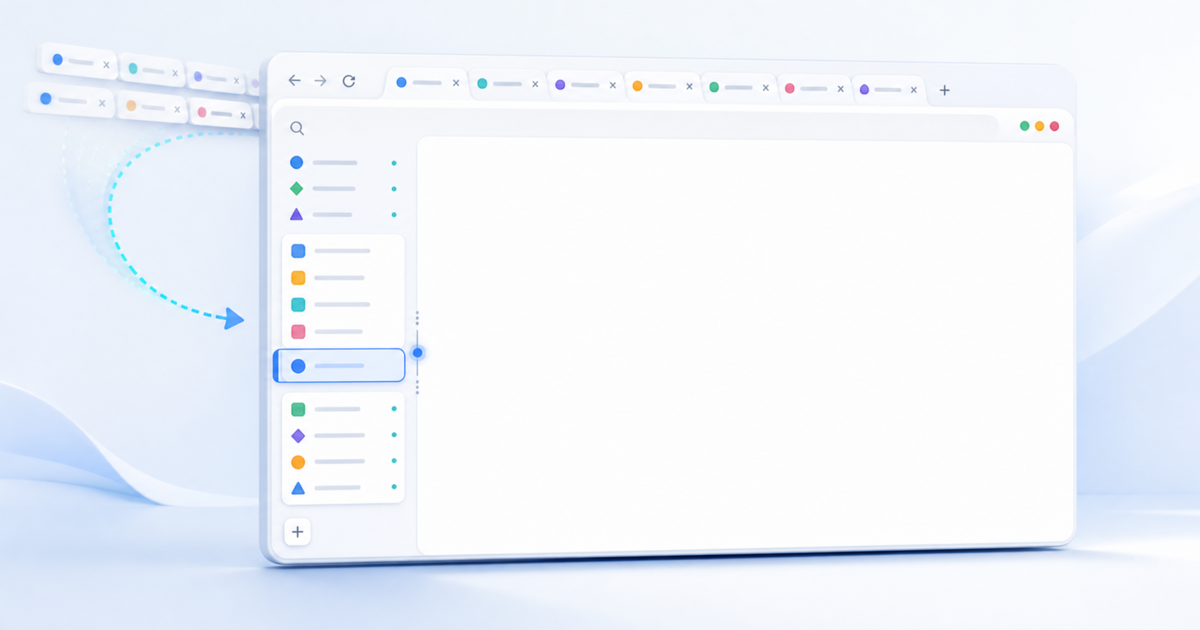
탭을 열 때마다 제목이 점점 짧아지고, 마지막에는 파비콘만 보고 원하는 페이지를 찾아야 했던 경험이 있다면 Chrome의 **세로 탭(Vertical Tabs)**이 꽤 반가운 변화입니다. 탭 목록을 창 위쪽이 아니라 옆쪽에 세로로 배치해 페이지 제목을 더 길게 보여 주고, 많은 탭과 탭 그룹을 한눈에 관리할 수 있습니다.
Google은 2026년 4월 7일 Chrome 공식 블로그에서 세로 탭 배포 시작을 발표했습니다. 현재 Chrome 공식 도움말에도 일반 설정 기능으로 안내되어 있으므로, 예전처럼 확장 프로그램에 의존하는 우회 기능이 아닙니다.
이 글은 2026년 8월 6일 기준 공식 안내를 바탕으로 작성했습니다. 기능은 단계적으로 배포될 수 있고, 운영체제·계정·관리 정책에 따라 메뉴가 나타나는 시점이나 번역된 메뉴 이름이 조금 다를 수 있습니다.
30초 요약
- 탭 또는 탭 표시줄의 빈 공간을 마우스 오른쪽 버튼으로 클릭하고 **Show Tabs Vertically(세로로 탭 표시)**를 선택합니다.
- 탭 제목이 사이드바에 길게 표시되며, 목록 스크롤과 너비 조절이 가능합니다.
- 세로 탭만 켜기보다 탭 그룹 + 고정 탭 + 탭 검색을 함께 쓰면 효과가 큽니다.
- 작은 노트북 화면에서 본문 폭이 더 중요하거나 탭이 적다면 기존 가로 탭이 더 편할 수 있습니다.
- 원래대로 돌아가려면 같은 메뉴에서 **Show Tabs Horizontally(가로로 탭 표시)**를 선택합니다.
무엇이 달라졌나?
기존 Chrome 탭은 창의 가로 폭을 나누어 사용합니다. 탭이 늘어날수록 각 탭의 폭이 줄어들기 때문에 페이지 제목을 읽기 어려워집니다. 반면 세로 탭은 세로 공간을 사용합니다. 화면은 대체로 가로보다 세로로 더 많은 항목을 나열할 수 있어, 탭이 두 자릿수로 늘어나도 제목을 비교하기 쉽습니다.
공식 도움말이 안내하는 핵심 기능은 다음 세 가지입니다.
- 각 페이지 제목을 목록에서 확인할 수 있습니다.
- 긴 탭 목록을 위아래로 스크롤할 수 있습니다.
- 탭 영역의 너비를 작업 환경에 맞게 조절할 수 있습니다.
탭 그룹도 같은 세로 목록 안에서 접고 펼칠 수 있습니다. 따라서 “어떤 탭이 열려 있는가”뿐 아니라 “어떤 작업에 속한 탭인가”까지 시각적으로 정리하기 좋아졌습니다.
세로 탭을 켜는 가장 빠른 방법
방법 1: 탭에서 바로 전환하기
- Chrome 창 위쪽의 탭 하나를 마우스 오른쪽 버튼으로 클릭합니다.
- Show Tabs Vertically 또는 한국어로 표시되는 세로로 탭 표시 항목을 선택합니다.
- 기존 상단 탭 목록이 창 옆의 세로 목록으로 이동합니다.
탭 사이의 빈 공간을 마우스 오른쪽 버튼으로 클릭해도 같은 메뉴를 열 수 있습니다. 가장 빠르고 기억하기 쉬운 방법입니다.
방법 2: 설정에서 변경하기
- 오른쪽 위의 점 3개 메뉴를 엽니다.
- **설정(Settings) → 모양(Appearance)**으로 이동합니다.
- **탭 위치(Tab position)**에서 **세로(Vertical)**를 선택합니다.
설정 화면에서 현재 상태를 확실하게 확인하고 싶을 때 적합합니다.
방법 3: Chrome 메뉴에서 변경하기
- 오른쪽 위의 점 3개 메뉴를 엽니다.
- **도구 더보기(More tools)**를 선택합니다.
- Show tabs vertically를 선택합니다.
방법 4: macOS 메뉴 막대에서 변경하기
Mac에서는 화면 상단 메뉴 막대의 보기(View) 메뉴에서도 세로 탭 표시 항목을 켜거나 끌 수 있습니다.
Chrome의 표시 언어와 배포 상태에 따라 메뉴 문구는 다를 수 있습니다. 위치가 보이지 않는다면 아래 문제 해결 순서를 확인하세요.
메뉴가 보이지 않을 때 확인할 것
1. Chrome을 업데이트하고 다시 시작하기
Chrome은 보통 백그라운드에서 업데이트되지만, 브라우저를 오래 닫지 않았다면 적용이 보류될 수 있습니다.
- 점 3개 메뉴에서 도움말 → Chrome 정보로 이동합니다.
- 업데이트 확인이 끝날 때까지 기다립니다.
- 다시 시작(Relaunch) 버튼이 나타나면 선택합니다.
Google의 업데이트 안내에 따르면 일반 창과 탭은 재시작 후 복원되지만, 시크릿 창은 다시 열리지 않습니다. 중요한 시크릿 작업은 먼저 저장하세요.
2. 단계적 배포 가능성 확인하기
Google의 최초 발표는 “배포를 시작한다”는 표현을 사용했습니다. 같은 버전처럼 보여도 계정이나 기기마다 기능이 도착하는 시점이 다를 수 있습니다. 최신 버전인데 정상 메뉴가 없다면 며칠 뒤 다시 확인하는 편이 안전합니다.
3. 회사나 학교에서 관리하는 Chrome인지 확인하기
조직 관리 기기에서는 관리자가 기능이나 업데이트 정책을 제어할 수 있습니다. 메뉴 하단에 “조직에서 관리”가 표시되거나 chrome://management에서 관리 상태가 확인된다면 관리자에게 문의해야 할 수 있습니다.
4. 플래그는 마지막 수단으로만 사용하기
인터넷에는 chrome://flags에서 세로 탭을 강제로 켜는 방법도 소개되어 있습니다. 하지만 플래그는 실험 기능이며 예고 없이 변경되거나 사라질 수 있습니다. 현재는 공식 설정 경로가 제공되므로, 일상용 브라우저에서는 업데이트와 정식 배포를 기다리는 것을 권장합니다.
켠 다음 꼭 해볼 설정 5가지
세로 탭은 배치 방향만 바꿔도 편리하지만, 다음 기능을 조합해야 진짜 작업 공간처럼 쓸 수 있습니다.
1. 사이드바 너비를 “제목이 구분되는 만큼만” 조절하기
탭 영역의 경계를 드래그해 너비를 조절할 수 있습니다. 너무 넓으면 웹페이지 공간을 빼앗고, 너무 좁으면 제목을 읽을 수 없어 세로 탭의 장점이 사라집니다.
실용적인 기준은 비슷한 페이지 제목을 구분할 수 있는 최소 너비입니다. 예를 들어 문서 제목의 앞부분만으로 구분된다면 더 넓힐 필요가 없습니다. 큰 모니터에서는 넉넉하게, 13인치 노트북에서는 좁게 두고 탭 검색을 함께 사용하는 방식이 좋습니다.
2. 탭 그룹은 “주제”가 아니라 “완료할 일”로 만들기
그룹 이름을 개발, 자료, 기타처럼 넓게 잡으면 얼마 지나지 않아 다시 뒤섞입니다. 다음처럼 결과물이 명확한 단위가 더 유용합니다.
결제 화면 QA8월 뉴스레터사용자 인터뷰 분석오사카 출장 예약
탭을 마우스 오른쪽 버튼으로 클릭한 뒤 탭을 그룹에 추가를 선택하고 이름과 색상을 지정합니다. 당장 사용하지 않는 그룹은 접어 두면 세로 목록의 길이도 줄어듭니다.
3. 매일 쓰는 서비스만 고정하기
메일, 캘린더, 업무 메신저, 프로젝트 보드처럼 하루 종일 유지할 탭은 **고정(Pin)**합니다. 고정 탭은 일반 탭과 분리되어 반복해서 찾는 시간을 줄여 줍니다.
다만 “나중에 볼 페이지”까지 전부 고정하면 고정 영역 자체가 또 다른 탭 무더기가 됩니다. 고정 탭은 매일 사용하는 3~7개 정도로 제한하고, 나머지는 그룹이나 북마크로 보내는 편이 좋습니다.
4. 탭 검색 단축키를 같이 기억하기
세로 목록도 탭이 수십 개가 되면 스크롤보다 검색이 빠릅니다.
| 기능 | Windows / Linux | macOS |
|---|---|---|
| 탭 검색 열기 | Ctrl + Shift + A | Command + Shift + A |
| 주소창에서 탭 검색 | @tabs 입력 후 Tab 또는 Space | 동일 |
페이지 제목이나 사이트 이름의 일부를 입력하면 열린 탭을 바로 찾을 수 있습니다. 탭 목록을 눈으로 훑는 방법과 검색을 경쟁시키기보다, 10개 안쪽은 목록에서 찾고 그 이상은 검색한다는 규칙을 정하면 편합니다.
5. 여러 탭을 한 번에 정리하기
탭을 하나씩 옮길 필요는 없습니다.
- 떨어진 탭 여러 개 선택:
Ctrl(macOS는Command)을 누른 채 클릭 - 연속된 범위 선택: 첫 탭을 클릭한 뒤
Shift를 누르고 마지막 탭 클릭 - 선택 후 가능한 작업: 그룹 추가, 다른 창으로 이동, 고정, 음소거, 닫기
리서치가 끝났을 때 참고 자료 탭 12개를 한꺼번에 새 그룹으로 보내거나 닫을 때 특히 유용합니다.
추천 운영법: 고정–진행–대기 3단 구조
세로 탭 사이드바를 다음 세 구역처럼 사용해 보세요.
상단: 고정 탭
하루 종일 유지하는 도구만 둡니다. 메일, 캘린더, 메신저처럼 작업의 입구 역할을 하는 서비스가 적합합니다.
중간: 현재 진행 중인 그룹
오늘 실제로 완료해야 하는 일마다 그룹을 하나씩 만듭니다. 활성 작업은 펼치고, 전환한 작업은 접습니다. 동시에 펼쳐 두는 그룹을 1~2개로 제한하면 현재 맥락이 분명해집니다.
하단: 임시·대기 탭
아직 분류하지 않은 링크나 잠시 확인할 페이지입니다. 하루를 마칠 때 닫거나 북마크로 옮깁니다. 이 구역이 계속 늘어난다면 “열어 둔 탭”을 할 일 목록으로 쓰고 있다는 신호입니다.
직무별 활용 예시
디자이너
컴포넌트 QA: 디자인 파일, 스토리북, 구현 화면, 이슈 트래커레퍼런스: 경쟁 서비스, 패턴 라이브러리, 접근성 가이드- 고정 탭: 디자인 도구, 프로젝트 보드, 팀 메신저
디자인과 구현 화면의 제목이 세로로 길게 보이기 때문에 비슷한 페이지를 오갈 때 실수가 줄어듭니다.
개발자
현재 이슈: 로컬 앱, API 문서, 로그, Pull Request, 테스트 결과조사: 라이브러리 문서, 관련 이슈, 기술 글- 고정 탭: 저장소, CI 대시보드, 모니터링
이슈 하나가 끝나면 해당 그룹 전체를 닫는 규칙을 두면 작업 정리도 자연스럽게 끝납니다.
리서처·기획자
- 인터뷰 대상이나 분석 주제별로 그룹을 분리합니다.
- 원문 자료는 그룹에 두고, 최종 인사이트는 문서에 기록합니다.
- 중복 페이지는 탭 검색으로 먼저 확인해 같은 자료를 반복해서 열지 않습니다.
회의와 프레젠테이션
화면 공유 전에 개인용 탭 그룹을 접고 발표에 필요한 그룹만 펼칩니다. 다만 사이드바에 페이지 제목이 노출될 수 있으므로, 민감한 고객명이나 내부 문서가 있다면 별도 창이나 별도 프로필을 사용하는 편이 안전합니다.
세로 탭과 가로 탭, 무엇이 더 좋을까?
| 상황 | 추천 |
|---|---|
| 탭을 10개 이상 자주 연다 | 세로 탭 |
| 긴 문서 제목을 구분해야 한다 | 세로 탭 |
| 탭 그룹을 여러 개 운영한다 | 세로 탭 |
| 초광폭 모니터를 쓴다 | 세로 탭 |
| 작은 노트북에서 본문 폭이 중요하다 | 가로 탭 또는 좁은 세로 탭 |
| 보통 3~5개 탭만 사용한다 | 취향에 따라 선택 |
| 웹 앱의 가로 공간이 매우 중요하다 | 가로 탭 |
세로 탭은 무조건적인 업그레이드라기보다 많은 탭을 다루는 방식에 최적화된 선택지입니다. 브라우저 창을 화면 절반에 놓고 쓰는 경우에는 사이드바가 상대적으로 크게 느껴질 수 있으니, 작업 방식에 따라 전환해도 됩니다.
다시 가로 탭으로 되돌리는 방법
세로 탭 또는 사이드바의 빈 공간을 마우스 오른쪽 버튼으로 클릭하고 **Show Tabs Horizontally(가로로 탭 표시)**를 선택합니다. 또는 설정 → 모양 → 탭 위치에서 **가로(Horizontal)**로 변경하면 됩니다.
전환해도 열린 탭 자체가 닫히는 것은 아닙니다. 며칠 사용해 본 뒤 자신에게 맞지 않으면 부담 없이 원래 배치로 돌아갈 수 있습니다.
자주 묻는 질문
확장 프로그램을 설치해야 하나요?
아닙니다. 이번 세로 탭은 Chrome에 내장된 기능입니다. 정식 메뉴가 보인다면 별도의 세로 탭 확장 프로그램은 필요하지 않습니다.
탭 그룹도 사이드바에서 사용할 수 있나요?
네. 그룹을 만들고 이름과 색을 지정하거나 접고 펼치는 기존 기능을 세로 탭에서도 사용할 수 있습니다.
사이드바 위치를 오른쪽으로 옮길 수 있나요?
공식 도움말은 탭을 창의 옆쪽으로 이동하고 너비를 조절하는 기능을 안내하지만, 모든 환경에서 좌우 위치 선택을 보장한다고 명시하지는 않습니다. 실제 설정에 위치 선택 항목이 없다면 현재 제공되는 기본 위치를 사용해야 합니다.
세로 탭을 켜면 메모리를 덜 사용하나요?
아닙니다. 세로 탭은 탭을 표시하고 정리하는 인터페이스입니다. 열려 있는 페이지 수가 그대로라면 이것만으로 메모리 사용량이 크게 줄어드는 기능은 아닙니다. 성능이 목적이라면 사용하지 않는 탭을 닫고 Chrome의 메모리 절약 기능을 함께 확인해야 합니다.
단축키로 세로·가로 배치를 즉시 전환할 수 있나요?
Google의 공식 도움말에는 배치 전환 전용 단축키가 안내되어 있지 않습니다. 대신 마우스 오른쪽 버튼 메뉴나 설정을 사용하세요. 탭을 찾는 단축키 Ctrl/Command + Shift + A와 혼동하지 않는 것이 좋습니다.
가장 실용적인 시작 방법
처음부터 모든 탭을 완벽하게 분류할 필요는 없습니다. 다음 순서로 일주일만 사용해 보세요.
- 세로 탭을 켜고 제목이 읽힐 만큼만 너비를 조절합니다.
- 매일 쓰는 탭 5개 안팎만 고정합니다.
- 오늘 끝낼 작업 하나를 탭 그룹으로 만듭니다.
- 탭이 많아지면
Ctrl/Command + Shift + A로 검색합니다. - 퇴근 전 임시 탭을 닫고, 필요한 자료만 북마크나 문서로 옮깁니다.
세로 탭의 핵심은 탭을 더 많이 열어 두는 데 있지 않습니다. 현재 어떤 작업을 하고 있고, 어떤 페이지가 그 작업에 속하는지 빠르게 파악하는 것에 있습니다. 사이드바를 단순한 탭 목록이 아니라 작은 작업 보드처럼 운영하면 이번 Chrome 업데이트의 장점을 가장 확실하게 느낄 수 있습니다.
공식 자료
If you have watched tab titles shrink until you could identify pages only by their favicons, Chrome's new Vertical Tabs feature is a welcome change. It moves the tab list from the top of the window to the side, shows longer page titles, and makes large collections of tabs and tab groups easier to scan.
Google announced the beginning of the rollout on April 7, 2026, in the official Chrome blog. The feature now appears in the official Chrome Help documentation as a normal setting, so it is no longer an extension-based workaround.
This guide was verified against Google's official information on August 6, 2026. Features can roll out gradually, and the exact timing or translated menu labels may vary by operating system, account, or management policy.
The 30-second version
- Right-click a tab or an empty area of the tab strip and select Show Tabs Vertically.
- Page titles appear in a sidebar where you can scroll the list and resize its width.
- Vertical tabs are most useful when combined with tab groups, pinned tabs, and tab search.
- If you use a small laptop, need every pixel of content width, or rarely open many tabs, horizontal tabs may still be better.
- To switch back, select Show Tabs Horizontally from the same menu.
What changed?
Traditional Chrome tabs divide the horizontal width of the window. As more tabs open, each one becomes narrower and its title becomes harder to read. Vertical tabs use the window's height instead. Because a screen can usually list more items vertically, titles remain easier to compare even when the tab count reaches double digits.
Chrome's help page highlights three core capabilities:
- See page titles in the list.
- Scroll through a long list of tabs.
- Resize the tab strip to suit your workspace.
Tab groups can also be expanded and collapsed inside the vertical list. This makes it easier to see not only which pages are open, but also which task each page belongs to.
The fastest way to enable vertical tabs
Method 1: Switch directly from a tab
- Right-click any tab at the top of a Chrome window.
- Select Show Tabs Vertically.
- The top tab list moves to the side of the window.
You can also right-click an empty area of the tab strip. This is the fastest and easiest method to remember.
Method 2: Change it in Settings
- Open the three-dot menu in the upper-right corner.
- Go to Settings → Appearance.
- Under Tab position, select Vertical.
Use this route when you want to confirm the current state explicitly.
Method 3: Use the Chrome menu
- Open the three-dot menu.
- Select More tools.
- Select Show tabs vertically.
Method 4: Use the macOS menu bar
On a Mac, you can also turn vertical tabs on or off from the View menu in the system menu bar.
Labels can vary with Chrome's display language and rollout state. If you cannot find the option, follow the troubleshooting sequence below.
If the menu is missing
1. Update and restart Chrome
Chrome normally updates in the background, but an update can remain pending if the browser has not been closed for a while.
- Open the three-dot menu and go to Help → About Google Chrome.
- Wait for Chrome to finish checking for updates.
- If Relaunch appears, select it.
According to Google's update instructions, normal windows and tabs reopen after the restart, but Incognito windows do not. Save important private-session work first.
2. Allow for a staged rollout
Google's announcement said it was “beginning to roll out” the feature. Two devices that appear to run the same version can still receive it at different times. If Chrome is current but the normal menu is absent, checking again after a few days is safer than forcing the feature.
3. Check whether Chrome is managed
An employer or school can control browser features and update policies. If Chrome says it is managed by your organization, or chrome://management confirms management, you may need to ask your administrator.
4. Treat flags as a last resort
Some guides recommend forcing vertical tabs through chrome://flags. Flags are experimental, however, and can change or disappear without notice. Because Chrome now provides an official setting, waiting for the supported rollout is the better choice for an everyday browser.
Five settings to try after enabling it
Changing the direction of the tab strip helps, but vertical tabs become a real workspace only when you combine them with the features below.
1. Resize the sidebar only until titles are distinguishable
Drag the boundary of the tab area to change its width. Too wide and it steals space from the page; too narrow and you lose the title visibility that makes vertical tabs useful.
A practical target is the minimum width at which you can distinguish similar page titles. A large monitor can afford a generous sidebar. On a 13-inch laptop, keep it narrow and rely more on tab search.
2. Create groups around outcomes, not broad topics
Groups named Development, Research, or Miscellaneous quickly become cluttered. Name them after a concrete deliverable instead:
Checkout QAAugust newsletterInterview analysisOsaka trip booking
Right-click a tab, choose Add tab to group, then assign a name and color. Collapse groups you are not actively using to shorten the sidebar.
3. Pin only services you use every day
Pin mail, calendar, team chat, and the project board if they stay open all day. Pinned tabs remain separate from ordinary work tabs and reduce repeated searching.
Do not pin every page you might need later. That simply turns the pinned area into another pile. Keep roughly three to seven daily tools pinned, and move everything else to a group or bookmark.
4. Learn tab search at the same time
Once you have dozens of tabs, searching is faster than scrolling.
| Action | Windows / Linux | macOS |
|---|---|---|
| Open tab search | Ctrl + Shift + A |
Command + Shift + A |
| Search from the address bar | Type @tabs, then Tab or Space |
Same |
Enter part of a title or site name to find an open tab. A simple rule works well: scan the list when there are fewer than ten candidates and search when there are more.
5. Organize several tabs at once
You do not have to move tabs one by one.
- Select separate tabs: hold
Ctrl(Commandon macOS) while clicking. - Select a continuous range: click the first tab, hold
Shift, and click the last tab. - Available bulk actions include grouping, moving to another window, pinning, muting, and closing.
This is especially useful when a research session ends and you want to move or close a dozen source tabs at once.
A recommended three-layer system: pinned, active, pending
Treat the vertical sidebar as three zones.
Top: pinned tabs
Keep only tools that remain open all day: mail, calendar, chat, and other entry points to your work.
Middle: active task groups
Create one group for each outcome you intend to finish today. Expand the active task and collapse tasks you have paused. Keeping only one or two groups expanded makes your current context obvious.
Bottom: temporary and pending tabs
This zone holds unclassified links and pages you need briefly. At the end of the day, close them or move lasting references into bookmarks or notes. If the zone keeps growing, you may be using open tabs as a task list.
Examples by role
Designers
Component QA: design file, Storybook, implementation, and issue trackerReferences: competing products, pattern libraries, and accessibility guidance- Pinned: design tool, project board, and team chat
Longer visible titles reduce mistakes when switching among similar design and implementation pages.
Developers
Current issue: local app, API docs, logs, pull request, and test resultsInvestigation: library documentation, related issues, and technical articles- Pinned: repository, CI dashboard, and monitoring
Close the entire task group when the issue is complete, turning tab cleanup into part of finishing the work.
Researchers and product planners
- Separate groups by participant or analysis theme.
- Keep sources in tabs but record final insights in a document.
- Search existing tabs before opening another copy of the same source.
Meetings and presentations
Before sharing your screen, collapse personal groups and expand only the presentation group. Remember that page titles can still expose client names or internal documents; use a separate window or browser profile for sensitive work.
Vertical or horizontal: which is better?
| Situation | Recommendation |
|---|---|
| You regularly keep more than ten tabs open | Vertical |
| You need to distinguish long document titles | Vertical |
| You operate several tab groups | Vertical |
| You use an ultrawide monitor | Vertical |
| Content width matters on a small laptop | Horizontal or a narrow vertical sidebar |
| You normally use only three to five tabs | Personal preference |
| A web app needs every bit of horizontal space | Horizontal |
Vertical tabs are not a universal upgrade. They are an option optimized for managing many tabs. If you tile Chrome into half a screen, the sidebar may feel disproportionately large, so switch layouts as your task requires.
How to return to horizontal tabs
Right-click a tab or an empty area in the sidebar and select Show Tabs Horizontally. You can also go to Settings → Appearance → Tab position and select Horizontal.
Switching layouts does not close your tabs. Try the sidebar for a few days and return without risk if it does not suit your workflow.
Frequently asked questions
Do I need an extension?
No. This version of vertical tabs is built into Chrome. If the official menu is available, you do not need a third-party vertical-tab extension.
Do tab groups work in the sidebar?
Yes. You can create, name, color, collapse, and expand groups in the vertical layout.
Can I move the sidebar to the right?
Chrome's help page documents moving the strip to the side and resizing it, but it does not promise a left/right selector in every environment. If your settings do not show a side option, use the default position currently available to you.
Do vertical tabs reduce memory usage?
No. This is an interface for displaying and organizing tabs. If the same pages remain open, the layout alone will not substantially reduce memory use. Close unused tabs or review Chrome's memory-saving settings if performance is the goal.
Is there a shortcut to toggle vertical and horizontal layouts?
Google's help page does not document a dedicated layout-toggle shortcut. Use the context menu or Settings. Do not confuse this with Ctrl/Command + Shift + A, which opens tab search.
The most practical way to start
You do not need to organize every tab perfectly on day one. Try this routine for a week:
- Enable vertical tabs and set the narrowest width at which titles remain useful.
- Pin about five tools you use every day.
- Create one tab group for a task you will finish today.
- When the list grows, use
Ctrl/Command + Shift + Ato search. - Before ending the day, close temporary tabs and move lasting references to bookmarks or notes.
The point of vertical tabs is not to keep even more pages open. It is to understand quickly what you are working on and which pages belong to that work. Treat the sidebar as a small task board rather than a passive list, and the value of this Chrome update becomes much clearer.
Official sources
如果你经历过标签页越开越多、标题越缩越短,最后只能靠网站图标猜页面,那么 Chrome 新增的**垂直标签页(Vertical Tabs)**会很实用。它把标签列表从窗口顶部移到侧边,显示更长的页面标题,也更容易浏览大量标签页和标签组。
Google 于 2026 年 4 月 7 日在 Chrome 官方博客中宣布开始推送该功能。目前,Chrome 官方帮助已把它作为普通设置介绍,因此不再需要依赖扩展程序绕行实现。
本文依据截至 2026 年 8 月 6 日的 Google 官方信息编写。功能可能分阶段推送,具体上线时间和翻译后的菜单名称也可能因操作系统、账号或管理策略而略有不同。
30 秒快速了解
- 右键点击标签页或标签栏空白处,选择 Show Tabs Vertically(垂直显示标签页)。
- 页面标题会出现在侧边栏中,列表可以滚动,宽度也可以调整。
- 垂直标签页与标签组、固定标签页和标签页搜索搭配使用时效果最好。
- 如果使用小尺寸笔记本、网页横向空间非常重要,或平时只开少量标签页,水平标签页可能更合适。
- 要恢复原状,在同一菜单中选择 Show Tabs Horizontally(水平显示标签页)。
有什么变化?
传统 Chrome 标签页会分割窗口的横向宽度。标签页越多,每个标签越窄,标题也越难阅读。垂直标签页则使用窗口高度。屏幕通常能在垂直方向排列更多项目,因此即使标签数量达到两位数,标题也更容易比较。
Chrome 官方帮助强调了三个核心能力:
- 在列表中查看页面标题。
- 滚动浏览较长的标签页列表。
- 按工作环境调整标签栏宽度。
标签组也能在垂直列表中折叠和展开。这样不仅能看到“打开了哪些页面”,还可以直观看出“每个页面属于哪项工作”。
启用垂直标签页的最快方法
方法 1:从标签页直接切换
- 右键点击 Chrome 窗口顶部的任意标签页。
- 选择 Show Tabs Vertically。
- 顶部标签列表会移到窗口侧边。
右键点击标签栏空白处也能打开同一菜单。这是最快、最容易记住的方法。
方法 2:在设置中更改
- 打开右上角的三点菜单。
- 前往 Settings → Appearance。
- 在 Tab position 中选择 Vertical。
如果想明确确认当前配置,使用这个路径最合适。
方法 3:通过 Chrome 菜单更改
- 打开右上角的三点菜单。
- 选择 More tools。
- 选择 Show tabs vertically。
方法 4:使用 macOS 菜单栏
在 Mac 上,也可以从屏幕顶部菜单栏的 View 菜单开启或关闭垂直标签页。
菜单文字可能因 Chrome 显示语言和推送状态而不同。如果找不到该选项,请按下面的顺序排查。
找不到菜单时怎么办?
1. 更新并重启 Chrome
Chrome 通常在后台更新,但如果浏览器很久没有关闭,更新可能还未应用。
- 打开三点菜单,前往 Help → About Google Chrome。
- 等待 Chrome 完成更新检查。
- 如果出现 Relaunch,点击它。
根据 Google 的更新说明,普通窗口和标签页会在重启后恢复,但无痕窗口不会重新打开。请先保存无痕会话中的重要内容。
2. 考虑分阶段推送
Google 最初的公告使用了“开始推送”的说法。即使两台设备看起来运行相同版本,收到功能的时间也可能不同。如果 Chrome 已是最新版本但没有正常菜单,等待几天再检查通常比强制开启更安全。
3. 检查 Chrome 是否由组织管理
公司或学校可以控制浏览器功能和更新策略。如果 Chrome 显示“由贵组织管理”,或 chrome://management 确认处于管理状态,可能需要联系管理员。
4. 只把 flags 当作最后手段
网上有些教程建议通过 chrome://flags 强制启用垂直标签页。但 flags 属于实验功能,可能随时变化或消失。现在已有官方设置路径,因此日常使用的浏览器更适合等待正式推送。
开启后值得立即尝试的 5 个设置
仅改变标签栏方向已经有帮助,但把以下功能结合起来,垂直标签页才会真正成为一个工作区。
1. 把侧边栏调到“刚好能区分标题”的宽度
拖动标签区域边界即可调整宽度。太宽会挤占网页空间,太窄则看不清标题,失去垂直标签页的优势。
实用标准是:能区分相似页面标题的最小宽度。大显示器可以留得宽一些;13 英寸笔记本则适合使用较窄侧边栏,并更多依靠标签页搜索。
2. 按“要完成的结果”而不是宽泛主题创建标签组
开发、资料、其他这类宽泛名称很快又会变得混乱。更好的做法是使用明确的交付结果:
结账页面 QA8 月新闻简报用户访谈分析大阪出差预订
右键点击标签页,选择 Add tab to group,再设置名称和颜色。暂时不用的组可以折叠,以缩短侧边栏。
3. 只固定每天都会使用的服务
邮件、日历、团队聊天和项目看板等全天保持打开的工具适合固定。固定标签页与普通工作标签分开,可以减少重复查找。
不要把所有“以后可能会看”的页面都固定,否则固定区域也会变成另一堆杂乱标签。建议只固定约 3~7 个日常工具,其余内容放入标签组或书签。
4. 同时记住标签页搜索快捷键
当标签页达到几十个时,搜索通常比滚动更快。
| 功能 | Windows / Linux | macOS |
|---|---|---|
| 打开标签页搜索 | Ctrl + Shift + A |
Command + Shift + A |
| 从地址栏搜索标签页 | 输入 @tabs,再按 Tab 或 Space |
相同 |
输入页面标题或网站名称的一部分,就能找到已打开的标签页。可以给自己定一个简单规则:候选少于 10 个时扫一眼列表,更多时直接搜索。
5. 一次整理多个标签页
无需逐个移动标签页。
- 选择不连续的多个标签页:按住
Ctrl(macOS 为Command)并依次点击。 - 选择连续范围:点击第一个标签页,按住
Shift,再点击最后一个。 - 批量操作包括:加入分组、移动到其他窗口、固定、静音和关闭。
研究结束后需要一次移动或关闭十多个资料页时,这个功能尤其有用。
推荐的三层结构:固定、进行中、待处理
可以把垂直侧边栏看作三个区域。
顶部:固定标签页
只放全天保持打开的工具,例如邮件、日历、聊天,以及其他工作入口。
中部:当前任务组
为今天要完成的每个结果建立一个标签组。展开正在处理的任务,折叠暂停的任务。只保持 1~2 个组展开,可以清楚显示当前上下文。
底部:临时和待处理标签页
这里放尚未分类的链接和短时间需要的页面。每天结束时关闭它们,或把长期资料移到书签和笔记。如果该区域持续增长,很可能是在把打开的标签页当作任务清单。
不同角色的使用示例
设计师
组件 QA:设计文件、Storybook、实现页面、问题跟踪器参考资料:竞品、模式库、无障碍指南- 固定:设计工具、项目看板、团队聊天
垂直方向能显示更长的标题,在相似的设计稿和实现页面之间切换时更不容易出错。
开发者
当前 Issue:本地应用、API 文档、日志、Pull Request、测试结果调查:库文档、相关 Issue、技术文章- 固定:代码仓库、CI 面板、监控系统
问题解决后关闭整个任务组,让标签清理自然成为完成工作的一部分。
研究员与产品策划
- 按访谈对象或分析主题拆分标签组。
- 原始资料留在标签页中,最终洞察记录到文档。
- 打开新页面前先搜索现有标签,避免重复打开同一资料。
会议与演示
共享屏幕前,折叠个人标签组,只展开演示所需的组。不过,侧边栏仍可能暴露客户名称或内部文档标题。敏感工作最好使用单独窗口或独立浏览器配置文件。
垂直还是水平,哪种更好?
| 使用场景 | 建议 |
|---|---|
| 经常打开 10 个以上标签页 | 垂直 |
| 需要区分较长的文档标题 | 垂直 |
| 同时使用多个标签组 | 垂直 |
| 使用超宽显示器 | 垂直 |
| 小尺寸笔记本上网页宽度更重要 | 水平或较窄的垂直侧边栏 |
| 通常只使用 3~5 个标签页 | 按个人喜好选择 |
| Web 应用需要尽可能多的横向空间 | 水平 |
垂直标签页不是无条件升级,而是更适合管理大量标签页的一个选项。如果 Chrome 只占半个屏幕,侧边栏可能显得过宽,可以根据任务随时切换。
如何恢复水平标签页
右键点击侧边栏中的标签页或空白处,选择 Show Tabs Horizontally。也可以进入 Settings → Appearance → Tab position,选择 Horizontal。
切换布局不会关闭已打开的标签页。可以先试用几天,不适合自己的工作方式时再轻松切回。
常见问题
需要安装扩展程序吗?
不需要。此次垂直标签页是 Chrome 内置功能。只要能看到官方菜单,就无需第三方扩展。
标签组也能在侧边栏使用吗?
可以。在垂直布局中仍能创建、命名、着色、折叠和展开标签组。
能把侧边栏移到右侧吗?
官方帮助说明了把标签栏移到侧边并调整宽度,但没有保证所有环境都提供左右位置选择。如果设置中没有方向选项,只能使用当前提供的默认位置。
垂直标签页能减少内存占用吗?
不能。它只是显示和整理标签页的界面。如果打开的页面数量不变,仅改变布局不会明显降低内存占用。若目标是提升性能,请关闭不用的标签页,并检查 Chrome 的内存节省设置。
有快捷键可以直接切换垂直与水平布局吗?
Google 官方帮助目前没有记录专用的布局切换快捷键,请使用右键菜单或设置。不要与 Ctrl/Command + Shift + A 混淆,后者用于打开标签页搜索。
最实用的开始方式
第一天不必把所有标签页整理得完美。先按下面的方法使用一周:
- 开启垂直标签页,把宽度调到能识别标题的最窄程度。
- 只固定大约 5 个每天都用的工具。
- 为今天要完成的一项工作创建一个标签组。
- 列表变长时,用
Ctrl/Command + Shift + A搜索。 - 每天结束前关闭临时标签,把长期资料移到书签或笔记。
垂直标签页的重点不是让你打开更多页面,而是快速理解当前在做什么,以及哪些页面属于这项工作。把侧边栏当成一个小型任务看板,而不是被动的标签列表,就能更清楚地感受到这次 Chrome 更新的价值。
官方资料
タブを開くたびにタイトルが短くなり、最後にはファビコンだけで目的のページを探していたなら、Chromeの新しい**縦型タブ(Vertical Tabs)**はうれしい変更です。タブ一覧をウィンドウ上部から側面へ移し、ページタイトルを長く表示して、多数のタブやタブグループを見渡しやすくします。
Googleは2026年4月7日、Chrome公式ブログで縦型タブの提供開始を発表しました。現在はChrome公式ヘルプにも通常の設定機能として掲載されており、以前のように拡張機能へ頼る回避策ではありません。
この記事は2026年8月6日時点のGoogle公式情報を基に確認しています。段階的に提供される可能性があり、OS・アカウント・管理ポリシーによって表示時期や翻訳されたメニュー名が少し異なる場合があります。
30秒でわかる要点
- タブまたはタブバーの空白部分を右クリックし、**Show Tabs Vertically(タブを縦に表示)**を選びます。
- ページタイトルがサイドバーに長く表示され、一覧のスクロールと幅の調整ができます。
- タブグループ、固定タブ、タブ検索を組み合わせると効果が高まります。
- 小型ノートPCで本文の横幅が重要な場合や、普段のタブ数が少ない場合は横型の方が便利なこともあります。
- 元に戻すには、同じメニューから**Show Tabs Horizontally(タブを横に表示)**を選びます。
何が変わったのか
従来のChromeタブは、ウィンドウの横幅を分け合います。タブが増えるほど1つあたりの幅が狭くなり、タイトルを読みにくくなります。縦型タブは代わりに高さを使います。一般的な画面は縦方向に多くの項目を並べられるため、タブが2桁になってもタイトルを比較しやすくなります。
公式ヘルプが示す主な機能は次の3つです。
- 一覧でページタイトルを確認できます。
- 長いタブ一覧を上下にスクロールできます。
- 作業環境に合わせてタブ領域の幅を変更できます。
タブグループも縦の一覧内で折りたたみ・展開できます。「どのページが開いているか」だけでなく、「どの作業に属するページか」まで視覚的に整理しやすくなりました。
縦型タブを有効にする最短手順
方法1:タブから直接切り替える
- Chromeウィンドウ上部のタブを右クリックします。
- Show Tabs Verticallyを選びます。
- 上部のタブ一覧がウィンドウ側面へ移動します。
タブ間の空白部分を右クリックしても同じメニューを開けます。最も速く、覚えやすい方法です。
方法2:設定から変更する
- 右上の3点メニューを開きます。
- Settings → Appearanceへ進みます。
- Tab positionでVerticalを選びます。
現在の状態を設定画面で確実に確認したいときに向いています。
方法3:Chromeメニューから変更する
- 右上の3点メニューを開きます。
- More toolsを選びます。
- Show tabs verticallyを選びます。
方法4:macOSのメニューバーから変更する
Macでは、画面上部のViewメニューからも縦型タブの表示をオン・オフできます。
Chromeの表示言語や提供状況により、メニュー表記は異なる場合があります。項目が見つからないときは、次の順序で確認してください。
メニューが表示されないとき
1. Chromeを更新して再起動する
Chromeは通常バックグラウンドで更新されますが、ブラウザを長期間閉じていないと適用が保留されることがあります。
- 3点メニューからHelp → About Google Chromeへ進みます。
- 更新の確認が終わるまで待ちます。
- Relaunchが表示されたら選びます。
Googleの更新案内によると、通常のウィンドウとタブは再起動後に復元されますが、シークレットウィンドウは再度開きません。重要な作業は先に保存してください。
2. 段階的な提供を考慮する
Googleの最初の発表は「提供を開始する」という内容でした。同じバージョンに見える端末でも、機能が届く時期が異なる可能性があります。最新版なのに通常メニューがない場合は、強制的に有効化するより数日後に再確認する方が安全です。
3. 組織によって管理されているChromeか確認する
会社や学校はブラウザ機能と更新ポリシーを制御できます。「組織によって管理されています」と表示される場合や、chrome://managementで管理状態が確認できる場合は、管理者への問い合わせが必要かもしれません。
4. flagsは最後の手段にする
インターネット上にはchrome://flagsで縦型タブを強制的に有効にする方法もあります。しかしflagsは実験機能で、予告なく変わったり消えたりします。現在は公式の設定経路があるため、日常利用のブラウザでは正式提供を待つことをおすすめします。
有効化したら試したい5つの設定
向きを変えるだけでも便利ですが、次の機能を組み合わせると縦型タブを本当の作業スペースとして活用できます。
1. タイトルを区別できる最小幅に調整する
タブ領域の境界をドラッグして幅を変更できます。広すぎるとWebページの領域を奪い、狭すぎるとタイトルが読めず、縦型タブの利点が失われます。
似たページタイトルを見分けられる最小幅が実用的な基準です。大型モニターでは広めに、13インチノートPCでは狭めにして、タブ検索を併用するとよいでしょう。
2. 広い「分野」ではなく「完了する成果」でグループを作る
開発、資料、その他のような名前はすぐに混在します。次のように成果が明確な名前が便利です。
決済画面QA8月ニュースレターユーザーインタビュー分析大阪出張予約
タブを右クリックし、Add tab to groupを選んで名前と色を付けます。今使わないグループを折りたためば、サイドバーも短くなります。
3. 毎日使うサービスだけを固定する
メール、カレンダー、チームチャット、プロジェクトボードなど、一日中開いておくものは**固定(Pin)**します。固定タブは通常タブと分かれ、繰り返し探す手間を減らせます。
「後で見るかもしれないページ」まで固定すると、固定領域が別のタブの山になります。毎日使う3〜7個程度に絞り、残りはグループかブックマークへ移しましょう。
4. タブ検索のショートカットも覚える
タブが数十個になると、スクロールより検索が速くなります。
| 機能 | Windows / Linux | macOS |
|---|---|---|
| タブ検索を開く | Ctrl + Shift + A |
Command + Shift + A |
| アドレスバーから検索 | @tabsと入力し、TabまたはSpace |
同じ |
タイトルやサイト名の一部を入力すると、開いているタブをすぐに見つけられます。候補が10個未満なら一覧、それ以上なら検索、というルールも実用的です。
5. 複数タブをまとめて整理する
1つずつ移動する必要はありません。
- 離れたタブを複数選択:
Ctrl(macOSはCommand)を押しながらクリック - 連続範囲を選択:最初のタブをクリックし、
Shiftを押して最後のタブをクリック - 一括操作:グループへ追加、別ウィンドウへ移動、固定、ミュート、閉じる
リサーチ終了時に12個の資料タブをまとめて移動または閉じる場面で特に役立ちます。
おすすめ運用:固定・進行中・保留の3層構造
縦型サイドバーを3つの領域として考えてみましょう。
上部:固定タブ
メール、カレンダー、チャットなど、一日中開いておく仕事の入口だけを置きます。
中央:現在進行中のグループ
今日終える成果ごとにグループを作ります。作業中のものを展開し、一時停止したものは折りたたみます。展開するグループを1〜2個に絞ると、現在の文脈が明確になります。
下部:一時・保留タブ
未分類のリンクや短時間だけ必要なページを置きます。一日の終わりに閉じるか、必要な資料をブックマークやノートへ移します。この領域が増え続けるなら、開いたタブをタスクリスト代わりにしているサインです。
職種別の活用例
デザイナー
コンポーネントQA:デザインファイル、Storybook、実装画面、課題管理リファレンス:競合サービス、パターンライブラリ、アクセシビリティガイド- 固定:デザインツール、プロジェクトボード、チームチャット
長いタイトルが見えるため、似たデザイン画面と実装画面を行き来するときの間違いを減らせます。
開発者
現在のIssue:ローカルアプリ、APIドキュメント、ログ、Pull Request、テスト結果調査:ライブラリ文書、関連Issue、技術記事- 固定:リポジトリ、CIダッシュボード、監視画面
Issueが終わったらグループ全体を閉じるルールにすると、タブ整理も作業完了の一部になります。
リサーチャー・企画担当
- インタビュー対象や分析テーマごとにグループを分けます。
- 原資料はタブに置き、最終的な洞察は文書へ記録します。
- 同じ資料を重複して開かないよう、新しいタブを開く前に検索します。
会議とプレゼンテーション
画面共有前に個人用グループを折りたたみ、発表用グループだけを展開します。ただしページタイトルから顧客名や社内文書が見えることがあります。機密性の高い作業には別ウィンドウや別プロフィールを使う方が安全です。
縦型と横型、どちらがよいか
| 状況 | おすすめ |
|---|---|
| 10個以上のタブを頻繁に開く | 縦型 |
| 長い文書タイトルを区別したい | 縦型 |
| 複数のタブグループを運用する | 縦型 |
| ウルトラワイドモニターを使う | 縦型 |
| 小型ノートPCで本文幅が重要 | 横型または狭い縦型 |
| 普段は3〜5個しか使わない | 好みで選択 |
| Webアプリの横幅が非常に重要 | 横型 |
縦型タブは無条件のアップグレードではなく、多数のタブ管理に最適化された選択肢です。Chromeを画面の半分で使う場合、サイドバーが相対的に大きく感じることもあるため、作業に合わせて切り替えましょう。
横型タブへ戻す方法
サイドバーのタブまたは空白部分を右クリックし、Show Tabs Horizontallyを選びます。またはSettings → Appearance → Tab positionでHorizontalに変更します。
表示を切り替えても開いているタブは閉じません。数日試して合わなければ、気軽に元へ戻せます。
よくある質問
拡張機能は必要ですか?
いいえ。今回の縦型タブはChrome内蔵機能です。公式メニューが表示されるなら、サードパーティ製の縦型タブ拡張は不要です。
タブグループもサイドバーで使えますか?
はい。縦型でもグループの作成、命名、色分け、折りたたみ、展開ができます。
サイドバーを右側へ移せますか?
公式ヘルプは側面への移動と幅調整を説明していますが、すべての環境で左右位置の選択を保証してはいません。設定に位置選択がなければ、現在提供されている既定位置を使います。
縦型タブにするとメモリ使用量は減りますか?
いいえ。これはタブを表示・整理するインターフェースです。同じページを開いたままなら、配置だけでメモリ使用量が大きく減るわけではありません。性能が目的なら不要なタブを閉じ、Chromeのメモリ節約設定も確認してください。
縦型と横型をすぐ切り替えるショートカットはありますか?
Google公式ヘルプには専用ショートカットが記載されていません。右クリックメニューか設定を使います。Ctrl/Command + Shift + Aはタブ検索を開く操作なので混同しないようにしましょう。
最も実用的な始め方
初日からすべてを完璧に分類する必要はありません。次の流れを1週間試してください。
- 縦型タブを有効にし、タイトルを読める最小幅にします。
- 毎日使うツールを5個前後だけ固定します。
- 今日終える作業を1つ、タブグループにします。
- タブが増えたら
Ctrl/Command + Shift + Aで検索します。 - 一日の終わりに一時タブを閉じ、必要な資料だけブックマークやノートへ移します。
縦型タブの目的は、さらに多くのページを開いておくことではありません。今何をしていて、どのページがその作業に属するかを素早く把握することです。サイドバーを単なる一覧ではなく小さなタスクボードとして使えば、今回のChromeアップデートの価値をはっきり実感できます。
公式資料
Si has visto cómo los títulos de las pestañas se encogen hasta tener que reconocer cada página solo por su favicon, las nuevas pestañas verticales (Vertical Tabs) de Chrome son un cambio bienvenido. La lista pasa de la parte superior al lateral de la ventana, muestra títulos más largos y facilita revisar muchas pestañas y grupos.
Google anunció el inicio del despliegue el 7 de abril de 2026 en el blog oficial de Chrome. La función ya aparece como un ajuste normal en la ayuda oficial de Chrome, así que no es el antiguo recurso de depender de una extensión.
Esta guía se verificó con la información oficial disponible el 6 de agosto de 2026. El despliegue puede ser gradual y el momento exacto o los nombres traducidos de los menús pueden variar según el sistema operativo, la cuenta o las políticas de administración.
Resumen en 30 segundos
- Haz clic derecho en una pestaña o en un espacio vacío de la barra y elige Show Tabs Vertically (Mostrar pestañas verticalmente).
- Los títulos aparecerán en una barra lateral cuya lista puedes desplazar y cuyo ancho puedes ajustar.
- La función resulta más útil al combinarla con grupos, pestañas fijadas y búsqueda de pestañas.
- Si usas un portátil pequeño, necesitas todo el ancho para el contenido o casi nunca abres muchas pestañas, la disposición horizontal puede seguir siendo mejor.
- Para volver, selecciona Show Tabs Horizontally (Mostrar pestañas horizontalmente) en el mismo menú.
¿Qué ha cambiado?
Las pestañas tradicionales de Chrome se reparten el ancho horizontal de la ventana. Cuantas más abres, más estrecha se vuelve cada una y más difícil resulta leer el título. Las pestañas verticales aprovechan la altura. Una pantalla suele poder listar más elementos en vertical, por lo que los títulos son más fáciles de comparar incluso cuando el número de pestañas supera las diez.
La ayuda de Chrome destaca tres capacidades principales:
- Ver los títulos de las páginas en la lista.
- Desplazarse por una lista larga de pestañas.
- Redimensionar la barra de pestañas según el espacio de trabajo.
También puedes contraer y expandir grupos dentro de la lista vertical. Así resulta más fácil ver no solo qué páginas están abiertas, sino a qué tarea pertenece cada una.
La forma más rápida de activar las pestañas verticales
Método 1: cambiar desde una pestaña
- Haz clic derecho en cualquier pestaña de la parte superior de Chrome.
- Selecciona Show Tabs Vertically.
- La lista superior se moverá al lateral de la ventana.
También puedes hacer clic derecho en un espacio vacío de la barra. Es el método más rápido y fácil de recordar.
Método 2: cambiarlo desde Configuración
- Abre el menú de tres puntos de la esquina superior derecha.
- Ve a Settings → Appearance.
- En Tab position, selecciona Vertical.
Esta ruta es útil cuando quieres comprobar de forma explícita el estado actual.
Método 3: usar el menú de Chrome
- Abre el menú de tres puntos.
- Selecciona More tools.
- Selecciona Show tabs vertically.
Método 4: usar la barra de menús de macOS
En un Mac también puedes activar o desactivar la disposición vertical desde el menú View de la barra superior del sistema.
Los nombres pueden variar con el idioma de Chrome y el estado del despliegue. Si no encuentras la opción, sigue la secuencia de comprobaciones que aparece a continuación.
Si el menú no aparece
1. Actualiza y reinicia Chrome
Chrome suele actualizarse en segundo plano, pero una actualización puede quedar pendiente si hace tiempo que no cierras el navegador.
- Abre el menú de tres puntos y ve a Help → About Google Chrome.
- Espera a que termine la comprobación de actualizaciones.
- Si aparece Relaunch, selecciónalo.
Según las instrucciones de actualización de Google, las ventanas y pestañas normales se restauran después del reinicio, pero las ventanas de incógnito no. Guarda primero cualquier trabajo importante de una sesión privada.
2. Ten en cuenta el despliegue gradual
El anuncio inicial de Google indicaba que la función empezaba a desplegarse. Dos dispositivos que parecen usar la misma versión pueden recibirla en momentos distintos. Si Chrome está actualizado pero no aparece el menú normal, es más seguro volver a comprobarlo unos días después que forzar la función.
3. Comprueba si Chrome está administrado
Una empresa o un centro educativo puede controlar las funciones y las políticas de actualización. Si Chrome indica que está administrado por tu organización, o chrome://management lo confirma, quizá debas consultar al administrador.
4. Deja los flags como último recurso
Algunas guías recomiendan forzar las pestañas verticales mediante chrome://flags. Sin embargo, los flags son experimentales y pueden cambiar o desaparecer sin aviso. Como Chrome ya ofrece una configuración oficial, para el navegador de uso diario conviene esperar al despliegue compatible.
Cinco ajustes que merece la pena probar
Cambiar la orientación ya ayuda, pero las pestañas verticales se convierten en un verdadero espacio de trabajo cuando las combinas con estas funciones.
1. Ajusta la barra al ancho mínimo que permita distinguir los títulos
Arrastra el borde del área de pestañas para cambiar su ancho. Si es demasiado ancha, roba espacio a la página; si es demasiado estrecha, desaparece la ventaja de poder leer los títulos.
Una referencia práctica es el ancho mínimo con el que puedas distinguir títulos parecidos. En un monitor grande puedes darle más espacio. En un portátil de 13 pulgadas, mantenla estrecha y apóyate más en la búsqueda.
2. Crea grupos alrededor de resultados, no de temas genéricos
Los grupos llamados Desarrollo, Documentación u Otros vuelven a llenarse rápidamente. Es mejor nombrarlos por un entregable concreto:
QA del pagoNewsletter de agostoAnálisis de entrevistasReserva del viaje a Osaka
Haz clic derecho en una pestaña, selecciona Add tab to group y asigna un nombre y un color. Contrae los grupos que no estés usando para acortar la lista.
3. Fija solo los servicios que utilizas a diario
Fija el correo, el calendario, el chat del equipo y el tablero del proyecto si permanecen abiertos todo el día. Las pestañas fijadas quedan separadas de las pestañas de trabajo y reducen las búsquedas repetidas.
No fijes todas las páginas que quizá necesites más tarde. Solo convertirías esa zona en otra pila. Mantén fijadas unas tres a siete herramientas diarias y mueve el resto a un grupo o a marcadores.
4. Aprende también la búsqueda de pestañas
Cuando tienes decenas de pestañas, buscar es más rápido que desplazarse.
| Acción | Windows / Linux | macOS |
|---|---|---|
| Abrir la búsqueda de pestañas | Ctrl + Shift + A |
Command + Shift + A |
| Buscar desde la barra de direcciones | Escribe @tabs y pulsa Tab o Space |
Igual |
Escribe parte del título o del nombre del sitio para localizar una pestaña abierta. Una regla sencilla: revisa visualmente la lista si hay menos de diez candidatas y usa la búsqueda si hay más.
5. Organiza varias pestañas a la vez
No tienes que moverlas una por una.
- Seleccionar pestañas separadas: mantén
Ctrl(Commanden macOS) mientras haces clic. - Seleccionar un intervalo: haz clic en la primera, mantén
Shifty haz clic en la última. - Acciones masivas: agrupar, mover a otra ventana, fijar, silenciar o cerrar.
Es especialmente útil al terminar una investigación y querer mover o cerrar una docena de fuentes a la vez.
Sistema recomendado de tres niveles: fijadas, activas y pendientes
Piensa en la barra lateral como tres zonas.
Parte superior: pestañas fijadas
Deja únicamente las herramientas que permanecen abiertas todo el día: correo, calendario, chat y otros puntos de entrada al trabajo.
Parte central: grupos de tareas activas
Crea un grupo por cada resultado que quieras terminar hoy. Expande la tarea activa y contrae las que hayas pausado. Mantener solo uno o dos grupos abiertos hace evidente el contexto actual.
Parte inferior: pestañas temporales y pendientes
Aquí van los enlaces sin clasificar y las páginas que necesitas por poco tiempo. Al final del día, ciérralas o mueve las referencias duraderas a marcadores o notas. Si la zona no deja de crecer, probablemente estés usando las pestañas abiertas como lista de tareas.
Ejemplos por perfil profesional
Diseño
QA de componentes: archivo de diseño, Storybook, implementación y seguimiento de incidenciasReferencias: productos competidores, bibliotecas de patrones y guías de accesibilidad- Fijadas: herramienta de diseño, tablero del proyecto y chat del equipo
Los títulos más largos reducen los errores al alternar entre páginas de diseño e implementación parecidas.
Desarrollo
Incidencia actual: aplicación local, documentación de API, registros, Pull Request y resultados de pruebasInvestigación: documentación de bibliotecas, incidencias relacionadas y artículos técnicos- Fijadas: repositorio, panel de CI y monitorización
Cierra todo el grupo cuando termines la incidencia, para que la limpieza de pestañas forme parte natural de finalizar el trabajo.
Investigación y planificación de producto
- Separa los grupos por participante o tema de análisis.
- Conserva las fuentes en pestañas, pero registra las conclusiones en un documento.
- Busca entre las pestañas abiertas antes de abrir otra copia de la misma fuente.
Reuniones y presentaciones
Antes de compartir pantalla, contrae los grupos personales y deja abierto solo el de la presentación. Recuerda que los títulos pueden revelar nombres de clientes o documentos internos; usa otra ventana o un perfil distinto para el trabajo sensible.
¿Verticales u horizontales?
| Situación | Recomendación |
|---|---|
| Sueles tener más de diez pestañas abiertas | Verticales |
| Necesitas distinguir títulos largos | Verticales |
| Trabajas con varios grupos | Verticales |
| Usas un monitor ultrapanorámico | Verticales |
| En un portátil pequeño importa el ancho del contenido | Horizontales o barra vertical estrecha |
| Normalmente usas solo tres a cinco pestañas | Preferencia personal |
| Una aplicación web necesita todo el espacio horizontal | Horizontales |
Las pestañas verticales no son una mejora universal, sino una opción optimizada para gestionar muchas pestañas. Si colocas Chrome en media pantalla, la barra lateral puede parecer desproporcionada; cambia de disposición según la tarea.
Cómo volver a las pestañas horizontales
Haz clic derecho en una pestaña o en un espacio vacío de la barra lateral y selecciona Show Tabs Horizontally. También puedes ir a Settings → Appearance → Tab position y elegir Horizontal.
El cambio de diseño no cierra las pestañas. Pruébalo durante unos días y vuelve sin riesgo si no encaja con tu forma de trabajar.
Preguntas frecuentes
¿Necesito una extensión?
No. Esta versión de las pestañas verticales está integrada en Chrome. Si aparece el menú oficial, no necesitas una extensión de terceros.
¿Funcionan los grupos en la barra lateral?
Sí. En la disposición vertical puedes crear, nombrar, colorear, contraer y expandir grupos.
¿Puedo mover la barra al lado derecho?
La ayuda de Chrome documenta el traslado al lateral y el cambio de ancho, pero no promete un selector izquierda/derecha en todos los entornos. Si tu configuración no ofrece esa opción, utiliza la posición predeterminada disponible.
¿Las pestañas verticales reducen el uso de memoria?
No. Son una interfaz para mostrar y organizar pestañas. Si permanecen abiertas las mismas páginas, el diseño por sí solo no reduce de forma notable la memoria. Cierra las que no uses o revisa la función de ahorro de memoria de Chrome si buscas rendimiento.
¿Existe un atajo para alternar entre vertical y horizontal?
La ayuda oficial de Google no documenta un atajo específico para cambiar la disposición. Usa el menú contextual o Configuración. No lo confundas con Ctrl/Command + Shift + A, que abre la búsqueda de pestañas.
La forma más práctica de empezar
No hace falta organizarlo todo perfectamente el primer día. Prueba esta rutina durante una semana:
- Activa las pestañas verticales y usa el menor ancho con el que los títulos sigan siendo útiles.
- Fija unas cinco herramientas que utilizas cada día.
- Crea un grupo para una tarea que vayas a terminar hoy.
- Cuando la lista crezca, busca con
Ctrl/Command + Shift + A. - Antes de terminar la jornada, cierra las pestañas temporales y mueve las referencias duraderas a marcadores o notas.
El objetivo no es dejar todavía más páginas abiertas. Es comprender rápidamente en qué estás trabajando y qué páginas pertenecen a ese trabajo. Si tratas la barra lateral como un pequeño tablero de tareas y no como una lista pasiva, el valor de esta actualización de Chrome resulta mucho más claro.