Raycast 사용법: Mac·Windows부터 iPhone까지 생산성 도구 활용하기

앱을 열고, 자주 쓰는 링크를 찾고, 같은 문장을 다시 입력하는 일은 하루에 여러 번 반복됩니다. Raycast 공식 웹사이트는 이런 작업을 검색과 명령으로 빠르게 실행하는 생산성 도구를 소개합니다. 데스크톱에서는 확장 가능한 런처로 동작하고, Raycast for iOS는 노트와 저장한 문구, 링크, AI 기능 등을 모바일로 가져옵니다.[1][2]
이 글에서는 각 제품에서 할 수 있는 일과 처음 설정하는 순서를 살펴봅니다. 기능과 가격은 2026년 11월 20일 확인한 공식 자료 기준입니다. 화면과 메뉴는 버전에 따라 달라질 수 있습니다.
Raycast는 어떤 도구인가요?
Raycast의 데스크톱 앱은 앱과 파일을 찾고, 명령을 실행하고, 확장 기능을 여는 런처입니다. 검색창에서 계산하거나 클립보드 기록을 찾고, 자주 쓰는 문구와 링크를 저장할 수도 있습니다.[2][8] 별도 기능으로 AI Chat과 Quick AI도 제공합니다. AI 사용 가능 여부와 제공량은 요금제에 따라 다릅니다.[4]
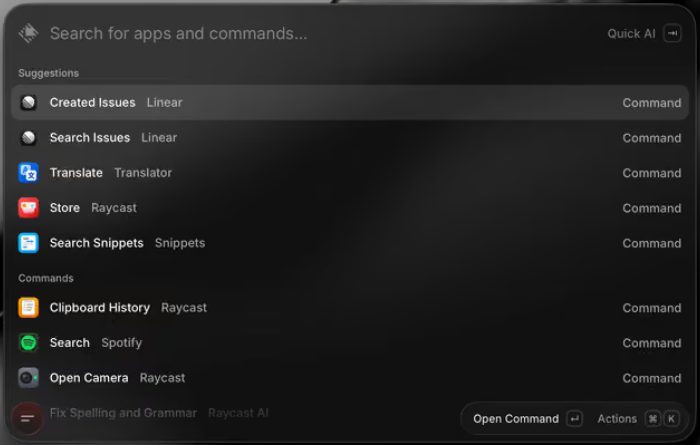
Raycast 공식 매뉴얼에 소개된 데스크톱 Root Search 화면. (출처: Raycast Manual, 2026-11-20 캡처)
- macOS: 공식 홈페이지의 현재 다운로드 안내는 macOS Tahoe와 Apple Silicon을 요구합니다.[2] 설치 전 사용 중인 Mac과 제공 버전의 요구사항을 확인하세요.
- Windows: 별도의 Raycast for Windows가 있으며, 공식 페이지는 Windows 10 이상을 안내합니다.[3]
- iPhone·iPad: 한국 App Store의 Raycast는 무료 계정과 iOS 18 이상을 안내합니다. 일부 기능은 유료 구독이 필요합니다.[14]
- Android: 공식 iOS FAQ는 현재 Android 버전이 없다고 안내합니다.[1]
기능 이름이 같더라도 플랫폼별 사용 방식과 지원 범위가 같지는 않습니다. 특히 iOS 앱을 데스크톱 확장 기능 전체를 실행하는 런처로 생각하면 안 됩니다. 공식 FAQ에 따르면 AI Extensions는 현재 iOS에서 실행할 수 없지만 기존 채팅은 읽을 수 있습니다.[1]
데스크톱에서 시작하기
- 공식 홈페이지 또는 Windows 페이지에서 운영체제에 맞는 앱을 설치합니다.
- 설정한 Raycast 단축키로 검색창을 열고 앱 이름이나 파일 이름을 입력합니다. 결과를 선택해 실행합니다.
- 결과를 선택한 상태에서 Mac은
⌘ K, Windows는Ctrl K를 눌러 Action Panel을 열면 해당 항목에서 가능한 동작을 확인할 수 있습니다.[8] - 자주 여는 명령에는 Action Panel의 Configure Command → Set Hotkey로 별도 단축키를 지정할 수 있습니다.[8]
Snippets: 반복 문구 저장하기
- 검색창에서 Create Snippet을 찾습니다.
Name과Snippet Text를 입력하고, 필요하면Keyword를 지정해 저장합니다.[10]- 자동 확장이 켜져 있다면 다른 앱의 텍스트 입력란에서 키워드를 입력해 저장한 문구로 바꿀 수 있습니다. 우연히 입력할 가능성이 낮은
!thanks같은 키워드가 편리합니다.[10]
예를 들어 자주 쓰는 회신 초안을 저장해 두고, 문맥에 맞게 검토한 다음 보내는 방식입니다. 민감한 정보나 비밀번호를 반복 문구로 저장하기 전에는 회사 정책과 동기화 설정을 확인하세요.
Quicklinks와 Clipboard History
Create Quicklink에서 이름과 URL을 저장하면 검색창에서 이름으로 다시 열 수 있습니다. 자주 여는 프로젝트 문서나 업무 페이지부터 등록해 보세요.[8][11]
Clipboard History에서는 이전에 복사한 항목을 찾아 다시 붙여 넣을 수 있습니다. 설정에서 기록을 끄거나 보관 기간을 조정할 수 있으며, 공식 가격표의 무료 플랜은 최대 3개월 기록을 안내합니다.[4][12] 클립보드에는 민감한 정보가 들어갈 수 있으므로 기록 설정을 확인하세요.
Raycast for iOS 시작하기
- App Store에서 Raycast를 설치하고 무료 Raycast 계정으로 로그인합니다.[14]
- 홈의 Notes, Quicklinks, Snippets 등 필요한 기능을 열고 자주 쓰는 항목을 홈에 배치합니다. 공식 제품 페이지는 홈 사용자화와 검색을 소개합니다.[1]
- 이동 중에는 Notes에 생각을 기록하거나 저장된 Quicklink를 열고, Snippet을 찾아 반복 문구를 재사용합니다.[1][5]
- AI 기능이 포함된 요금제라면 AI Chat이나 AI Commands를 사용할 수 있습니다. 모델과 사용량은 선택한 플랜과 설정을 확인하세요.[1][4]
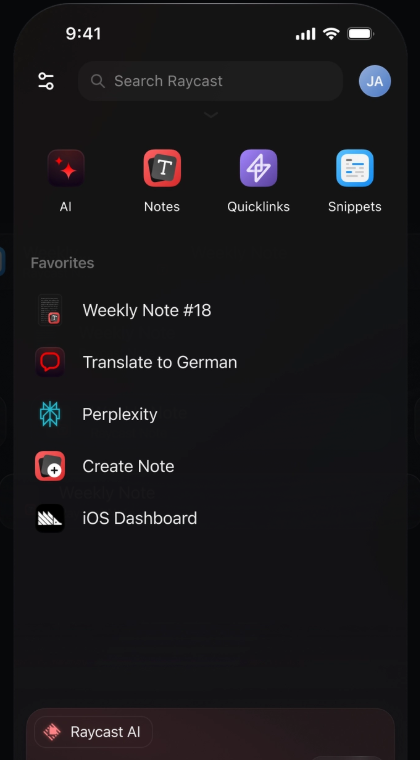
Raycast 공식 iOS 제품 페이지의 홈 화면 예시. (출처: Raycast for iOS, 2026-11-20 캡처)
키보드와 한국어 입력
Raycast Keyboard는 다른 앱의 입력 화면에서 Snippet, Quicklink, 검색 등을 사용할 수 있게 합니다. 설정하려면 Raycast 앱의 Home → 프로필 → Keyboard → Set Up Keyboard를 열고 안내에 따라 iOS 설정에서 Raycast 키보드를 활성화합니다.[6]
공식 매뉴얼의 기본 타이핑 언어 목록에는 한국어가 없습니다. 한국어 입력이 필요하다면 기존 한국어 키보드를 유지하고 Raycast Keyboard의 Secondary Mode를 보조 도구로 사용하는 방식을 검토하세요.[6] 언어 지원은 업데이트될 수 있으므로 설치 전 최신 목록도 확인하는 편이 좋습니다.
매뉴얼에 따르면 일반 타이핑, Snippets, Quicklinks, 검색은 전체 접근 허용(Allow Full Access) 없이도 사용할 수 있지만, AI 명령·음성 입력·GIF 검색 등은 해당 권한이 필요합니다.[6] 전체 접근은 네트워크 연결과 앱 간 데이터 공유를 허용하는 권한이므로, 기능과 개인정보 처리 방침을 확인한 뒤 필요한 경우에만 켜세요. 일부 암호 입력란이나 앱에서는 iOS가 기본 키보드로 전환합니다.[6]
다른 앱에서 사용하기
- 공유 시트: 다른 앱에서 텍스트를 선택하고 공유 → Raycast를 선택해 AI Commands를 실행할 수 있습니다. AI 기능의 구독 조건을 먼저 확인하세요.[7]
- 위젯과 제어 항목: 홈 화면·잠금 화면·제어 센터에 제공되는 Raycast 항목을 추가해 자주 쓰는 동작을 열 수 있습니다.[17]
- 동작 버튼: 지원 iPhone에서 설정 → 동작 버튼 → 단축어로 이동해 Raycast 동작이나 Raycast를 사용하는 단축어를 선택합니다.[13]
Mac과 iPhone을 함께 쓸 때: 동기화 조건
기기 간 Cloud Sync는 Pro 구독이 필요합니다. 같은 계정으로 로그인한 뒤 데스크톱의 Settings → Cloud Sync에서 동기화할 항목을 선택하고 켭니다. 공식 매뉴얼은 초기 동기화 전에 Export Settings & Data로 백업할 것을 권장합니다.[9]
Notes, Snippets, Quicklinks, AI 채팅 등은 지원 범위와 설정에 따라 기기 간 동기화할 수 있습니다.[1][9] 반면 공식 매뉴얼은 Clipboard History, 스크립트 자체, 인증 정보와 비밀번호는 동기화되지 않는다고 설명합니다. iOS 기기는 현재 기존 동기화 방식으로 묶여 표시되므로, 지원 항목과 상태를 직접 확인하세요.[9] 같은 계정이라는 이유만으로 모든 데이터가 자동으로 일치한다고 가정하지 않는 편이 좋습니다.
무료와 유료 요금제
다음은 확인 당시 공식 웹 가격표의 개인용 미국 달러 가격입니다. 세금, 지역, 결제 경로와 정책에 따라 실제 결제 금액은 다를 수 있습니다.[4] 가입 전 최신 요금표를 다시 확인하세요.
- Free: 무료. 기본 생산성 기능과 iOS 앱을 제공하며 AI는 포함되지 않습니다.
- Pro: 월 결제 $10/월 또는 연 결제 $96/년. AI 크레딧 월 500과 Cloud Sync 등을 제공합니다.
- Plus: 월 결제 $20/월 또는 연 결제 $192/년. AI 크레딧 월 3,000을 제공합니다.
- Max: 월 결제 $50/월 또는 연 결제 $480/년. AI 크레딧 월 7,500을 제공합니다.
AI 모델과 기능에 따라 사용되는 크레딧이 다르고, 플랜별 이용 가능 모델도 다릅니다.[4] 우선 무료 기능으로 검색·Snippets·Quicklinks가 실제로 필요한지 확인하고, 기기 간 동기화나 AI가 필요해질 때 유료 플랜을 검토하는 것을 권합니다.
개인정보와 도입 전 점검
클립보드 기록, 저장한 문구, AI에 보낸 텍스트는 민감할 수 있습니다. Raycast의 개인정보 문서는 AI 요청을 제공업체로 전달하는 방식, Cloud Sync, 첨부파일, 모델별 보관 예외를 설명합니다.[15] 고객 정보나 내부 문서를 넣기 전에는 조직 정책과 사용하는 모델의 데이터 처리 조건을 확인하세요.
Raycast는 반복 작업을 검색과 단축키로 묶고 싶은 사용자에게 유용할 수 있습니다. 반면 단축키 설정과 새로운 작업 흐름에 익숙해질 시간이 필요하고, iOS의 기능·키보드 언어와 무료 동기화에는 제약이 있습니다. 처음에는 Snippet 하나와 Quicklink 하나부터 만들어 기존 방식과 비교해 보세요.
Sources
[1] https://www.raycast.com/ios
[3] https://www.raycast.com/windows
[4] https://www.raycast.com/pricing
[5] https://manual.raycast.com/ios
[6] https://manual.raycast.com/ios/keyboard
[7] https://manual.raycast.com/ios/share-extension
[8] https://manual.raycast.com/quickstart
[9] https://manual.raycast.com/cloud-sync
[10] https://manual.raycast.com/snippets
[11] https://manual.raycast.com/quicklinks
[12] https://manual.raycast.com/clipboard-history
[13] https://manual.raycast.com/ios/apple-shortcuts
[14] https://apps.apple.com/kr/app/raycast-keyboard-ai-and-more/id6503428327
[15] https://manual.raycast.com/ai/raycast-ai-privacy-security
Opening apps, finding familiar links, and typing the same message are tasks repeated throughout the day. Raycast brings them together through search and commands. Its desktop product is an extensible launcher; Raycast for iOS brings notes, saved text, links, and AI features to mobile.[1][2]
This guide explains the products and how to get started. Features and prices reflect official information checked on November 20, 2026; screens may change between versions.
What is Raycast?
The desktop launcher finds apps and files, runs commands, and opens extensions. You can calculate, search clipboard history, and save frequently used text and links.[2][8] AI Chat and Quick AI are separate features whose availability and usage depend on the plan.[4]
Desktop Root Search shown in the official Raycast Manual. (Source: Raycast Manual, captured 2026-11-20)
- macOS: the current download page requires macOS Tahoe and Apple Silicon.[2] Check compatibility with your Mac and the version offered before installing.
- Windows: Raycast for Windows is a separate product; its official page lists Windows 10 or later.[3]
- iPhone and iPad: the Korean App Store listing requires a free account and iOS 18 or later. Some features require a paid subscription.[14]
- Android: the official iOS FAQ says there is currently no Android app.[1]
The same feature name does not guarantee identical behavior on each platform. In particular, the iOS app does not run every desktop extension. Raycast says AI Extensions cannot currently run on iOS, although existing chats can be read there.[1]
Getting started on desktop
- Install the appropriate version from the official website or the Windows page.
- Open the launcher with your configured Raycast hotkey, type an app or file name, and select a result.
- With a result selected, press
⌘ Kon Mac orCtrl Kon Windows to open the Action Panel and see available actions.[8] - To assign a separate hotkey to a frequently used command, choose Configure Command → Set Hotkey in the Action Panel.[8]
Snippets: save repeated text
- Search for Create Snippet.
- Enter a
NameandSnippet Text; optionally add aKeywordand save.[10] - With expansion enabled, type the keyword in a text field in another app to replace it with the saved text. Choose a distinctive keyword such as
!thanksto avoid accidental expansion.[10]
For example, save a reply draft and review it for context before sending. Check workplace policy and sync settings before storing confidential information or passwords.
Quicklinks and Clipboard History
Save a name and URL with Create Quicklink, then open it later by searching for its name. Start with a frequently used project document or work page.[8][11]
Clipboard History lets you find and paste previously copied items. You can disable history or adjust retention in settings. The official pricing table lists up to three months of history on the free plan.[4][12] Clipboard entries can be sensitive, so review the recording settings.
Getting started with Raycast for iOS
- Install Raycast from the App Store and sign in with a free Raycast account.[14]
- Open Notes, Quicklinks, or Snippets on Home and arrange the items you use most. The product page describes Home customization and search.[1]
- Capture an idea in Notes, open a saved Quicklink, or find a Snippet to reuse while away from your desk.[1][5]
- With a plan that includes AI, use AI Chat or AI Commands; check your plan and settings for available models and usage.[1][4]
Example Home screen on Raycast’s official iOS product page. (Source: Raycast for iOS, captured 2026-11-20)
Keyboard and Korean input
Raycast Keyboard offers Snippets, Quicklinks, and search from text fields in other apps. Open Home → profile → Keyboard → Set Up Keyboard in Raycast and follow the iOS settings instructions to enable it.[6]
Korean is not on the typing-language list in the official manual. If you type Korean, keep your usual Korean keyboard and consider using Raycast Keyboard in Secondary Mode as a companion.[6] Check the latest supported-language list before installing because it can change.
The manual says ordinary typing, Snippets, Quicklinks, and search work without Allow Full Access, while AI commands, dictation, and GIF search need it.[6] Full Access enables network access and data sharing with the app; review the functions and privacy policy and enable it only if needed. iOS may show its own keyboard in password fields and in apps that disallow third-party keyboards.[6]
Use Raycast from other apps
- Share sheet: select text in another app, then choose Share → Raycast to run an AI Command; check its subscription requirements first.[7]
- Widgets and controls: add available Raycast items to the Home Screen, Lock Screen, or Control Center for quick access.[17]
- Action button: on supported iPhones, go to Settings → Action Button → Shortcut, then choose a Raycast action or a shortcut that uses Raycast.[13]
Using Mac and iPhone together
Cloud Sync requires a Pro subscription. Sign in to the same account, choose content under desktop Settings → Cloud Sync, and enable it. The manual recommends Export Settings & Data as a backup before the initial sync.[9]
Notes, Snippets, Quicklinks, and AI chats can sync subject to support and settings.[1][9] The manual says Clipboard History, script files, credentials, and passwords do not sync. It currently groups iOS devices under legacy sync, so check actual support and status rather than assuming all data matches automatically.[9]
Free and paid plans
These are the official individual US-dollar prices checked on that date. Taxes, location, purchase channel, and terms can change the amount.[4] Check the current pricing page before subscribing.
- Free: Free; core productivity tools and the iOS app, without AI.
- Pro: $10/month billed monthly or $96/year billed annually; 500 AI credits per month, Cloud Sync, and more.
- Plus: $20/month billed monthly or $192/year billed annually; 3,000 AI credits per month.
- Max: $50/month billed monthly or $480/year billed annually; 7,500 AI credits per month.
Credit use varies by model and feature, and model availability varies by plan.[4] Start with free search, Snippets, and Quicklinks; consider a paid plan if you need cross-device sync or AI.
Privacy and adoption
Clipboard history, saved text, and information sent to AI can be sensitive. Raycast’s privacy documentation describes provider requests, Cloud Sync, attachments, and model-specific retention exceptions.[15] Check organizational policy and the selected model’s data terms before submitting client or internal information.
Raycast may suit people who want to combine repeated tasks with search and shortcuts. It takes time to learn the workflow, while iOS features, keyboard languages, and free syncing have limitations. Start with one Snippet and one Quicklink and compare them with your current approach.
Sources
[1] https://www.raycast.com/ios
[3] https://www.raycast.com/windows
[4] https://www.raycast.com/pricing
[5] https://manual.raycast.com/ios
[6] https://manual.raycast.com/ios/keyboard
[7] https://manual.raycast.com/ios/share-extension
[8] https://manual.raycast.com/quickstart
[9] https://manual.raycast.com/cloud-sync
[10] https://manual.raycast.com/snippets
[11] https://manual.raycast.com/quicklinks
[12] https://manual.raycast.com/clipboard-history
[13] https://manual.raycast.com/ios/apple-shortcuts
[14] https://apps.apple.com/kr/app/raycast-keyboard-ai-and-more/id6503428327
[15] https://manual.raycast.com/ai/raycast-ai-privacy-security
打开应用、寻找常用链接、重复输入同一段话,都是每天反复发生的操作。Raycast 官网介绍的 Raycast 通过搜索和命令整合这些任务。桌面端是可扩展的启动器,Raycast for iOS 则将笔记、常用文本、链接和 AI 功能带到移动设备。[1][2]
本文介绍各产品的能力和上手方法。功能与价格依据 2026 年 11 月 20 日核查的官方资料,界面可能随版本变化。
Raycast 是什么?
桌面版启动器可以查找应用和文件、运行命令并打开扩展,也能计算、搜索剪贴板历史以及保存常用文本和链接。[2][8] AI Chat 和 Quick AI 是另外提供的功能,其可用性与用量取决于套餐。[4]
Raycast 官方手册中的桌面 Root Search 画面。(来源:Raycast Manual,截取于 2026-11-20)
- macOS:当前官方下载页面要求 macOS Tahoe 和 Apple Silicon。[2] 安装前请检查 Mac 与所提供版本的兼容性。
- Windows:独立的 Raycast for Windows 官方页面要求 Windows 10 或更高版本。[3]
- iPhone 和 iPad:韩国 App Store 页面要求免费账户和 iOS 18 或更高版本。部分功能需要付费订阅。[14]
- Android:官方 iOS 常见问题表示目前没有 Android 版本。[1]
相同功能名称不意味着各平台的操作和支持范围完全一致。尤其是 iOS 不能运行所有桌面扩展;官方表示 AI Extensions 目前无法在 iOS 上运行,但可以阅读已有聊天记录。[1]
从桌面端开始
- 从官网或 Windows 页面安装相应应用。
- 使用配置好的 Raycast 快捷键打开搜索,输入应用或文件名并选择结果。
- 选中结果后,Mac 按
⌘ K、Windows 按Ctrl K打开 Action Panel,查看可执行操作。[8] - 常用命令可在 Action Panel 中通过 Configure Command → Set Hotkey 设置专用快捷键。[8]
Snippets:保存常用文本
- 搜索 Create Snippet。
- 输入
Name和Snippet Text,需要时设置Keyword并保存。[10] - 启用自动展开后,在其他应用的文本框输入关键词,即可替换为保存的文本。建议使用不易误触的关键词,例如
!thanks。[10]
例如可以保存回复草稿,在发送前根据上下文检查。保存机密信息或密码之前,请检查组织政策和同步设置。
Quicklinks 与 Clipboard History
使用 Create Quicklink 保存名称和 URL,之后就能通过名称搜索并打开。可以先添加常用项目文档或工作页面。[8][11]
Clipboard History 可查找并再次粘贴之前复制的内容。设置中可以关闭记录或调整保留期限;官方价格表显示免费套餐最多保留三个月历史。[4][12] 剪贴板可能包含敏感信息,请检查记录设置。
开始使用 Raycast for iOS
- 从 App Store 安装并使用免费 Raycast 账户登录。[14]
- 打开主页上的 Notes、Quicklinks、Snippets 等功能,安排常用项目。官方页面介绍了主页自定义和搜索。[1]
- 外出时可以用 Notes 记录想法、打开保存的 Quicklink 或查找 Snippet 复用文本。[1][5]
- 如果套餐包含 AI,可以使用 AI Chat 或 AI Commands;请检查套餐和设置中的模型与用量。[1][4]
Raycast 官方 iOS 产品页面的主页示例。(来源:Raycast for iOS,截取于 2026-11-20)
键盘与韩语输入
Raycast Keyboard 让用户在其他应用的输入界面使用 Snippet、Quicklink 和搜索。打开 Raycast 的 Home → 头像 → Keyboard → Set Up Keyboard,按提示在 iOS 设置中启用键盘。[6]
官方手册的输入语言列表中没有韩语。如果需要输入韩语,可保留原有韩语键盘,并考虑将 Raycast Keyboard 的 Secondary Mode 作为辅助工具。[6] 支持语言可能更新,安装前请再次确认。
手册表示,普通输入、Snippets、Quicklinks 和搜索不需要允许完全访问(Allow Full Access),但 AI 命令、语音输入、GIF 搜索等需要该权限。[6] 完全访问允许联网与应用间数据共享,请先了解功能与隐私政策,仅在需要时启用。某些密码输入框或禁止第三方键盘的应用会切换回 iOS 自带键盘。[6]
在其他应用中使用
- 共享面板:在其他应用选中文本,选择共享 → Raycast 运行 AI Commands;先确认订阅条件。[7]
- 小组件和控制项:可将 Raycast 项目添加到主屏幕、锁定屏幕或控制中心,快速打开常用操作。[17]
- 操作按钮:在支持的 iPhone 上打开设置 → 操作按钮 → 快捷指令,选择 Raycast 操作或使用 Raycast 的快捷指令。[13]
在 Mac 与 iPhone 间同步
**Cloud Sync 需要 Pro 订阅。**使用同一账户登录,在桌面端 Settings → Cloud Sync 中选择内容并启用。官方手册建议首次同步前使用 Export Settings & Data 备份。[9]
Notes、Snippets、Quicklinks、AI 聊天等可根据支持情况和设置跨设备同步。[1][9] 官方手册表示剪贴板历史、脚本文件本身、凭据和密码不会同步。目前 iOS 设备以旧同步方式分组显示,请检查实际支持范围与状态,不要假设同一账户的所有数据都会自动一致。[9]
免费和付费套餐
以下为核查当天官网列出的个人美元价格。税费、地区、购买渠道与政策可能影响实际费用。[4] 订阅前请查看最新价格。
- Free:免费,包含基础生产力功能和 iOS 应用,不含 AI。
- Pro:按月支付 $10/月或按年支付 $96/年,包含每月 500 AI 积分和 Cloud Sync 等。
- Plus:按月支付 $20/月或按年支付 $192/年,包含每月 3,000 AI 积分。
- Max:按月支付 $50/月或按年支付 $480/年,包含每月 7,500 AI 积分。
积分消耗取决于模型和功能,可用模型也因套餐而异。[4] 建议先用免费搜索、Snippets 和 Quicklinks,确实需要跨设备同步或 AI 时再考虑付费。
隐私与采用前检查
剪贴板历史、保存的文本和发送给 AI 的信息可能涉及隐私。Raycast 隐私文档介绍了发送给提供商的请求、Cloud Sync、附件和不同模型的保留例外。[15] 输入客户或内部资料前,请检查组织政策和所选模型的数据处理条件。
Raycast 适合希望把重复任务整合到搜索和快捷键中的用户,但需要时间熟悉新流程,iOS 功能、键盘语言和免费同步也有限制。建议先创建一个 Snippet 和一个 Quicklink,再与当前方法比较。
Sources
[1] https://www.raycast.com/ios
[3] https://www.raycast.com/windows
[4] https://www.raycast.com/pricing
[5] https://manual.raycast.com/ios
[6] https://manual.raycast.com/ios/keyboard
[7] https://manual.raycast.com/ios/share-extension
[8] https://manual.raycast.com/quickstart
[9] https://manual.raycast.com/cloud-sync
[10] https://manual.raycast.com/snippets
[11] https://manual.raycast.com/quicklinks
[12] https://manual.raycast.com/clipboard-history
[13] https://manual.raycast.com/ios/apple-shortcuts
[14] https://apps.apple.com/kr/app/raycast-keyboard-ai-and-more/id6503428327
[15] https://manual.raycast.com/ai/raycast-ai-privacy-security
アプリを開く、よく使うリンクを探す、同じ文章を入力する作業は、一日に何度も発生します。Raycast公式サイトで紹介されるRaycastは、検索とコマンドでこうした作業をまとめる生産性ツールです。デスクトップでは拡張可能なランチャー、Raycast for iOSではノート、保存した文章、リンク、AI機能などを利用できます。[1][2]
この記事は製品ごとの機能と初期設定を紹介します。機能・料金は2026年11月20日に確認した公式情報に基づき、画面はバージョンによって異なる場合があります。
Raycastとは
デスクトップ版はアプリやファイルの検索、コマンド実行、拡張機能の起動に使うランチャーです。計算、クリップボード履歴、文章やリンクの保存にも対応します。[2][8] AI ChatとQuick AIもありますが、利用条件と使用量はプランによって異なります。[4]
Raycast公式マニュアルのデスクトップRoot Search画面。(出典:Raycast Manual、2026-11-20撮影)
- macOS:現在の公式ダウンロード案内はmacOS TahoeとApple Siliconを要件としています。[2] インストール前にMacと提供バージョンの対応を確認してください。
- Windows:別製品のRaycast for Windowsがあり、公式ページはWindows 10以降を案内しています。[3]
- iPhone・iPad:韓国App Storeの案内では無料アカウントとiOS 18以降が必要です。一部機能は有料です。[14]
- Android:公式iOS FAQは現時点でAndroid版はないと案内しています。[1]
同じ機能名でも、各プラットフォームで操作や対応範囲が同じとは限りません。iOSですべてのデスクトップ拡張を実行できるわけではなく、公式FAQによればAI Extensionsは現在iOSでは実行できず、既存チャットの閲覧は可能です。[1]
デスクトップで始める
- 公式サイトまたはWindowsページから対応するアプリをインストールします。
- 設定したRaycastのショートカットで検索を開き、アプリ名やファイル名を入力して選択します。
- 結果を選んだ状態でMacは
⌘ K、WindowsはCtrl Kを押し、Action Panelで利用可能な操作を確認します。[8] - よく使うコマンドはAction PanelのConfigure Command → Set Hotkeyでショートカットを割り当てられます。[8]
Snippets:繰り返す文章を保存
- 検索画面でCreate Snippetを探します。
NameとSnippet Textを入力し、必要ならKeywordを設定して保存します。[10]- 自動展開が有効なら、別アプリの入力欄でキーワードを入力すると保存した文章に置き換わります。
!thanksのような誤入力しにくいキーワードを選びましょう。[10]
たとえば返信の下書きを保存し、送信前に文脈に合わせて確認できます。機密情報やパスワードを保存する前に、組織の規則と同期設定を確認してください。
QuicklinksとClipboard History
Create Quicklinkで名前とURLを保存すると、後から名前で検索して開けます。よく開くプロジェクト文書や業務ページから登録してみましょう。[8][11]
Clipboard Historyでは以前コピーした項目を再び探して貼り付けられます。設定で記録の停止や保存期間の変更が可能で、公式料金表では無料プランの履歴は最大3か月です。[4][12] 機密情報が含まれる可能性があるため、記録設定を確認してください。
Raycast for iOSを始める
- App Storeからインストールし、無料のRaycastアカウントでログインします。[14]
- ホームのNotes、Quicklinks、Snippetsなどを開き、よく使う項目を配置します。公式ページはホームのカスタマイズと検索を紹介しています。[1]
- 外出先ではNotesに考えを記録し、保存済みQuicklinkを開いたりSnippetを再利用したりできます。[1][5]
- AIを含むプランならAI ChatやAI Commandsを利用できます。利用可能なモデルと使用量はプランと設定を確認してください。[1][4]
Raycast公式iOS製品ページのホーム画面例。(出典:Raycast for iOS、2026-11-20撮影)
キーボードと韓国語入力
Raycast Keyboardは他のアプリの入力画面からSnippet、Quicklink、検索などを利用できます。RaycastアプリのHome → プロフィール → Keyboard → Set Up Keyboardを開き、案内に従ってiOS設定でキーボードを有効にします。[6]
公式マニュアルのタイピング言語一覧に韓国語はありません。韓国語入力が必要なら、普段の韓国語キーボードを残し、Raycast KeyboardをSecondary Modeの補助ツールとして使う方法を検討してください。[6] 対応言語は更新される可能性があります。
公式マニュアルによれば、通常の入力、Snippets、Quicklinks、検索は**フルアクセスを許可(Allow Full Access)**なしでも使えますが、AIコマンド、音声入力、GIF検索などには必要です。[6] この権限はネットワーク接続とアプリ間のデータ共有を可能にするため、機能とプライバシー方針を確認して必要な場合のみ有効にしてください。一部のパスワード欄や他社製キーボードを禁止するアプリではiOS標準キーボードに切り替わります。[6]
他のアプリから使う
- 共有シート:他のアプリで文字を選択し、共有 → RaycastからAI Commandsを実行できます。先にプランの条件を確認してください。[7]
- ウィジェットとコントロール:ホーム画面、ロック画面、コントロールセンターにRaycastの項目を追加できます。[17]
- アクションボタン:対応iPhoneで設定 → アクションボタン → ショートカットを開き、RaycastのアクションまたはRaycastを使うショートカットを選びます。[13]
MacとiPhoneの同期
Cloud SyncにはProの契約が必要です。同じアカウントにログインし、デスクトップのSettings → Cloud Syncで対象を選んで有効にします。公式マニュアルは初回同期前にExport Settings & Dataでバックアップすることを推奨しています。[9]
Notes、Snippets、Quicklinks、AIチャットなどは、対応状況と設定に応じて同期できます。[1][9] ただしClipboard History、スクリプト本体、認証情報、パスワードは同期されません。iOS機器は現在旧方式の同期としてまとめて表示されるため、対応項目と状態を確認してください。[9] 同一アカウントでもすべてが自動で一致するとは限りません。
無料・有料プラン
以下は確認時点の公式料金表にある個人向け米ドル価格です。税金、地域、購入経路、条件によって請求額は異なる場合があります。[4] 契約前に最新の料金表を確認してください。
- Free:無料。基本機能とiOSアプリを提供し、AIは含まれません。
- Pro:月払い$10/月または年払い$96/年。月500のAIクレジットとCloud Syncなどを提供します。
- Plus:月払い$20/月または年払い$192/年。月3,000のAIクレジットを提供します。
- Max:月払い$50/月または年払い$480/年。月7,500のAIクレジットを提供します。
クレジット消費量はモデルや機能、利用可能なモデルはプランによって異なります。[4] まず無料の検索、Snippets、Quicklinksを試し、同期やAIが必要になってから有料プランを検討するとよいでしょう。
プライバシーと導入前の確認
クリップボード履歴、保存した文章、AIに送る情報には機密が含まれ得ます。Raycastの文書はプロバイダーへの送信、Cloud Sync、添付ファイル、モデルごとの保存例外を説明しています。[15] 顧客情報や社内文書を入力する前に、組織の規則と利用モデルのデータ処理条件を確認してください。
Raycastは反復作業を検索とショートカットにまとめたい人に向く可能性があります。一方、操作の習得には時間が必要で、iOSの機能・入力言語・無料同期には制限があります。まずSnippetとQuicklinkを一つずつ作り、今の方法と比較してみましょう。
Sources
[1] https://www.raycast.com/ios
[3] https://www.raycast.com/windows
[4] https://www.raycast.com/pricing
[5] https://manual.raycast.com/ios
[6] https://manual.raycast.com/ios/keyboard
[7] https://manual.raycast.com/ios/share-extension
[8] https://manual.raycast.com/quickstart
[9] https://manual.raycast.com/cloud-sync
[10] https://manual.raycast.com/snippets
[11] https://manual.raycast.com/quicklinks
[12] https://manual.raycast.com/clipboard-history
[13] https://manual.raycast.com/ios/apple-shortcuts
[14] https://apps.apple.com/kr/app/raycast-keyboard-ai-and-more/id6503428327
[15] https://manual.raycast.com/ai/raycast-ai-privacy-security
Abrir aplicaciones, buscar enlaces habituales y volver a escribir el mismo mensaje son tareas que se repiten durante el día. Raycast las reúne mediante búsquedas y comandos. En escritorio es un lanzador ampliable; Raycast para iOS lleva notas, texto guardado, enlaces y funciones de IA al móvil.[1][2]
Esta guía explica los productos y cómo empezar. Las funciones y tarifas se basan en información oficial consultada el 20 de noviembre de 2026; las pantallas pueden cambiar entre versiones.
¿Qué es Raycast?
El lanzador de escritorio busca aplicaciones y archivos, ejecuta comandos y abre extensiones. También permite calcular, buscar en el historial del portapapeles y guardar textos o enlaces frecuentes.[2][8] AI Chat y Quick AI son funciones aparte cuya disponibilidad y uso dependen del plan.[4]
Root Search de escritorio en el manual oficial de Raycast. (Fuente: Raycast Manual, captura del 2026-11-20)
- macOS: la página de descarga actual exige macOS Tahoe y Apple Silicon.[2] Comprueba la compatibilidad con tu Mac y la versión disponible antes de instalar.
- Windows: Raycast para Windows es un producto independiente; su página oficial indica Windows 10 o posterior.[3]
- iPhone y iPad: la ficha de App Store de Corea exige una cuenta gratuita e iOS 18 o posterior. Algunas funciones requieren una suscripción de pago.[14]
- Android: las preguntas frecuentes oficiales indican que actualmente no hay aplicación para Android.[1]
Un mismo nombre no garantiza idéntico funcionamiento o compatibilidad en todas las plataformas. En particular, iOS no ejecuta todas las extensiones de escritorio: Raycast indica que AI Extensions no funcionan actualmente en iOS, aunque se pueden leer chats existentes.[1]
Primeros pasos en escritorio
- Instala la versión correspondiente desde la web oficial o la página de Windows.
- Abre el buscador con el atajo de Raycast configurado, escribe el nombre de una aplicación o archivo y selecciona un resultado.
- Con el resultado seleccionado, pulsa
⌘ Ken Mac oCtrl Ken Windows para abrir el Action Panel y ver las acciones disponibles.[8] - Para asignar un atajo a un comando frecuente, elige Configure Command → Set Hotkey en el Action Panel.[8]
Snippets: guarda textos repetidos
- Busca Create Snippet.
- Introduce
NameySnippet Text, añade opcionalmente unKeywordy guarda.[10] - Con la expansión automática activada, escribe la palabra clave en un campo de otra aplicación para sustituirla por el texto guardado. Usa una palabra poco probable por accidente, como
!thanks.[10]
Por ejemplo, guarda un borrador de respuesta y revísalo según el contexto antes de enviarlo. Consulta la política de tu organización y la sincronización antes de guardar información confidencial o contraseñas.
Quicklinks y Clipboard History
Con Create Quicklink guarda un nombre y una URL; después puedes buscar ese nombre para abrir el enlace. Empieza por un documento de proyecto o una página de trabajo habitual.[8][11]
Clipboard History permite buscar y pegar de nuevo contenido copiado anteriormente. En ajustes puedes desactivar el registro o cambiar su conservación. La tabla de precios oficial indica hasta tres meses de historial en el plan gratuito.[4][12] El portapapeles puede contener datos sensibles, así que revisa los ajustes.
Primeros pasos con Raycast para iOS
- Instala Raycast desde App Store e inicia sesión con una cuenta gratuita.[14]
- Abre Notes, Quicklinks o Snippets en Home y organiza lo que uses con frecuencia. La página oficial describe la personalización y búsqueda en Home.[1]
- Fuera del escritorio, anota una idea en Notes, abre un Quicklink o busca un Snippet para reutilizar texto.[1][5]
- Con un plan que incluya IA puedes usar AI Chat o AI Commands; consulta tu plan y ajustes para conocer modelos y uso.[1][4]
Ejemplo de Home en la página oficial de Raycast para iOS. (Fuente: Raycast for iOS, captura del 2026-11-20)
Teclado e introducción de coreano
Raycast Keyboard ofrece Snippets, Quicklinks y búsqueda desde campos de otras aplicaciones. Abre Home → perfil → Keyboard → Set Up Keyboard en Raycast y sigue las instrucciones para activarlo en ajustes de iOS.[6]
El manual oficial no incluye coreano entre los idiomas de escritura. Si escribes en coreano, conserva tu teclado habitual y considera el Secondary Mode de Raycast Keyboard como complemento.[6] Los idiomas compatibles pueden cambiar: comprueba la lista actual antes de instalar.
Según el manual, la escritura normal, Snippets, Quicklinks y la búsqueda funcionan sin Allow Full Access, mientras que comandos de IA, dictado y búsqueda de GIF requieren ese permiso.[6] Full Access permite conexión de red e intercambio de datos con la app; revisa las funciones y la política de privacidad antes de activarlo. iOS puede mostrar su propio teclado en campos de contraseña o en apps que rechazan teclados de terceros.[6]
Uso desde otras aplicaciones
- Hoja de compartir: selecciona texto en otra app y elige Compartir → Raycast para ejecutar AI Commands; comprueba antes los requisitos de suscripción.[7]
- Widgets y controles: añade elementos de Raycast a la pantalla de inicio, bloqueo o centro de control para abrir acciones frecuentes.[17]
- Botón de acción: en iPhone compatibles, abre Ajustes → Botón de acción → Atajo y selecciona una acción de Raycast o un atajo que la use.[13]
Sincronización entre Mac y iPhone
Cloud Sync requiere una suscripción Pro. Inicia sesión con la misma cuenta, selecciona el contenido en Settings → Cloud Sync en escritorio y actívalo. El manual recomienda crear una copia mediante Export Settings & Data antes de la primera sincronización.[9]
Notes, Snippets, Quicklinks y chats de IA pueden sincronizarse según la compatibilidad y la configuración.[1][9] El manual indica que Clipboard History, los archivos de scripts, las credenciales y las contraseñas no se sincronizan. Actualmente los dispositivos iOS se agrupan en la sincronización antigua: comprueba lo que se admite y el estado, sin asumir que todos los datos coinciden automáticamente.[9]
Planes gratuitos y de pago
Estos son los precios individuales en dólares estadounidenses de la tabla oficial en la fecha de consulta. Impuestos, región, canal de compra y condiciones pueden cambiar el importe.[4] Consulta los precios actuales antes de suscribirte.
- Free: gratis; funciones básicas y app iOS, sin IA.
- Pro: $10/mes con pago mensual o $96/año con pago anual; 500 créditos de IA al mes, Cloud Sync y más.
- Plus: $20/mes con pago mensual o $192/año con pago anual; 3.000 créditos de IA al mes.
- Max: $50/mes con pago mensual o $480/año con pago anual; 7.500 créditos de IA al mes.
El consumo de créditos depende del modelo y la función; los modelos disponibles también dependen del plan.[4] Prueba primero la búsqueda, Snippets y Quicklinks gratuitos, y considera un plan de pago si necesitas sincronización o IA.
Privacidad y evaluación
El historial del portapapeles, el texto guardado y lo enviado a la IA pueden ser sensibles. La documentación de Raycast describe solicitudes a proveedores, Cloud Sync, adjuntos y excepciones de conservación por modelo.[15] Antes de introducir datos de clientes o documentos internos, revisa la política de tu organización y las condiciones del modelo elegido.
Raycast puede ser útil para reunir tareas repetidas mediante búsqueda y atajos. También requiere aprender un nuevo flujo y tiene límites en funciones de iOS, idiomas del teclado y sincronización gratuita. Crea primero un Snippet y un Quicklink y compáralos con tu método actual.
Sources
[1] https://www.raycast.com/ios
[3] https://www.raycast.com/windows
[4] https://www.raycast.com/pricing
[5] https://manual.raycast.com/ios
[6] https://manual.raycast.com/ios/keyboard
[7] https://manual.raycast.com/ios/share-extension
[8] https://manual.raycast.com/quickstart
[9] https://manual.raycast.com/cloud-sync
[10] https://manual.raycast.com/snippets
[11] https://manual.raycast.com/quicklinks
[12] https://manual.raycast.com/clipboard-history
[13] https://manual.raycast.com/ios/apple-shortcuts
[14] https://apps.apple.com/kr/app/raycast-keyboard-ai-and-more/id6503428327
[15] https://manual.raycast.com/ai/raycast-ai-privacy-security