바이브코딩에서 여러 AI 코딩 세션을 동시에 사용할 때 안전하게 작업하는 방법
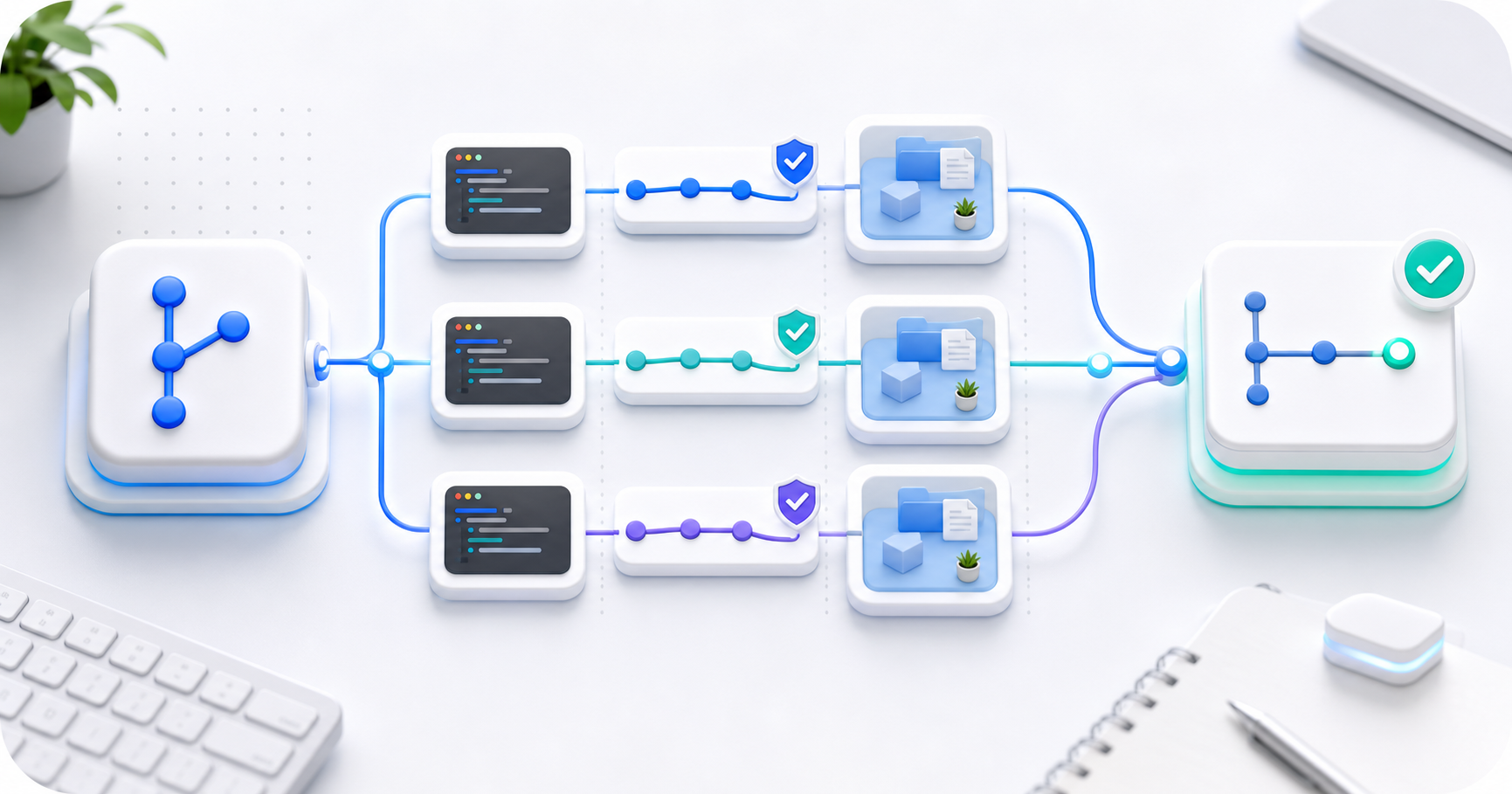
AI 코딩 도구를 쓰다 보면 이런 생각이 듭니다.
하나의 프로젝트에서 Claude Code를 두 개 실행해서, 하나는 UI를 고치고 다른 하나는 버그를 잡게 하면 더 빠르지 않을까?
가능합니다. 실제로 잘 운영하면 생산성이 올라갑니다. 다만 아무 준비 없이 같은 프로젝트 폴더에서 여러 세션을 동시에 실행하면 문제가 생길 수 있습니다. 두 세션이 같은 파일을 동시에 수정하거나, 한쪽 세션이 다른 세션의 미완성 변경사항을 기준으로 다시 코드를 고치는 상황이 생길 수 있기 때문입니다.
이 글에서는 바이브코딩을 할 때 하나의 프로젝트를 여러 AI 코딩 세션으로 병렬 작업하는 방법, 컨플릭트를 줄이는 방법, 그리고 실무에서 바로 쓸 수 있는 Git worktree 기반 워크플로우를 정리합니다.
문제는 여러 세션이 아니라 같은 폴더 동시 수정이다
Claude Code를 두 개 실행하는 것 자체가 문제는 아닙니다. 문제는 두 세션이 같은 프로젝트 폴더를 동시에 수정하는 방식입니다.
예를 들어 같은 폴더에서 첫 번째 Claude Code 세션을 실행합니다.
cd my-project
claude
다른 터미널에서도 같은 폴더에서 다시 실행합니다.
cd my-project
claude
이 방식은 단순해 보이지만 위험합니다. 첫 번째 세션이 Header.tsx를 고치고 있는데 두 번째 세션도 우연히 같은 파일을 수정할 수 있습니다. 또는 첫 번째 세션이 아직 정리하지 않은 중간 상태의 코드를 두 번째 세션이 읽고, 그것을 기준으로 잘못된 판단을 할 수도 있습니다.
결과적으로 다음과 같은 문제가 생깁니다.
| 문제 | 설명 |
|---|---|
| 파일 덮어쓰기 | 한 세션의 수정사항을 다른 세션이 다시 바꿔버릴 수 있음 |
| Git 상태 혼란 | 어떤 변경이 어느 세션에서 나온 것인지 구분하기 어려움 |
| 컨텍스트 오염 | 한 AI 세션이 다른 세션의 미완성 코드를 기준으로 판단할 수 있음 |
| 테스트 실패 원인 추적 어려움 | 어느 변경 때문에 문제가 생겼는지 확인하기 어려움 |
| Merge conflict 증가 | 같은 파일을 동시에 수정하면 충돌 가능성이 높아짐 |
따라서 병렬 작업의 핵심은 단순합니다.
여러 AI 세션을 쓰되, 같은 작업 폴더를 동시에 수정하지 않게 해야 합니다.
가장 안전한 방법은 Git worktree다
가장 안전한 방식은 Git worktree를 사용하는 것입니다.
Git worktree는 하나의 Git 저장소를 기반으로 여러 개의 작업 폴더를 만들어주는 기능입니다. 각 작업 폴더는 서로 다른 브랜치를 사용할 수 있고, 파일 상태도 분리됩니다.
쉽게 말하면 이런 구조입니다.
my-project/
├── main 작업 폴더
├── 로그인 UI 수정용 작업 폴더
└── API 버그 수정용 작업 폴더
각 폴더는 같은 저장소를 기반으로 하지만, 실제 파일 수정은 서로 분리됩니다. Claude Code 공식 문서도 병렬 세션을 실행할 때 worktree를 사용하면 각 세션의 변경이 서로 다른 파일 체크아웃 안에 머무른다고 안내합니다. Claude Code에는 claude --worktree <name> 형태의 전용 흐름도 있습니다.
기본 원칙은 다음입니다.
한 세션 = 한 작업 = 한 브랜치 = 한 worktree
어떤 작업을 나누면 좋은가
예를 들어 쇼핑몰 프로젝트에서 동시에 하고 싶은 작업이 세 가지라고 가정해 보겠습니다.
- 로그인 화면 UI 개선
- 상품 목록 페이지 모바일 버그 수정
- README 문서 정리
이 세 작업은 서로 직접적인 관련이 적습니다. 따라서 각각 별도 세션으로 나누기 좋습니다.
| 세션 | 작업 | 수정 가능 범위 |
|---|---|---|
| 세션 1 | 로그인 UI 개선 | src/pages/Login.tsx, src/components/LoginForm.tsx |
| 세션 2 | 상품 목록 모바일 버그 수정 | src/pages/ProductList.tsx, 관련 CSS |
| 세션 3 | README 정리 | README.md |
반대로 다음처럼 범위가 넓거나 전역 파일을 건드리는 작업은 병렬 작업에 적합하지 않습니다.
| 세션 | 작업 | 문제 |
|---|---|---|
| 세션 1 | 전체 UI 리팩토링 | 수정 범위가 너무 넓음 |
| 세션 2 | 공통 컴포넌트 전체 개선 | 다른 작업과 충돌 가능성이 높음 |
| 세션 3 | Tailwind 설정 변경 | 프로젝트 전체에 영향 |
병렬 작업은 여러 일을 동시에 시키는 것이 아니라, 서로 부딪히지 않는 작은 일을 나누는 것입니다.
기본 워크플로우
아래 방식은 터미널 기준의 가장 기본적인 흐름입니다.
1. 기준 브랜치를 최신 상태로 맞추기
먼저 메인 브랜치를 최신 상태로 맞춥니다.
git checkout main
git pull origin main
프로젝트에 따라 main 대신 master나 develop을 기준 브랜치로 사용할 수도 있습니다.
2. 작업별 worktree 만들기
작업별로 별도 worktree와 브랜치를 만듭니다.
git worktree add ../wt-login-ui -b feature/login-ui
git worktree add ../wt-product-mobile -b fix/product-mobile
git worktree add ../wt-readme -b docs/readme-update
이제 폴더 구조는 대략 다음처럼 됩니다.
projects/
├── my-project/              # 원래 프로젝트 폴더
├── wt-login-ui/             # 로그인 UI 작업용
├── wt-product-mobile/       # 상품 목록 모바일 버그 수정용
└── wt-readme/               # README 문서 수정용
각 폴더는 같은 저장소를 기반으로 하지만 서로 다른 작업 공간입니다.
Claude Code 자체의 worktree 흐름을 쓰고 싶다면 다음처럼 시작할 수도 있습니다.
claude --worktree login-ui
claude --worktree product-mobile
팀 규칙상 worktree 위치와 브랜치 이름을 명확히 관리하고 싶다면 git worktree add 방식이 더 예측 가능하고, Claude Code의 기본 격리 흐름을 빠르게 쓰고 싶다면 claude --worktree도 좋은 선택입니다.
3. 각 폴더에서 Claude Code 실행하기
각 worktree 폴더로 이동해서 Claude Code를 실행합니다.
cd ../wt-login-ui
claude
다른 터미널에서는 다음처럼 실행합니다.
cd ../wt-product-mobile
claude
README 작업도 별도 폴더에서 실행합니다.
cd ../wt-readme
claude
이렇게 하면 각 Claude 세션이 서로 다른 작업 폴더에서 동작합니다. 한 세션이 수정한 파일이 다른 세션의 작업 폴더에 바로 섞이지 않습니다.
4. 각 세션에 수정 범위를 명확히 알려주기
AI 코딩 도구에 작업을 맡길 때 가장 중요한 것은 수정 범위를 제한하는 것입니다.
나쁜 지시는 이렇습니다.
로그인 화면 개선해줘.이렇게 말하면 Claude가 로그인 화면뿐 아니라 공통 버튼, 전역 스타일, 라우팅, 상태관리 파일까지 건드릴 수 있습니다.
더 안전한 지시는 다음과 같습니다.
로그인 화면의 UI만 개선하세요.

수정 가능한 파일:
- src/pages/Login.tsx
- src/components/LoginForm.tsx
- src/styles/login.css

수정하지 말아야 할 파일:
- package.json
- 라우팅 파일
- 공통 API client
- 전역 CSS
- 다른 페이지 컴포넌트

작업 방식:
1. 먼저 관련 파일을 확인하세요.
2. 수정 계획을 짧게 설명하세요.
3. 최소한의 변경으로 구현하세요.
4. 변경 파일과 잠재 리스크를 요약하세요.
이런 식으로 범위를 좁혀주면 불필요한 변경이 줄어듭니다.
5. 각 worktree에서 테스트하기
각 worktree에서 작업이 끝나면 바로 커밋하지 말고 먼저 확인합니다.
git status
git diff
npm test
npm run build
프로젝트에 따라 다음 명령어도 사용할 수 있습니다.
npm run lint
npm run typecheck
npm run dev
확인해야 할 것은 다음입니다.
| 확인 항목 | 이유 |
|---|---|
| 의도하지 않은 파일이 수정됐는가 | 작업 범위를 벗어났는지 확인 |
| 빌드가 통과하는가 | 기본적인 오류 확인 |
| 테스트가 통과하는가 | 기존 기능이 깨졌는지 확인 |
| 불필요한 패키지가 추가됐는가 | dependency 오염 방지 |
| 공통 파일이 변경됐는가 | 다른 세션과 충돌 가능성 확인 |
6. 작은 단위로 커밋하기
문제가 없다면 작업별로 커밋합니다.
git add .
git commit -m "Improve login UI"
다른 worktree에서도 마찬가지입니다.
git add .
git commit -m "Fix product list mobile layout"
좋은 커밋 메시지는 작업 의도가 드러납니다.
Improve login form spacing
Fix product card overflow on mobile
Update README setup guide
나쁜 커밋 메시지는 나중에 문제를 추적하기 어렵습니다.
Update
Fix stuff
AI changes
Various improvements
커밋 단위가 명확해야 문제가 생겼을 때 되돌리기 쉽습니다.
7. main에 하나씩 병합하기
각 작업이 끝났다고 한 번에 모두 병합하지 않는 것이 좋습니다. 하나씩 병합하고, 병합할 때마다 테스트합니다.
cd ../my-project
git checkout main
git pull origin main
먼저 로그인 UI 작업을 병합합니다.
git merge feature/login-ui
npm test
npm run build
문제가 없으면 다음 작업을 병합합니다.
git merge fix/product-mobile
npm test
npm run build
마지막으로 문서 작업을 병합합니다.
git merge docs/readme-update이렇게 하면 문제가 생겼을 때 어느 작업에서 문제가 발생했는지 쉽게 알 수 있습니다.
병렬 작업에 적합한 일과 부적합한 일
모든 작업이 병렬 세션에 적합한 것은 아닙니다.
| 병렬 작업에 적합한 작업 | 이유 |
|---|---|
| 특정 페이지 UI 수정 | 수정 범위가 비교적 명확함 |
| 독립 컴포넌트 추가 | 다른 코드와 충돌 가능성이 낮음 |
| 테스트 코드 추가 | 기존 코드 변경이 적음 |
| 문서 정리 | 코드와 충돌 가능성이 낮음 |
| 작은 버그 수정 | 원인과 파일 범위가 제한적일 수 있음 |
| 접근성 점검 | 특정 컴포넌트 단위로 나누기 좋음 |
예를 들면 다음과 같은 작업은 병렬로 맡기기 좋습니다.
세션 1: Header 모바일 메뉴 접근성 개선
세션 2: LoginForm validation 메시지 개선
세션 3: ProductCard 이미지 비율 문제 수정
세션 4: README 실행 방법 업데이트
반대로 아래 작업은 병렬 세션에 적합하지 않습니다.
| 병렬 작업에 부적합한 작업 | 이유 |
|---|---|
| 전체 리팩토링 | 거의 모든 파일에 영향 |
| 라우팅 구조 변경 | 여러 페이지와 연결됨 |
| 상태관리 구조 변경 | 전역 영향이 큼 |
| 디자인 시스템 변경 | 대부분의 UI에 영향 |
| 패키지 업데이트 | lock file 충돌 가능성 |
| API client 구조 변경 | 여러 기능에 영향 |
특히 아래 파일은 여러 세션이 동시에 수정하지 않도록 해야 합니다.
package.json
package-lock.json
pnpm-lock.yaml
yarn.lock
vite.config.ts
next.config.js
tailwind.config.js
tsconfig.json
src/router/*
src/store/*
src/api/*
src/styles/global.css
이런 파일들은 프로젝트 전체에 영향을 주기 때문에 한 세션만 담당하게 하는 것이 안전합니다.
컨플릭트가 생겼을 때 처리 방법
worktree를 사용해도 merge conflict가 완전히 사라지는 것은 아닙니다. 두 작업이 같은 파일의 같은 부분을 수정했다면 병합 과정에서 충돌이 날 수 있습니다.
컨플릭트가 발생하면 바로 Claude에게 “알아서 해결해줘”라고 시키는 것은 좋지 않습니다.
먼저 현재 상태를 확인합니다.
git status그리고 충돌 파일을 확인합니다.
git diff그다음 Claude에게는 이렇게 지시하는 것이 좋습니다.
Merge conflict가 발생했습니다.
바로 수정하지 말고 먼저 양쪽 변경사항을 설명하세요.

1. 현재 브랜치의 변경사항은 무엇인가요?
2. 병합하려는 브랜치의 변경사항은 무엇인가요?
3. 어떤 변경을 유지하는 것이 안전한가요?
4. 충돌 해결안을 제안하세요.

제가 확인한 뒤 실제 수정을 진행하세요.
컨플릭트 해결은 단순한 코드 편집이 아닙니다. 어떤 기능을 우선할지, 어떤 변경이 더 최신 의도인지 판단해야 합니다. 따라서 최종 판단은 사람이 하는 것이 안전합니다.
가장 쉬운 운영 규칙
복잡하게 느껴진다면 아래 규칙만 기억해도 됩니다.
- 같은 프로젝트 폴더에서 Claude Code를 여러 개 동시에 실행하지 않는다.
- 병렬 작업은 Git worktree로 분리한다.
- 한 세션에는 한 가지 일만 맡긴다.
- 각 세션의 수정 가능 파일을 제한한다.
package.json, lock file, 전역 CSS, 라우팅, 설정 파일은 병렬 수정하지 않는다.- 작업이 끝나면 diff를 확인한다.
main에는 하나씩 병합하고, 병합할 때마다 테스트한다.
이 규칙을 지키면 병렬 바이브코딩의 위험을 크게 줄일 수 있습니다.
Claude Code에 바로 넣을 수 있는 프롬프트 템플릿
아래 템플릿을 각 세션 시작 시 붙여 넣으면 좋습니다.
현재 작업은 별도 Git worktree에서 진행합니다.

작업 내용:
[여기에 작업 내용을 입력]

수정 가능 범위:
[수정 가능한 파일 또는 폴더를 입력]

수정 금지:
- package.json
- lock file
- routing
- global styles
- shared API client
- 관련 없는 컴포넌트

작업 방식:
1. 먼저 관련 파일을 확인하세요.
2. 수정 전 간단한 구현 계획을 설명하세요.
3. 최소한의 변경으로 구현하세요.
4. 가능한 경우 lint, test, build를 실행하세요.
5. 변경된 파일, 주요 변경 내용, 잠재 리스크를 요약하세요.
예시는 다음과 같습니다.
현재 작업은 별도 Git worktree에서 진행합니다.

작업 내용:
로그인 화면의 UI 간격과 버튼 정렬을 개선하세요.

수정 가능 범위:
- src/pages/Login.tsx
- src/components/LoginForm.tsx
- src/styles/login.css

수정 금지:
- package.json
- lock file
- routing
- global styles
- shared API client
- 다른 페이지 컴포넌트

작업 방식:
1. 먼저 관련 파일을 확인하세요.
2. 수정 전 간단한 구현 계획을 설명하세요.
3. 최소한의 변경으로 구현하세요.
4. 가능한 경우 lint, test, build를 실행하세요.
5. 변경된 파일, 주요 변경 내용, 잠재 리스크를 요약하세요.
작업이 끝난 worktree 정리하기
작업이 끝난 worktree는 정리할 수 있습니다.
git worktree remove ../wt-login-ui
git worktree remove ../wt-product-mobile
git worktree remove ../wt-readme
사용하지 않는 worktree 정보가 남아 있다면 다음 명령어로 정리합니다.
git worktree prune다만 정리하기 전에 해당 worktree에 남은 변경사항, 커밋, 푸시되지 않은 브랜치가 없는지 확인해야 합니다.
결론
바이브코딩에서 여러 AI 코딩 세션을 동시에 사용하는 것은 충분히 유용합니다. 다만 같은 폴더에서 여러 세션을 동시에 실행하는 방식은 피하는 것이 좋습니다. 파일 수정이 섞이고, Git 상태가 복잡해지며, 컨플릭트가 발생했을 때 원인을 추적하기 어려워집니다.
가장 안정적인 방식은 Git worktree를 사용해 세션별 작업 공간을 분리하는 것입니다.
핵심은 다음 한 문장으로 정리할 수 있습니다.
AI 코딩 세션을 병렬로 돌릴 때는, 사람 개발자 여러 명이 협업하듯이 브랜치와 작업 범위를 분리해야 한다.
AI가 코드를 빠르게 작성해 주더라도, 작업을 나누고 병합 순서를 관리하는 역할은 여전히 사람에게 있습니다. 바이브코딩의 생산성은 AI에게 모든 것을 맡길 때가 아니라, 사람이 작업 단위와 경계선을 명확히 설계할 때 가장 안정적으로 올라갑니다.
참고 자료
When you use AI coding tools, it is natural to think:
Could I run two Claude Code sessions in one project, let one improve the UI, and let the other fix a bug?
Yes. Used well, this can improve productivity. But if you run multiple sessions in the same project folder without preparation, the workspace can become messy. Two sessions may edit the same file at the same time, or one session may read another session's unfinished changes and make decisions from that unstable state.
This article explains how to run multiple AI coding sessions in parallel during vibe coding, reduce conflicts, and use a practical Git worktree workflow.
The Problem Is Not Multiple Sessions, but Editing the Same Folder
Running two Claude Code sessions is not the problem by itself. The problem is letting both sessions modify the same project folder at the same time.
For example, you start the first Claude Code session in the project folder.
cd my-project
claude
Then you start another session from the same folder in another terminal.
cd my-project
claude
This looks simple, but it is risky. The first session may be editing Header.tsx, while the second session also changes the same file. Or the second session may read unfinished code from the first session and make a wrong decision based on it.
The result is usually some version of this:
| Problem | Description |
|---|---|
| Overwritten files | One session can rewrite another session's changes |
| Confusing Git state | It becomes hard to tell which session made which change |
| Polluted context | One AI session can reason from another session's unfinished code |
| Harder test debugging | It becomes harder to identify which change caused a failure |
| More merge conflicts | Editing the same file in parallel increases conflict risk |
The principle is simple:
Use multiple AI sessions, but do not let them edit the same working folder at the same time.
The Safest Method Is Git Worktree
The safest approach is Git worktree.
Git worktree lets one Git repository have multiple working directories. Each working directory can use its own branch, and its file state is isolated from the others.
Think of it like this:
my-project/
├── main workspace
├── login UI workspace
└── API bugfix workspace
All folders share the same repository history, but their file changes are separated. Claude Code's official documentation also recommends worktrees for parallel sessions, because each session's edits stay inside a separate checkout. Claude Code also supports a dedicated claude --worktree <name> flow.
The basic rule is:
One session = one task = one branch = one worktree
What Kind of Work Should Be Split?
Assume you are working on an e-commerce project and want to do three things at the same time.
- Improve the login screen UI
- Fix a mobile bug in the product list page
- Clean up the README
These tasks are not strongly coupled, so they are good candidates for separate sessions.
| Session | Task | Allowed edit scope |
|---|---|---|
| Session 1 | Improve login UI | src/pages/Login.tsx, src/components/LoginForm.tsx |
| Session 2 | Fix product list mobile bug | src/pages/ProductList.tsx, related CSS |
| Session 3 | Clean up README | README.md |
By contrast, broad tasks or global configuration tasks are poor candidates for parallel work.
| Session | Task | Problem |
|---|---|---|
| Session 1 | Refactor the entire UI | Scope is too broad |
| Session 2 | Improve all shared components | High chance of colliding with other work |
| Session 3 | Change Tailwind configuration | Affects the entire project |
Parallel work is not about asking the AI to do everything at once. It is about splitting small tasks that will not collide.
Basic Workflow
This is the most basic terminal workflow.
1. Update the Base Branch
First, make sure the main branch is up to date.
git checkout main
git pull origin main
Depending on the project, the base branch might be master or develop instead of main.
2. Create a Worktree per Task
Create a separate worktree and branch for each task.
git worktree add ../wt-login-ui -b feature/login-ui
git worktree add ../wt-product-mobile -b fix/product-mobile
git worktree add ../wt-readme -b docs/readme-update
The folder structure now looks roughly like this:
projects/
├── my-project/              # original project folder
├── wt-login-ui/             # login UI work
├── wt-product-mobile/       # product list mobile bugfix
└── wt-readme/               # README update
Each folder is based on the same repository, but it is a separate workspace.
If you want to use Claude Code's own worktree flow, you can also start sessions like this:
claude --worktree login-ui
claude --worktree product-mobile
Use git worktree add when you want full control over folder locations and branch names. Use claude --worktree when you want Claude Code's built-in isolated workflow.
3. Run Claude Code in Each Folder
Move into each worktree folder and run Claude Code.
cd ../wt-login-ui
claude
In another terminal:
cd ../wt-product-mobile
claude
For the README task:
cd ../wt-readme
claude
Now each Claude session runs in a separate working directory. Files changed by one session do not immediately mix into the other session's workspace.
4. Give Each Session a Clear Edit Scope
The most important part of AI coding delegation is limiting what the agent may edit.
A weak instruction looks like this:
Improve the login screen.
With a prompt like that, Claude may touch shared buttons, global styles, routing, state management, or other pages.
A safer instruction looks like this:
Improve only the UI of the login screen.

Files you may edit:
- src/pages/Login.tsx
- src/components/LoginForm.tsx
- src/styles/login.css

Files you must not edit:
- package.json
- routing files
- shared API client
- global CSS
- other page components

Workflow:
1. Inspect the relevant files first.
2. Briefly explain the implementation plan.
3. Implement with minimal changes.
4. Summarize changed files and possible risks.
This kind of boundary reduces unnecessary edits.
5. Test Inside Each Worktree
When work is done in a worktree, do not commit immediately. Check it first.
git status
git diff
npm test
npm run build
Depending on the project, you may also run:
npm run lint
npm run typecheck
npm run dev
Check these points:
| Check | Why |
|---|---|
| Did unexpected files change? | Confirms the task stayed in scope |
| Does the build pass? | Catches basic errors |
| Do tests pass? | Checks whether existing behavior broke |
| Were unnecessary packages added? | Prevents dependency pollution |
| Did shared files change? | Flags possible collisions with other sessions |
6. Commit in Small Units
If the change looks good, commit it per task.
git add .
git commit -m "Improve login UI"
In another worktree:
git add .
git commit -m "Fix product list mobile layout"
Good commit messages show intent:
Improve login form spacing
Fix product card overflow on mobile
Update README setup guide
Weak commit messages make later debugging harder:
Update
Fix stuff
AI changes
Various improvements
Clear commit boundaries make rollback and review easier.
7. Merge into Main One at a Time
Do not merge every finished task at once. Merge one task, test it, then move to the next.
cd ../my-project
git checkout main
git pull origin main
Merge the login UI work first.
git merge feature/login-ui
npm test
npm run build
If that passes, merge the next task.
git merge fix/product-mobile
npm test
npm run build
Finally, merge the documentation work.
git merge docs/readme-update
This makes it much easier to identify which task introduced a problem.
Good and Bad Candidates for Parallel Work
Not every task fits parallel AI sessions.
| Good parallel task | Why |
|---|---|
| Specific page UI fix | The edit scope is usually clear |
| Independent component addition | Low chance of collision |
| Test code addition | Usually changes less production code |
| Documentation cleanup | Rarely conflicts with code |
| Small bug fix | Cause and file scope may be limited |
| Accessibility check | Easy to split by component |
These are good examples:
Session 1: Improve Header mobile menu accessibility
Session 2: Improve LoginForm validation messages
Session 3: Fix ProductCard image ratio issue
Session 4: Update README run instructions
These are not good candidates:
| Poor parallel task | Why |
|---|---|
| Full refactor | Affects too many files |
| Routing restructure | Connects to many pages |
| State management restructure | Has global impact |
| Design system change | Affects most UI |
| Package updates | Can conflict in lock files |
| API client restructure | Affects many features |
Be especially careful with these files:
package.json
package-lock.json
pnpm-lock.yaml
yarn.lock
vite.config.ts
next.config.js
tailwind.config.js
tsconfig.json
src/router/*
src/store/*
src/api/*
src/styles/global.css
These files affect the whole project, so only one session should own them at a time.
Handling Merge Conflicts
Worktrees reduce conflicts, but they do not eliminate them. If two tasks edit the same part of the same file, a merge conflict can still happen.
When a conflict happens, do not immediately ask Claude to "just fix it."
First, check the current state:
git status
Then inspect the conflict:
git diff
Then ask Claude like this:
A merge conflict occurred.
Do not edit it immediately. First explain both sides of the conflict.

1. What did the current branch change?
2. What did the branch being merged change?
3. Which change seems safer to keep?
4. Suggest a conflict resolution plan.

Wait for my confirmation before making the actual edit.
Conflict resolution is not just code editing. It requires deciding which behavior should win and which change reflects the latest intent. The final judgment should stay with a human.
The Simplest Operating Rules
If the workflow feels complicated, remember these rules:
- Do not run multiple Claude Code sessions in the same project folder at the same time.
- Use Git worktrees for parallel work.
- Give each session one task.
- Limit which files each session may edit.
- Do not edit
package.json, lock files, global CSS, routing, or config files in parallel. - Check the diff when each task is done.
- Merge into
mainone task at a time and test after every merge.
These rules remove most of the risk from parallel vibe coding.
Prompt Template for Claude Code
Paste this at the start of each session.
This task is running in a separate Git worktree.

Task:
[Describe the task here]

Allowed edit scope:
[List files or folders that may be edited]

Do not edit:
- package.json
- lock file
- routing
- global styles
- shared API client
- unrelated components

Workflow:
1. Inspect the relevant files first.
2. Explain a short implementation plan before editing.
3. Implement with minimal changes.
4. Run lint, test, and build if possible.
5. Summarize changed files, main changes, and possible risks.
Example:
This task is running in a separate Git worktree.

Task:
Improve spacing and button alignment on the login screen.

Allowed edit scope:
- src/pages/Login.tsx
- src/components/LoginForm.tsx
- src/styles/login.css

Do not edit:
- package.json
- lock file
- routing
- global styles
- shared API client
- other page components

Workflow:
1. Inspect the relevant files first.
2. Explain a short implementation plan before editing.
3. Implement with minimal changes.
4. Run lint, test, and build if possible.
5. Summarize changed files, main changes, and possible risks.
Cleaning Up Finished Worktrees
When the work is done, remove the worktrees.
git worktree remove ../wt-login-ui
git worktree remove ../wt-product-mobile
git worktree remove ../wt-readme
If stale worktree metadata remains, clean it up:
git worktree prune
Before removing anything, confirm that the worktree has no remaining changes, commits, or unpushed branch work.
Conclusion
Running multiple AI coding sessions at the same time can be useful. But running them in the same folder is risky. File edits can mix, Git state becomes confusing, and conflict causes become harder to trace.
The most stable approach is to isolate each session with Git worktrees.
The core idea is this:
When running AI coding sessions in parallel, separate branches and task boundaries the same way you would for multiple human developers.
Even when AI writes code quickly, the human still owns task design and merge order. Vibe coding becomes most reliable when you define the work units and boundaries clearly.
References
使用 AI 编码工具时,很自然会想到:
能不能在同一个项目里开两个 Claude Code 会话,一个改 UI,另一个修 bug?
可以。管理得好,确实能提升效率。但如果没有准备就在同一个项目文件夹里同时运行多个会话,工作区很容易变乱。两个会话可能同时修改同一个文件,或者一个会话读取另一个会话尚未完成的中间状态,然后基于不稳定的代码继续修改。
这篇文章整理了在氛围编程中并行使用多个 AI 编码会话的方法、减少冲突的方式,以及可以直接用于实践的 Git worktree 工作流。
问题不是多个会话,而是同时编辑同一个文件夹
同时运行两个 Claude Code 会话本身不是问题。真正的问题是让两个会话同时修改同一个项目文件夹。
例如,先在项目文件夹里启动第一个 Claude Code 会话。
cd my-project
claude
然后在另一个终端里从同一个文件夹再次启动。
cd my-project
claude
这种方式看起来简单,但风险很高。第一个会话可能正在修改 Header.tsx,第二个会话也可能碰巧修改同一个文件。或者第二个会话读取了第一个会话尚未整理好的代码,并基于这个状态做出错误判断。
结果通常会出现这些问题:
| 问题 | 说明 |
|---|---|
| 文件被覆盖 | 一个会话可能改写另一个会话的修改 |
| Git 状态混乱 | 很难区分哪些修改来自哪个会话 |
| 上下文污染 | 一个 AI 会话可能基于另一个会话的未完成代码进行判断 |
| 测试失败原因难追踪 | 很难确认到底是哪次修改导致失败 |
| Merge conflict 增加 | 同时修改同一个文件会提高冲突概率 |
原则很简单:
可以使用多个 AI 会话,但不要让它们同时编辑同一个工作文件夹。
最安全的方法是 Git worktree
最安全的方式是使用 Git worktree。
Git worktree 允许一个 Git 仓库拥有多个工作目录。每个工作目录可以使用自己的分支,并且文件状态彼此隔离。
可以把它理解成这样的结构:
my-project/
├── main 工作文件夹
├── 登录 UI 工作文件夹
└── API bug 修复工作文件夹
这些文件夹共享同一个仓库历史,但实际文件修改是分离的。Claude Code 官方文档也建议并行会话使用 worktree,因为每个会话的修改会留在独立的 checkout 中。Claude Code 也支持 claude --worktree <name> 这种专用流程。
基本原则是:
一个会话 = 一个任务 = 一个分支 = 一个 worktree
哪些任务适合拆开
假设你正在做一个电商项目,同时想做三件事。
- 改进登录界面 UI
- 修复商品列表页的移动端 bug
- 整理 README 文档
这三个任务的直接关联不强,所以适合拆成独立会话。
| 会话 | 任务 | 可修改范围 |
|---|---|---|
| 会话 1 | 改进登录 UI | src/pages/Login.tsx, src/components/LoginForm.tsx |
| 会话 2 | 修复商品列表移动端 bug | src/pages/ProductList.tsx, 相关 CSS |
| 会话 3 | 整理 README | README.md |
相反,范围过大或会影响全局配置的任务不适合并行处理。
| 会话 | 任务 | 问题 |
|---|---|---|
| 会话 1 | 整体 UI 重构 | 修改范围太大 |
| 会话 2 | 改进所有共享组件 | 与其他任务冲突的可能性高 |
| 会话 3 | 修改 Tailwind 配置 | 影响整个项目 |
并行工作不是让 AI 同时做所有事,而是把不会互相碰撞的小任务拆开。
基本工作流
下面是最基础的终端工作流。
1. 更新基准分支
先把主分支更新到最新。
git checkout main
git pull origin main
根据项目不同,基准分支也可能是 master 或 develop。
2. 为每个任务创建 worktree
为每个任务创建独立的 worktree 和分支。
git worktree add ../wt-login-ui -b feature/login-ui
git worktree add ../wt-product-mobile -b fix/product-mobile
git worktree add ../wt-readme -b docs/readme-update
此时文件夹结构大致如下:
projects/
├── my-project/              # 原始项目文件夹
├── wt-login-ui/             # 登录 UI 任务
├── wt-product-mobile/       # 商品列表移动端 bug 修复
└── wt-readme/               # README 文档修改
每个文件夹都基于同一个仓库,但它们是不同的工作空间。
如果想使用 Claude Code 自带的 worktree 流程,也可以这样启动:
claude --worktree login-ui
claude --worktree product-mobile
如果团队需要明确控制 worktree 位置和分支命名,git worktree add 更可预测。如果想快速使用 Claude Code 的内置隔离流程,claude --worktree 也很合适。
3. 在每个文件夹中运行 Claude Code
进入每个 worktree 文件夹并运行 Claude Code。
cd ../wt-login-ui
claude
另一个终端中:
cd ../wt-product-mobile
claude
README 任务也在独立文件夹中运行。
cd ../wt-readme
claude
这样每个 Claude 会话都在不同的工作目录中运行。一个会话修改的文件不会立刻混入另一个会话的工作空间。
4. 明确告诉每个会话可修改范围
委托 AI 编码工具时,最重要的是限制可修改范围。
不好的指令是:
改进登录页面。
这样 Claude 可能会修改共享按钮、全局样式、路由、状态管理,甚至其他页面。
更安全的指令是:
只改进登录页面的 UI。

可修改文件:
- src/pages/Login.tsx
- src/components/LoginForm.tsx
- src/styles/login.css

不要修改:
- package.json
- 路由文件
- 共享 API client
- 全局 CSS
- 其他页面组件

工作方式:
1. 先查看相关文件。
2. 简短说明修改计划。
3. 用最小修改实现。
4. 总结修改文件和潜在风险。
这样缩小边界,可以减少不必要的修改。
5. 在每个 worktree 中测试
每个 worktree 的工作完成后,不要马上提交,先检查。
git status
git diff
npm test
npm run build
根据项目情况,也可以运行:
npm run lint
npm run typecheck
npm run dev
需要检查的内容:
| 检查项 | 原因 |
|---|---|
| 是否修改了意外文件 | 确认没有超出任务范围 |
| 构建是否通过 | 检查基础错误 |
| 测试是否通过 | 确认既有功能没有被破坏 |
| 是否新增了不必要的包 | 避免依赖污染 |
| 是否修改了共享文件 | 判断是否可能与其他会话冲突 |
6. 以小单位提交
如果没有问题,就按任务提交。
git add .
git commit -m "Improve login UI"
其他 worktree 也一样。
git add .
git commit -m "Fix product list mobile layout"
好的提交信息能说明意图:
Improve login form spacing
Fix product card overflow on mobile
Update README setup guide
不好的提交信息会让之后排查问题变难:
Update
Fix stuff
AI changes
Various improvements
提交边界清楚,之后回滚和 review 都更容易。
7. 逐个合并到 main
不要把所有完成的任务一次性合并。先合并一个,测试通过后再继续。
cd ../my-project
git checkout main
git pull origin main
先合并登录 UI 任务。
git merge feature/login-ui
npm test
npm run build
如果没有问题,再合并下一个任务。
git merge fix/product-mobile
npm test
npm run build
最后合并文档任务。
git merge docs/readme-update
这样一旦出问题,就更容易知道是哪一个任务引入的。
适合和不适合并行的任务
并不是所有任务都适合多个 AI 会话并行。
| 适合并行的任务 | 原因 |
|---|---|
| 特定页面 UI 修正 | 修改范围通常清晰 |
| 独立组件新增 | 冲突概率低 |
| 测试代码追加 | 通常较少修改生产代码 |
| 文档整理 | 很少与代码冲突 |
| 小 bug 修复 | 原因和文件范围可能有限 |
| 可访问性检查 | 容易按组件拆分 |
这些是适合并行的例子:
会话 1:改进 Header 移动端菜单可访问性
会话 2:改进 LoginForm validation 消息
会话 3:修复 ProductCard 图片比例问题
会话 4:更新 README 运行方法
这些不适合并行:
| 不适合并行的任务 | 原因 |
|---|---|
| 全面重构 | 影响文件太多 |
| 路由结构变更 | 连接多个页面 |
| 状态管理结构变更 | 影响全局 |
| 设计系统变更 | 影响大部分 UI |
| 包更新 | lock file 容易冲突 |
| API client 重构 | 影响多个功能 |
尤其要小心这些文件:
package.json
package-lock.json
pnpm-lock.yaml
yarn.lock
vite.config.ts
next.config.js
tailwind.config.js
tsconfig.json
src/router/*
src/store/*
src/api/*
src/styles/global.css
这些文件会影响整个项目,所以同一时间只应该由一个会话负责。
出现 Merge Conflict 时怎么办
worktree 能减少冲突,但不能完全消除冲突。如果两个任务修改了同一个文件的同一部分,合并时仍然可能出现冲突。
发生冲突时,不要马上让 Claude “直接修好”。
先查看当前状态:
git status
再查看冲突内容:
git diff
然后这样要求 Claude:
发生了 merge conflict。
不要立刻修改,先解释冲突双方。

1. 当前分支修改了什么?
2. 正在合并的分支修改了什么?
3. 保留哪个修改更安全?
4. 提出冲突解决方案。

等我确认后再实际修改。
解决冲突不只是编辑代码。它需要判断哪个行为应该保留,哪个修改更符合最新意图。最终判断应该由人来做。
最简单的运行规则
如果流程看起来复杂,只要记住这些规则:
- 不要在同一个项目文件夹中同时运行多个 Claude Code 会话。
- 用 Git worktree 分离并行任务。
- 一个会话只负责一个任务。
- 限制每个会话可修改的文件。
- 不要并行修改
package.json、lock file、全局 CSS、路由或配置文件。 - 每个任务完成后检查 diff。
- 逐个合并到
main,每次合并后都测试。
遵守这些规则,可以大幅降低并行氛围编程的风险。
Claude Code 可直接使用的提示模板
可以在每个会话开始时粘贴这个模板。
This task is running in a separate Git worktree.

Task:
[Describe the task here]

Allowed edit scope:
[List files or folders that may be edited]

Do not edit:
- package.json
- lock file
- routing
- global styles
- shared API client
- unrelated components

Workflow:
1. Inspect the relevant files first.
2. Explain a short implementation plan before editing.
3. Implement with minimal changes.
4. Run lint, test, and build if possible.
5. Summarize changed files, main changes, and possible risks.
示例:
This task is running in a separate Git worktree.

Task:
Improve spacing and button alignment on the login screen.

Allowed edit scope:
- src/pages/Login.tsx
- src/components/LoginForm.tsx
- src/styles/login.css

Do not edit:
- package.json
- lock file
- routing
- global styles
- shared API client
- other page components

Workflow:
1. Inspect the relevant files first.
2. Explain a short implementation plan before editing.
3. Implement with minimal changes.
4. Run lint, test, and build if possible.
5. Summarize changed files, main changes, and possible risks.
清理完成的 worktree
任务完成后,可以移除 worktree。
git worktree remove ../wt-login-ui
git worktree remove ../wt-product-mobile
git worktree remove ../wt-readme
如果留下了过期的 worktree 元数据,可以清理:
git worktree prune
删除前要确认该 worktree 中没有剩余修改、提交或尚未推送的分支工作。
结论
同时运行多个 AI 编码会话是有用的。但让它们在同一个文件夹里运行风险很高。文件修改会混在一起,Git 状态会变复杂,出现冲突时也更难追踪原因。
最稳定的做法是用 Git worktree 隔离每个会话。
核心可以总结为一句话:
并行运行 AI 编码会话时,应该像多名人类开发者协作一样,分离分支和任务边界。
即使 AI 能快速写代码,人仍然要负责设计任务边界和管理合并顺序。只有当人把工作单元和边界定义清楚时,氛围编程的生产力才会稳定提升。
参考资料
AIコーディングツールを使っていると、自然にこう考えることがあります。
1つのプロジェクトでClaude Codeを2つ起動し、一方にUI改善、もう一方にバグ修正を任せれば速くならないか?
可能です。うまく運用すれば生産性は上がります。ただし、何の準備もなく同じプロジェクトフォルダで複数セッションを同時に動かすと、作業状態が混ざりやすくなります。2つのセッションが同じファイルを同時に編集したり、一方の未完成の変更をもう一方が読んで判断してしまうことがあるからです。
この記事では、バイブコーディングで複数のAIコーディングセッションを並行して使う方法、衝突を減らす方法、実務でそのまま使いやすいGit worktreeベースのワークフローを整理します。
問題は複数セッションではなく同じフォルダの同時編集
Claude Codeを2つ起動すること自体が問題ではありません。問題は、2つのセッションが同じプロジェクトフォルダを同時に変更することです。
例えば、まずプロジェクトフォルダで1つ目のClaude Codeセッションを起動します。
cd my-project
claude
別のターミナルでも同じフォルダから起動します。
cd my-project
claude
この方法は簡単に見えますが危険です。1つ目のセッションが Header.tsx を編集しているときに、2つ目のセッションも同じファイルを変更するかもしれません。あるいは、2つ目のセッションが1つ目の未整理の中間状態を読み、その状態を前提に誤った判断をする可能性もあります。
結果として、次のような問題が起きます。
| 問題 | 説明 |
|---|---|
| ファイルの上書き | 一方のセッションの変更を別のセッションが書き換える可能性がある |
| Git状態の混乱 | どの変更がどのセッション由来か分かりにくい |
| コンテキスト汚染 | 一方のAIセッションが別セッションの未完成コードを前提に判断する |
| テスト失敗原因の追跡困難 | どの変更が失敗原因か確認しにくい |
| Merge conflictの増加 | 同じファイルを同時編集すると衝突しやすい |
原則はシンプルです。
複数のAIセッションを使ってもよいが、同じ作業フォルダを同時に編集させない。
最も安全な方法はGit worktree
最も安全な方法はGit worktreeを使うことです。
Git worktreeは、1つのGitリポジトリをもとに複数の作業ディレクトリを作る機能です。各作業ディレクトリは別々のブランチを使え、ファイル状態も分離されます。
イメージとしては次の構造です。
my-project/
├── main作業フォルダ
├── ログインUI作業フォルダ
└── APIバグ修正作業フォルダ
各フォルダは同じリポジトリ履歴を共有しますが、実際のファイル変更は分離されます。Claude Code公式ドキュメントでも、並行セッションにはworktreeを使うことで各セッションの編集が独立したcheckout内に留まると案内されています。Claude Codeには claude --worktree <name> という専用フローもあります。
基本原則は次の通りです。
1セッション = 1タスク = 1ブランチ = 1worktree
どの作業を分けるべきか
ECサイトのプロジェクトで、同時に3つの作業をしたいとします。
- ログイン画面UIの改善
- 商品一覧ページのモバイルバグ修正
- READMEの整理
これらは互いの関連が強くないため、別セッションに分けやすい作業です。
| セッション | 作業 | 編集可能範囲 |
|---|---|---|
| セッション1 | ログインUI改善 | src/pages/Login.tsx, src/components/LoginForm.tsx |
| セッション2 | 商品一覧モバイルバグ修正 | src/pages/ProductList.tsx, 関連CSS |
| セッション3 | README整理 | README.md |
反対に、範囲が広い作業や全体設定に影響する作業は並行作業に向きません。
| セッション | 作業 | 問題 |
|---|---|---|
| セッション1 | UI全体のリファクタリング | 編集範囲が広すぎる |
| セッション2 | 共通コンポーネント全体の改善 | 他作業と衝突しやすい |
| セッション3 | Tailwind設定変更 | プロジェクト全体に影響する |
並行作業は、AIに全部を同時にやらせることではありません。互いに衝突しない小さな作業へ分けることです。
基本ワークフロー
以下はターミナル基準の基本的な流れです。
1. 基準ブランチを最新化する
まずmainブランチを最新状態にします。
git checkout main
git pull origin main
プロジェクトによっては、基準ブランチが master や develop の場合もあります。
2. 作業ごとにworktreeを作る
作業ごとに別のworktreeとブランチを作ります。
git worktree add ../wt-login-ui -b feature/login-ui
git worktree add ../wt-product-mobile -b fix/product-mobile
git worktree add ../wt-readme -b docs/readme-update
フォルダ構造はおおよそ次のようになります。
projects/
├── my-project/              # 元のプロジェクトフォルダ
├── wt-login-ui/             # ログインUI作業用
├── wt-product-mobile/       # 商品一覧モバイルバグ修正用
└── wt-readme/               # README修正用
各フォルダは同じリポジトリをもとにしていますが、別の作業空間です。
Claude Code自体のworktreeフローを使うなら、次のようにも起動できます。
claude --worktree login-ui
claude --worktree product-mobile
チームルールとしてworktreeの場所やブランチ名を明確に管理したいなら git worktree add が予測しやすく、Claude Codeの内蔵隔離フローを素早く使いたいなら claude --worktree も良い選択です。
3. 各フォルダでClaude Codeを実行する
各worktreeフォルダへ移動してClaude Codeを実行します。
cd ../wt-login-ui
claude
別ターミナルでは次のようにします。
cd ../wt-product-mobile
claude
README作業も別フォルダで実行します。
cd ../wt-readme
claude
これで各Claudeセッションは別々の作業ディレクトリで動きます。一方のセッションが変更したファイルが、もう一方の作業フォルダへすぐ混ざることはありません。
4. 各セッションに編集範囲を明確に伝える
AIコーディングツールへ作業を任せるとき、最も重要なのは編集範囲を制限することです。
悪い指示は次のようなものです。
ログイン画面を改善して。
この指示だと、Claudeがログイン画面だけでなく、共通ボタン、グローバルスタイル、ルーティング、状態管理、他ページまで触る可能性があります。
より安全な指示は次の通りです。
ログイン画面のUIだけを改善してください。

編集してよいファイル:
- src/pages/Login.tsx
- src/components/LoginForm.tsx
- src/styles/login.css

編集してはいけないファイル:
- package.json
- ルーティングファイル
- 共通API client
- グローバルCSS
- 他ページコンポーネント

作業方法:
1. まず関連ファイルを確認してください。
2. 短い実装計画を説明してください。
3. 最小限の変更で実装してください。
4. 変更ファイルと潜在リスクを要約してください。
このように範囲を狭めると、不要な変更が減ります。
5. 各worktreeでテストする
各worktreeで作業が終わったら、すぐにコミットせず先に確認します。
git status
git diff
npm test
npm run build
プロジェクトによっては次のコマンドも使えます。
npm run lint
npm run typecheck
npm run dev
確認する項目は次の通りです。
| 確認項目 | 理由 |
|---|---|
| 意図しないファイルが変更されていないか | 作業範囲を超えていないか確認する |
| ビルドが通るか | 基本的なエラーを確認する |
| テストが通るか | 既存機能が壊れていないか確認する |
| 不要なパッケージが追加されていないか | dependency汚染を防ぐ |
| 共通ファイルが変更されていないか | 他セッションとの衝突可能性を確認する |
6. 小さい単位でコミットする
問題がなければ作業ごとにコミットします。
git add .
git commit -m "Improve login UI"
別のworktreeでも同様です。
git add .
git commit -m "Fix product list mobile layout"
良いコミットメッセージは意図が分かります。
Improve login form spacing
Fix product card overflow on mobile
Update README setup guide
悪いコミットメッセージは後で問題を追いにくくします。
Update
Fix stuff
AI changes
Various improvements
コミットの単位が明確だと、あとで戻すこともreviewも楽になります。
7. mainへ1つずつマージする
すべての完了作業を一度にマージするのは避けます。1つマージし、テストしてから次へ進みます。
cd ../my-project
git checkout main
git pull origin main
まずログインUI作業をマージします。
git merge feature/login-ui
npm test
npm run build
問題なければ次の作業をマージします。
git merge fix/product-mobile
npm test
npm run build
最後に文書作業をマージします。
git merge docs/readme-update
こうすれば、問題が起きたときにどの作業が原因か分かりやすくなります。
並行作業に向く作業と向かない作業
すべての作業が並行AIセッションに向いているわけではありません。
| 向いている作業 | 理由 |
|---|---|
| 特定ページのUI修正 | 編集範囲が比較的明確 |
| 独立コンポーネント追加 | 衝突可能性が低い |
| テストコード追加 | 既存コード変更が少ない |
| 文書整理 | コードと衝突しにくい |
| 小さなバグ修正 | 原因とファイル範囲が限定されやすい |
| アクセシビリティ点検 | コンポーネント単位で分けやすい |
例えば次のような作業は並行で任せやすいです。
セッション1: Headerモバイルメニューのアクセシビリティ改善
セッション2: LoginForm validationメッセージ改善
セッション3: ProductCard画像比率問題の修正
セッション4: READMEの実行方法更新
反対に、次の作業は向いていません。
| 向かない作業 | 理由 |
|---|---|
| 全体リファクタリング | ほぼ全ファイルに影響する |
| ルーティング構造変更 | 複数ページとつながっている |
| 状態管理構造変更 | グローバルな影響が大きい |
| デザインシステム変更 | 多くのUIに影響する |
| パッケージ更新 | lock fileが衝突しやすい |
| API client構造変更 | 複数機能に影響する |
特に次のファイルは、複数セッションが同時に触らないようにします。
package.json
package-lock.json
pnpm-lock.yaml
yarn.lock
vite.config.ts
next.config.js
tailwind.config.js
tsconfig.json
src/router/*
src/store/*
src/api/*
src/styles/global.css
これらはプロジェクト全体に影響するため、一度に1つのセッションだけが担当するのが安全です。
Merge conflictが起きたとき
worktreeを使ってもmerge conflictが完全になくなるわけではありません。2つの作業が同じファイルの同じ部分を編集していれば、マージ時に衝突します。
衝突が起きたら、すぐClaudeに「適当に直して」と頼むのは避けます。
まず現在の状態を確認します。
git status
次に衝突内容を確認します。
git diff
そのうえでClaudeには次のように依頼します。
Merge conflictが発生しました。
すぐに編集せず、まず両側の変更内容を説明してください。

1. 現在のブランチは何を変更しましたか?
2. マージしようとしているブランチは何を変更しましたか?
3. どの変更を残すのが安全ですか?
4. 衝突解決案を提案してください。

私が確認してから実際の修正を進めてください。
衝突解決は単なるコード編集ではありません。どの挙動を優先するか、どの変更が最新の意図に近いかを判断する必要があります。最終判断は人間が持つ方が安全です。
最も簡単な運用ルール
複雑に感じるなら、次のルールだけ覚えておけば十分です。
- 同じプロジェクトフォルダで複数のClaude Codeセッションを同時に動かさない。
- 並行作業はGit worktreeで分離する。
- 1セッションには1つの作業だけを任せる。
- 各セッションの編集可能ファイルを制限する。
package.json、lock file、グローバルCSS、ルーティング、設定ファイルを並行編集しない。- 作業が終わったらdiffを確認する。
mainへは1つずつマージし、マージごとにテストする。
このルールを守るだけで、並行バイブコーディングのリスクは大きく下がります。
Claude Codeにそのまま入れられるプロンプトテンプレート
各セッション開始時に次のテンプレートを貼ると便利です。
This task is running in a separate Git worktree.

Task:
[Describe the task here]

Allowed edit scope:
[List files or folders that may be edited]

Do not edit:
- package.json
- lock file
- routing
- global styles
- shared API client
- unrelated components

Workflow:
1. Inspect the relevant files first.
2. Explain a short implementation plan before editing.
3. Implement with minimal changes.
4. Run lint, test, and build if possible.
5. Summarize changed files, main changes, and possible risks.
例:
This task is running in a separate Git worktree.

Task:
Improve spacing and button alignment on the login screen.

Allowed edit scope:
- src/pages/Login.tsx
- src/components/LoginForm.tsx
- src/styles/login.css

Do not edit:
- package.json
- lock file
- routing
- global styles
- shared API client
- other page components

Workflow:
1. Inspect the relevant files first.
2. Explain a short implementation plan before editing.
3. Implement with minimal changes.
4. Run lint, test, and build if possible.
5. Summarize changed files, main changes, and possible risks.
終了したworktreeを整理する
作業が終わったworktreeは削除できます。
git worktree remove ../wt-login-ui
git worktree remove ../wt-product-mobile
git worktree remove ../wt-readme
不要なworktree情報が残っている場合は次で整理します。
git worktree prune
削除前に、そのworktreeに未保存の変更、コミット、未pushのブランチ作業が残っていないか確認してください。
まとめ
バイブコーディングで複数のAIコーディングセッションを同時に使うことは十分に有用です。ただし、同じフォルダで同時に動かすのは避けるべきです。ファイル変更が混ざり、Git状態が複雑になり、衝突時に原因を追いにくくなります。
最も安定した方法は、Git worktreeでセッションごとの作業空間を分離することです。
要点は次の一文です。
AIコーディングセッションを並行で回すときは、人間の開発者が複数人で協業するのと同じように、ブランチと作業範囲を分離する。
AIが素早くコードを書いてくれても、作業を分け、マージ順序を管理する役割は人間に残ります。バイブコーディングの生産性は、AIにすべて任せたときではなく、人が作業単位と境界線を明確に設計したときに最も安定して上がります。
参考資料
Cuando usas herramientas de codificación con IA, es normal pensar:
¿Podría ejecutar dos sesiones de Claude Code en un mismo proyecto, una para mejorar la UI y otra para corregir un bug?
Sí. Bien gestionado, puede mejorar la productividad. Pero si ejecutas varias sesiones en la misma carpeta del proyecto sin preparación, el espacio de trabajo puede volverse confuso. Dos sesiones pueden editar el mismo archivo a la vez, o una sesión puede leer cambios incompletos de otra y tomar decisiones desde un estado inestable.
Este artículo explica cómo trabajar en paralelo con varias sesiones de codificación con IA durante el vibe coding, cómo reducir conflictos y cómo usar un flujo práctico basado en Git worktrees.
El Problema No Son Varias Sesiones, Sino Editar La Misma Carpeta
Ejecutar dos sesiones de Claude Code no es el problema por sí solo. El problema es dejar que ambas modifiquen la misma carpeta del proyecto al mismo tiempo.
Por ejemplo, inicias la primera sesión en la carpeta del proyecto.
cd my-project
claude
Luego inicias otra sesión desde la misma carpeta en otro terminal.
cd my-project
claude
Parece simple, pero es arriesgado. La primera sesión puede estar editando Header.tsx, mientras la segunda también cambia el mismo archivo. O la segunda sesión puede leer código incompleto de la primera y tomar una decisión equivocada basándose en ese estado.
El resultado suele ser alguno de estos problemas:
| Problema | Descripción |
|---|---|
| Archivos sobrescritos | Una sesión puede reescribir los cambios de otra |
| Estado de Git confuso | Se vuelve difícil saber qué sesión hizo cada cambio |
| Contexto contaminado | Una sesión de IA puede razonar desde código incompleto de otra sesión |
| Depuración de tests más difícil | Cuesta identificar qué cambio causó una falla |
| Más merge conflicts | Editar el mismo archivo en paralelo aumenta el riesgo de conflicto |
El principio es simple:
Usa varias sesiones de IA, pero no permitas que editen la misma carpeta de trabajo al mismo tiempo.
El Método Más Seguro Es Git Worktree
El enfoque más seguro es Git worktree.
Git worktree permite que un repositorio Git tenga varios directorios de trabajo. Cada directorio puede usar su propia rama y mantener su propio estado de archivos.
Puedes imaginarlo así:
my-project/
├── workspace main
├── workspace de login UI
└── workspace de bugfix de API
Todas las carpetas comparten el mismo historial del repositorio, pero sus cambios de archivos están separados. La documentación oficial de Claude Code también recomienda worktrees para sesiones paralelas, porque las ediciones de cada sesión permanecen dentro de un checkout separado. Claude Code además ofrece un flujo dedicado con claude --worktree <name>.
La regla básica es:
Una sesión = una tarea = una rama = un worktree
Qué Tipo De Trabajo Conviene Separar
Supongamos que trabajas en un proyecto de e-commerce y quieres hacer tres tareas al mismo tiempo.
- Mejorar la UI de la pantalla de login
- Corregir un bug móvil en la página de listado de productos
- Limpiar el README
Estas tareas no están muy acopladas, así que son buenas candidatas para sesiones separadas.
| Sesión | Tarea | Alcance editable |
|---|---|---|
| Sesión 1 | Mejorar UI de login | src/pages/Login.tsx, src/components/LoginForm.tsx |
| Sesión 2 | Corregir bug móvil del listado | src/pages/ProductList.tsx, CSS relacionado |
| Sesión 3 | Limpiar README | README.md |
En cambio, las tareas amplias o de configuración global no son buenas candidatas para trabajo paralelo.
| Sesión | Tarea | Problema |
|---|---|---|
| Sesión 1 | Refactorizar toda la UI | El alcance es demasiado amplio |
| Sesión 2 | Mejorar todos los componentes compartidos | Alta probabilidad de chocar con otros trabajos |
| Sesión 3 | Cambiar configuración de Tailwind | Afecta a todo el proyecto |
El trabajo paralelo no consiste en pedirle a la IA que haga todo a la vez. Consiste en dividir tareas pequeñas que no se van a pisar entre sí.
Flujo Básico
Este es el flujo básico en terminal.
1. Actualizar La Rama Base
Primero, actualiza la rama principal.
git checkout main
git pull origin main
Según el proyecto, la rama base puede ser master o develop en lugar de main.
2. Crear Un Worktree Por Tarea
Crea un worktree y una rama separados para cada tarea.
git worktree add ../wt-login-ui -b feature/login-ui
git worktree add ../wt-product-mobile -b fix/product-mobile
git worktree add ../wt-readme -b docs/readme-update
La estructura queda aproximadamente así:
projects/
├── my-project/              # carpeta original del proyecto
├── wt-login-ui/             # trabajo de login UI
├── wt-product-mobile/       # bugfix móvil del listado
└── wt-readme/               # actualización del README
Cada carpeta se basa en el mismo repositorio, pero es un espacio de trabajo separado.
Si quieres usar el flujo propio de worktree de Claude Code, también puedes iniciar sesiones así:
claude --worktree login-ui
claude --worktree product-mobile
Usa git worktree add cuando quieras controlar rutas y nombres de ramas. Usa claude --worktree cuando quieras el flujo aislado integrado de Claude Code.
3. Ejecutar Claude Code En Cada Carpeta
Entra en cada carpeta de worktree y ejecuta Claude Code.
cd ../wt-login-ui
claude
En otro terminal:
cd ../wt-product-mobile
claude
Para la tarea del README:
cd ../wt-readme
claude
Así cada sesión de Claude se ejecuta en un directorio de trabajo distinto. Los archivos modificados por una sesión no se mezclan de inmediato con el espacio de trabajo de otra.
4. Dar A Cada Sesión Un Alcance Claro
La parte más importante al delegar trabajo a una herramienta de codificación con IA es limitar qué puede editar.
Una instrucción débil sería:
Mejora la pantalla de login.
Con una instrucción así, Claude puede tocar botones compartidos, estilos globales, routing, estado u otras páginas.
Una instrucción más segura sería:
Mejora solo la UI de la pantalla de login.

Archivos que puedes editar:
- src/pages/Login.tsx
- src/components/LoginForm.tsx
- src/styles/login.css

Archivos que no debes editar:
- package.json
- archivos de routing
- shared API client
- CSS global
- componentes de otras páginas

Flujo:
1. Inspecciona primero los archivos relevantes.
2. Explica brevemente el plan de implementación.
3. Implementa con cambios mínimos.
4. Resume archivos cambiados y posibles riesgos.
Ese tipo de límite reduce cambios innecesarios.
5. Probar Dentro De Cada Worktree
Cuando una tarea termina en un worktree, no hagas commit de inmediato. Primero revisa.
git status
git diff
npm test
npm run build
Según el proyecto, también puedes ejecutar:
npm run lint
npm run typecheck
npm run dev
Revisa estos puntos:
| Revisión | Motivo |
|---|---|
| ¿Cambiaron archivos inesperados? | Confirma que la tarea se mantuvo dentro del alcance |
| ¿Pasa el build? | Detecta errores básicos |
| ¿Pasan los tests? | Comprueba que no se rompió comportamiento existente |
| ¿Se agregaron paquetes innecesarios? | Evita contaminación de dependencias |
| ¿Cambiaron archivos compartidos? | Marca posibles choques con otras sesiones |
6. Hacer Commits Pequeños
Si el cambio está bien, haz commit por tarea.
git add .
git commit -m "Improve login UI"
En otro worktree:
git add .
git commit -m "Fix product list mobile layout"
Buenos mensajes de commit muestran intención:
Improve login form spacing
Fix product card overflow on mobile
Update README setup guide
Mensajes débiles dificultan la depuración posterior:
Update
Fix stuff
AI changes
Various improvements
Límites de commit claros facilitan rollback y review.
7. Fusionar En Main Una Tarea A La Vez
No fusiones todas las tareas terminadas a la vez. Fusiona una, prueba, y luego sigue con la siguiente.
cd ../my-project
git checkout main
git pull origin main
Primero fusiona el trabajo de login UI.
git merge feature/login-ui
npm test
npm run build
Si pasa, fusiona la siguiente tarea.
git merge fix/product-mobile
npm test
npm run build
Finalmente, fusiona la documentación.
git merge docs/readme-update
Esto facilita identificar qué tarea introdujo un problema.
Buenos Y Malos Candidatos Para Trabajo Paralelo
No toda tarea encaja con sesiones paralelas de IA.
| Buena tarea paralela | Motivo |
|---|---|
| Corrección de UI en una página específica | El alcance suele ser claro |
| Agregar un componente independiente | Baja probabilidad de choque |
| Agregar tests | Normalmente cambia menos código de producción |
| Limpieza de documentación | Rara vez entra en conflicto con código |
| Bug pequeño | La causa y el alcance pueden ser limitados |
| Revisión de accesibilidad | Fácil de dividir por componente |
Estos son buenos ejemplos:
Sesión 1: Mejorar accesibilidad del menú móvil de Header
Sesión 2: Mejorar mensajes de validation en LoginForm
Sesión 3: Corregir proporción de imagen en ProductCard
Sesión 4: Actualizar instrucciones de ejecución en README
Estos no son buenos candidatos:
| Mala tarea paralela | Motivo |
|---|---|
| Refactor completo | Afecta demasiados archivos |
| Reestructura de routing | Se conecta con muchas páginas |
| Reestructura de estado | Tiene impacto global |
| Cambio de design system | Afecta la mayoría de la UI |
| Actualización de paquetes | Puede chocar en lock files |
| Reestructura de API client | Afecta muchas funciones |
Ten especial cuidado con estos archivos:
package.json
package-lock.json
pnpm-lock.yaml
yarn.lock
vite.config.ts
next.config.js
tailwind.config.js
tsconfig.json
src/router/*
src/store/*
src/api/*
src/styles/global.css
Estos archivos afectan a todo el proyecto, así que una sola sesión debería encargarse de ellos a la vez.
Cómo Manejar Merge Conflicts
Los worktrees reducen conflictos, pero no los eliminan. Si dos tareas editan la misma parte del mismo archivo, todavía puede aparecer un merge conflict.
Cuando ocurre un conflicto, no le pidas a Claude que "lo arregle" directamente.
Primero revisa el estado:
git status
Luego inspecciona el conflicto:
git diff
Después pídele a Claude algo así:
A merge conflict occurred.
Do not edit it immediately. First explain both sides of the conflict.

1. What did the current branch change?
2. What did the branch being merged change?
3. Which change seems safer to keep?
4. Suggest a conflict resolution plan.

Wait for my confirmation before making the actual edit.
Resolver conflictos no es solo editar código. Requiere decidir qué comportamiento debe ganar y qué cambio refleja la intención más reciente. La decisión final debe quedar en manos humanas.
Las Reglas Más Simples
Si el flujo parece complicado, recuerda estas reglas:
- No ejecutes varias sesiones de Claude Code en la misma carpeta del proyecto al mismo tiempo.
- Usa Git worktrees para el trabajo paralelo.
- Da una sola tarea a cada sesión.
- Limita qué archivos puede editar cada sesión.
- No edites en paralelo
package.json, lock files, CSS global, routing ni archivos de configuración. - Revisa el diff cuando cada tarea termine.
- Fusiona en
mainuna tarea a la vez y prueba después de cada merge.
Estas reglas eliminan la mayor parte del riesgo del vibe coding en paralelo.
Plantilla De Prompt Para Claude Code
Pega esto al inicio de cada sesión.
This task is running in a separate Git worktree.

Task:
[Describe the task here]

Allowed edit scope:
[List files or folders that may be edited]

Do not edit:
- package.json
- lock file
- routing
- global styles
- shared API client
- unrelated components

Workflow:
1. Inspect the relevant files first.
2. Explain a short implementation plan before editing.
3. Implement with minimal changes.
4. Run lint, test, and build if possible.
5. Summarize changed files, main changes, and possible risks.
Ejemplo:
This task is running in a separate Git worktree.

Task:
Improve spacing and button alignment on the login screen.

Allowed edit scope:
- src/pages/Login.tsx
- src/components/LoginForm.tsx
- src/styles/login.css

Do not edit:
- package.json
- lock file
- routing
- global styles
- shared API client
- other page components

Workflow:
1. Inspect the relevant files first.
2. Explain a short implementation plan before editing.
3. Implement with minimal changes.
4. Run lint, test, and build if possible.
5. Summarize changed files, main changes, and possible risks.
Limpiar Worktrees Terminados
Cuando el trabajo termine, elimina los worktrees.
git worktree remove ../wt-login-ui
git worktree remove ../wt-product-mobile
git worktree remove ../wt-readme
Si queda metadata obsoleta, límpiala:
git worktree prune
Antes de eliminar nada, confirma que el worktree no tenga cambios pendientes, commits sin revisar o ramas sin push.
Conclusión
Ejecutar varias sesiones de codificación con IA al mismo tiempo puede ser útil. Pero ejecutarlas en la misma carpeta es arriesgado. Los cambios de archivos se pueden mezclar, el estado de Git se vuelve confuso y las causas de conflictos son más difíciles de rastrear.
El enfoque más estable es aislar cada sesión con Git worktrees.
La idea central es esta:
Cuando ejecutes sesiones de codificación con IA en paralelo, separa ramas y límites de tareas como lo harías con varios desarrolladores humanos.
Aunque la IA escriba código rápido, la persona sigue siendo responsable de diseñar las tareas y decidir el orden de merge. El vibe coding se vuelve más fiable cuando defines con claridad las unidades de trabajo y sus límites.