Local Image and Video Agents on a Mac mini: A GUI-First Guide
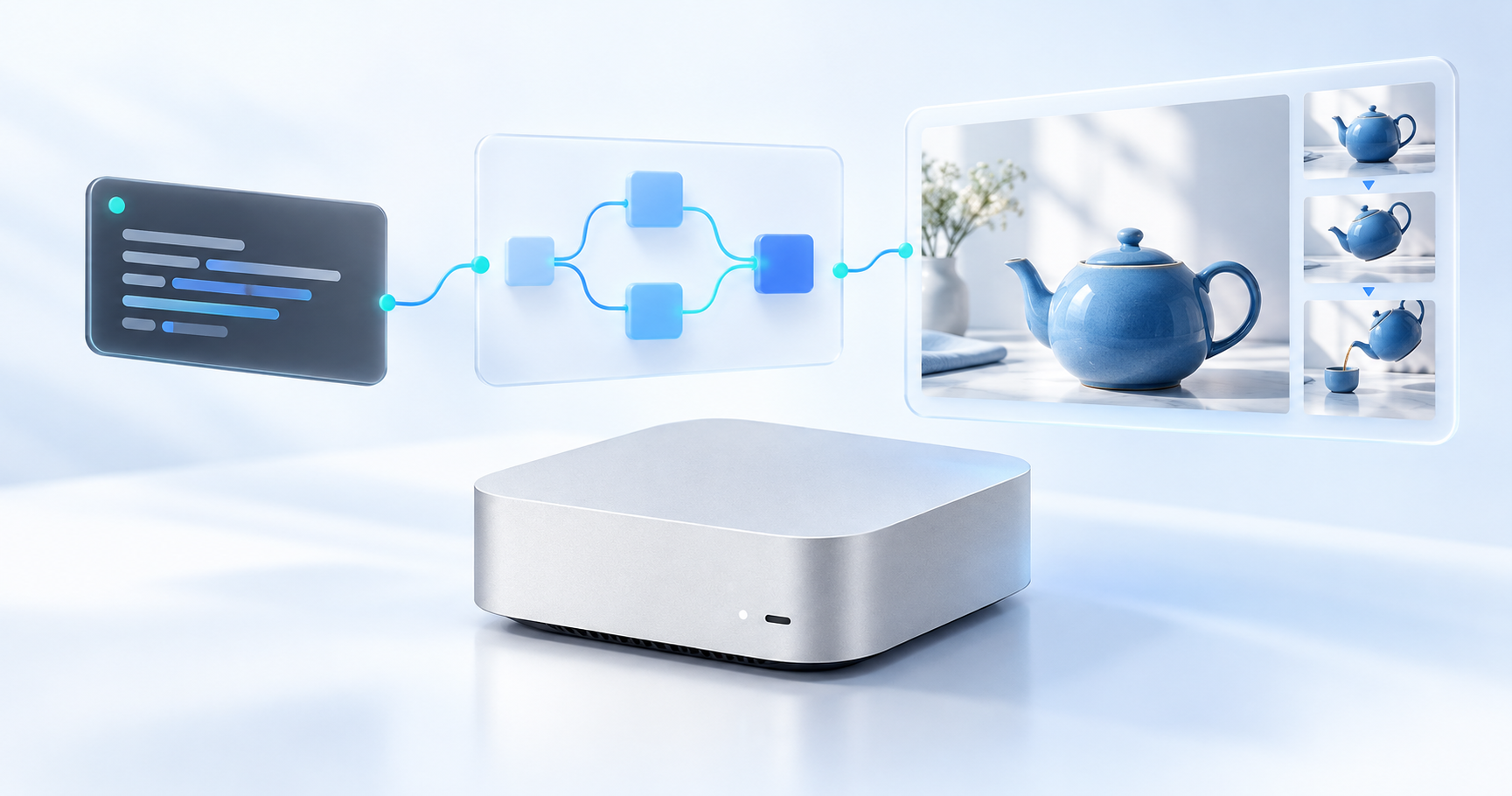
Set up ComfyUI, Ollama, and Open WebUI on an Apple Silicon Mac mini, generate images in chat, and prepare a separate workflow for short local videos. This guide targets M-series machines, including the M4, and prioritizes a graphical interface. You will enter a few installation commands, but you will not write a Python agent or build a multi-agent framework.
1. Choose a stack that fits the Mac
Start with ComfyUI + Open WebUI, adding Ollama when you want the conversation model to run locally too. This is a recommendation for this tutorial, not a claim that one stack is universally the easiest or most popular.
| Component | Its job | Where it runs |
|---|---|---|
| ComfyUI / Comfy Desktop | Load image/video models and execute workflows | Your Mac, using the supported Apple GPU backend |
| Open WebUI | Provide the chat interface and image-generation integration | Your Mac |
| Ollama | Run the language model that discusses ideas and calls tools | Your Mac with a downloaded local model |
| Gemini API — optional | Replace the local conversation model | Google’s servers; rendering can remain local |
The image path is: your message → conversation model → Open WebUI image tool → ComfyUI workflow → image in chat. The chat model decides what to request; the image model renders pixels. A tool-calling assistant is enough for this first agent.
The original Forge proposal needs several corrections:
- SD WebUI Forge is a real option, but CUDA-oriented instructions and memory optimizations cannot be carried over unchanged to Apple Silicon. The Apple GPU backend in PyTorch is MPS, not CUDA. ComfyUI has a documented Apple Silicon desktop installation path. (Apple’s MPS guide, Comfy Desktop for macOS)
- AUTOMATIC1111-compatible
/sdapi/v1/txt2imgis an image endpoint. It does not provide a general video API, and support for an extension does not make all FLUX or Wan workflows interchangeable. - Quantization formats, negative prompts, CFG, and sampling steps depend on the model and backend. FP8 is not a universal Mac optimization.
- Five-minute installation estimates and blanket reliability rankings omit model downloads, hardware differences, and tool-calling failures.
2. Check your Mac and set a small first goal
Open Apple menu → About This Mac and note the chip, memory, and macOS version. This article assumes Apple Silicon, not an Intel Mac mini. The current Ollama macOS documentation requires macOS 14 or later; Comfy Desktop documents macOS 13 or later. The Homebrew-based commands below assume macOS 15 or later, following Homebrew’s current supported-platform policy. (Ollama requirements, Comfy Desktop requirements, Homebrew support)
| Unified memory | Suggested starting scope, not a compatibility guarantee |
|---|---|
| 8 GB | A small image workflow by itself; combining a local LLM and renderer is restrictive |
| 16 GB | SD 1.5 at 512 × 512, batch size 1, plus a small chat model with careful unloading |
| 24–32 GB | More room for image experiments; test short video workflows individually |
| 48–64 GB or more | More capacity for video experiments; speed and MPS support still need checking |
These are conservative planning suggestions, not measured benchmarks. Unified memory is shared by macOS, applications, and the GPU. A model’s download size is not its peak memory use, and an NVIDIA “8 GB VRAM” claim does not promise success on an 8 GB Mac.
Plan roughly 20 GB of free storage for the initial image setup, and additional tens of GB for video models and outputs. Exact requirements depend on the selected files. Keep Activity Monitor’s Memory Pressure visible while testing.
3. Install Comfy Desktop locally
Download the Apple Silicon installer from the official Comfy download page, open the .dmg, and drag the app into Applications. Launch it and choose Local in the current onboarding flow. Earlier releases may call this New Install. Choose the recommended stable local installation and let the app prepare Python and dependencies. Choose an SSD location with room for models. (Desktop onboarding)
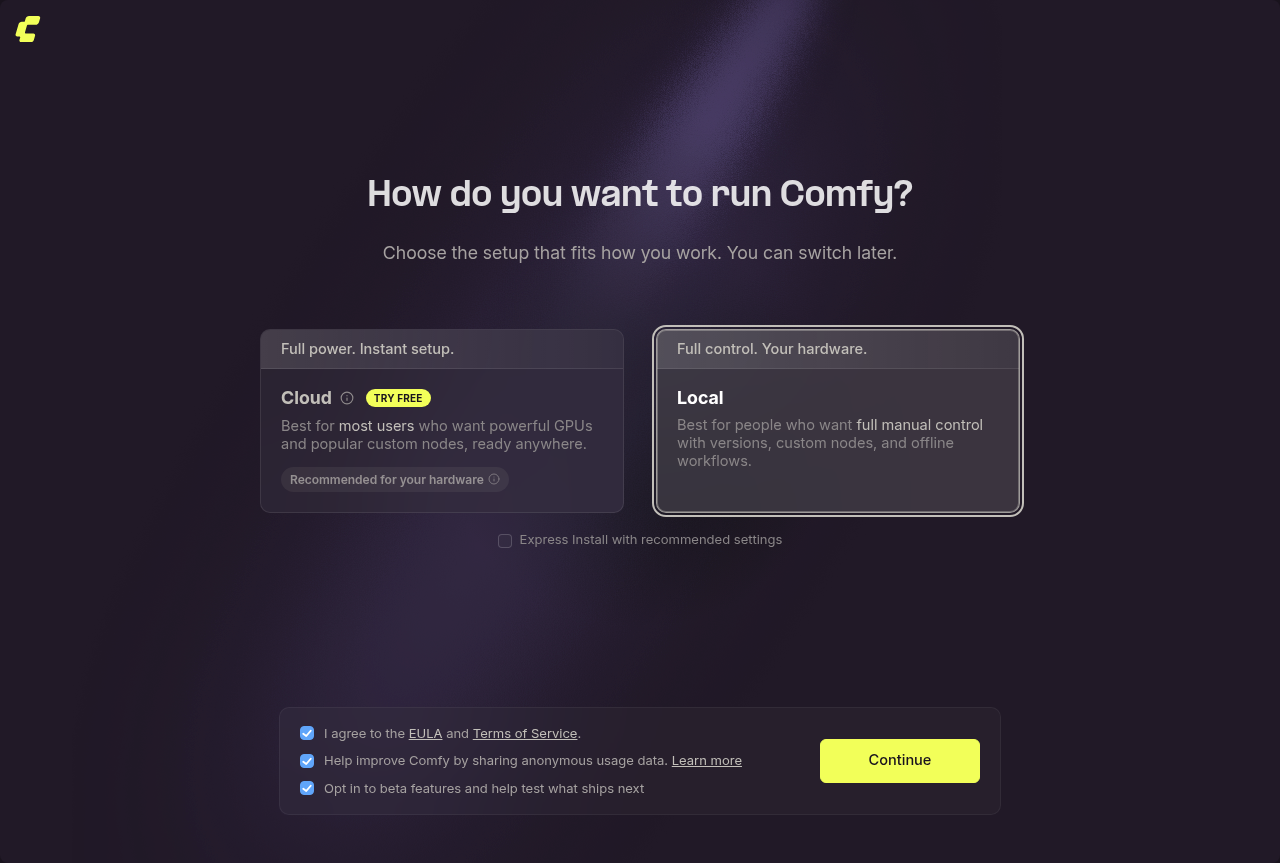
Official ComfyUI documentation image: choose Local to install the renderer on this computer. (Source: Comfy Desktop overview, checked 2026-10-25)
Give the local instance a recognizable name. From its ⋮ → Manage → Startup Args, set an explicit address and port for this tutorial:
--listen 127.0.0.1 --port 8188Restart the instance and open http://127.0.0.1:8188 in your browser. If the app reports a port conflict or chooses a different port, use the actual address shown by its startup logs throughout this guide. The instance’s Manage panel and startup flags are documented separately. (Manage installations, network flags)
Both services will run natively on the same Mac, so loopback is sufficient. You do not need --listen 0.0.0.0, port forwarding, or Docker networking for this setup.
4. Generate one image in ComfyUI first
Use Stable Diffusion 1.5 for the first connectivity test. It is an older, smaller baseline; this choice is about getting the workflow working before testing larger models.
- Open the official text-to-image tutorial. Download its workflow PNG and drag that file into ComfyUI; the PNG contains the workflow metadata.
- Download the SD 1.5 FP16 checkpoint linked by ComfyUI. Review its model card and license.
- Put it in the active instance’s model library under
models/checkpoints/. Use Manage → Storage to locate configured model directories; a shared Desktop library may be outside the app installation. - Refresh the model list or restart the instance. In Load Checkpoint, select the exact downloaded filename.
- Set Empty Latent Image to
512 × 512, batch size1. Set KSampler to20steps, CFG7, samplereuler, schedulernormal, denoise1. - Enter the prompts below, click Run/Queue, and confirm an image appears in Save Image. Locate its saved output through the instance’s configured output directory.
Positive: blue ceramic teapot, wooden table, soft window light,
product photograph, simple background

Negative: text, watermark, blurry
The A–F diagram shows the checkpoint, latent canvas, positive/negative text, sampler, decoder, and saver. It is an official example, not a result generated on the reader’s Mac.
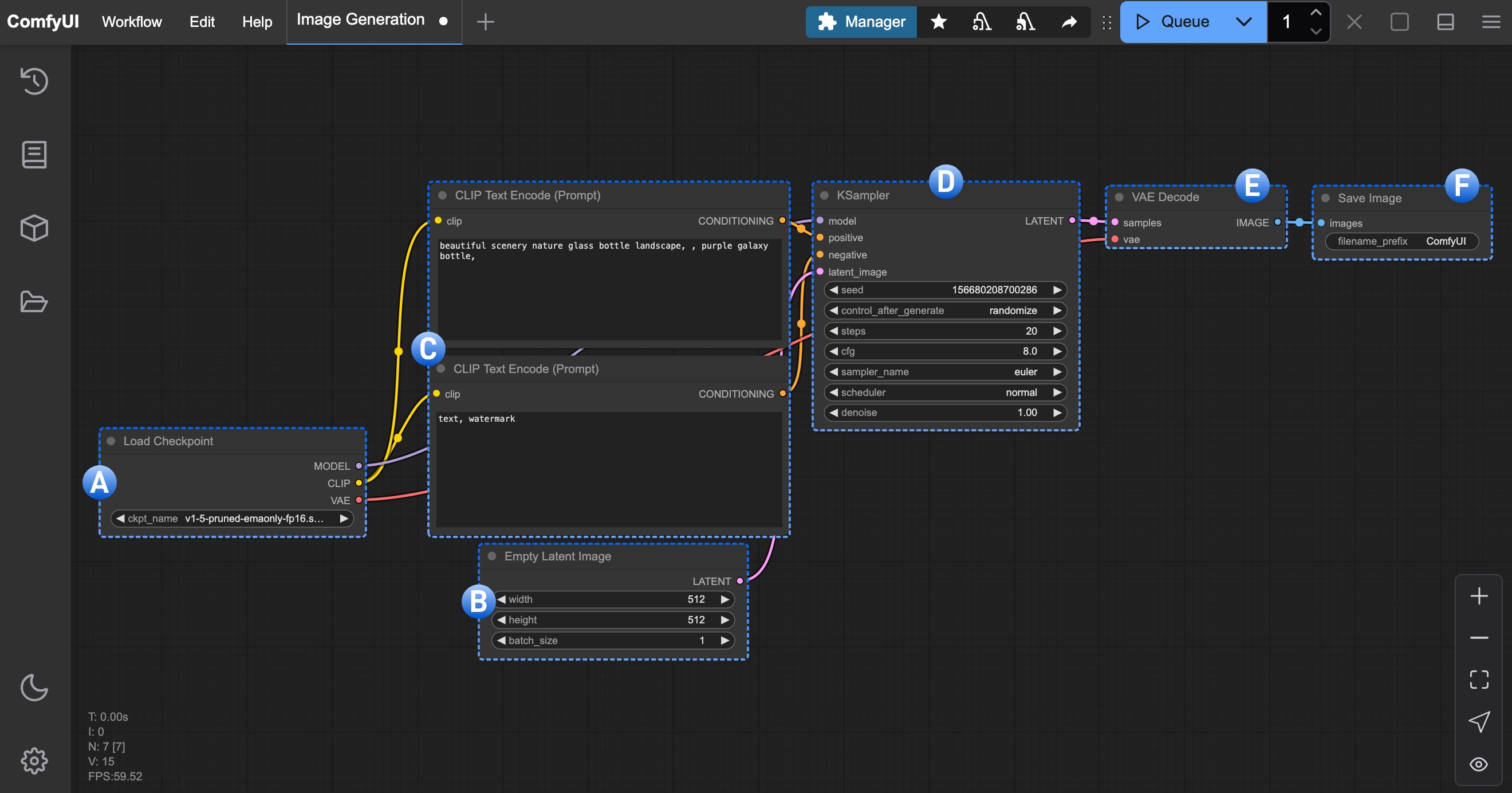
Official ComfyUI workflow explanation. Read the labels at full size. (Source: text-to-image tutorial, checked 2026-10-25)
Do not add the chat layer until this standalone render works. Larger image models can come later; the site’s ComfyUI and FLUX introduction explains the separate model-file layout.
5. Install Ollama for local conversation
Get the macOS app from the official Ollama download page, install it, and launch it. Allow its CLI setup if prompted. In Terminal, download a small model with tool support:
ollama pull qwen3:4bQwen3’s official Ollama listing includes tool support and the 4b variant. This is a modest starting model, not a guarantee of reliable tool use. Use a larger model only after checking memory headroom.
To reduce memory retained between requests, set Ollama’s default keep-alive to zero, then fully quit and reopen the Ollama app:
launchctl setenv OLLAMA_KEEP_ALIVE "0"This makes subsequent responses release the model sooner, at the cost of reloading it for the next turn. A client-supplied keep_alive overrides this default. Check ollama ps during rendering; if the model stays loaded, check the client’s setting or use Open WebUI’s Eject control when idle. The environment setting may need reapplying after signing out or restarting macOS. (Ollama configuration and unloading, Open WebUI’s unload control)
6. Install Open WebUI without a custom script
This route uses Open WebUI’s supported native Python installation so both services can use 127.0.0.1. If Homebrew is not installed, follow the installer and shell setup on the official Homebrew website first.
Open a new Terminal window and run:
brew install python@3.12
mkdir -p ~/AI/open-webui
cd ~/AI/open-webui
python3.12 -m venv .venv
source .venv/bin/activate
python -m pip install --upgrade pip
python -m pip install open-webui
DATA_DIR="$PWD/data" open-webui serve --host 127.0.0.1 --port 8080
The commands install the application in its own environment; they do not create an agent program. Leave this terminal running. Open http://127.0.0.1:8080 and complete the first administrator account setup. Keep starting from this same directory so the data and session-secret location remain consistent. The current Open WebUI quick start supports Python 3.11/3.12 and documents the native launch command.
Under Settings → Admin → Connections, check the Ollama connection at http://127.0.0.1:11434. Select qwen3:4b in a chat and ask a simple text question. Confirm conversation works before configuring images. If the connection was not detected automatically, add it there. (Ollama connection guide)
7. Connect the working image workflow
In ComfyUI, enable Dev Mode in Settings if necessary, then choose File → Export (API). Save the already tested SD 1.5 workflow as sd15-api.json. Ordinary workflow JSON with a top-level nodes array is a different format. API exports use node IDs as top-level keys. (ComfyUI API example)
In Open WebUI, open Settings → Admin → Images, enable Image Generation, and configure Create Image:
| Setting | Value for this tutorial |
|---|---|
| Engine | ComfyUI |
| Base URL | http://127.0.0.1:8188 — match the running instance |
| Model | The exact SD 1.5 checkpoint filename |
| Image size / steps | 512x512 / 20 |
| Workflow | Upload sd15-api.json |
| API key | Empty for the local instance unless you configured authentication |
Refresh/test the connection and save. The official integration page is a community-contributed tutorial hosted in Open WebUI’s documentation. Its Docker address examples differ from this native setup. (ComfyUI integration)
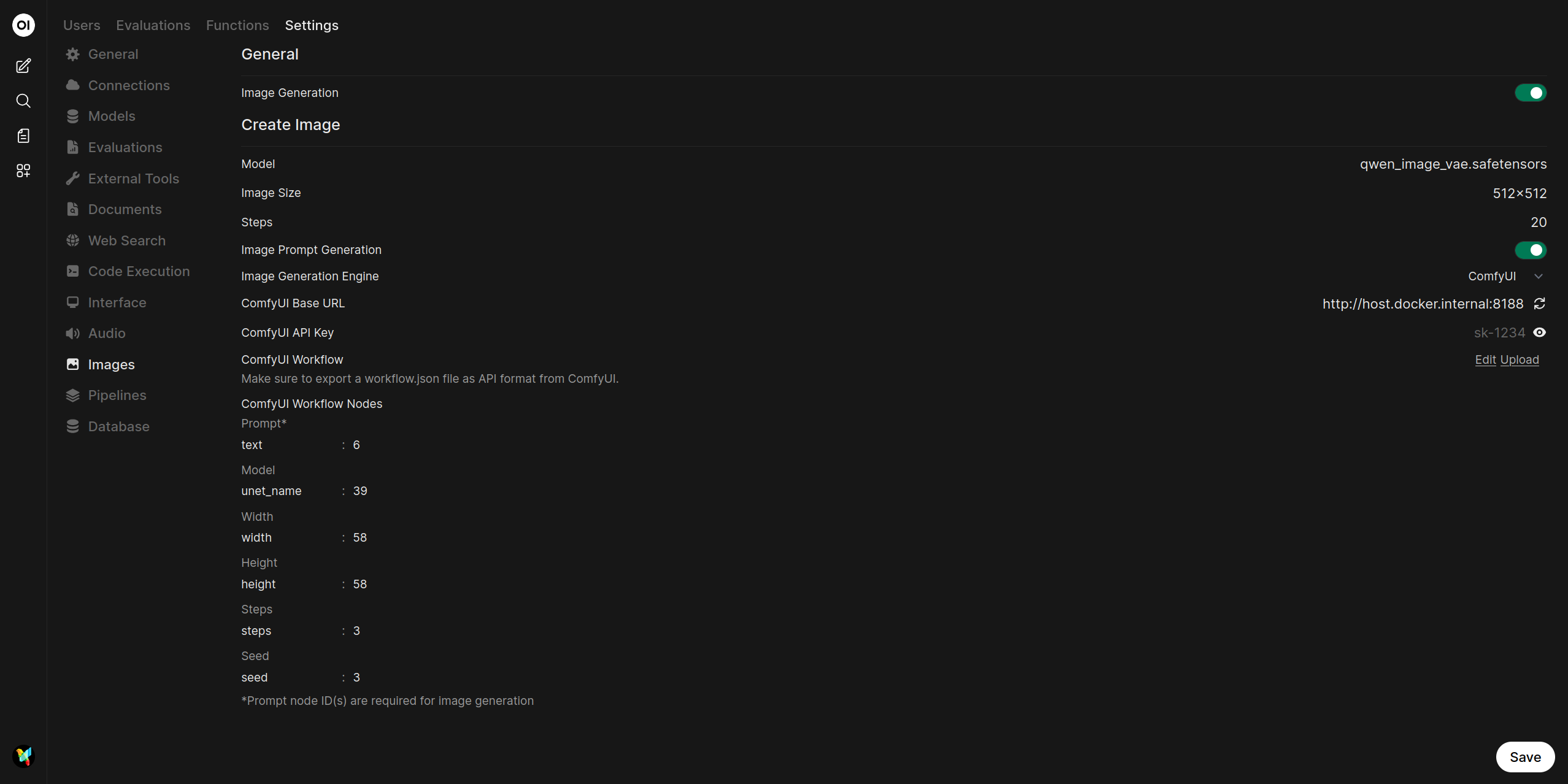
Official documentation screenshot from Open WebUI. Use the loopback URL above for this guide; screenshot values are examples. Full size. (Source: ComfyUI integration, checked 2026-10-25)
Map controls to the correct nodes
Read your exported JSON in a text editor. Find the following class types and input keys, then enter their actual IDs in Open WebUI. The example IDs below belong to the standard basic workflow and can change after editing or importing.
| Open WebUI field | Key | Node to identify | Typical example ID |
|---|---|---|---|
| Prompt | text | CLIPTextEncode connected to KSampler’s positive input | 6 |
| Model | ckpt_name | CheckpointLoaderSimple | 4 |
| Width | width | EmptyLatentImage | 5 |
| Height | height | EmptyLatentImage | 5 |
| Steps | steps | KSampler | 3 |
| Seed | seed | KSampler | 3 |
Leave the negative prompt in the exported workflow; do not also map the positive prompt to the negative text node. Keep the remaining sampler settings in that file. A different model family may use unet_name or another input instead of ckpt_name. (Integration mapping reference)
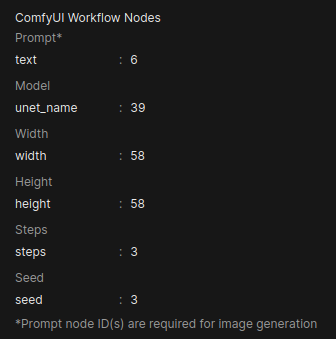
Official Open WebUI documentation example. It shows unet_name for a different workflow; use ckpt_name for this SD 1.5 checkpoint loader. (Source: node mapping, checked 2026-10-25)
8. Generate your first image in chat
Keep qwen3:4b selected as the chat model. In Workspace → Models → Edit, ensure Image Generation, Builtin Tools, and the image-generation tool category are enabled. Your account must also have image-generation permission. In the message input’s Integrations menu, switch Image on. (Chat image requirements)
With Function Calling set to Native, try:
Generate one image of a blue ceramic teapot on a wooden table.
Use soft window light and a simple background.
Call the image-generation tool now; do not only describe the image.
Watch ComfyUI’s queue. Success means the queue runs, Save Image receives an output, and that image appears in the Open WebUI conversation. The local LLM may reload after rendering to write a final response.
If the model only replies with text, temporarily select Legacy under Chat Controls → Advanced Params → Function Calling. With Image on, Legacy routes each submitted message to the image backend; switch Image off for ordinary conversation. This helps distinguish tool-selection problems from a broken renderer. It is a different interaction mode, not an autonomous tool decision. Native tool calls depend on the language model’s ability. (Native and Legacy behavior)
Start with a short context. If needed, set Ollama’s num_ctx to 8192 in the model/chat advanced settings, while watching memory; very small contexts can truncate tool definitions. (Context configuration)
9. Add short video as a separate ComfyUI experiment
Open WebUI’s built-in image integration is not a general video-agent interface. Keep the working image configuration. For a first local video, use ComfyUI directly; attaching video generation to chat would require a separate tool/integration beyond this GUI walkthrough.
Start with the older, smaller Wan2.1 T2V 1.3B example rather than assuming a 14B model or a new release will fit. It generates video from text, not from your teapot image. Model/backend compatibility and practical speed still need testing on your particular Mac. (Wan project, ComfyUI’s native Wan guide)
- Stop other generation jobs and unload Ollama using Eject or
ollama stop qwen3:4b. - In ComfyUI’s Template Library, open Wan 2.1 Text to Video, or download the workflow linked by the official guide.
- From the Comfy-Org model repository, download the following files into the active model directories:
models/
├── diffusion_models/wan2.1_t2v_1.3B_fp16.safetensors
├── text_encoders/umt5_xxl_fp16.safetensors
└── vae/wan_2.1_vae.safetensors- Select those files in Load Diffusion Model, Load CLIP, and Load VAE. Set the CLIP type to
wan; choosedevice: cpuin Load CLIP’s advanced options if needed to keep text encoding off MPS. The FP16 encoder is large, and CPU placement still uses unified memory. The CLIPLoader implementation exposes this CPU option. The template may initially select an FP8 encoder; change it explicitly for this conservative first test. - For a compatibility test, set the latent video’s size to
512 × 320, length17, batch size1. Keep the template’s sampler settings initially. Use8FPS in Create Video for a clip of roughly two seconds. This small test is not a quality benchmark; increase resolution and frames only after success. - Try:
A blue ceramic teapot on a table, a slow gentle camera push-in, soft daylight, stable composition.Run one job. - In the current template, check Create Video → Save Video. Choose MP4/H.264 if available and find the file under the configured output directory. Older templates may end with SaveAnimatedWEBP and save an animated WebP instead. (Current workflow JSON, Save Video implementation)
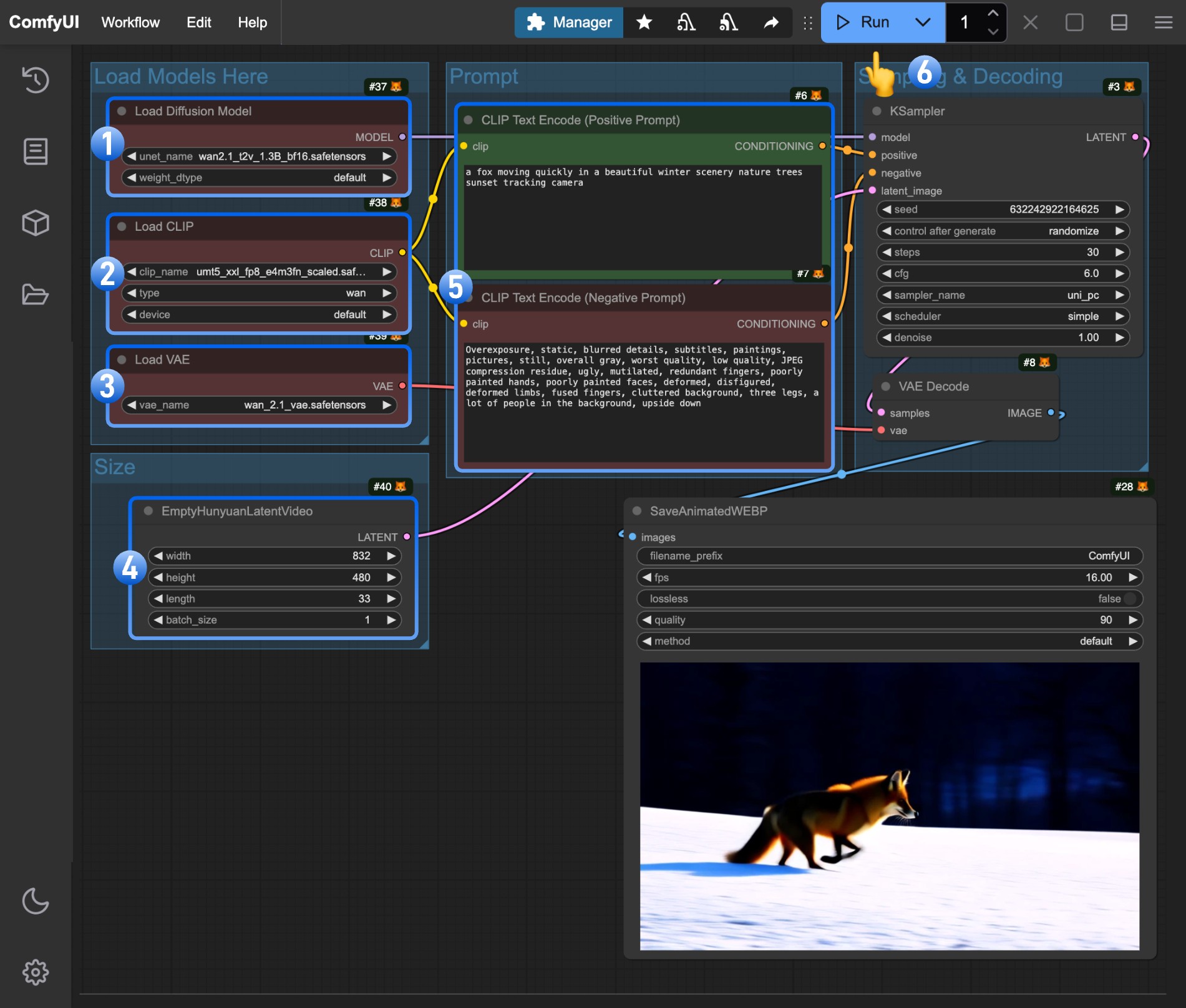
Official ComfyUI reference image from an earlier workflow. Its BF16/FP8 selections and WebP saver differ from the FP16 files and current video saver described above. Full size. (Source: Wan2.1 guide, checked 2026-10-25)
If it runs out of memory or hits an unsupported MPS operation, stop at that failure and record the model, ComfyUI/PyTorch versions, and error. Do not treat this as a promise of video generation on every 16 GB Mac, force an FP8 dtype, or disable memory safeguards. Use a smaller/compatible workflow or move rendering to another machine if the requirement exceeds yours.
For image-to-video, Wan2.2 TI2V 5B’s official example is a separate later experiment: it uses different diffusion/VAE files and a Load Image branch. Its NVIDIA offloading memory guidance is not an Apple Silicon guarantee. Do not replace the 1.3B checkpoint and expect the same graph to work.
10. Use Gemini only if you want a cloud conversation model
For this optional hybrid path, create an API key in Google AI Studio. In Open WebUI’s Admin → Connections, add an OpenAI-compatible connection with Google’s official base URL:
https://generativelanguage.googleapis.com/v1beta/openai/Add the Gemini API key, refresh the available models, and select a currently available model with tool support. Keep Images → Engine = ComfyUI. Configuring a Gemini image engine would use Google’s image service instead. Conversation data sent to Gemini leaves your Mac; this route has local rendering and cloud reasoning, with the provider’s usage terms and costs. (Google’s compatibility instructions)
11. Troubleshoot one layer at a time
| Symptom | First check |
|---|---|
| ComfyUI alone fails | Model files, active model paths, MPS error, and Memory Pressure |
| Open WebUI cannot connect | ComfyUI’s actual address/port; both processes must be running |
| Workflow rejected | API export rather than ordinary editor JSON; valid checkpoint filename and node mappings |
| A response contains only text | Image toggle, model capabilities, permissions, then Native tool behavior; test Legacy |
| Image renders but chat cannot display it | Base URL must match the backend origin; check the image-fetch error before changing security settings |
| Mac swaps heavily | Batch size 1, smaller canvas, shorter context, unload other models |
| Video model reports dtype/operation errors | Verify that model and precision against the MPS backend; CUDA flags do not fix Metal compatibility |
Open WebUI’s image troubleshooting guide covers workflow validation and image-fetch failures. If you later choose Docker Desktop, container 127.0.0.1 refers to the container; host addressing and backend reachability must be configured separately. Do not mix those URLs into this native installation.
12. Restart, save, and expand gradually
For the next session, launch Ollama, start the local ComfyUI instance, and reopen Open WebUI with:
cd ~/AI/open-webui
source .venv/bin/activate
DATA_DIR="$PWD/data" open-webui serve --host 127.0.0.1 --port 8080
Keep the working workflow JSON, API export, checkpoint filename, seed, prompts, and app versions. Back up Open WebUI’s data directory and the separately configured ComfyUI models, workflows, and outputs. Stop Open WebUI with Ctrl+C before copying its database directory.
The first useful milestone is one image generated through chat and saved locally. After that, change one variable at a time: a better image model, a stronger conversation model, or a short video workflow. The installation and interface details here were checked against official sources on 2026-10-25; this article does not claim measured generation times or a completed inference run on a specific Mac mini configuration.
Apple Silicon 맥 미니에 ComfyUI, Ollama, Open WebUI를 설치해 채팅으로 이미지를 생성하고, 짧은 로컬 영상용 워크플로를 따로 준비해 보자. M4를 포함한 M 시리즈를 대상으로 하며 그래픽 인터페이스를 중심으로 설명한다. 설치 명령 몇 줄은 입력하지만 Python 에이전트를 직접 작성하거나 멀티 에이전트 프레임워크를 구축하지는 않는다.
1. 맥에 맞는 도구 조합 고르기
ComfyUI + Open WebUI로 시작하고, 대화 모델까지 로컬에서 실행하려면 Ollama를 더한다. 이 글의 실습을 위한 추천이며, 모든 환경에서 가장 쉽거나 가장 널리 쓰이는 조합이라고 단정하는 것은 아니다.
| 구성 요소 | 역할 | 실행 위치 |
|---|---|---|
| ComfyUI / Comfy Desktop | 이미지·영상 모델을 불러오고 워크플로 실행 | 지원되는 Apple GPU 백엔드를 사용하는 내 맥 |
| Open WebUI | 채팅 화면과 이미지 생성 연동 제공 | 내 맥 |
| Ollama | 아이디어를 논의하고 도구를 호출하는 언어 모델 실행 | 내려받은 로컬 모델을 사용하는 내 맥 |
| Gemini API — 선택 사항 | 로컬 대화 모델을 대신함 | Google 서버. 렌더링은 로컬로 유지 가능 |
이미지는 메시지 → 대화 모델 → Open WebUI 이미지 도구 → ComfyUI 워크플로 → 채팅에 이미지 표시 순서로 만들어진다. 대화 모델은 무엇을 요청할지 결정하고, 이미지 모델은 픽셀을 생성한다. 첫 에이전트는 도구를 호출하는 어시스턴트면 충분하다.
처음 제시된 Forge 중심 설명은 몇 가지를 고쳐야 한다.
- SD WebUI Forge도 선택지지만, CUDA 중심 설치법과 메모리 최적화를 Apple Silicon에 그대로 적용할 수는 없다. 맥에서 PyTorch의 GPU 백엔드는 CUDA가 아닌 MPS다. ComfyUI에는 Apple Silicon용 데스크톱 설치 경로가 문서화되어 있다. (Apple MPS 안내, macOS용 Comfy Desktop)
- AUTOMATIC1111 호환
/sdapi/v1/txt2img는 이미지 엔드포인트다. 범용 영상 API가 아니며, 확장 기능이 있다는 이유로 모든 FLUX·Wan 워크플로를 서로 바꿔 쓸 수 있는 것도 아니다. - 양자화 형식, 네거티브 프롬프트, CFG, 샘플링 스텝은 모델과 백엔드에 따라 다르다. FP8을 모든 맥에 통하는 최적화로 보면 안 된다.
- ‘5분 설치’나 일괄적인 신뢰도 순위는 모델 다운로드, 하드웨어 차이, 도구 호출 실패를 충분히 반영하지 않는다.
2. 맥 사양을 확인하고 작은 목표 정하기
Apple 메뉴 → 이 Mac에 관하여에서 칩, 메모리, macOS 버전을 확인한다. 이 글은 Intel 맥 미니가 아닌 Apple Silicon을 기준으로 한다. 현재 Ollama 문서는 macOS 14 이상, Comfy Desktop 문서는 macOS 13 이상을 요구한다. 아래 Homebrew 설치 명령은 현재 공식 지원 정책에 맞춰 macOS 15 이상을 전제로 한다. (Ollama 요구사항, Comfy Desktop 요구사항, Homebrew 지원 범위)
| 통합 메모리 | 호환성 보장이 아닌 시작 범위 제안 |
|---|---|
| 8 GB | 작은 이미지 워크플로부터 단독 실행. 로컬 LLM과 렌더러를 함께 쓰기에는 제약이 큼 |
| 16 GB | SD 1.5, 512 × 512, 배치 1. 작은 대화 모델도 메모리 해제를 신경 쓰며 사용 |
| 24–32 GB | 이미지 실험의 여유가 늘어남. 짧은 영상은 워크플로별로 따로 시험 |
| 48–64 GB 이상 | 영상 실험의 메모리 여유가 늘지만 속도와 MPS 지원은 여전히 확인 필요 |
위 표는 보수적인 계획 제안이며 측정한 벤치마크가 아니다. 통합 메모리는 macOS, 앱, GPU가 함께 사용한다. 모델 다운로드 용량은 최대 실행 메모리와 다르며, NVIDIA의 ‘VRAM 8 GB’ 안내가 8 GB 맥에서의 성공을 보장하지 않는다.
초기 이미지 환경에는 약 20 GB의 여유 저장 공간을 계획하고, 영상 모델과 결과물에는 추가로 수십 GB를 확보하자. 정확한 양은 선택한 파일에 따라 달라진다. 시험 중에는 활성 상태 보기의 메모리 압력을 확인한다.
3. Comfy Desktop을 로컬로 설치하기
Comfy 공식 다운로드 페이지에서 Apple Silicon용 설치 파일을 받고, .dmg를 열어 앱을 응용 프로그램 폴더로 옮긴다. 실행 후 현재 초기 설정 화면에서는 Local을 선택한다. 이전 버전은 New Install이라고 표시할 수도 있다. 권장되는 안정 버전의 로컬 설치를 고르면 앱이 Python과 의존성을 준비한다. 모델을 담을 공간이 충분한 SSD 경로를 선택한다. (데스크톱 초기 설정)
ComfyUI 공식 문서 이미지. 이 컴퓨터에 렌더러를 설치하려면 Local을 선택한다. (출처: Comfy Desktop 개요, 2026-10-25 확인)
로컬 인스턴스에 알아보기 쉬운 이름을 붙인다. 인스턴스의 ⋮ → Manage → Startup Args에서 이 실습에 사용할 주소와 포트를 명시한다.
--listen 127.0.0.1 --port 8188
인스턴스를 재시작하고 브라우저에서 http://127.0.0.1:8188을 연다. 포트 충돌이 발생하거나 앱이 다른 포트를 고르면 이후 과정에도 시작 로그에 표시된 실제 주소를 사용한다. Manage 패널과 실행 플래그는 별도로 문서화되어 있다. (설치 관리, 네트워크 플래그)
두 서비스 모두 같은 맥에서 네이티브로 실행하므로 루프백 주소면 충분하다. 이 구성에는 --listen 0.0.0.0, 포트 포워딩, Docker 네트워크 설정이 필요하지 않다.
4. ComfyUI에서 이미지 한 장부터 만들기
첫 연결 시험에는 Stable Diffusion 1.5를 사용한다. 오래된 작은 기준 모델을 골라, 큰 모델을 시험하기 전에 워크플로가 작동하는지 확인하는 목적이다.
- 공식 텍스트→이미지 실습을 연다. 워크플로 PNG를 내려받아 ComfyUI로 끌어다 놓는다. PNG 메타데이터에 워크플로가 들어 있다.
- ComfyUI가 연결한 SD 1.5 FP16 체크포인트를 받는다. 모델 카드와 라이선스를 확인한다.
- 활성 인스턴스의 모델 라이브러리에서
models/checkpoints/에 넣는다. Manage → Storage에서 실제 모델 경로를 확인한다. Desktop의 공유 라이브러리는 앱 설치 폴더 밖에 있을 수 있다. - 모델 목록을 새로 고치거나 인스턴스를 재시작한다. Load Checkpoint에서 내려받은 정확한 파일명을 선택한다.
- Empty Latent Image는
512 × 512, 배치1로 설정한다. KSampler는 스텝20, CFG7, samplereuler, schedulernormal, denoise1로 맞춘다. - 아래 프롬프트를 입력하고 Run/Queue를 누른다. Save Image에 결과가 표시되는지 확인하고, 인스턴스에 설정된 출력 폴더에서 저장 파일을 찾는다.
Positive: blue ceramic teapot, wooden table, soft window light,
product photograph, simple background

Negative: text, watermark, blurry
A–F 도식은 체크포인트, 잠재 캔버스, 긍정·부정 텍스트, 샘플러, 디코더, 저장 노드를 보여 준다. 독자의 맥에서 생성한 결과가 아니라 공식 예제 화면이다.
ComfyUI 공식 워크플로 설명 이미지. 글자는 원본 크기에서 확인할 수 있다. (출처: 텍스트→이미지 실습, 2026-10-25 확인)
단독 생성이 성공한 뒤에 채팅을 연결한다. 큰 이미지 모델은 나중에 추가하면 된다. 모델 파일을 나눠 배치하는 방식은 사이트의 ComfyUI와 FLUX 입문 글에서 설명한다.
5. 로컬 대화용 Ollama 설치하기
Ollama 공식 다운로드 페이지에서 macOS 앱을 받아 설치하고 실행한다. CLI 설정을 요청하면 허용한다. 터미널에서 도구 사용을 지원하는 작은 모델을 받는다.
ollama pull qwen3:4b
Ollama의 Qwen3 공식 목록에는 도구 지원과 4b 버전이 명시되어 있다. 부담을 낮춘 시작 모델이지 도구 호출의 신뢰성을 보장하는 모델은 아니다. 더 큰 모델은 메모리 여유를 확인한 뒤 선택한다.
요청 사이에 모델이 메모리를 계속 차지하는 시간을 줄이려면 기본 keep-alive를 0으로 설정한 뒤 Ollama 앱을 완전히 종료하고 다시 실행한다.
launchctl setenv OLLAMA_KEEP_ALIVE "0"
다음 응답부터 모델을 더 빨리 해제하는 대신, 다음 대화 때 다시 불러오는 비용이 생긴다. 클라이언트가 보내는 keep_alive 값은 이 기본값보다 우선한다. 렌더링 중 ollama ps로 확인하고, 모델이 계속 남아 있으면 클라이언트 설정을 확인하거나 유휴 상태에서 Open WebUI의 Eject를 사용한다. 로그아웃하거나 macOS를 재시작하면 환경 설정을 다시 적용해야 할 수 있다. (Ollama 설정과 모델 해제, Open WebUI 해제 기능)
6. 별도 스크립트 없이 Open WebUI 설치하기
두 서비스가 127.0.0.1로 통신하도록 Open WebUI가 지원하는 네이티브 Python 설치를 사용한다. Homebrew가 없다면 먼저 Homebrew 공식 사이트의 설치와 셸 설정을 따른다.
새 터미널 창에서 실행한다.
brew install python@3.12
mkdir -p ~/AI/open-webui
cd ~/AI/open-webui
python3.12 -m venv .venv
source .venv/bin/activate
python -m pip install --upgrade pip
python -m pip install open-webui
DATA_DIR="$PWD/data" open-webui serve --host 127.0.0.1 --port 8080
앱을 독립 환경에 설치하는 명령이며 에이전트 프로그램을 작성하는 과정은 아니다. 터미널을 켜 둔 채 http://127.0.0.1:8080을 열고 최초 관리자 계정을 설정한다. 데이터와 세션 비밀키의 위치가 일정하도록 이후에도 같은 폴더에서 시작한다. 현재 Open WebUI 빠른 시작은 Python 3.11/3.12와 네이티브 실행 명령을 안내한다.
Settings → Admin → Connections에서 Ollama 주소 http://127.0.0.1:11434를 확인한다. 채팅에서 qwen3:4b를 선택하고 간단한 질문을 보내 대화부터 시험한다. 자동 연결되지 않았다면 이 화면에서 추가한다. (Ollama 연결 안내)
7. 성공한 이미지 워크플로 연결하기
ComfyUI 설정에서 필요하면 Dev Mode를 켜고 File → Export (API) 메뉴를 선택한다. 시험을 마친 SD 1.5 워크플로를 sd15-api.json으로 저장한다. 최상위에 nodes 배열이 있는 일반 워크플로 JSON과는 형식이 다르다. API 내보내기는 최상위 키가 노드 ID다. (ComfyUI API 예제)
Open WebUI의 Settings → Admin → Images에서 Image Generation을 켜고 Create Image를 설정한다.
| 설정 | 이 실습의 값 |
|---|---|
| Engine | ComfyUI |
| Base URL | http://127.0.0.1:8188 — 실행 중인 인스턴스에 맞춤 |
| Model | 정확한 SD 1.5 체크포인트 파일명 |
| Image size / steps | 512x512 / 20 |
| Workflow | sd15-api.json 업로드 |
| API key | 로컬 인스턴스에 인증을 별도로 구성하지 않았다면 비움 |
연결을 새로 고침·시험하고 저장한다. 공식 문서 사이트의 연동 안내는 커뮤니티 기여 문서다. 그 안의 Docker 주소 예시는 이 네이티브 구성과 다르다. (ComfyUI 연동 안내)
Open WebUI 공식 문서에 실린 화면. 이 실습에는 위의 루프백 주소를 사용하며 화면 속 값은 예시다. 원본 크기. (출처: ComfyUI 연동, 2026-10-25 확인)
각 설정을 올바른 노드에 매핑하기
텍스트 편집기로 내보낸 JSON을 연다. 아래 클래스와 입력 키를 찾아 실제 ID를 Open WebUI에 입력한다. 예시 ID는 기본 워크플로의 값이며 편집하거나 가져온 뒤에는 달라질 수 있다.
| Open WebUI 항목 | Key | 찾아야 할 노드 | 일반적인 예시 ID |
|---|---|---|---|
| Prompt | text |
KSampler의 positive에 연결된 CLIPTextEncode |
6 |
| Model | ckpt_name |
CheckpointLoaderSimple |
4 |
| Width | width |
EmptyLatentImage |
5 |
| Height | height |
EmptyLatentImage |
5 |
| Steps | steps |
KSampler |
3 |
| Seed | seed |
KSampler |
3 |
네거티브 프롬프트는 내보낸 워크플로 안에 남겨 둔다. 긍정 프롬프트를 부정 텍스트 노드에도 매핑하지 않는다. 나머지 샘플러 설정도 파일에 유지한다. 다른 계열의 모델은 ckpt_name 대신 unet_name 등의 입력을 쓸 수 있다. (매핑 참고 문서)
Open WebUI 공식 문서 예시. 다른 워크플로의 unet_name이 표시되어 있다. 이 SD 1.5 체크포인트 로더에는 ckpt_name을 사용한다. (출처: 노드 매핑, 2026-10-25 확인)
8. 채팅에서 첫 이미지 생성하기
대화 모델은 qwen3:4b로 유지한다. Workspace → Models → Edit에서 Image Generation, Builtin Tools, 이미지 생성 도구 범주가 켜져 있는지 확인한다. 계정에도 이미지 생성 권한이 있어야 한다. 메시지 입력창의 Integrations 메뉴에서 Image를 켠다. (채팅 이미지 사용 조건)
Function Calling을 Native로 두고 다음 요청을 보낸다.
Generate one image of a blue ceramic teapot on a wooden table.
Use soft window light and a simple background.
Call the image-generation tool now; do not only describe the image.
ComfyUI 대기열을 관찰한다. 대기열이 실행되고 Save Image에 결과가 생긴 뒤 Open WebUI 대화에 표시되면 성공이다. 렌더링 후 최종 답변을 쓰기 위해 로컬 LLM이 다시 로드될 수 있다.
텍스트로만 답하면 Chat Controls → Advanced Params → Function Calling에서 잠시 Legacy를 선택한다. Image가 켜져 있으면 Legacy는 제출한 메시지마다 이미지 백엔드로 보낸다. 일반 대화에는 Image를 끈다. 이 시험으로 도구 선택 문제와 렌더러 문제를 구분할 수 있다. 이는 다른 상호작용 방식이며 자율적인 도구 선택은 아니다. Native 도구 호출은 언어 모델의 능력에 달려 있다. (Native와 Legacy 동작)
짧은 대화부터 시작한다. 필요하면 모델·채팅 고급 설정에서 Ollama의 num_ctx를 8192로 지정하되 메모리를 확인한다. 지나치게 작은 문맥 창은 도구 정의를 잘라낼 수 있다. (문맥 설정)
9. 짧은 영상은 ComfyUI에서 별도로 시험하기
Open WebUI의 기본 이미지 연동은 범용 영상 에이전트 화면이 아니다. 성공한 이미지 설정은 유지한다. 첫 로컬 영상은 ComfyUI에서 직접 만든다. 채팅에 영상 생성을 연결하려면 이 GUI 안내의 범위를 넘는 별도 도구·연동이 필요하다.
14B 모델이나 최신 모델이 들어갈 것이라고 가정하지 말고, 더 작고 오래된 Wan2.1 T2V 1.3B 예제로 시작한다. 찻주전자 이미지를 움직이는 방식이 아니라 텍스트로 영상을 생성한다. 실제 맥에서 모델·백엔드 호환성과 속도를 확인해야 한다. (Wan 프로젝트, ComfyUI 네이티브 Wan 안내)
- 다른 생성 작업을 멈추고 Eject 또는
ollama stop qwen3:4b로 Ollama 모델을 해제한다. - ComfyUI Template Library에서 Wan 2.1 Text to Video를 열거나 공식 안내의 워크플로를 받는다.
- Comfy-Org 모델 저장소에서 아래 파일을 받아 활성 모델 경로에 배치한다.
models/
├── diffusion_models/wan2.1_t2v_1.3B_fp16.safetensors
├── text_encoders/umt5_xxl_fp16.safetensors
└── vae/wan_2.1_vae.safetensors
- Load Diffusion Model, Load CLIP, Load VAE에서 해당 파일을 선택한다. CLIP type은
wan으로 지정한다. 필요하면 Load CLIP의 고급 옵션에서device: cpu를 선택해 텍스트 인코딩을 MPS에서 분리한다. FP16 인코더는 크며 CPU에 배치해도 통합 메모리를 사용한다. CLIPLoader 구현에 이 CPU 선택지가 있다. 템플릿이 처음에 FP8 인코더를 선택했다면 이번 보수적인 첫 시험에서는 명시적으로 바꾼다. - 호환성 시험용으로 잠재 영상 크기
512 × 320, length17, batch size1을 설정한다. 샘플러 값은 우선 템플릿대로 유지한다. Create Video에서8FPS를 지정하면 약 2초 분량이다. 화질 벤치마크가 아니므로 성공한 뒤에 해상도와 프레임 수를 늘린다. A blue ceramic teapot on a table, a slow gentle camera push-in, soft daylight, stable composition.을 입력하고 한 번 실행한다.- 현재 템플릿에서는 Create Video → Save Video를 확인한다. 가능하면 MP4/H.264를 선택하고 설정된 출력 폴더에서 파일을 찾는다. 이전 템플릿은 SaveAnimatedWEBP로 끝나 애니메이션 WebP를 저장할 수 있다. (현재 워크플로 JSON, Save Video 구현)
이전 워크플로의 ComfyUI 공식 참고 화면. BF16·FP8 선택과 WebP 저장 노드는 위에서 설명한 FP16 파일 및 현재 영상 저장 노드와 다르다. 원본 크기. (출처: Wan2.1 안내, 2026-10-25 확인)
메모리가 부족하거나 지원하지 않는 MPS 연산으로 실패하면 중단하고 모델, ComfyUI·PyTorch 버전, 오류를 기록한다. 모든 16 GB 맥에서 영상이 생성된다는 약속으로 받아들이거나 FP8 자료형을 강제하고 메모리 보호 장치를 끄지 않는다. 더 작거나 호환되는 워크플로를 사용하고, 요구량이 사양을 넘으면 다른 장비에서 렌더링한다.
이미지→영상은 Wan2.2 TI2V 5B 공식 예제를 나중에 별도 실험으로 다룬다. 확산 모델·VAE 파일이 다르고 Load Image 분기도 있다. NVIDIA 오프로딩 기준의 메모리 안내는 Apple Silicon 보장이 아니다. 1.3B 파일만 교체해서 같은 그래프가 작동할 것으로 기대하면 안 된다.
10. 클라우드 대화 모델이 필요할 때 Gemini 사용하기
선택 가능한 하이브리드 구성이다. Google AI Studio에서 API 키를 만들고 Open WebUI의 Admin → Connections에서 Google 공식 주소로 OpenAI-compatible 연결을 추가한다.
https://generativelanguage.googleapis.com/v1beta/openai/
Gemini API 키를 입력하고 모델 목록을 새로 고친 뒤 현재 제공되는 도구 지원 모델을 선택한다. Images → Engine = ComfyUI는 유지한다. Gemini 이미지 엔진을 설정하면 Google 이미지 서비스를 사용하는 구성이 된다. Gemini에 보낸 대화 데이터는 맥 밖으로 나간다. 이 방식은 로컬 렌더링과 클라우드 추론을 결합하며 제공자의 이용 조건과 요금이 적용된다. (Google 호환 API 안내)
11. 계층을 나눠 문제 해결하기
| 증상 | 먼저 확인할 것 |
|---|---|
| ComfyUI 단독 생성도 실패 | 모델 파일, 활성 모델 경로, MPS 오류, 메모리 압력 |
| Open WebUI 연결 실패 | ComfyUI의 실제 주소·포트. 두 프로세스 모두 실행 중이어야 함 |
| 워크플로 거부 | 일반 편집기 JSON이 아닌 API 내보내기인지, 체크포인트 파일명과 노드 매핑이 맞는지 |
| 텍스트로만 답변 | Image 토글, 모델 기능, 권한, Native 도구 동작 순서로 확인하고 Legacy 시험 |
| 생성은 되지만 채팅에 표시되지 않음 | Base URL이 백엔드 origin과 일치하는지. 보안 설정을 바꾸기 전에 이미지 조회 오류 확인 |
| 스왑이 크게 증가 | 배치 1, 작은 캔버스, 짧은 문맥, 다른 모델 해제 |
| 영상 모델의 자료형·연산 오류 | 모델과 정밀도가 MPS와 맞는지. CUDA 플래그는 Metal 호환성을 해결하지 못함 |
Open WebUI의 이미지 문제 해결 문서는 워크플로 검증과 이미지 조회 실패를 설명한다. 나중에 Docker Desktop을 선택하면 컨테이너의 127.0.0.1은 컨테이너 자신을 뜻한다. 호스트 주소와 백엔드 연결을 별도로 구성해야 하므로 그 주소를 이 네이티브 설치에 섞지 않는다.
12. 다시 실행하고 저장하며 조금씩 확장하기
다음 작업 때는 Ollama와 로컬 ComfyUI 인스턴스를 실행하고 아래 명령으로 Open WebUI를 연다.
cd ~/AI/open-webui
source .venv/bin/activate
DATA_DIR="$PWD/data" open-webui serve --host 127.0.0.1 --port 8080
성공한 워크플로 JSON, API 내보내기, 체크포인트 파일명, 시드, 프롬프트, 앱 버전을 보관한다. Open WebUI의 data 폴더와 별도로 설정된 ComfyUI 모델·워크플로·출력 폴더를 백업한다. 데이터베이스 폴더를 복사하기 전에는 Ctrl+C로 Open WebUI를 종료한다.
첫 목표는 채팅으로 이미지 한 장을 생성해 로컬에 저장하는 것이다. 그다음 이미지 모델, 대화 모델, 짧은 영상 워크플로 중 한 가지씩 바꾼다. 설치와 인터페이스 설명은 2026-10-25 기준 공식 자료를 확인했다. 특정 맥 미니 사양에서 추론을 완료했다거나 생성 시간을 측정했다고 주장하는 글은 아니다.
在 Apple Silicon Mac mini 上安装 ComfyUI、Ollama 和 Open WebUI,通过聊天生成图像,并为本地短视频准备独立工作流。本文面向包括 M4 在内的 M 系列机型,以图形界面为主。你需要输入几条安装命令,但不必编写 Python 智能体,也不必搭建多智能体框架。
1. 选择适合 Mac 的组合
先用 ComfyUI + Open WebUI;如果希望对话模型也在本机运行,再加入 Ollama。这是本文的教学建议,并不意味着它在所有情况下都最简单或最流行。
| 组件 | 作用 | 运行位置 |
|---|---|---|
| ComfyUI / Comfy Desktop | 加载图像、视频模型并执行工作流 | 本机,通过受支持的 Apple GPU 后端运行 |
| Open WebUI | 提供聊天界面和图像生成集成 | 本机 |
| Ollama | 运行讨论创意、调用工具的语言模型 | 本机,使用下载的本地模型 |
| Gemini API——可选 | 替代本地对话模型 | Google 服务器;渲染仍可留在本机 |
图像生成路径是:消息 → 对话模型 → Open WebUI 图像工具 → ComfyUI 工作流 → 聊天中显示图像。对话模型决定请求什么,图像模型负责生成像素。第一个智能体只需具备调用工具的能力。
原先围绕 Forge 的方案需要作出几项修正:
- SD WebUI Forge 确实可用,但不能把面向 CUDA 的安装和内存优化原样搬到 Apple Silicon。Mac 上 PyTorch 的 GPU 后端是 MPS,不是 CUDA。ComfyUI 有明确的 Apple Silicon 桌面安装文档。(Apple MPS 指南、macOS 版 Comfy Desktop)
- 兼容 AUTOMATIC1111 的
/sdapi/v1/txt2img是图像端点,不是通用视频 API。支持某个扩展,也不代表所有 FLUX 或 Wan 工作流可以互换。 - 量化格式、负面提示词、CFG 和采样步数取决于模型与后端。FP8 并不是适用于所有 Mac 的优化方案。
- “五分钟装好”和笼统的可靠性排名忽略了模型下载、硬件差异和工具调用失败。
2. 检查配置,先定一个小目标
打开 Apple 菜单 → 关于本机,记录芯片、内存和 macOS 版本。本文针对 Apple Silicon,不适用于 Intel Mac mini。当前 Ollama 文档要求 macOS 14 或更高版本,Comfy Desktop 要求 macOS 13 或更高版本。下文的 Homebrew 命令按照其当前官方支持范围,以 macOS 15 或更高版本为前提。(Ollama 要求、Comfy Desktop 要求、Homebrew 支持范围)
| 统一内存 | 建议的起步范围,不代表兼容性保证 |
|---|---|
| 8 GB | 先单独运行小型图像工作流;同时运行本地 LLM 和渲染器限制较大 |
| 16 GB | SD 1.5、512 × 512、批量 1;使用小型对话模型时注意卸载 |
| 24–32 GB | 图像实验有更多余量;短视频工作流需逐个测试 |
| 48–64 GB 或更多 | 视频实验的容量更宽裕,但仍需验证速度与 MPS 支持 |
这些是保守的规划建议,不是实测基准。统一内存由 macOS、应用和 GPU 共享。模型下载大小不等于运行时峰值内存,NVIDIA 的“8 GB 显存”要求也不保证 8 GB Mac 可以运行。
初始图像环境可预留约 20 GB 空闲存储,视频模型和输出还需要额外数十 GB。实际空间取决于所选文件。测试时观察“活动监视器”中的内存压力。
3. 安装本地 Comfy Desktop
从 Comfy 官方下载页获取 Apple Silicon 安装包,打开 .dmg,把应用拖入“应用程序”。启动后,在当前引导界面选择 Local;旧版可能称为 New Install。选择推荐的稳定本地安装,让应用准备 Python 与依赖,并把安装位置设在有足够模型存储空间的 SSD 上。(桌面版初次设置)
ComfyUI 官方文档图片:选择 Local,在这台电脑上安装渲染器。(来源:Comfy Desktop 概览,核对日期 2026-10-25)
给本地实例取一个易辨认的名称。在实例的 ⋮ → Manage → Startup Args 中明确设置本文使用的地址与端口:
--listen 127.0.0.1 --port 8188
重启实例,在浏览器打开 http://127.0.0.1:8188。如果出现端口冲突或应用选用了其他端口,后续均以启动日志显示的实际地址为准。实例管理面板和启动参数有独立文档。(安装管理、网络参数)
两个服务都在同一台 Mac 原生运行,使用回环地址即可。此方案不需要 --listen 0.0.0.0、端口转发或 Docker 网络配置。
4. 先在 ComfyUI 生成一张图
首次连接测试使用 Stable Diffusion 1.5。它是较早、较小的基线模型,目的是在尝试大模型前先打通工作流。
- 打开官方文生图教程,下载工作流 PNG 并拖入 ComfyUI。PNG 元数据中包含工作流。
- 下载 ComfyUI 链接的 SD 1.5 FP16 检查点,查看模型卡和许可证。
- 将文件放入当前实例模型库的
models/checkpoints/。通过 Manage → Storage 确认模型目录;Desktop 共享模型库可能位于应用安装目录之外。 - 刷新模型列表或重启实例,在 Load Checkpoint 中选择下载文件的准确名称。
- 将 Empty Latent Image 设为
512 × 512、批量1;将 KSampler 设为步数20、CFG7、samplereuler、schedulernormal、denoise1。 - 输入下面的提示词,点击 Run/Queue。确认 Save Image 出现结果,并在实例配置的输出目录找到文件。
Positive: blue ceramic teapot, wooden table, soft window light,
product photograph, simple background

Negative: text, watermark, blurry
A–F 图示标出了检查点、潜空间画布、正负提示词、采样器、解码器与保存节点。这是官方示例,不是读者的 Mac 上生成的结果。
ComfyUI 官方工作流说明图。文字可在原尺寸图片中查看。(来源:文生图教程,核对日期 2026-10-25)
独立渲染成功后再接入聊天层。更大的图像模型留到以后;本站的 ComfyUI 与 FLUX 入门文章解释了分离模型文件的放置方式。
5. 安装 Ollama,运行本地对话模型
从 Ollama 官方下载页获取 macOS 应用,安装并启动;如果提示配置 CLI,请允许。然后在终端下载支持工具调用的小模型:
ollama pull qwen3:4b
Ollama 官方 Qwen3 页面列有工具支持和 4b 版本。它是较轻的起点,不保证工具调用一定可靠。升级到更大模型前先检查内存余量。
为减少请求之间保留的模型内存,把默认 keep-alive 设为零,然后完全退出并重新打开 Ollama 应用:
launchctl setenv OLLAMA_KEEP_ALIVE "0"
后续响应结束后,模型会更快释放,但下轮对话需要重新加载。客户端传入的 keep_alive 会覆盖此默认值。渲染时运行 ollama ps 检查;如果模型仍驻留,核对客户端设置,或在空闲时使用 Open WebUI 的 Eject。退出登录或重启 macOS 后,可能需要重新应用此环境设置。(Ollama 配置与卸载、Open WebUI 卸载控件)
6. 安装 Open WebUI,无需编写自定义脚本
采用 Open WebUI 支持的原生 Python 安装方式,让两个服务通过 127.0.0.1 通信。如果尚未安装 Homebrew,先按照 Homebrew 官方网站完成安装及 shell 配置。
打开新的终端窗口,执行:
brew install python@3.12
mkdir -p ~/AI/open-webui
cd ~/AI/open-webui
python3.12 -m venv .venv
source .venv/bin/activate
python -m pip install --upgrade pip
python -m pip install open-webui
DATA_DIR="$PWD/data" open-webui serve --host 127.0.0.1 --port 8080
这些命令是在独立环境中安装应用,并不是编写智能体程序。保持终端运行,打开 http://127.0.0.1:8080,完成首个管理员账号的设置。以后也从同一目录启动,使数据和会话密钥位置保持一致。目前 Open WebUI 快速入门支持 Python 3.11/3.12,并说明了原生启动命令。
在 Settings → Admin → Connections 中检查 Ollama 连接:http://127.0.0.1:11434。在聊天中选择 qwen3:4b,先问一个简单文字问题,确认对话正常后再配置图像。如果没有自动检测到连接,在此处添加。(Ollama 连接指南)
7. 接入已验证的图像工作流
必要时在 ComfyUI Settings 中开启 Dev Mode,然后选择 File → Export (API),将已测试的 SD 1.5 工作流保存为 sd15-api.json。带顶层 nodes 数组的普通工作流 JSON 是另一种格式;API 导出的顶层键是节点 ID。(ComfyUI API 示例)
在 Open WebUI 的 Settings → Admin → Images 开启 Image Generation,配置 Create Image:
| 设置 | 本文使用的值 |
|---|---|
| Engine | ComfyUI |
| Base URL | http://127.0.0.1:8188,与运行中的实例一致 |
| Model | SD 1.5 检查点的准确文件名 |
| Image size / steps | 512x512 / 20 |
| Workflow | 上传 sd15-api.json |
| API key | 本地实例未单独配置认证时留空 |
刷新、测试连接并保存。官方文档中的集成教程由社区贡献,其中 Docker 地址示例与本文的原生安装不同。(ComfyUI 集成)
Open WebUI 官方文档截图。本文使用上面的回环地址,截图中的值仅为示例。原尺寸图片。(来源:ComfyUI 集成,核对日期 2026-10-25)
将控件映射到正确节点
用文本编辑器打开导出的 JSON,查找下面的类和输入键,然后在 Open WebUI 中填写实际节点 ID。示例 ID 来自标准基础工作流,编辑或导入后可能改变。
| Open WebUI 字段 | Key | 需要识别的节点 | 常见示例 ID |
|---|---|---|---|
| Prompt | text |
连接到 KSampler positive 输入的 CLIPTextEncode |
6 |
| Model | ckpt_name |
CheckpointLoaderSimple |
4 |
| Width | width |
EmptyLatentImage |
5 |
| Height | height |
EmptyLatentImage |
5 |
| Steps | steps |
KSampler |
3 |
| Seed | seed |
KSampler |
3 |
把负面提示词保留在导出的工作流里,不要同时把正面提示词映射到负面文本节点。其他采样设置也保留在文件中。不同模型系列可能使用 unet_name 等输入,而不是 ckpt_name。(映射参考)
Open WebUI 官方文档示例,图中另一工作流使用 unet_name;本文 SD 1.5 检查点加载器应使用 ckpt_name。(来源:节点映射,核对日期 2026-10-25)
8. 在聊天中生成第一张图
聊天模型仍选择 qwen3:4b。在 Workspace → Models → Edit 确认 Image Generation、Builtin Tools 及图像生成工具类别已启用。账号也必须有图像生成权限。在输入框的 Integrations 菜单中打开 Image。(聊天图像使用条件)
将 Function Calling 设为 Native,尝试:
Generate one image of a blue ceramic teapot on a wooden table.
Use soft window light and a simple background.
Call the image-generation tool now; do not only describe the image.
观察 ComfyUI 队列。队列执行、Save Image 收到输出,随后图像出现在 Open WebUI 对话中,才算成功。渲染结束后,本地 LLM 可能重新加载以生成最终回复。
如果模型只回复文字,临时在 Chat Controls → Advanced Params → Function Calling 选择 Legacy。Image 开启时,Legacy 会把每条提交消息送入图像后端;普通聊天时关闭 Image。这可区分工具选择问题与渲染器问题。它属于另一种交互方式,不是自主的工具决策。Native 调用能否成功取决于语言模型。(Native 与 Legacy 行为)
先保持较短对话。必要时在模型或聊天高级设置中把 Ollama 的 num_ctx 设为 8192,同时观察内存。过小的上下文可能截断工具定义。(上下文设置)
9. 在 ComfyUI 中单独尝试短视频
Open WebUI 的内置图像集成不是通用视频智能体界面。 保留已经正常工作的图像设置,首次本地视频直接在 ComfyUI 中制作。要让聊天调用视频生成,需要本图形界面教程之外的独立工具或集成。
从较早、较小的 Wan2.1 T2V 1.3B 开始,不要假设 14B 或最新模型一定装得下。它根据文字生成视频,并不会直接让茶壶图片动起来。模型、后端兼容性及实际速度仍需在你的 Mac 上验证。(Wan 项目、ComfyUI 原生 Wan 指南)
- 停止其他生成任务,通过 Eject 或
ollama stop qwen3:4b卸载 Ollama 模型。 - 在 ComfyUI Template Library 打开 Wan 2.1 Text to Video,或下载官方指南链接的工作流。
- 从 Comfy-Org 模型仓库下载以下文件,放入当前模型目录:
models/
├── diffusion_models/wan2.1_t2v_1.3B_fp16.safetensors
├── text_encoders/umt5_xxl_fp16.safetensors
└── vae/wan_2.1_vae.safetensors
- 在 Load Diffusion Model、Load CLIP 和 Load VAE 中选中对应文件。CLIP type 设为
wan;如需把文本编码移出 MPS,在 Load CLIP 高级选项中选择device: cpu。FP16 编码器体积较大,放在 CPU 上仍消耗统一内存。CLIPLoader 实现提供了 CPU 选项。模板可能默认选择 FP8 编码器,这次保守的初次测试要明确改掉。 - 兼容性测试先把潜空间视频设为
512 × 320、length17、batch size1,采样设置暂时沿用模板。Create Video 设为8FPS,得到约两秒的视频。这不是画质基准,成功后再增加分辨率和帧数。 - 输入
A blue ceramic teapot on a table, a slow gentle camera push-in, soft daylight, stable composition.,运行一个任务。 - 当前模板检查 Create Video → Save Video,可用时选择 MP4/H.264,并在配置的输出目录寻找文件。旧模板可能以 SaveAnimatedWEBP 结束,保存动画 WebP。(当前工作流 JSON、Save Video 实现)
ComfyUI 官方早期工作流参考图。图中的 BF16、FP8 文件和 WebP 保存节点,与上文的 FP16 文件及当前视频保存节点不同。原尺寸图片。(来源:Wan2.1 指南,核对日期 2026-10-25)
如果内存不足或出现不受支持的 MPS 操作,先停止,记录模型、ComfyUI/PyTorch 版本及错误。不要把教程视为所有 16 GB Mac 都能生成视频的保证,也不要强制 FP8 类型或关闭内存保护。改用更小、兼容的工作流;需求超过本机能力时,可在另一台机器上渲染。
若要做图生视频,把 Wan2.2 TI2V 5B 官方示例作为后续独立实验。它使用不同的扩散模型和 VAE 文件,并带 Load Image 分支。面向 NVIDIA 卸载的内存说明不是 Apple Silicon 保证,不能只替换 1.3B 检查点就期待原图正常运行。
10. 想用云端对话模型时再接入 Gemini
这是可选的混合方案。在 Google AI Studio创建 API 密钥,然后在 Open WebUI 的 Admin → Connections 添加 OpenAI-compatible 连接,使用 Google 官方基础地址:
https://generativelanguage.googleapis.com/v1beta/openai/
填入 Gemini API 密钥,刷新模型列表,选择当前可用且支持工具的模型。保持 Images → Engine = ComfyUI。如果配置 Gemini 图像引擎,就会使用 Google 图像服务。发给 Gemini 的对话数据会离开本机;该方案是本地渲染加云端推理,受提供商的使用条款与费用约束。(Google 兼容接口指南)
11. 按层排查问题
| 症状 | 首先检查 |
|---|---|
| ComfyUI 单独运行也失败 | 模型文件、当前模型路径、MPS 错误和内存压力 |
| Open WebUI 无法连接 | ComfyUI 实际地址与端口;两个进程都要运行 |
| 工作流被拒绝 | 是否为 API 导出,而非普通编辑器 JSON;检查点文件名、节点映射是否正确 |
| 只返回文字 | Image 开关、模型能力、权限,再检查 Native 工具行为;试用 Legacy |
| 图像已生成但聊天无法显示 | Base URL 必须匹配后端 origin;改安全设置前先查看图像获取错误 |
| Mac 大量使用交换空间 | 批量 1、更小画布、更短上下文、卸载其他模型 |
| 视频模型报告数据类型或算子错误 | 核对模型、精度与 MPS 的兼容性;CUDA 参数不能解决 Metal 兼容问题 |
Open WebUI 的图像故障排查文档说明了工作流验证与图像获取失败。如果以后使用 Docker Desktop,容器中的 127.0.0.1 指向容器自身,必须另外配置宿主机地址和后端可达性。不要把容器地址混入本文的原生安装。
12. 重新启动、保存并逐步扩展
下次使用时,启动 Ollama、本地 ComfyUI 实例,再用以下命令打开 Open WebUI:
cd ~/AI/open-webui
source .venv/bin/activate
DATA_DIR="$PWD/data" open-webui serve --host 127.0.0.1 --port 8080
保存可运行的工作流 JSON、API 导出、检查点文件名、种子、提示词和应用版本。备份 Open WebUI 的 data 目录,以及单独配置的 ComfyUI 模型、工作流与输出目录。复制数据库目录前,先用 Ctrl+C 停止 Open WebUI。
第一个实用里程碑是通过聊天生成一张图并保存到本机。之后每次只改一个变量:更好的图像模型、更强的对话模型,或短视频工作流。本文安装与界面信息已按 2026-10-25 的官方来源核对;并未声称在某种特定 Mac mini 配置上完成了推理或测得生成时间。
Apple SiliconのMac miniにComfyUI、Ollama、Open WebUIを導入し、チャットで画像を生成して、短いローカル動画用の別ワークフローも準備します。M4を含むMシリーズが対象で、操作はGUIを中心に進めます。インストールコマンドは少し使いますが、Pythonのエージェントを書いたり、マルチエージェント基盤を構築したりする必要はありません。
1. Macに合う構成を選ぶ
まずは ComfyUI + Open WebUI を使い、会話モデルもローカルで動かしたい場合に Ollama を加えます。これは本記事の実習向けの提案で、すべての環境で最も簡単、あるいは最も普及しているという意味ではありません。
| 構成要素 | 役割 | 実行場所 |
|---|---|---|
| ComfyUI / Comfy Desktop | 画像・動画モデルを読み込み、ワークフローを実行 | 対応するApple GPUバックエンドを使うMac |
| Open WebUI | チャット画面と画像生成の連携を提供 | Mac |
| Ollama | アイデアを相談し、ツールを呼び出す言語モデルを実行 | ダウンロードしたローカルモデルを使うMac |
| Gemini API — 任意 | ローカル会話モデルを置き換える | Googleのサーバー。描画はローカルに残せる |
画像生成の流れは メッセージ → 会話モデル → Open WebUIの画像ツール → ComfyUIのワークフロー → チャットに画像を表示 です。会話モデルが依頼内容を決め、画像モデルがピクセルを生成します。最初のエージェントには、ツールを呼べるアシスタントで十分です。
元のForge中心の説明には、修正が必要な点があります。
- SD WebUI Forgeも選択肢ですが、CUDA向けの導入手順やメモリ最適化をApple Siliconにそのまま適用はできません。MacのPyTorch GPUバックエンドはCUDAではなく MPS です。ComfyUIにはApple Silicon向けのデスクトップ導入手順があります。(AppleのMPSガイド、macOS版Comfy Desktop)
- AUTOMATIC1111互換の
/sdapi/v1/txt2imgは画像用エンドポイントです。汎用の動画APIではなく、拡張への対応だけでFLUXやWanの全ワークフローを交換できるわけでもありません。 - 量子化形式、ネガティブプロンプト、CFG、ステップ数はモデルとバックエンドで変わります。FP8はすべてのMacに共通する最適化ではありません。
- 「5分で導入」や一律の信頼性ランキングでは、モデルのダウンロード、機器の違い、ツール呼び出しの失敗を十分に表せません。
2. Macの仕様を確認し、小さな目標を決める
Appleメニュー → このMacについて で、チップ、メモリ、macOSのバージョンを確認します。本記事はIntel Mac miniではなくApple Siliconを前提にしています。現在のOllama文書では macOS 14以降、Comfy Desktopでは macOS 13以降 が必要です。以下のHomebrewコマンドは、現在の公式サポート方針に合わせて macOS 15以降 を前提にします。(Ollamaの要件、Comfy Desktopの要件、Homebrewの対応範囲)
| ユニファイドメモリ | 互換性保証ではない開始範囲の目安 |
|---|---|
| 8 GB | 小さな画像ワークフローを単独実行。ローカルLLMとの併用は制約が大きい |
| 16 GB | SD 1.5、512 × 512、バッチ1。小型会話モデルも適切にアンロードする |
| 24–32 GB | 画像実験の余裕が増える。短い動画はワークフローごとに試す |
| 48–64 GB以上 | 動画実験の容量に余裕があるが、速度とMPS対応は要確認 |
これは保守的な計画の目安で、実測ベンチマークではありません。ユニファイドメモリはmacOS、アプリ、GPUが共有します。モデルのダウンロード容量と実行時の最大メモリは別で、NVIDIAの「VRAM 8 GB」という説明が8 GBのMacでの成功を保証するわけではありません。
最初の画像環境には 約20 GBの空き容量 を見込み、動画モデルと出力用にはさらに数十GBを確保しましょう。実際の必要量はファイルによります。試す間はアクティビティモニタの メモリプレッシャー を確認します。
3. Comfy Desktopをローカルに導入する
Comfy公式ダウンロードページでApple Silicon版を取得し、.dmgを開いてアプリをアプリケーションフォルダへ移します。起動後、現在の初期設定では Local を選びます。旧版では New Install という名前の場合もあります。推奨される安定版のローカルインストールを選び、Pythonと依存関係の準備を待ちます。モデルを保存できる空きのあるSSDを選んでください。(デスクトップの初期設定)
ComfyUI公式文書の画像。このコンピューターに実行環境を導入するにはLocalを選びます。(出典:Comfy Desktop概要、2026-10-25確認)
ローカルインスタンスに分かりやすい名前を付けます。インスタンスの ⋮ → Manage → Startup Args で、本記事用のアドレスとポートを明示します。
--listen 127.0.0.1 --port 8188
再起動し、ブラウザで http://127.0.0.1:8188 を開きます。ポートが使用中、またはアプリが別ポートを選んだ場合は、以後も起動ログに示された実際のアドレスを使います。管理パネルと起動フラグには個別の文書があります。(インストール管理、ネットワークのフラグ)
両サービスを同じMacでネイティブ実行するため、ループバックで十分です。この構成に --listen 0.0.0.0、ポート転送、Dockerのネットワーク設定は必要ありません。
4. まずComfyUI単体で画像を1枚作る
最初の接続確認には Stable Diffusion 1.5 を使います。古く小さな基準モデルですが、大きなモデルを試す前にワークフローの動作を確かめる目的に合っています。
- 公式のText-to-ImageチュートリアルからワークフローPNGをダウンロードし、ComfyUIへドラッグします。PNGのメタデータにワークフローが含まれています。
- ComfyUIが案内するSD 1.5 FP16チェックポイントを取得します。モデルカードとライセンスも確認します。
- 現在のインスタンスのモデルライブラリにある
models/checkpoints/に置きます。Manage → Storage で設定済みのモデルパスを確認してください。Desktopの共有ライブラリはアプリの導入先と別の場合があります。 - モデル一覧を更新するかインスタンスを再起動し、Load Checkpoint で正確なファイル名を選びます。
- Empty Latent Image は
512 × 512、バッチ1。KSampler はステップ20、CFG7、samplereuler、schedulernormal、denoise1にします。 - 下記を入力して Run/Queue を押し、Save Image に結果が出ることを確認します。設定済みの出力ディレクトリで保存ファイルを探します。
Positive: blue ceramic teapot, wooden table, soft window light,
product photograph, simple background

Negative: text, watermark, blurry
A–Fの図はチェックポイント、潜在キャンバス、正負のテキスト、サンプラー、デコーダー、保存ノードを示します。読者のMacで生成した結果ではなく公式例です。
ComfyUI公式のワークフロー説明図。文字は原寸画像で確認できます。(出典:Text-to-Imageチュートリアル、2026-10-25確認)
単体生成が成功してからチャットを接続します。大きな画像モデルは後で追加できます。ファイルを分けて配置する方式は、当サイトの ComfyUIとFLUXの入門記事で説明しています。
5. ローカル会話用にOllamaを導入する
Ollama公式ダウンロードページからmacOSアプリを導入して起動します。CLIの設定を求められたら許可します。ターミナルで、ツールに対応する小型モデルを取得します。
ollama pull qwen3:4b
OllamaのQwen3公式一覧にはツール対応と 4b 版が掲載されています。手頃な出発点ですが、確実なツール呼び出しを保証するものではありません。大きなモデルはメモリに余裕があるか確認してから選びます。
リクエスト間に残るモデルのメモリを減らすには、既定のkeep-aliveを0にし、Ollamaアプリを完全に終了して再起動します。
launchctl setenv OLLAMA_KEEP_ALIVE "0"
以後は応答後にモデルが早く解放されますが、次の会話で読み直す時間が必要です。クライアントの keep_alive 指定はこの既定値より優先されます。描画中に ollama ps で確認し、残っていればクライアント設定を確認するか、待機中にOpen WebUIの Eject を使います。ログアウトやmacOS再起動後は再設定が必要な場合があります。(Ollamaの設定とアンロード、Open WebUIのアンロード操作)
6. 自作スクリプトなしでOpen WebUIを導入する
両サービスが 127.0.0.1 を使えるよう、Open WebUIが対応するネイティブPython方式で導入します。Homebrewがなければ、先に Homebrew公式サイトの導入とシェル設定に従ってください。
新しいターミナルで実行します。
brew install python@3.12
mkdir -p ~/AI/open-webui
cd ~/AI/open-webui
python3.12 -m venv .venv
source .venv/bin/activate
python -m pip install --upgrade pip
python -m pip install open-webui
DATA_DIR="$PWD/data" open-webui serve --host 127.0.0.1 --port 8080
これはアプリを独立環境に導入するコマンドで、エージェントプログラムを書く作業ではありません。ターミナルを起動したまま http://127.0.0.1:8080 を開き、最初の管理者アカウントを設定します。データとセッション用秘密鍵の場所を一定にするため、次回も同じディレクトリから起動します。現在の Open WebUIクイックスタートはPython 3.11/3.12とネイティブ起動を案内しています。
Settings → Admin → Connections でOllamaの http://127.0.0.1:11434 を確認します。チャットで qwen3:4b を選び、簡単な質問をして会話を先に試します。自動検出されなければ、この画面から接続を追加します。(Ollama接続ガイド)
7. 動作を確認した画像ワークフローを接続する
ComfyUIの設定で必要に応じて Dev Mode を有効にし、File → Export (API) を選びます。確認済みのSD 1.5ワークフローを sd15-api.json として保存します。最上位に nodes 配列がある通常のJSONとは形式が異なり、API形式では最上位のキーがノードIDです。(ComfyUIのAPI例)
Open WebUIの Settings → Admin → Images でImage Generationを有効にし、Create Image を設定します。
| 設定 | 本記事の値 |
|---|---|
| Engine | ComfyUI |
| Base URL | http://127.0.0.1:8188。実行中インスタンスと一致させる |
| Model | 正確なSD 1.5チェックポイントのファイル名 |
| Image size / steps | 512x512 / 20 |
| Workflow | sd15-api.json をアップロード |
| API key | ローカル側に認証を設定していなければ空欄 |
接続を更新・テストして保存します。公式文書サイトの連携チュートリアルはコミュニティの寄稿です。そこにあるDockerのアドレス例は、今回のネイティブ構成とは異なります。(ComfyUI連携)
Open WebUI公式文書の画面。本記事では上記のループバックを使い、画面内の値は例として扱います。原寸画像。(出典:ComfyUI連携、2026-10-25確認)
設定項目を正しいノードへ対応付ける
エクスポートしたJSONをテキストエディターで開き、以下の クラスと入力キー を探して実際のIDを入力します。IDの例は標準の基本ワークフロー用で、編集やインポート後に変わることがあります。
| Open WebUIの項目 | Key | 確認するノード | よくあるIDの例 |
|---|---|---|---|
| Prompt | text |
KSamplerの positive に接続された CLIPTextEncode |
6 |
| Model | ckpt_name |
CheckpointLoaderSimple |
4 |
| Width | width |
EmptyLatentImage |
5 |
| Height | height |
EmptyLatentImage |
5 |
| Steps | steps |
KSampler |
3 |
| Seed | seed |
KSampler |
3 |
ネガティブプロンプトはエクスポートしたファイルに残し、正のプロンプトを負のテキストノードにも割り当てないでください。他のサンプラー設定もファイル内に残します。モデル系列によっては ckpt_name ではなく unet_name などを使います。(マッピングの説明)
Open WebUI公式文書の例。別ワークフローの unet_name が表示されていますが、今回のSD 1.5チェックポイントローダーは ckpt_name を使います。(出典:ノードマッピング、2026-10-25確認)
8. チャットから最初の画像を生成する
会話モデル は qwen3:4b のままにします。Workspace → Models → Edit で Image Generation、Builtin Tools、画像生成ツールのカテゴリが有効か確認します。アカウントにも画像生成権限が必要です。入力欄の Integrations メニューで Image をオンにします。(チャット画像生成の条件)
Function Callingを Native にして、次を送ります。
Generate one image of a blue ceramic teapot on a wooden table.
Use soft window light and a simple background.
Call the image-generation tool now; do not only describe the image.
ComfyUIのキューを見ます。キューが実行され、Save Imageに出力が現れ、それがOpen WebUIの会話に表示されれば成功です。描画後に最終応答を書くため、ローカルLLMが再度ロードされる場合があります。
文字だけ返すなら、Chat Controls → Advanced Params → Function Calling で一時的に Legacy を選びます。ImageがオンのLegacyでは、送信する各メッセージが画像バックエンドへ直接送られます。普通の会話ではImageをオフにしてください。これでツール選択の問題と描画側の不具合を切り分けられます。別の操作モードであり、自律的なツール判断ではありません。Nativeの成否は言語モデルの能力に左右されます。(NativeとLegacyの動作)
最初は短い会話にします。必要ならモデル・チャットの詳細設定でOllamaの num_ctx を 8192 にし、メモリを確認します。小さすぎるコンテキストはツール定義を切り詰めることがあります。(コンテキスト設定)
9. 短い動画はComfyUIで別に試す
Open WebUI標準の画像連携は、汎用動画エージェント画面ではありません。 動作した画像設定は維持します。最初のローカル動画はComfyUIで直接作り、チャットへの接続は本記事のGUI手順とは別のツールや連携で行う必要があります。
14Bや最新モデルが収まると考えず、小さめで古い Wan2.1 T2V 1.3B の例から始めます。テキストから動画を生成するモデルで、先ほどのティーポット画像を動かすものではありません。モデルとバックエンドの互換性、実用的な速度は手元のMacで確認が必要です。(Wanプロジェクト、ComfyUIのネイティブWanガイド)
- 他の生成を停止し、Ejectまたは
ollama stop qwen3:4bでOllamaモデルを解放します。 - ComfyUIのTemplate Libraryで Wan 2.1 Text to Video を開くか、公式ガイドからワークフローを取得します。
- Comfy-Orgのモデルリポジトリから以下をダウンロードし、使用中のモデルディレクトリに置きます。
models/
├── diffusion_models/wan2.1_t2v_1.3B_fp16.safetensors
├── text_encoders/umt5_xxl_fp16.safetensors
└── vae/wan_2.1_vae.safetensors
- Load Diffusion Model、Load CLIP、Load VAE で各ファイルを選びます。CLIP typeは
wan。テキスト処理をMPSから外したい場合はLoad CLIPの詳細項目でdevice: cpuを選びます。FP16エンコーダーは大きく、CPUに置いてもユニファイドメモリを使います。この選択肢は CLIPLoaderの実装で確認できます。テンプレートがFP8を選んでいたら、今回の保守的な初回テストでは明示的に変更します。 - 互換性確認では潜在動画を
512 × 320、length17、batch size1にします。サンプラー設定は最初はテンプレートどおりにし、Create Video を8FPSにすると約2秒です。画質のベンチマークではないので、成功後に解像度やフレーム数を増やします。 A blue ceramic teapot on a table, a slow gentle camera push-in, soft daylight, stable composition.を入力して1ジョブ実行します。- 現在のテンプレートは Create Video → Save Video を確認します。可能ならMP4/H.264を選び、出力ディレクトリでファイルを探します。旧版は SaveAnimatedWEBP で終わり、アニメーションWebPを保存する場合があります。(現在のワークフローJSON、Save Video実装)
ComfyUI公式の旧ワークフロー参考図。BF16・FP8の選択とWebP保存は、本文のFP16ファイルと現在の動画保存ノードとは異なります。原寸画像。(出典:Wan2.1ガイド、2026-10-25確認)
メモリ不足や未対応のMPS演算で失敗したら停止し、モデル、ComfyUI・PyTorchのバージョン、エラーを記録します。すべての16 GB Macで生成できる保証だと考えたり、FP8を強制したり、メモリ保護を無効にしたりしないでください。より小さい対応済みワークフローを使い、要件が機器を超える場合は別のマシンで描画します。
画像から動画 には、後の独立した実験として Wan2.2 TI2V 5B公式例があります。拡散モデルとVAEのファイルが異なり、Load Imageの分岐も必要です。NVIDIAのオフロードを前提とするメモリ説明はApple Siliconでの保証ではありません。1.3Bのファイルだけを置き換えて同じグラフが動くとは考えないでください。
10. クラウド会話モデルが必要ならGeminiを使う
任意のハイブリッド構成です。Google AI StudioでAPIキーを作り、Open WebUIの Admin → Connections に OpenAI-compatible 接続を追加します。Google公式のベースURLを使います。
https://generativelanguage.googleapis.com/v1beta/openai/
Gemini APIキーを設定してモデル一覧を更新し、現在利用できるツール対応モデルを選びます。Images → Engine = ComfyUI は維持してください。Gemini画像エンジンを設定するとGoogleの画像サービスを使うことになります。Geminiに送る会話データはMacの外へ出ます。この構成はローカル描画とクラウド推論の組み合わせで、提供元の利用条件や料金が適用されます。(Googleの互換API説明)
11. 層ごとに問題を切り分ける
| 症状 | 最初の確認点 |
|---|---|
| ComfyUI単体でも失敗 | モデルファイル、有効なモデルパス、MPSエラー、メモリプレッシャー |
| Open WebUIが接続できない | ComfyUIの実際のアドレスとポート。両プロセスの起動が必要 |
| ワークフローが拒否される | 通常JSONではなくAPI形式か。ファイル名とノード対応が正しいか |
| 文字だけ返ってくる | Image、モデルの機能、権限、Nativeの動作を確認しLegacyで試す |
| 生成済みだがチャットに出ない | Base URLとバックエンドのoriginの一致。安全設定を変える前に画像取得エラーを確認 |
| スワップが大きく増える | バッチ1、小さいキャンバス、短い文脈、他のモデルの解放 |
| 動画モデルで型・演算エラー | モデルと精度がMPSに対応するか。CUDAフラグではMetal互換性は直らない |
Open WebUIの 画像トラブルシューティングは、ワークフロー検証と画像取得の失敗を説明しています。後で Docker Desktopを使う場合、コンテナの 127.0.0.1 はコンテナ自身です。ホストのアドレスとバックエンドへの到達性を別に設定し、そのURLを今回のネイティブ構成と混ぜないようにします。
12. 再起動、保存、段階的な拡張
次回はOllamaとローカルComfyUIインスタンスを起動し、以下でOpen WebUIを開きます。
cd ~/AI/open-webui
source .venv/bin/activate
DATA_DIR="$PWD/data" open-webui serve --host 127.0.0.1 --port 8080
動作したワークフローJSON、API形式、チェックポイント名、シード、プロンプト、アプリのバージョンを保存します。Open WebUIの data と、別途設定されたComfyUIのモデル・ワークフロー・出力先をバックアップします。データベースディレクトリのコピー前には Ctrl+C でOpen WebUIを停止してください。
最初の実用的な到達点は、チャットで1枚生成してローカル保存することです。その後は画像モデル、会話モデル、短い動画ワークフローのうち一つずつ変更します。導入と画面の説明は 2026-10-25 時点の公式資料で確認しており、特定のMac mini構成で推論を完了した、あるいは生成時間を測定したという主張ではありません。
Instala ComfyUI, Ollama y Open WebUI en un Mac mini con Apple Silicon, genera imágenes desde el chat y prepara un flujo aparte para vídeos locales cortos. Esta guía está pensada para los chips de la serie M, incluido el M4, y da prioridad a la interfaz gráfica. Introducirás algunos comandos de instalación, pero no tendrás que escribir un agente en Python ni montar un sistema de múltiples agentes.
1. Elige una combinación adecuada para el Mac
Empieza con ComfyUI + Open WebUI y añade Ollama si también quieres ejecutar el modelo de conversación en local. Es una recomendación para este tutorial, no una afirmación de que sea la opción más sencilla o popular en todos los casos.
| Componente | Función | Dónde se ejecuta |
|---|---|---|
| ComfyUI / Comfy Desktop | Cargar modelos de imagen y vídeo, y ejecutar flujos | En tu Mac, mediante el backend compatible con la GPU de Apple |
| Open WebUI | Ofrecer el chat y la integración de generación de imágenes | En tu Mac |
| Ollama | Ejecutar el modelo de lenguaje que comenta ideas y llama a herramientas | En tu Mac, con un modelo local descargado |
| Gemini API, opcional | Sustituir el modelo local de conversación | En los servidores de Google; la generación puede seguir siendo local |
La ruta de la imagen es: mensaje → modelo de conversación → herramienta de imágenes de Open WebUI → flujo de ComfyUI → imagen en el chat. El modelo de conversación decide qué pedir; el modelo de imagen genera los píxeles. Para este primer agente basta un asistente capaz de llamar a una herramienta.
La propuesta original basada en Forge necesita varios ajustes:
- SD WebUI Forge es una opción real, pero las instrucciones y optimizaciones de memoria orientadas a CUDA no se trasladan sin cambios a Apple Silicon. El backend de GPU de PyTorch en el Mac es MPS, no CUDA. ComfyUI tiene una instalación de escritorio documentada para Apple Silicon. (Guía MPS de Apple, Comfy Desktop para macOS)
/sdapi/v1/txt2img, compatible con AUTOMATIC1111, es un endpoint de imágenes. No ofrece una API general de vídeo, y admitir una extensión no vuelve intercambiables todos los flujos de FLUX o Wan.- El formato de cuantización, las instrucciones negativas, CFG y los pasos dependen del modelo y del backend. FP8 no es una optimización universal para el Mac.
- Una instalación de cinco minutos y una clasificación genérica de fiabilidad omiten las descargas, las diferencias de hardware y los fallos al llamar a herramientas.
2. Comprueba el Mac y fija un primer objetivo pequeño
Abre menú Apple → Acerca de este Mac y anota el chip, la memoria y la versión de macOS. La guía presupone Apple Silicon, no un Mac mini Intel. La documentación actual de Ollama exige macOS 14 o posterior; Comfy Desktop indica macOS 13 o posterior. Los comandos de Homebrew de esta guía presuponen macOS 15 o posterior, según su política actual de plataformas compatibles. (Requisitos de Ollama, requisitos de Comfy Desktop, compatibilidad de Homebrew)
| Memoria unificada | Alcance inicial sugerido, sin garantía de compatibilidad |
|---|---|
| 8 GB | Un flujo pequeño de imágenes por separado; combinar LLM local y generador resulta restrictivo |
| 16 GB | SD 1.5 a 512 × 512, lote de 1, y un modelo de chat pequeño descargándolo de memoria cuando convenga |
| 24–32 GB | Más margen para imágenes; probar los flujos de vídeo corto de uno en uno |
| 48–64 GB o más | Mayor capacidad para experimentar con vídeo; la velocidad y MPS siguen necesitando comprobación |
Son sugerencias conservadoras de planificación, no resultados medidos. macOS, las aplicaciones y la GPU comparten la memoria unificada. El tamaño descargado de un modelo no equivale a su pico de memoria, y una referencia a «8 GB de VRAM» de NVIDIA no garantiza que funcione en un Mac de 8 GB.
Reserva aproximadamente 20 GB de almacenamiento libre para el entorno inicial de imágenes, y varias decenas de GB adicionales para modelos de vídeo y resultados. La necesidad exacta depende de los archivos. Observa la presión de memoria del Monitor de Actividad durante las pruebas.
3. Instala Comfy Desktop en local
Descarga el instalador para Apple Silicon desde la página oficial de Comfy, abre el .dmg y arrastra la aplicación a Aplicaciones. Al iniciarla, elige Local en la configuración actual; versiones anteriores pueden llamarlo New Install. Selecciona la instalación local estable recomendada y deja que prepare Python y sus dependencias. Utiliza una ubicación en SSD con espacio para los modelos. (Configuración inicial de escritorio)
Imagen de la documentación oficial de ComfyUI: Local instala el generador en este ordenador. (Fuente: presentación de Comfy Desktop, comprobada el 2026-10-25)
Pon un nombre reconocible a la instancia. En ⋮ → Manage → Startup Args, especifica la dirección y el puerto de este tutorial:
--listen 127.0.0.1 --port 8188
Reinicia la instancia y abre http://127.0.0.1:8188 en el navegador. Si hay un conflicto o la aplicación elige otro puerto, usa la dirección real de los registros de arranque en el resto de la guía. El panel de gestión y los parámetros de inicio tienen documentación propia. (Gestión de instalaciones, parámetros de red)
Los dos servicios se ejecutan de forma nativa en el mismo Mac, así que basta la dirección de bucle local. No hacen falta --listen 0.0.0.0, redirección de puertos ni redes de Docker.
4. Genera primero una imagen en ComfyUI
Utiliza Stable Diffusion 1.5 para la primera prueba de conexión. Es un modelo antiguo y pequeño que permite comprobar el flujo antes de pasar a otros mayores.
- Abre el tutorial oficial de texto a imagen. Descarga su PNG de flujo y arrástralo a ComfyUI; contiene el flujo en los metadatos.
- Descarga el checkpoint SD 1.5 FP16 enlazado por ComfyUI. Revisa la ficha del modelo y su licencia.
- Colócalo en
models/checkpoints/dentro de la biblioteca de modelos de la instancia activa. Consulta Manage → Storage para localizar las rutas configuradas; la biblioteca compartida de Desktop puede estar fuera de la instalación de la aplicación. - Actualiza la lista o reinicia la instancia. En Load Checkpoint, elige el nombre exacto del archivo descargado.
- Configura Empty Latent Image a
512 × 512, lote1. En KSampler, usa20pasos, CFG7, samplereuler, schedulernormaly denoise1. - Introduce las instrucciones siguientes y pulsa Run/Queue. Comprueba que Save Image muestra una imagen y localiza el archivo en el directorio de salida configurado.
Positive: blue ceramic teapot, wooden table, soft window light,
product photograph, simple background

Negative: text, watermark, blurry
El diagrama A–F identifica el checkpoint, el lienzo latente, los textos positivo y negativo, el muestreador, el decodificador y el guardado. Es un ejemplo oficial, no un resultado generado en el Mac del lector.
Explicación oficial del flujo de ComfyUI. Consulta las etiquetas a tamaño completo. (Fuente: tutorial de texto a imagen, comprobada el 2026-10-25)
Añade el chat cuando funcione esta generación independiente. Los modelos mayores pueden esperar; la introducción a ComfyUI y FLUX del sitio explica la distribución de archivos separados.
5. Instala Ollama para conversar en local
Descarga e instala la aplicación macOS desde la página oficial de Ollama y ábrela. Permite la configuración de su CLI si se solicita. Descarga desde Terminal un modelo pequeño que admita herramientas:
ollama pull qwen3:4b
La lista oficial de Qwen3 en Ollama incluye herramientas y la variante 4b. Es un comienzo modesto, no una garantía de llamadas fiables. Elige un modelo mayor solo después de comprobar el margen de memoria.
Para reducir la memoria retenida entre solicitudes, establece el keep-alive predeterminado en cero y cierra por completo y vuelve a abrir Ollama:
launchctl setenv OLLAMA_KEEP_ALIVE "0"
Las respuestas posteriores liberarán antes el modelo, a cambio de volver a cargarlo en el siguiente turno. Un keep_alive enviado por el cliente sustituye este valor. Comprueba ollama ps durante la generación; si permanece cargado, revisa el cliente o utiliza Eject en Open WebUI cuando esté inactivo. Puede ser necesario repetir el ajuste tras cerrar sesión o reiniciar macOS. (Configuración y descarga de memoria de Ollama, control de descarga de Open WebUI)
6. Instala Open WebUI sin un programa propio
Usaremos la instalación nativa de Python admitida por Open WebUI para que ambos servicios se comuniquen mediante 127.0.0.1. Si no tienes Homebrew, sigue primero la instalación y configuración del shell de su web oficial.
En una nueva ventana de Terminal, ejecuta:
brew install python@3.12
mkdir -p ~/AI/open-webui
cd ~/AI/open-webui
python3.12 -m venv .venv
source .venv/bin/activate
python -m pip install --upgrade pip
python -m pip install open-webui
DATA_DIR="$PWD/data" open-webui serve --host 127.0.0.1 --port 8080
Estos comandos instalan la aplicación en un entorno independiente; no crean un programa de agente. Deja el terminal abierto, visita http://127.0.0.1:8080 y configura la primera cuenta de administrador. Inicia siempre desde el mismo directorio para conservar las ubicaciones de los datos y la clave de sesión. La guía de inicio de Open WebUI admite actualmente Python 3.11/3.12 y documenta el comando nativo.
En Settings → Admin → Connections, comprueba la conexión Ollama en http://127.0.0.1:11434. Selecciona qwen3:4b en un chat y haz una pregunta sencilla. Verifica la conversación antes de configurar imágenes. Si no se detectó automáticamente, añade allí la conexión. (Guía de conexión a Ollama)
7. Conecta el flujo de imágenes comprobado
En ComfyUI, activa Dev Mode en Settings si hace falta y elige File → Export (API). Guarda el flujo SD 1.5 probado como sd15-api.json. El JSON normal del editor, con un array nodes en el nivel superior, tiene otro formato. En el de API, las claves superiores son los ID de los nodos. (Ejemplo API de ComfyUI)
En Open WebUI, abre Settings → Admin → Images, activa Image Generation y configura Create Image:
| Ajuste | Valor del tutorial |
|---|---|
| Engine | ComfyUI |
| Base URL | http://127.0.0.1:8188, coincidiendo con la instancia activa |
| Model | Nombre exacto del checkpoint SD 1.5 |
| Image size / steps | 512x512 / 20 |
| Workflow | Subir sd15-api.json |
| API key | Vacío salvo que hayas configurado autenticación local |
Actualiza o prueba la conexión y guarda. El tutorial de integración alojado en la documentación oficial es una contribución de la comunidad. Sus ejemplos de direcciones Docker difieren de esta instalación nativa. (Integración con ComfyUI)
Captura de la documentación oficial de Open WebUI. Utiliza la dirección local indicada arriba; los valores de la captura son ejemplos. Tamaño completo. (Fuente: integración con ComfyUI, comprobada el 2026-10-25)
Relaciona los controles con los nodos correctos
Abre el JSON exportado en un editor de texto. Busca los siguientes tipos de clase y claves de entrada, e introduce sus ID reales en Open WebUI. Los ID de ejemplo pertenecen al flujo básico estándar y pueden cambiar al editar o importar.
| Campo de Open WebUI | Key | Nodo que debes identificar | ID habitual de ejemplo |
|---|---|---|---|
| Prompt | text |
CLIPTextEncode conectado a la entrada positive de KSampler |
6 |
| Model | ckpt_name |
CheckpointLoaderSimple |
4 |
| Width | width |
EmptyLatentImage |
5 |
| Height | height |
EmptyLatentImage |
5 |
| Steps | steps |
KSampler |
3 |
| Seed | seed |
KSampler |
3 |
Deja las instrucciones negativas en el flujo exportado; no asignes también el prompt positivo al nodo de texto negativo. Conserva el resto de los ajustes de muestreo en el archivo. Otra familia de modelos puede usar unet_name u otra entrada en lugar de ckpt_name. (Referencia del mapeo)
Ejemplo de la documentación oficial de Open WebUI. Muestra unet_name para otro flujo; este cargador de checkpoints SD 1.5 utiliza ckpt_name. (Fuente: mapeo de nodos, comprobada el 2026-10-25)
8. Genera tu primera imagen desde el chat
Mantén qwen3:4b como modelo de chat. En Workspace → Models → Edit, comprueba que estén activados Image Generation, Builtin Tools y la categoría de herramientas de imágenes. Tu cuenta también necesita permiso de generación. Activa Image en el menú Integrations del cuadro de mensajes. (Requisitos para imágenes en el chat)
Con Function Calling en Native, prueba:
Generate one image of a blue ceramic teapot on a wooden table.
Use soft window light and a simple background.
Call the image-generation tool now; do not only describe the image.
Observa la cola de ComfyUI. La prueba funciona cuando se ejecuta, Save Image recibe una salida y esa imagen aparece en la conversación de Open WebUI. El LLM puede volver a cargarse tras la generación para escribir una respuesta final.
Si solo responde con texto, selecciona temporalmente Legacy en Chat Controls → Advanced Params → Function Calling. Con Image activado, Legacy envía cada mensaje al backend de imágenes; desactiva Image para conversar normalmente. Esto permite distinguir un problema de selección de herramienta de uno del generador. Es otro modo de interacción, no una decisión autónoma de herramientas. Las llamadas Native dependen de la capacidad del modelo. (Comportamiento de Native y Legacy)
Empieza con un contexto corto. Si hace falta, establece num_ctx de Ollama en 8192 desde los ajustes avanzados del modelo o del chat, vigilando la memoria. Un contexto demasiado pequeño puede truncar las definiciones de herramientas. (Configuración del contexto)
9. Prueba el vídeo corto por separado en ComfyUI
La integración de imágenes de Open WebUI no es una interfaz general de agentes de vídeo. Conserva la configuración de imágenes que ya funciona. Para el primer vídeo local, usa ComfyUI directamente; conectarlo al chat requiere una herramienta o integración aparte, fuera de este recorrido gráfico.
Empieza con el ejemplo más antiguo y pequeño de Wan2.1 T2V 1.3B, sin asumir que cabrá un modelo 14B o uno recién publicado. Genera vídeo a partir de texto, no de la imagen de la tetera. Debes comprobar en tu Mac la compatibilidad del modelo y backend, y la velocidad práctica. (Proyecto Wan, guía nativa de Wan en ComfyUI)
- Detén otras generaciones y descarga Ollama de memoria con Eject o
ollama stop qwen3:4b. - Abre Wan 2.1 Text to Video en Template Library de ComfyUI, o descarga el flujo enlazado en la guía oficial.
- Desde el repositorio de modelos de Comfy-Org, descarga estos archivos a los directorios activos:
models/
├── diffusion_models/wan2.1_t2v_1.3B_fp16.safetensors
├── text_encoders/umt5_xxl_fp16.safetensors
└── vae/wan_2.1_vae.safetensors
- Selecciónalos en Load Diffusion Model, Load CLIP y Load VAE. Establece CLIP type en
wan; eligedevice: cpuen las opciones avanzadas de Load CLIP si necesitas apartar de MPS la codificación de texto. El codificador FP16 es grande y su ejecución en CPU sigue consumiendo memoria unificada. La implementación de CLIPLoader ofrece esa opción. Si la plantilla selecciona inicialmente un codificador FP8, cámbialo expresamente para esta prueba conservadora. - Para probar compatibilidad, configura el vídeo latente a
512 × 320, length17, batch size1. Conserva inicialmente los ajustes de muestreo de la plantilla. Usa8FPS en Create Video para obtener unos dos segundos. No es una prueba de calidad: aumenta resolución y fotogramas después de que funcione. - Prueba
A blue ceramic teapot on a table, a slow gentle camera push-in, soft daylight, stable composition.y ejecuta un solo trabajo. - En la plantilla actual, comprueba Create Video → Save Video. Elige MP4/H.264 si está disponible y busca el archivo en el directorio de salida. Las versiones anteriores pueden terminar en SaveAnimatedWEBP y guardar WebP animado. (JSON actual del flujo, implementación de Save Video)
Referencia oficial de ComfyUI correspondiente a un flujo anterior. Sus selecciones BF16/FP8 y guardado WebP difieren de los archivos FP16 y del guardado actual descritos arriba. Tamaño completo. (Fuente: guía Wan2.1, comprobada el 2026-10-25)
Si falta memoria o aparece una operación MPS no compatible, detente y registra modelo, versiones de ComfyUI/PyTorch y error. No lo interpretes como una promesa para todos los Mac de 16 GB, ni fuerces FP8 o desactives protecciones de memoria. Usa un flujo menor o compatible; si supera tu equipo, genera en otra máquina.
Para imagen a vídeo, el ejemplo oficial Wan2.2 TI2V 5B queda como experimento posterior separado. Usa otros archivos de difusión y VAE, además de una rama Load Image. Sus indicaciones de memoria con descarga parcial para NVIDIA no garantizan Apple Silicon. Cambiar solo el checkpoint 1.3B no convierte el mismo grafo en compatible.
10. Usa Gemini si prefieres conversación en la nube
Es una variante híbrida opcional. Crea una clave API en Google AI Studio. En Admin → Connections de Open WebUI, añade una conexión OpenAI-compatible con la dirección oficial de Google:
https://generativelanguage.googleapis.com/v1beta/openai/
Añade la clave Gemini, actualiza la lista y elige un modelo disponible con soporte de herramientas. Mantén Images → Engine = ComfyUI. Configurar un motor de imágenes Gemini utilizaría el servicio de imágenes de Google. La conversación enviada a Gemini sale del Mac; esta variante combina generación local y razonamiento en la nube, con las condiciones y costes del proveedor. (Instrucciones de compatibilidad de Google)
11. Resuelve los problemas por capas
| Síntoma | Primera comprobación |
|---|---|
| ComfyUI falla por sí solo | Archivos, rutas activas de modelos, error MPS y presión de memoria |
| Open WebUI no conecta | Dirección y puerto reales de ComfyUI; ambos procesos deben estar activos |
| Rechazo del flujo | Exportación API y no JSON del editor; nombre del checkpoint y mapeo válidos |
| Solo devuelve texto | Image, capacidades, permisos y comportamiento Native; prueba Legacy |
| Se genera pero no aparece en el chat | Base URL debe coincidir con el origen del backend; revisa el error de descarga antes de cambiar ajustes de seguridad |
| Mucho intercambio de memoria | Lote de 1, lienzo menor, contexto corto y otros modelos descargados de memoria |
| Errores de tipo u operaciones en vídeo | Compatibilidad del modelo y precisión con MPS; los parámetros CUDA no arreglan Metal |
La guía de problemas de imágenes de Open WebUI trata la validación y los fallos al obtener imágenes. Si más adelante eliges Docker Desktop, 127.0.0.1 dentro del contenedor apunta al propio contenedor. La dirección del host y la conectividad del backend requieren configuración aparte; no mezcles esas direcciones con esta instalación nativa.
12. Reinicia, guarda y amplía poco a poco
En la siguiente sesión, abre Ollama, inicia la instancia local de ComfyUI y ejecuta Open WebUI así:
cd ~/AI/open-webui
source .venv/bin/activate
DATA_DIR="$PWD/data" open-webui serve --host 127.0.0.1 --port 8080
Conserva el JSON que funciona, su exportación API, nombre del checkpoint, semilla, instrucciones y versiones. Haz copia de data de Open WebUI y de los modelos, flujos y salidas de ComfyUI configurados por separado. Antes de copiar el directorio de la base de datos, detén Open WebUI con Ctrl+C.
El primer hito útil es generar una imagen desde el chat y guardarla en local. Después cambia una sola variable: un modelo de imagen mejor, uno de conversación más capaz o un flujo de vídeo corto. Los detalles de instalación e interfaz se comprobaron con fuentes oficiales el 2026-10-25; el artículo no afirma haber medido tiempos ni completado inferencia en una configuración concreta de Mac mini.