옵시디언에서 노트 간 연결성 높이기, 프론트매터 작성법까지 한 번에 정리
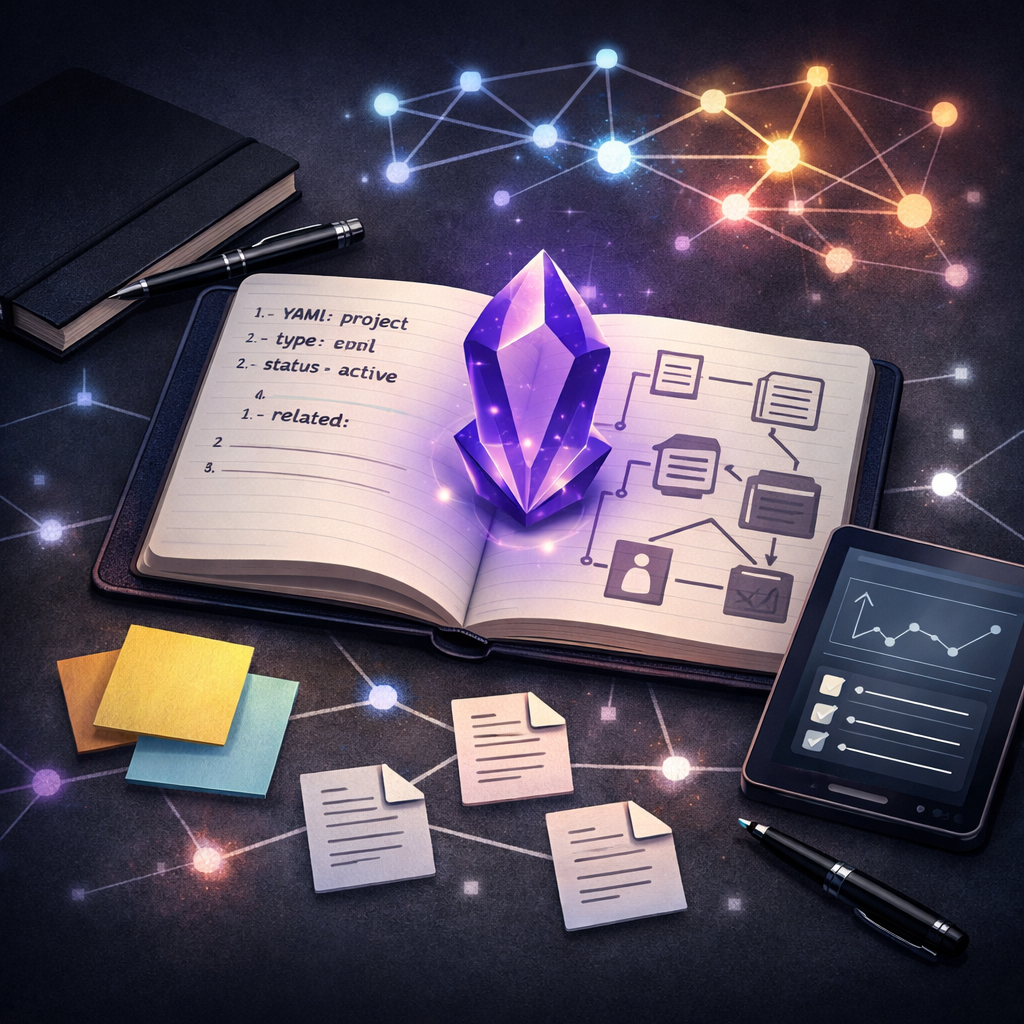
옵시디언(Obsidian)을 처음 사용할 때 많은 사람들이 가장 먼저 고민하는 것은 두 가지입니다. 하나는 노트를 어떻게 서로 잘 연결할 것인가이고, 다른 하나는 프론트매터(Frontmatter)를 어떻게 정리해야 할 것인가입니다.
처음에는 폴더를 촘촘하게 나누거나 태그를 많이 붙이면 정리가 잘 될 것 같지만, 실제로는 시간이 지날수록 관리만 복잡해지는 경우가 많습니다. 반대로 너무 단순하게 쓰면 나중에 원하는 정보를 다시 찾기 어려워집니다.
그래서 이번 글에서는 옵시디언에서 노트 간 연결성을 자연스럽게 높이는 방법과, 프론트매터를 부담 없이 시작하는 실용적인 작성법을 함께 정리해보겠습니다.
프론트매터란 무엇인가
프론트매터는 노트 맨 위에 들어가는 YAML 형식의 메타데이터 블록입니다. 노트의 제목, 태그, 작성일, 상태 같은 구조화된 정보를 담을 때 사용합니다.
기본 형식은 아래와 같습니다.
---
title: 옵시디언 정리법
tags:
  - obsidian
  - notes
created: 2026-04-15
status: active
---
중요한 점은 다음과 같습니다.
- 반드시 노트 최상단에 위치해야 합니다.
---로 시작하고---로 끝나야 합니다.- 내부는 YAML 문법을 따라야 합니다.
key: value형태로 작성합니다.
예를 들어 실제 노트에서는 이렇게 사용할 수 있습니다.
---
title: 옵시디언 정리법
tags:
  - obsidian
  - productivity
created: 2026-04-15
status: active
---

# 옵시디언 정리법

이 노트는 옵시디언의 링크 구조와 프론트매터 활용법을 정리한 문서입니다.
프론트매터보다 더 중요한 것은 링크 구조
옵시디언을 잘 쓰기 위해 가장 먼저 이해해야 할 점은, 프론트매터보다 노트 간 링크가 더 중요하다는 사실입니다.
많은 초보 사용자가 처음부터 속성, 태그, 분류 체계를 세밀하게 만들려고 합니다. 하지만 실제로 노트의 연결성을 높이는 핵심은 [[위키 링크]]입니다.
예를 들어 어떤 노트에서 다른 노트를 이렇게 연결할 수 있습니다.
이 내용은 [[프로젝트 관리]], [[옵시디언 템플릿]], [[개인 지식 관리]]와 함께 보면 좋습니다.이렇게 링크를 걸어두면 다음과 같은 장점이 생깁니다.
- 관련 주제를 자연스럽게 이동할 수 있습니다.
- 백링크를 통해 어떤 노트가 어디서 참조되는지 확인할 수 있습니다.
- 파일 이름을 바꿔도 내부 링크가 자동으로 갱신됩니다.
결국 옵시디언의 강점은 문서를 따로따로 저장하는 것이 아니라, 노트를 네트워크처럼 연결하는 데 있습니다.
노트 간 연결성을 높이는 가장 쉬운 방법
복잡한 시스템을 만들기 전에, 아래 원칙부터 적용하는 것이 현실적입니다.
1. 실제 관계는 링크로 연결하기
특정 노트와 다른 노트가 직접적으로 관련 있다면 태그보다 링크를 우선 사용하는 편이 낫습니다.
예를 들어 CSS, TailwindCSS, UI 컴포넌트가 서로 실제 맥락에서 이어진다면 태그만 붙이는 것보다 본문 안에서 링크로 연결하는 것이 더 유용합니다.
이 스타일 구조는 [[TailwindCSS]], [[디자인 시스템]], [[컴포넌트 재사용]]과 연결됩니다.2. 태그는 넓은 분류에만 사용하기
태그는 관계를 표현하는 도구라기보다 큰 범주를 묶는 용도로 쓰는 편이 좋습니다.
예를 들면 다음과 같습니다.
#project#reference#idea#draft
즉, 태그는 “무엇과 연결되어 있는가”보다 “대략 어떤 유형인가”를 나타낼 때 더 효과적입니다.
3. 구조화된 정보는 프론트매터로 분리하기
노트의 상태나 작성일, 관련 프로젝트명처럼 일정한 형식으로 관리하고 싶은 값은 프론트매터에 두는 것이 좋습니다.
예를 들면 이런 식입니다.
---
type: project-note
status: active
project: website-renewal
created: 2026-04-15
related:
  - "[[디자인 시스템]]"
  - "[[TailwindCSS 가이드]]"
---
이렇게 하면 본문은 읽기 쉽게 유지하면서도, 필요한 데이터는 별도로 정리할 수 있습니다.
프론트매터는 어떻게 시작하는 것이 좋은가
처음부터 많은 필드를 만들 필요는 없습니다. 오히려 너무 많은 필드를 넣으면 작성할 때마다 귀찮아지고, 결국 안 쓰게 됩니다.
처음에는 아래 정도만 있어도 충분합니다.
---
type: note
status: active
tags: []
created: 2026-04-15
related: []
---
각 항목은 대략 이런 의미로 사용할 수 있습니다.
type: 노트 유형status: 진행 상태tags: 넓은 범주의 태그created: 생성일related: 명시적으로 연결할 관련 노트 목록
특히 related는 나중에 특정 노트끼리 연결 관계를 더 분명하게 만들고 싶을 때 유용합니다.
자동으로 프론트매터를 넣는 방법
프론트매터를 매번 손으로 쓰는 것은 비효율적입니다. 이런 작업은 자동화하는 편이 낫습니다.
옵시디언에서는 가장 먼저 기본 템플릿 기능을 사용하는 것이 좋습니다. 자주 쓰는 프론트매터 구조를 템플릿으로 저장해두고, 새 노트를 만들 때 불러오면 됩니다.
예를 들어 프로젝트 노트용 템플릿을 하나 만들어두면 다음처럼 재사용할 수 있습니다.
---
type: project
status: active
tags: []
created: {{date}}
related: []
---
이런 방식은 단순하지만 가장 안정적입니다. 처음부터 복잡한 플러그인에 의존하지 않아도 되기 때문입니다.
연결성과 자동화를 높여주는 추천 플러그인
옵시디언은 기본 기능만으로도 충분히 강력하지만, 아래 플러그인을 추가하면 관리 효율이 더 좋아질 수 있습니다.
1. Templater
기본 템플릿보다 더 유연한 자동화를 원할 때 유용합니다. 날짜 삽입, 동적 텍스트 생성, 노트 생성 규칙 자동화 같은 작업에 강합니다.
이 플러그인은 “새 노트를 만들면 자동으로 특정 프론트매터를 넣고 싶다”는 요구에 가장 잘 맞습니다.
2. Metadata Menu
프론트매터나 속성 값을 좀 더 체계적으로 다루고 싶을 때 유용합니다. 여러 노트의 속성을 일정한 방식으로 유지하는 데 도움이 됩니다.
속성이 많아질수록 이런 종류의 관리 도구가 필요해집니다.
3. Dataview
프론트매터를 단순 저장용이 아니라 조회용 데이터처럼 사용하고 싶다면 Dataview가 강력합니다.
예를 들어 특정 상태의 프로젝트 노트만 모아서 보여주거나, 같은 태그를 가진 문서를 자동으로 정리하는 식의 활용이 가능합니다.
4. MOC 방식
이건 엄밀히 말하면 플러그인은 아니지만 매우 실용적인 관행입니다. MOC(Map of Contents) 노트를 만들어 특정 주제의 중심 허브 역할을 하게 하는 방식입니다.
예를 들어 옵시디언 정리라는 허브 노트를 만들고, 그 안에 관련 노트를 링크로 정리합니다.
# 옵시디언 정리

- [[옵시디언 템플릿]]
- [[프론트매터 작성법]]
- [[백링크 활용법]]
- [[Dataview 기초]]
이 방식은 노트가 많아졌을 때 주제별 길잡이 역할을 해줍니다.
추천하는 실전 운영 방식
처음부터 시스템을 거창하게 만들 필요는 없습니다. 아래처럼 단순하게 시작하는 편이 더 오래 갑니다.
일상 메모나 짧은 아이디어 노트
프론트매터를 최소화합니다.
---
type: fleeting
created: 2026-04-15
---
프로젝트 노트
상태와 관련 프로젝트 정보를 함께 기록합니다.
---
type: project
status: active
project: renewal
created: 2026-04-15
related:
  - "[[디자인 시스템]]"
---
참고 자료 노트
출처나 주제 중심으로 정리합니다.
---
type: reference
topic: obsidian
source: official-docs
created: 2026-04-15
---
허브 노트
프론트매터는 최소화하고 링크 중심으로 구성합니다.
---
type: moc
created: 2026-04-15
---
즉, 모든 노트에 많은 속성을 넣기보다 노트의 역할에 맞게 다르게 운영하는 것이 더 효율적입니다.
결국 가장 좋은 규칙은 단순한 규칙이다
옵시디언을 오래 쓰는 사람과 금방 지치는 사람의 차이는 복잡한 시스템 유무가 아닙니다. 오히려 지나치게 정교한 구조를 처음부터 만들수록 유지가 어려워집니다.
실제로는 아래 원칙만 지켜도 충분합니다.
- 노트 간 관계는
[[링크]]로 연결한다 - 태그는 넓은 분류에만 사용한다
- 구조화된 값은 프론트매터에 넣는다
- 반복 입력은 템플릿으로 자동화한다
- 노트가 많아지면 MOC 노트로 허브를 만든다
이 정도만 지켜도 노트들은 점점 서로 연결되고, 나중에 다시 찾아보기도 쉬워집니다.
마무리
옵시디언에서 연결성을 높이려면 프론트매터를 많이 쓰는 것보다 먼저 링크를 잘 쓰는 습관이 중요합니다. 프론트매터는 그다음 단계에서 노트를 구조화하고 관리하기 쉽게 만들어주는 도구입니다.
처음에는 단순하게 시작하는 것이 맞습니다. 템플릿 하나, 기본 속성 몇 개, 그리고 [[링크]] 중심의 연결 구조만 잘 잡아도 훨씬 쓸 만한 지식 저장소가 만들어집니다.
복잡한 플러그인은 나중 문제입니다. 기본 구조가 먼저입니다.
When people first start using Obsidian, they usually run into two questions. One is how to connect notes well, and the other is how to organize frontmatter.
At first, it can seem like creating many folders or adding lots of tags will keep things organized. In practice, that often makes the system harder to maintain over time. On the other hand, if the structure is too simple, it becomes difficult to find information again later.
So this post organizes both: how to naturally increase connectivity between notes in Obsidian, and how to start using frontmatter in a practical way without making it burdensome.
What Is Frontmatter?
Frontmatter is a YAML metadata block placed at the very top of a note. It is used to store structured information such as a note title, tags, creation date, and status.
The basic format looks like this.
---
title: 옵시디언 정리법
tags:
  - obsidian
  - notes
created: 2026-04-15
status: active
---
The important points are:
- It must be placed at the very top of the note.
- It must start with
---and end with---. - The inside must follow YAML syntax.
- It uses the
key: valueformat.
For example, a real note can use it like this.
---
title: 옵시디언 정리법
tags:
  - obsidian
  - productivity
created: 2026-04-15
status: active
---

# 옵시디언 정리법

이 노트는 옵시디언의 링크 구조와 프론트매터 활용법을 정리한 문서입니다.
Link Structure Matters More Than Frontmatter
The first thing to understand when using Obsidian well is that links between notes matter more than frontmatter.
Many beginners try to create detailed properties, tags, and classification systems from the start. But the key to increasing note connectivity is the [[wiki link]].
For example, one note can connect to other notes like this.
이 내용은 [[프로젝트 관리]], [[옵시디언 템플릿]], [[개인 지식 관리]]와 함께 보면 좋습니다.
Adding links this way has several benefits.
- You can move naturally between related topics.
- Backlinks show which notes reference a given note.
- Internal links are automatically updated even if file names change.
Obsidian’s strength is not storing documents separately, but connecting notes like a network.
The Easiest Way to Increase Connectivity Between Notes
Before building a complex system, it is more realistic to apply these principles first.
1. Connect Real Relationships with Links
If one note is directly related to another, it is usually better to use links before tags.
For example, if CSS, TailwindCSS, and UI 컴포넌트 are connected in a real context, linking them inside the body is more useful than only adding tags.
이 스타일 구조는 [[TailwindCSS]], [[디자인 시스템]], [[컴포넌트 재사용]]과 연결됩니다.
2. Use Tags Only for Broad Categories
Tags are better for grouping broad categories than for expressing relationships.
Examples include:
#project#reference#idea#draft
In other words, tags are more effective for showing “what general type this is” than “what this is connected to.”
3. Put Structured Information in Frontmatter
Values that you want to manage in a consistent format, such as note status, creation date, or related project name, are good candidates for frontmatter.
For example:
---
type: project-note
status: active
project: website-renewal
created: 2026-04-15
related:
  - "[[디자인 시스템]]"
  - "[[TailwindCSS 가이드]]"
---
This keeps the body readable while storing the necessary data separately.
How Should You Start with Frontmatter?
You do not need many fields from the beginning. Too many fields make every new note annoying to write, and eventually you stop using them.
At first, this much is enough.
---
type: note
status: active
tags: []
created: 2026-04-15
related: []
---
Each field can roughly mean:
type: note typestatus: progress statetags: broad category tagscreated: creation daterelated: explicitly related notes
The related field is especially useful when you later want to make relationships between specific notes clearer.
How to Add Frontmatter Automatically
Writing frontmatter by hand every time is inefficient. This kind of work is better automated.
In Obsidian, the first option to try is the built-in template feature. Save a frontmatter structure you use often as a template, then load it when creating a new note.
For example, if you create a project note template, you can reuse it like this.
---
type: project
status: active
tags: []
created: {{date}}
related: []
---
This approach is simple but stable, because you do not need to depend on complex plugins from the start.
Recommended Plugins for Connectivity and Automation
Obsidian is already powerful with its built-in features, but adding the plugins below can improve management efficiency.
1. Templater
Templater is useful when you want automation that is more flexible than the default templates. It is strong for tasks such as inserting dates, generating dynamic text, and automating note creation rules.
It is especially well suited to the need: “When I create a new note, I want specific frontmatter to be inserted automatically.”
2. Metadata Menu
Metadata Menu is useful when you want to handle frontmatter or property values in a more structured way. It helps maintain properties consistently across multiple notes.
As the number of properties grows, this kind of management tool becomes more useful.
3. Dataview
If you want to use frontmatter as queryable data rather than simple storage, Dataview is powerful.
For example, you can collect only project notes with a certain status, or automatically organize documents with the same tag.
4. MOC Method
Strictly speaking, this is not a plugin, but it is a very practical practice. MOC stands for Map of Contents: a note that acts as a central hub for a specific topic.
For example, you can create a hub note called 옵시디언 정리 and organize related notes inside it with links.
# 옵시디언 정리

- [[옵시디언 템플릿]]
- [[프론트매터 작성법]]
- [[백링크 활용법]]
- [[Dataview 기초]]
When notes grow in number, this method becomes a topic-based guide.
A Practical Operating Method
You do not need to build a grand system from the start. It lasts longer if you begin simply.
Daily Memos or Short Idea Notes
Keep frontmatter minimal.
---
type: fleeting
created: 2026-04-15
---
Project Notes
Record status and related project information together.
---
type: project
status: active
project: renewal
created: 2026-04-15
related:
  - "[[디자인 시스템]]"
---
Reference Notes
Organize them around source or topic.
---
type: reference
topic: obsidian
source: official-docs
created: 2026-04-15
---
Hub Notes
Keep frontmatter minimal and make links the main structure.
---
type: moc
created: 2026-04-15
---
In other words, it is more efficient to operate each note differently based on its role than to add many properties to every note.
The Best Rule Is a Simple Rule
The difference between people who use Obsidian for a long time and people who quickly get tired of it is not whether they have a complex system. In fact, the more elaborate the structure is from the beginning, the harder it becomes to maintain.
In practice, these principles are enough.
- Connect relationships between notes with
[[links]] - Use tags only for broad categories
- Put structured values in frontmatter
- Automate repeated input with templates
- Create MOC notes as hubs when notes become numerous
Just following this much will make notes increasingly connected and easier to revisit later.
Closing
To increase connectivity in Obsidian, it is more important to build a habit of using links well before using a lot of frontmatter. Frontmatter is a tool for structuring and managing notes more easily at the next stage.
It is better to start simply. One template, a few basic properties, and a [[link]]-centered connection structure are enough to create a much more usable knowledge base.
Complex plugins can come later. The basic structure comes first.
刚开始使用 Obsidian 时,很多人最先思考的通常是两个问题。一个是如何让笔记彼此连接得更好,另一个是如何整理 frontmatter。
一开始,你可能会觉得把文件夹分得很细、加很多标签就能整理得很好。但实际使用一段时间后,这种方式往往只会让维护变得更复杂。相反,如果结构过于简单,之后又很难重新找到想要的信息。
所以这篇文章会同时整理两个主题:如何在 Obsidian 中自然提升笔记之间的连接性,以及如何以不增加负担的方式开始使用 frontmatter。
什么是 Frontmatter?
Frontmatter 是放在笔记最上方的 YAML 格式元数据块。它用于保存笔记标题、标签、创建日期、状态等结构化信息。
基本格式如下。
---
title: 옵시디언 정리법
tags:
  - obsidian
  - notes
created: 2026-04-15
status: active
---
需要注意的点如下。
- 必须位于笔记最顶部。
- 必须以
---开始,并以---结束。 - 内部必须遵循 YAML 语法。
- 使用
key: value的形式编写。
例如,实际笔记中可以这样使用。
---
title: 옵시디언 정리법
tags:
  - obsidian
  - productivity
created: 2026-04-15
status: active
---

# 옵시디언 정리법

이 노트는 옵시디언의 링크 구조와 프론트매터 활용법을 정리한 문서입니다.
比 Frontmatter 更重要的是链接结构
想要用好 Obsidian,首先要理解的是:笔记之间的链接比 frontmatter 更重要。
很多新手从一开始就想建立细致的属性、标签和分类体系。但真正提升笔记连接性的核心是 [[wiki link]]。
例如,可以在某个笔记中这样连接其他笔记。
이 내용은 [[프로젝트 관리]], [[옵시디언 템플릿]], [[개인 지식 관리]]와 함께 보면 좋습니다.
这样添加链接会带来几个好处。
- 可以在相关主题之间自然移动。
- 可以通过反向链接确认某个笔记被哪些笔记引用。
- 即使文件名变更,内部链接也会自动更新。
Obsidian 的强项不在于把文档分别保存,而在于像网络一样连接笔记。
提升笔记连接性的最简单方法
在建立复杂系统之前,先应用下面这些原则会更现实。
1. 用链接连接真实关系
如果某个笔记和另一个笔记有直接关系,通常应该优先使用链接,而不是标签。
例如,CSS、TailwindCSS、UI 컴포넌트 如果在真实语境中彼此关联,那么在正文中用链接连接会比只加标签更有用。
이 스타일 구조는 [[TailwindCSS]], [[디자인 시스템]], [[컴포넌트 재사용]]과 연결됩니다.
2. 标签只用于宽泛分类
标签更适合作为大类分组工具,而不是表达关系的工具。
例如:
#project#reference#idea#draft
也就是说,标签在表示“大致是什么类型”时,比表示“和什么连接”更有效。
3. 结构化信息放进 Frontmatter
笔记状态、创建日期、相关项目名等想以固定格式管理的值,适合放在 frontmatter 中。
例如:
---
type: project-note
status: active
project: website-renewal
created: 2026-04-15
related:
  - "[[디자인 시스템]]"
  - "[[TailwindCSS 가이드]]"
---
这样既能保持正文易读,又能把需要的数据单独整理出来。
Frontmatter 应该如何开始?
一开始不需要创建很多字段。字段太多会让每次写笔记都变得麻烦,最后反而不再使用。
刚开始有下面这些就足够了。
---
type: note
status: active
tags: []
created: 2026-04-15
related: []
---
每个项目大致可以这样理解。
type: 笔记类型status: 进行状态tags: 宽泛分类标签created: 创建日期related: 明确相关的笔记列表
其中 related 在之后想让特定笔记之间的关系更清楚时特别有用。
如何自动添加 Frontmatter
每次手动写 frontmatter 效率很低。这类工作更适合自动化。
在 Obsidian 中,首先推荐使用内置模板功能。把常用的 frontmatter 结构保存为模板,新建笔记时调用即可。
例如,为项目笔记创建一个模板后,可以这样复用。
---
type: project
status: active
tags: []
created: {{date}}
related: []
---
这种方式虽然简单,但非常稳定,因为一开始不需要依赖复杂插件。
提升连接性和自动化的推荐插件
Obsidian 只用基础功能也足够强大,但添加下面这些插件后,管理效率会更高。
1. Templater
当你想要比默认模板更灵活的自动化时,Templater 很有用。它擅长日期插入、动态文本生成、笔记创建规则自动化等任务。
它非常适合“创建新笔记时自动插入特定 frontmatter”这种需求。
2. Metadata Menu
当你想更系统地处理 frontmatter 或属性值时,Metadata Menu 很有用。它有助于让多篇笔记的属性保持一致。
属性越多,这类管理工具就越有必要。
3. Dataview
如果你想把 frontmatter 当作可查询的数据,而不是单纯的存储字段,Dataview 很强大。
例如,可以只收集某个状态的项目笔记,或者自动整理带有相同标签的文档。
4. MOC 方法
严格来说这不是插件,但它是非常实用的做法。MOC 是 Map of Contents,也就是创建一个作为特定主题中心枢纽的笔记。
例如,可以创建一个叫 옵시디언 정리 的中心笔记,并在其中用链接整理相关笔记。
# 옵시디언 정리

- [[옵시디언 템플릿]]
- [[프론트매터 작성법]]
- [[백링크 활용법]]
- [[Dataview 기초]]
当笔记变多后,这种方式可以成为按主题导航的入口。
推荐的实际运营方式
不需要从一开始就建立庞大的系统。像下面这样简单开始,更容易长期坚持。
日常备忘或短想法笔记
尽量减少 frontmatter。
---
type: fleeting
created: 2026-04-15
---
项目笔记
一起记录状态和相关项目信息。
---
type: project
status: active
project: renewal
created: 2026-04-15
related:
  - "[[디자인 시스템]]"
---
参考资料笔记
围绕来源或主题整理。
---
type: reference
topic: obsidian
source: official-docs
created: 2026-04-15
---
中心笔记
Frontmatter 保持最小化,以链接为主要结构。
---
type: moc
created: 2026-04-15
---
也就是说,与其给所有笔记都加入大量属性,不如根据笔记角色采用不同的管理方式。
最好的规则最终是简单的规则
长期使用 Obsidian 的人和很快疲惫的人之间,差异不在于是否拥有复杂系统。相反,从一开始建立过于精细的结构,反而更难维护。
实际上,只要遵守下面这些原则就已经足够。
- 笔记之间的关系用
[[链接]]连接 - 标签只用于宽泛分类
- 结构化值放进 frontmatter
- 重复输入用模板自动化
- 笔记变多后用 MOC 笔记做中心枢纽
只要做到这些,笔记就会逐渐相互连接,之后重新查找也会更容易。
结语
在 Obsidian 中提升连接性时,比起大量使用 frontmatter,更重要的是先养成善用链接的习惯。Frontmatter 是下一阶段帮助你更容易结构化和管理笔记的工具。
一开始应该简单。一个模板、几个基础属性,再加上以 [[链接]] 为中心的连接结构,就能建立一个更可用的知识库。
复杂插件是之后的事。基础结构要先做好。
Obsidianを使い始めるとき、多くの人が最初に悩むことは二つある。一つはノートをどううまくつなげるか、もう一つはフロントマターをどう整理するかだ。
最初はフォルダを細かく分けたり、タグをたくさん付けたりすれば整理できそうに見える。しかし実際には、時間が経つほど管理だけが複雑になることが多い。逆に単純すぎると、あとで必要な情報を探し直しにくくなる。
そこでこの記事では、Obsidianでノート間のつながりを自然に高める方法と、フロントマターを無理なく始める実用的な書き方をあわせて整理する。
フロントマターとは何か
フロントマターは、ノートの最上部に入るYAML形式のメタデータブロックである。ノートのタイトル、タグ、作成日、状態のような構造化された情報を入れるときに使う。
基本形式は次の通り。
---
title: 옵시디언 정리법
tags:
  - obsidian
  - notes
created: 2026-04-15
status: active
---
重要な点は次の通り。
- 必ずノートの最上部に置く。
---で始まり、---で終わる。- 中身はYAML文法に従う。
key: value形式で書く。
実際のノートでは、たとえば次のように使える。
---
title: 옵시디언 정리법
tags:
  - obsidian
  - productivity
created: 2026-04-15
status: active
---

# 옵시디언 정리법

이 노트는 옵시디언의 링크 구조와 프론트매터 활용법을 정리한 문서입니다.
フロントマターより重要なのはリンク構造
Obsidianをうまく使うためにまず理解すべきなのは、フロントマターよりもノート間リンクの方が重要だということだ。
多くの初心者は、最初から属性、タグ、分類体系を細かく作ろうとする。しかしノートのつながりを高める核心は、[[wiki link]]である。
たとえば、あるノートから別のノートへ次のようにつなげられる。
이 내용은 [[프로젝트 관리]], [[옵시디언 템플릿]], [[개인 지식 관리]]와 함께 보면 좋습니다.
このようにリンクを置くと、次のような利点がある。
- 関連トピックへ自然に移動できる。
- バックリンクによって、どのノートがどこから参照されているか確認できる。
- ファイル名を変更しても内部リンクが自動で更新される。
Obsidianの強みは、文書を別々に保存することではなく、ノートをネットワークのようにつなげることにある。
ノート間のつながりを高める最も簡単な方法
複雑なシステムを作る前に、まず次の原則を適用するのが現実的だ。
1. 実際の関係はリンクでつなげる
特定のノートと別のノートが直接関係しているなら、タグよりもリンクを優先した方がよい。
たとえば CSS、TailwindCSS、UI 컴포넌트 が実際の文脈でつながっているなら、タグだけを付けるより本文内でリンクする方が有用だ。
이 스타일 구조는 [[TailwindCSS]], [[디자인 시스템]], [[컴포넌트 재사용]]과 연결됩니다.
2. タグは広い分類にだけ使う
タグは関係を表す道具というより、大きなカテゴリをまとめる用途で使う方がよい。
たとえば次のようなものだ。
#project#reference#idea#draft
つまりタグは、「何とつながっているか」よりも「大まかにどんな種類か」を示すときに効果的である。
3. 構造化された情報はフロントマターに分ける
ノートの状態、作成日、関連プロジェクト名のように、一定の形式で管理したい値はフロントマターに置くとよい。
たとえば次のように書ける。
---
type: project-note
status: active
project: website-renewal
created: 2026-04-15
related:
  - "[[디자인 시스템]]"
  - "[[TailwindCSS 가이드]]"
---
こうすれば本文は読みやすく保ちながら、必要なデータは別に整理できる。
フロントマターはどう始めるとよいか
最初から多くのフィールドを作る必要はない。むしろフィールドが多すぎると、書くたびに面倒になり、結局使わなくなる。
最初は次の程度で十分だ。
---
type: note
status: active
tags: []
created: 2026-04-15
related: []
---
各項目はおおよそ次の意味で使える。
type: ノートの種類status: 進行状態tags: 広い分類のタグcreated: 作成日related: 明示的に関連づけるノート一覧
特に related は、あとで特定のノート同士の関係をより明確にしたいときに役立つ。
フロントマターを自動で入れる方法
フロントマターを毎回手で書くのは非効率だ。このような作業は自動化した方がよい。
Obsidianでは、まず標準のテンプレート機能を使うのがよい。よく使うフロントマター構造をテンプレートとして保存し、新しいノートを作るときに呼び出す。
たとえばプロジェクトノート用のテンプレートを一つ作っておけば、次のように再利用できる。
---
type: project
status: active
tags: []
created: {{date}}
related: []
---
この方法は単純だが安定している。最初から複雑なプラグインに依存しなくて済むからだ。
つながりと自動化を高めるおすすめプラグイン
Obsidianは標準機能だけでも十分強力だが、次のプラグインを追加すると管理効率がさらに上がる。
1. Templater
標準テンプレートより柔軟な自動化が欲しいときに便利だ。日付の挿入、動的テキスト生成、ノート作成ルールの自動化などに強い。
このプラグインは、「新しいノートを作ったら特定のフロントマターを自動で入れたい」という要望に特によく合う。
2. Metadata Menu
フロントマターやプロパティ値をより体系的に扱いたいときに便利だ。複数ノートのプロパティを一定の形で保つ助けになる。
プロパティが増えるほど、この種の管理ツールが必要になる。
3. Dataview
フロントマターを単なる保存用ではなく、検索や一覧化のためのデータとして使いたいならDataviewが強力だ。
たとえば特定ステータスのプロジェクトノートだけを集めたり、同じタグを持つ文書を自動で整理したりできる。
4. MOC方式
厳密にはプラグインではないが、とても実用的な習慣だ。MOCはMap of Contentsの略で、特定テーマの中心ハブとなるノートを作る方法である。
たとえば 옵시디언 정리 というハブノートを作り、その中に関連ノートをリンクで整理する。
# 옵시디언 정리

- [[옵시디언 템플릿]]
- [[프론트매터 작성법]]
- [[백링크 활용법]]
- [[Dataview 기초]]
この方式はノートが増えたとき、テーマ別の道案内になる。
おすすめの実践的な運用方法
最初から大げさなシステムを作る必要はない。次のように単純に始める方が長続きする。
日常メモや短いアイデアノート
フロントマターを最小限にする。
---
type: fleeting
created: 2026-04-15
---
プロジェクトノート
状態と関連プロジェクト情報を一緒に記録する。
---
type: project
status: active
project: renewal
created: 2026-04-15
related:
  - "[[디자인 시스템]]"
---
参考資料ノート
出典やトピックを中心に整理する。
---
type: reference
topic: obsidian
source: official-docs
created: 2026-04-15
---
ハブノート
フロントマターは最小限にし、リンク中心で構成する。
---
type: moc
created: 2026-04-15
---
つまり、すべてのノートに多くの属性を入れるより、ノートの役割に合わせて違う形で運用する方が効率的である。
結局、最もよいルールは単純なルール
Obsidianを長く使う人とすぐ疲れてしまう人の違いは、複雑なシステムの有無ではない。むしろ最初から精密すぎる構造を作るほど、維持が難しくなる。
実際には、次の原則だけでも十分だ。
- ノート間の関係は
[[リンク]]でつなげる - タグは広い分類にだけ使う
- 構造化された値はフロントマターに入れる
- 繰り返し入力はテンプレートで自動化する
- ノートが増えたらMOCノートでハブを作る
これだけ守っても、ノートは少しずつ互いにつながり、あとで見返しやすくなる。
まとめ
Obsidianでつながりを高めるには、フロントマターをたくさん使うより、まずリンクをうまく使う習慣が重要だ。フロントマターはその次の段階で、ノートを構造化し管理しやすくするための道具である。
最初は単純に始めるのがよい。テンプレート一つ、基本属性いくつか、そして [[リンク]] 中心の接続構造だけでも、ずっと使いやすい知識ベースになる。
複雑なプラグインはあとでよい。まずは基本構造である。
Cuando muchas personas empiezan a usar Obsidian, suelen hacerse dos preguntas. Una es cómo conectar bien las notas entre sí, y la otra es cómo organizar el frontmatter.
Al principio parece que dividir las carpetas con mucho detalle o añadir muchas etiquetas ayudará a ordenar todo. En la práctica, con el tiempo eso suele complicar el mantenimiento. En el extremo contrario, si la estructura es demasiado simple, luego resulta difícil volver a encontrar la información.
Por eso este artículo resume dos cosas: cómo aumentar de forma natural la conexión entre notas en Obsidian y cómo empezar a usar frontmatter de una manera práctica y ligera.
Qué es el Frontmatter
El frontmatter es un bloque de metadatos en formato YAML que se coloca al principio de una nota. Se usa para guardar información estructurada como título, etiquetas, fecha de creación o estado.
El formato básico es el siguiente.
---
title: 옵시디언 정리법
tags:
  - obsidian
  - notes
created: 2026-04-15
status: active
---
Los puntos importantes son:
- Debe estar al principio de la nota.
- Debe empezar con
---y terminar con---. - El contenido debe seguir la sintaxis YAML.
- Se escribe en formato
key: value.
Por ejemplo, en una nota real puede usarse así.
---
title: 옵시디언 정리법
tags:
  - obsidian
  - productivity
created: 2026-04-15
status: active
---

# 옵시디언 정리법

이 노트는 옵시디언의 링크 구조와 프론트매터 활용법을 정리한 문서입니다.
La Estructura de Enlaces Importa Más que el Frontmatter
Lo primero que conviene entender para usar bien Obsidian es que los enlaces entre notas importan más que el frontmatter.
Muchos usuarios principiantes intentan crear propiedades, etiquetas y sistemas de clasificación muy detallados desde el inicio. Pero la clave para aumentar la conexión entre notas es el [[wiki link]].
Por ejemplo, una nota puede conectar con otras así.
이 내용은 [[프로젝트 관리]], [[옵시디언 템플릿]], [[개인 지식 관리]]와 함께 보면 좋습니다.
Al usar enlaces de esta manera, aparecen varias ventajas.
- Puedes moverte de forma natural entre temas relacionados.
- Los backlinks permiten ver desde dónde se referencia una nota.
- Los enlaces internos se actualizan automáticamente aunque cambies el nombre del archivo.
La fuerza de Obsidian no está en guardar documentos por separado, sino en conectar notas como una red.
La Forma Más Sencilla de Aumentar la Conexión entre Notas
Antes de crear un sistema complejo, es más realista aplicar estos principios.
1. Conecta Relaciones Reales con Enlaces
Si una nota está directamente relacionada con otra, suele ser mejor usar enlaces antes que etiquetas.
Por ejemplo, si CSS, TailwindCSS y UI 컴포넌트 están conectados en un contexto real, enlazarlos dentro del cuerpo es más útil que solo añadir etiquetas.
이 스타일 구조는 [[TailwindCSS]], [[디자인 시스템]], [[컴포넌트 재사용]]과 연결됩니다.
2. Usa Etiquetas Solo para Categorías Amplias
Las etiquetas funcionan mejor para agrupar grandes categorías que para expresar relaciones.
Por ejemplo:
#project#reference#idea#draft
Es decir, las etiquetas son más eficaces para indicar “qué tipo general de nota es” que para indicar “con qué está conectada”.
3. Separa la Información Estructurada en el Frontmatter
Los valores que quieres gestionar con un formato constante, como estado, fecha de creación o proyecto relacionado, conviene ponerlos en el frontmatter.
Por ejemplo:
---
type: project-note
status: active
project: website-renewal
created: 2026-04-15
related:
  - "[[디자인 시스템]]"
  - "[[TailwindCSS 가이드]]"
---
Así mantienes el cuerpo fácil de leer y guardas los datos necesarios por separado.
Cómo Empezar con Frontmatter
No hace falta crear muchos campos desde el principio. De hecho, si añades demasiados, escribir cada nota se vuelve molesto y acabas dejando de usarlos.
Para empezar, esto suele ser suficiente.
---
type: note
status: active
tags: []
created: 2026-04-15
related: []
---
Cada elemento puede entenderse así:
type: tipo de notastatus: estado de progresotags: etiquetas de categoría ampliacreated: fecha de creaciónrelated: lista de notas relacionadas explícitamente
En particular, related resulta útil cuando más adelante quieres aclarar mejor la relación entre notas específicas.
Cómo Añadir Frontmatter Automáticamente
Escribir frontmatter a mano cada vez es ineficiente. Este tipo de tarea conviene automatizarla.
En Obsidian, lo primero recomendable es usar la función básica de plantillas. Guarda como plantilla la estructura de frontmatter que uses con frecuencia y cárgala al crear una nota nueva.
Por ejemplo, si preparas una plantilla para notas de proyecto, puedes reutilizarla así.
---
type: project
status: active
tags: []
created: {{date}}
related: []
---
Este método es simple pero estable, porque no necesitas depender de plugins complejos desde el inicio.
Plugins Recomendados para Conexión y Automatización
Obsidian ya es potente con sus funciones básicas, pero estos plugins pueden mejorar la eficiencia de gestión.
1. Templater
Templater es útil cuando quieres una automatización más flexible que las plantillas básicas. Funciona bien para insertar fechas, generar texto dinámico y automatizar reglas de creación de notas.
Encaja especialmente bien con la necesidad de “insertar frontmatter específico automáticamente al crear una nota nueva”.
2. Metadata Menu
Metadata Menu es útil cuando quieres manejar el frontmatter o los valores de propiedades de una forma más sistemática. Ayuda a mantener propiedades consistentes en varias notas.
Cuantas más propiedades tengas, más necesarios se vuelven este tipo de herramientas de gestión.
3. Dataview
Si quieres usar el frontmatter como datos consultables y no solo como almacenamiento, Dataview es muy potente.
Por ejemplo, puedes reunir solo notas de proyecto con cierto estado o clasificar automáticamente documentos con la misma etiqueta.
4. Método MOC
Técnicamente no es un plugin, pero es una práctica muy útil. MOC significa Map of Contents: una nota que actúa como centro de un tema específico.
Por ejemplo, puedes crear una nota hub llamada 옵시디언 정리 y organizar dentro de ella las notas relacionadas mediante enlaces.
# 옵시디언 정리

- [[옵시디언 템플릿]]
- [[프론트매터 작성법]]
- [[백링크 활용법]]
- [[Dataview 기초]]
Cuando el número de notas crece, este método sirve como guía por temas.
Una Forma Práctica de Operar
No necesitas construir un gran sistema desde el principio. Empezar de forma simple suele durar más.
Memorias Diarias o Notas Cortas de Ideas
Mantén el frontmatter al mínimo.
---
type: fleeting
created: 2026-04-15
---
Notas de Proyecto
Registra juntas la información de estado y proyecto relacionado.
---
type: project
status: active
project: renewal
created: 2026-04-15
related:
  - "[[디자인 시스템]]"
---
Notas de Referencia
Organízalas alrededor de la fuente o el tema.
---
type: reference
topic: obsidian
source: official-docs
created: 2026-04-15
---
Notas Hub
Mantén el frontmatter al mínimo y estructura la nota alrededor de enlaces.
---
type: moc
created: 2026-04-15
---
En otras palabras, es más eficiente operar según el rol de cada nota que añadir muchas propiedades a todas.
La Mejor Regla Es una Regla Simple
La diferencia entre quienes usan Obsidian durante mucho tiempo y quienes se cansan rápido no está en tener o no un sistema complejo. De hecho, cuanto más elaborada es la estructura desde el inicio, más difícil resulta mantenerla.
En la práctica, basta con estos principios.
- Conecta relaciones entre notas con
[[enlaces]] - Usa etiquetas solo para categorías amplias
- Pon valores estructurados en el frontmatter
- Automatiza entradas repetidas con plantillas
- Cuando haya muchas notas, crea notas MOC como hubs
Solo con esto, las notas se conectan cada vez más y resulta más fácil volver a encontrarlas después.
Cierre
Para aumentar la conexión en Obsidian, antes que usar mucho frontmatter es más importante desarrollar el hábito de usar bien los enlaces. El frontmatter es una herramienta que, en una etapa posterior, ayuda a estructurar y gestionar notas con más facilidad.
Conviene empezar de forma simple. Una plantilla, unas pocas propiedades básicas y una estructura centrada en [[enlaces]] bastan para construir una base de conocimiento mucho más útil.
Los plugins complejos pueden esperar. La estructura básica va primero.