Ghostty Light and Dark Themes: Automatic Switching and Theme Picks
Make Ghostty follow your system’s light and dark appearance with one setting. Find matching themes, preview them, and fix common configuration problems.
Ghostty is a terminal emulator for macOS and Linux. Its built-in theme pairing can follow your desktop appearance without a separate switching script. This guide checks the official documentation and the installed Ghostty 1.4.0 theme names and configuration syntax as of 2026-10-29. OS switching was not tested across desktop environments. (About Ghostty)
1. Start with one theme setting
Open Ghostty’s configuration, add this line, and save:
theme = light:Catppuccin Latte,dark:Catppuccin FrappeBoth light: and dark: are required for automatic pairing. Their order does not matter. The names select palettes; Ghostty chooses between them using the desktop’s light/dark preference. (Theme reference)
Then reload the configuration:
| Platform | Default Reload Config shortcut |
|---|---|
| macOS | Cmd+Shift+, |
| Linux | Ctrl+Shift+, |
Treat editing the file and changing system appearance as two separate events: reload after editing; once the pair is loaded, system appearance changes trigger the switch. Do not rely on saving the file alone to apply edits. (Configuration and reload)
On macOS, change Appearance in System Settings to test Light and Dark, then choose Auto if you want scheduled OS switching. On Linux, use your desktop’s light/dark preference; a custom GTK color theme alone may not change that preference. If nothing happens, work through section 6.
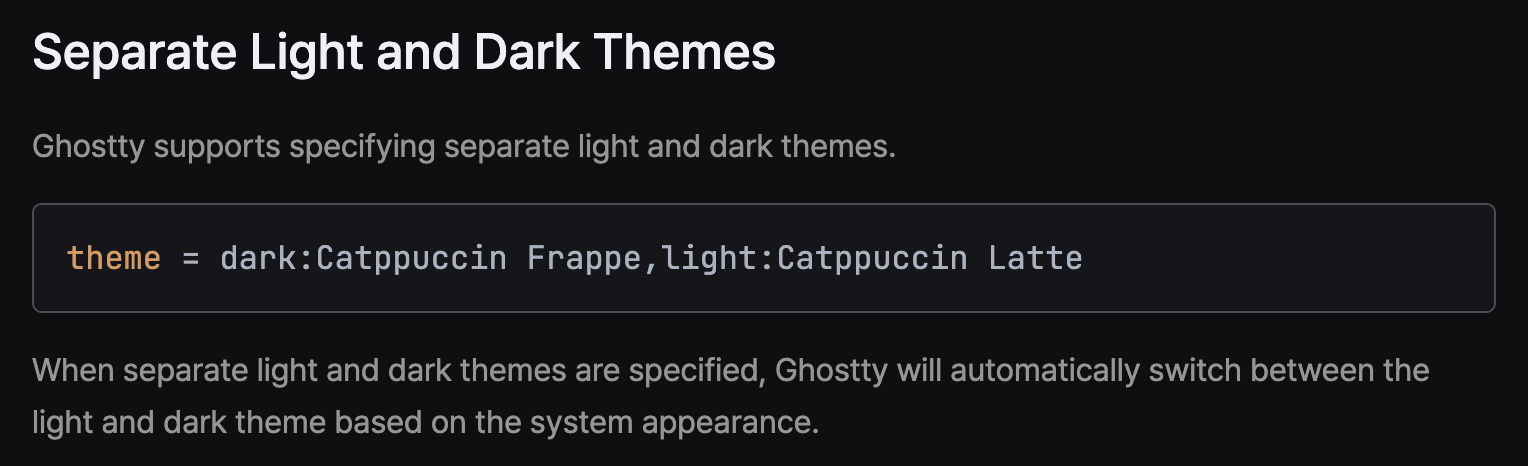
Captured public Ghostty documentation: the paired setting follows system appearance. (Source: Ghostty, captured 2026-10-29)
2. Edit the file Ghostty actually loads
On macOS, Cmd+, opens the configuration in the OS editor with the default binding. The current filename is config.ghostty; older config files are still supported.
| Location | Path |
|---|---|
| macOS and Linux, standard XDG location | ~/.config/ghostty/config.ghostty |
If XDG_CONFIG_HOME is set | $XDG_CONFIG_HOME/ghostty/config.ghostty |
| Additional macOS location | ~/Library/Application Support/com.mitchellh.ghostty/config.ghostty |
Avoid creating competing files. Legacy config files are also loaded, and on macOS the macOS-specific files load after the XDG files, overriding conflicting settings. The official file-location rules explain the order.
This tutorial covers the native macOS and Linux app. A %APPDATA% path is not a documented native Windows configuration location for that app.
If your shell cannot find ghostty on macOS, the standard app installation also exposes the CLI here:
/Applications/Ghostty.app/Contents/MacOS/ghostty +list-themesAdjust that path if you installed the app elsewhere. The following examples assume ghostty is available in your shell.
3. Browse the themes installed on your machine
Run this inside Ghostty:
ghostty +list-themesThe interactive preview supports Up/Down to browse, / to search, F1 for help, and Esc to exit. Previewing does not by itself replace your paired setting. To keep an automatic pair, copy the two names into the configuration from section 1.
For a text list, or to filter light and dark candidates in Ghostty 1.4.0:
ghostty +list-themes --plain
ghostty +list-themes --color=light
ghostty +list-themes --color=dark
Piping the output also produces a text list. ghostty +list-themes --help documents the flags available in your version. The preview implementation describes its controls and filters.
Ghostty bundles hundreds of themes from iTerm2-Color-Schemes. Its online gallery is useful for browsing, while your installed list is the reliable source for names your version can load. (Built-in themes)
4. Theme pairs worth trying
These names are present in the installed Ghostty 1.4.0 resources. The descriptions are visual starting points, not rankings or promises of better readability.
| Look | Light theme | Dark theme |
|---|---|---|
| Soft pastel accents | Catppuccin Latte | Catppuccin Frappe |
| Pastels with a deeper dark base | Catppuccin Latte | Catppuccin Mocha |
| Muted rose and purple | Rose Pine Dawn | Rose Pine |
| Cool blue and purple | TokyoNight Day | TokyoNight |
| Restrained cool tones | Nord Light | Nord |
| Warm, earthy colors | Gruvbox Light | Gruvbox Dark |
| Classic Solarized palette | iTerm2 Solarized Light | iTerm2 Solarized Dark |
| Familiar GitHub styling | GitHub Light Default | GitHub Dark Default |
For example, replace the earlier line with:
theme = light:Rose Pine Dawn,dark:Rose PineCopy names exactly, including spaces and capitalization. Do not assume names from another terminal or editor are identical: Nord and TokyoNight are the names checked here.
The upstream previews below show the difference between the first pair’s dark and light palettes. They are captures of the upstream gallery’s terminal examples, not Ghostty application screenshots.
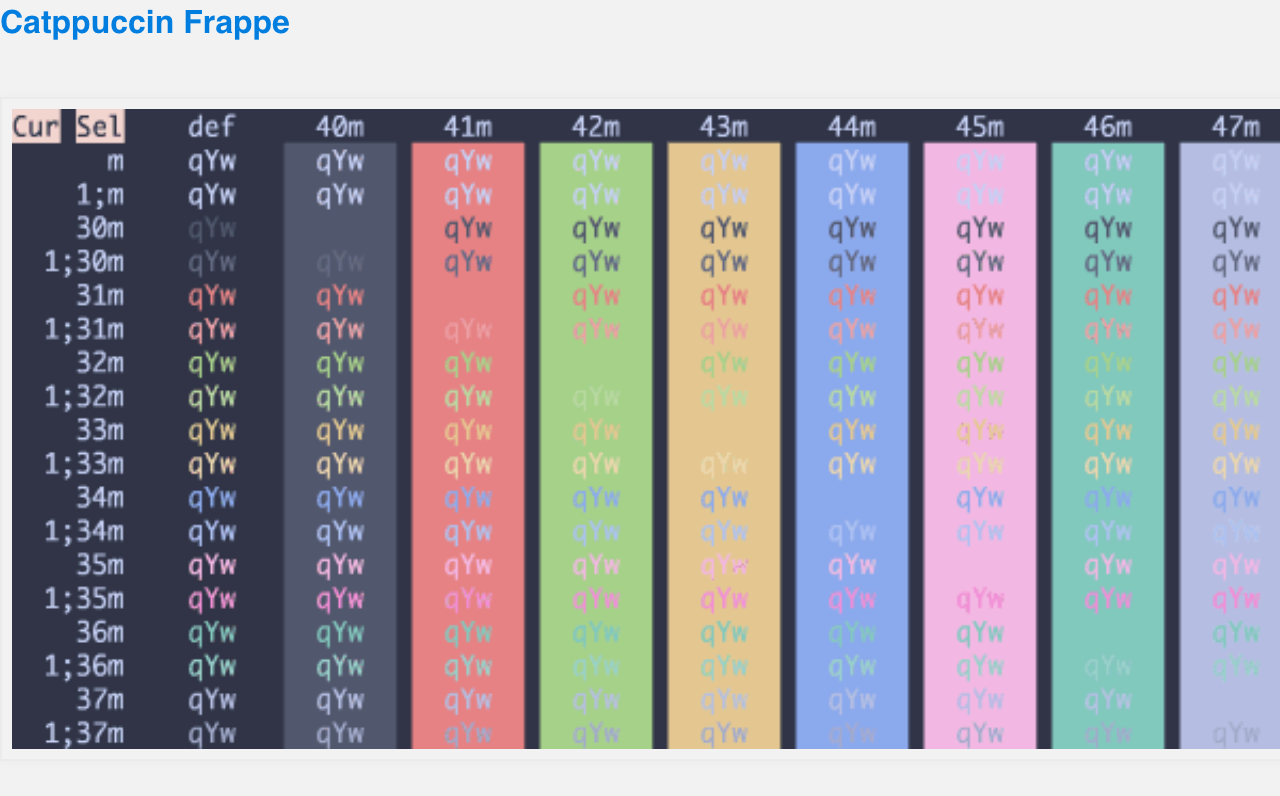
Catppuccin Frappe preview on the public upstream gallery. (Source: iTerm2-Color-Schemes, captured 2026-10-29)
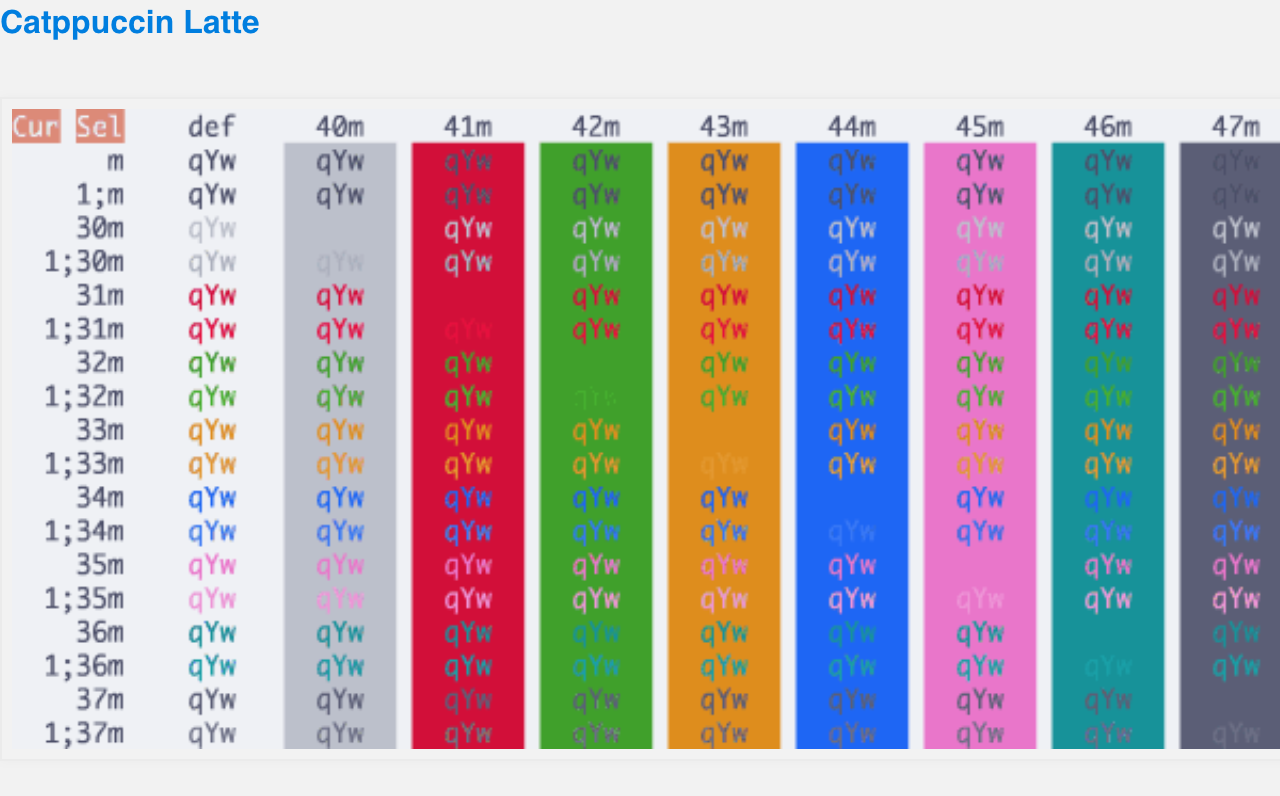
Catppuccin Latte preview on the same public gallery. Open either image for a larger view. (Source: iTerm2-Color-Schemes, captured 2026-10-29)
Before settling on a pair, check comments, error text, selection, and your actual shell prompt in both modes. Those are more useful checks than an attractive empty terminal.
5. Use custom themes without fragile paths
Create a user theme directory:
mkdir -p "${XDG_CONFIG_HOME:-$HOME/.config}/ghostty/themes"Save two complete Ghostty theme files there as my-light.ghostty and my-dark.ghostty. A practical starting point is a copy of a bundled theme, whose location you can find with:
ghostty +list-themes --plain --pathEdit the copies rather than the app’s resource files, which an update can replace. Reference the exact filenames:
theme = light:my-light.ghostty,dark:my-dark.ghosttyFor files elsewhere, use real absolute paths. Replace /Users/yourname in this macOS example:
theme = light:/Users/yourname/themes/my-light.ghostty,dark:/Users/yourname/themes/my-dark.ghosttyNamed lookup checks the user theme directory before bundled resources. Using names avoids relying on ~ expansion inside a theme value. Theme files use Ghostty configuration syntax and can affect more than colors; inspect downloaded files before using them. The official custom-theme guide lists the palette and selection fields.
6. Fix the common “it did not switch” cases
| Symptom | What to check |
|---|---|
| File edits have no effect | Save, reload, and check for another configuration file overriding the value. |
| Theme cannot be found | Compare the exact filename/name against +list-themes; check that a custom file exists. |
| Background stays fixed | Look for explicit background, foreground, or palette values in your main configuration. They override theme colors. |
| Window frame changes but terminal colors do not | window-theme controls window appearance. Check the paired theme setting separately. |
| Linux desktop changes but Ghostty does not | Check the desktop’s light/dark preference, then test a simple built-in pair and an updated Ghostty version. |
| An editor or prompt keeps its old colors | That program may use its own theme or explicit RGB colors. Configure it separately. |
The theme and window options distinguish terminal colors from window styling. Validate an edited file before investigating further:
ghostty +validate-config --config-file="$HOME/.config/ghostty/config.ghostty"Replace the path with the file you actually edited. With no --config-file, the command validates the default configuration locations instead.
7. Will Neovim, tmux, and the prompt follow too?
Ghostty changes the terminal palette and supports light/dark notifications. Each program still decides whether to use that palette or respond to the notification. A theme name in Ghostty does not install the matching editor theme.
For Neovim, check its terminal UI documentation and the selected colorscheme’s behavior. The background option tells Neovim which background type to target; it does not change Ghostty’s background. (Neovim option reference)
If a program follows appearance directly in Ghostty but stops doing so inside tmux, compare the same program outside tmux first. This isolates the extra layer before you change multiple configurations. For a broader setup walkthrough, see Ghostty with Claude Code and tmux.
Start with the built-in pair, reload, and verify both OS appearances. Add custom themes or editor synchronization only after that basic switch behaves as expected.
설정 한 줄로 Ghostty가 시스템의 라이트·다크 모드를 따르게 해 보자. 어울리는 테마를 찾고 미리 보는 방법부터 설정이 적용되지 않을 때의 해결 방법까지 안내한다.
Ghostty는 macOS와 Linux용 터미널 에뮬레이터다. 라이트·다크 테마를 짝지어 설정하면 별도 전환 스크립트 없이 데스크톱 모양을 따를 수 있다. 이 글은 2026-10-29 기준 공식 문서와 설치된 Ghostty 1.4.0의 테마 이름·설정 문법을 확인했다. 데스크톱 환경별 OS 전환 동작을 모두 실측하지는 않았다. (Ghostty 소개)
1. 테마 설정 한 줄로 시작하기
Ghostty 설정 파일을 열고 다음 줄을 추가한 뒤 저장한다.
theme = light:Catppuccin Latte,dark:Catppuccin Frappe
자동 전환에는 light:와 dark:를 모두 지정해야 한다. 두 항목의 순서는 상관없다. 이름은 색상 팔레트를 정하고, Ghostty는 데스크톱의 라이트·다크 설정에 따라 둘 중 하나를 선택한다. (테마 설정 레퍼런스)
이어서 설정을 다시 불러온다.
| 플랫폼 | 기본 Reload Config 단축키 |
|---|---|
| macOS | Cmd+Shift+, |
| Linux | Ctrl+Shift+, |
파일 수정과 시스템 모드 전환은 별개로 생각하면 쉽다. 파일을 수정한 뒤에는 Reload를 실행한다. 테마 쌍을 불러온 다음에는 시스템 모양이 바뀔 때 자동 전환된다. 파일을 저장하는 것만으로 수정 내용이 적용된다고 가정하지 말자. (설정과 다시 불러오기)
macOS에서는 시스템 설정의 화면 모드에서 라이트와 다크를 각각 시험하고, 시간대에 따른 전환을 원하면 자동을 선택한다. Linux에서는 데스크톱의 라이트·다크 환경설정을 사용한다. GTK 색상 테마만 바꿨다고 이 환경설정도 바뀌는 것은 아닐 수 있다. 반응이 없다면 6절을 확인하자.
Ghostty 공개 문서 캡처. 짝지어 지정한 테마가 시스템 모양을 따른다는 설명이다. (출처: Ghostty, 2026-10-29 캡처)
2. Ghostty가 실제로 읽는 파일 수정하기
macOS의 기본 단축키 Cmd+,는 OS 편집기로 설정 파일을 연다. 현재 파일명은 config.ghostty이며, 이전의 config 파일도 지원한다.
| 위치 | 경로 |
|---|---|
| macOS·Linux의 표준 XDG 위치 | ~/.config/ghostty/config.ghostty |
XDG_CONFIG_HOME이 설정된 경우 |
$XDG_CONFIG_HOME/ghostty/config.ghostty |
| macOS에서 추가로 사용하는 위치 | ~/Library/Application Support/com.mitchellh.ghostty/config.ghostty |
설정 파일을 여러 곳에 중복해서 만들지 않는 편이 좋다. 기존 config 파일도 읽으며, macOS 전용 위치의 파일은 XDG 파일 뒤에 불러와 충돌하는 설정을 덮어쓴다. 자세한 순서는 공식 파일 위치 규칙에서 확인할 수 있다.
이 글은 네이티브 macOS·Linux 앱을 다룬다. %APPDATA% 경로는 이 앱의 공식 네이티브 Windows 설정 위치로 안내되어 있지 않다.
macOS 셸에서 ghostty 명령을 찾지 못한다면, 기본 앱 설치 위치의 CLI를 직접 실행할 수 있다.
/Applications/Ghostty.app/Contents/MacOS/ghostty +list-themes
다른 곳에 설치했다면 앱 경로를 바꾼다. 이후 예제는 셸에서 ghostty를 실행할 수 있다고 가정한다.
3. 내 컴퓨터에 설치된 테마 둘러보기
Ghostty 안에서 다음 명령을 실행한다.
ghostty +list-themes
대화형 미리보기에서는 위·아래 화살표로 이동하고, /로 검색하며, F1으로 도움말을 열고, Esc로 종료한다. 미리 보는 것만으로 기존 테마 쌍이 바뀌지는 않는다. 자동 전환을 유지하려면 선택한 두 이름을 1절의 설정에 넣는다.
텍스트 목록을 보거나 Ghostty 1.4.0에서 밝은 테마와 어두운 테마 후보를 나누어 보려면 다음 명령을 쓴다.
ghostty +list-themes --plain
ghostty +list-themes --color=light
ghostty +list-themes --color=dark
출력을 다른 명령으로 파이프해도 텍스트 목록이 나온다. 설치된 버전에서 사용할 수 있는 옵션은 ghostty +list-themes --help로 확인한다. 미리보기 구현 소스에서도 조작법과 필터를 확인할 수 있다.
Ghostty에는 iTerm2-Color-Schemes에서 가져온 수백 개의 테마가 포함된다. 온라인 갤러리는 둘러보기에 좋고, 내 버전이 읽을 수 있는 정확한 이름은 설치된 목록을 기준으로 삼으면 된다. (내장 테마 안내)
4. 먼저 써 볼 만한 테마 조합
아래 이름은 설치된 Ghostty 1.4.0의 리소스에서 확인했다. 색감 설명은 선택을 돕기 위한 참고이며, 순위나 가독성 향상을 보장하는 평가가 아니다.
| 색감 | 밝은 테마 | 어두운 테마 |
|---|---|---|
| 부드러운 파스텔 포인트 | Catppuccin Latte |
Catppuccin Frappe |
| 더 짙은 어두운 바탕의 파스텔 | Catppuccin Latte |
Catppuccin Mocha |
| 차분한 장미색과 보라색 | Rose Pine Dawn |
Rose Pine |
| 차가운 파랑과 보라색 | TokyoNight Day |
TokyoNight |
| 절제된 차가운 색조 | Nord Light |
Nord |
| 따뜻한 흙빛 계열 | Gruvbox Light |
Gruvbox Dark |
| 클래식 Solarized 팔레트 | iTerm2 Solarized Light |
iTerm2 Solarized Dark |
| 익숙한 GitHub 스타일 | GitHub Light Default |
GitHub Dark Default |
예를 들어 기존 설정 줄을 다음과 같이 바꾸면 된다.
theme = light:Rose Pine Dawn,dark:Rose Pine
공백과 대소문자까지 이름을 그대로 복사한다. 다른 터미널이나 편집기의 이름과 같다고 가정하지 말자. 여기서 확인한 이름은 Nord, TokyoNight다.
아래 원본 프로젝트의 미리보기에서는 첫 번째 조합의 밝고 어두운 팔레트 차이를 볼 수 있다. 원본 갤러리의 터미널 예제를 캡처한 것으로, Ghostty 앱 화면을 촬영한 것은 아니다.
공개 원본 갤러리의 Catppuccin Frappe 미리보기. (출처: iTerm2-Color-Schemes, 2026-10-29 캡처)
같은 공개 갤러리의 Catppuccin Latte 미리보기. 각 이미지를 누르면 크게 볼 수 있다. (출처: iTerm2-Color-Schemes, 2026-10-29 캡처)
조합을 정하기 전에 두 모드에서 주석, 오류 메시지, 선택 영역, 실제 셸 프롬프트를 확인하자. 빈 터미널이 예쁘게 보이는 것보다 실제 작업 화면을 확인하는 편이 도움이 된다.
5. 경로 문제를 줄이는 커스텀 테마 설정
사용자 테마 디렉터리를 만든다.
mkdir -p "${XDG_CONFIG_HOME:-$HOME/.config}/ghostty/themes"
여기에 완성된 Ghostty 테마 파일 두 개를 my-light.ghostty, my-dark.ghostty로 저장한다. 내장 테마를 복사해서 시작하면 편하다. 원본 파일 위치는 다음 명령으로 찾을 수 있다.
ghostty +list-themes --plain --path
업데이트 때 교체될 수 있는 앱 리소스를 직접 고치지 말고 복사본을 수정한다. 설정에는 정확한 파일명을 넣는다.
theme = light:my-light.ghostty,dark:my-dark.ghostty
다른 곳의 파일은 실제 절대 경로로 지정한다. 다음 macOS 예제에서는 /Users/yourname을 자신의 경로로 바꾼다.
theme = light:/Users/yourname/themes/my-light.ghostty,dark:/Users/yourname/themes/my-dark.ghostty
이름으로 찾을 때는 내장 리소스보다 사용자 테마 디렉터리를 먼저 확인한다. 파일명을 사용하면 테마 값 안에서 ~가 확장될지에 의존하지 않아도 된다. 테마 파일은 Ghostty 설정 문법을 사용하며 색상 외의 동작에도 영향을 줄 수 있으므로 내려받은 파일의 내용을 살펴본 뒤 사용한다. 공식 커스텀 테마 안내에 팔레트와 선택 영역 설정 항목이 정리되어 있다.
6. 자동 전환이 되지 않을 때 확인할 것
| 증상 | 확인할 내용 |
|---|---|
| 파일 수정이 적용되지 않는다 | 저장과 Reload를 실행하고, 다른 설정 파일이 값을 덮어쓰는지 확인한다. |
| 테마를 찾지 못한다 | +list-themes의 이름·파일명과 정확히 비교하고 커스텀 파일이 존재하는지 확인한다. |
| 배경색이 고정되어 있다 | 메인 설정의 background, foreground, palette 값을 찾는다. 직접 지정한 색은 테마 색을 덮어쓴다. |
| 창 테두리만 바뀌고 터미널 색은 그대로다 | window-theme는 창 모양을 제어한다. 라이트·다크 theme 설정을 별도로 확인한다. |
| Linux 데스크톱만 바뀐다 | 데스크톱의 라이트·다크 환경설정을 확인하고, 단순한 내장 테마 쌍과 최신 Ghostty로 시험한다. |
| 편집기나 프롬프트의 색이 그대로다 | 해당 프로그램이 자체 테마나 직접 지정한 RGB 색을 사용할 수 있다. 프로그램별로 설정한다. |
테마·창 설정 레퍼런스는 터미널 색과 창 모양을 구분한다. 더 조사하기 전에 수정한 파일의 유효성을 검사할 수 있다.
ghostty +validate-config --config-file="$HOME/.config/ghostty/config.ghostty"
경로는 실제 수정한 파일로 바꾼다. --config-file 없이 실행하면 기본 설정 위치의 파일들을 검사한다.
7. Neovim·tmux·프롬프트도 함께 바뀔까?
Ghostty는 터미널 팔레트를 바꾸고 라이트·다크 알림을 지원한다. 그 팔레트를 쓰거나 알림에 반응할지는 각 프로그램이 결정한다. Ghostty에 테마 이름을 지정한다고 편집기용 테마가 함께 설치되지는 않는다.
Neovim은 터미널 UI 문서와 선택한 색상 테마의 동작을 함께 확인한다. background 옵션은 Neovim이 어떤 종류의 배경에 맞춰야 하는지 알려 주며, Ghostty의 배경색을 바꾸는 설정은 아니다. (Neovim 옵션 레퍼런스)
Ghostty에서 직접 실행할 때는 모양을 따르지만 tmux 안에서는 그렇지 않다면, 같은 프로그램을 tmux 밖에서 먼저 비교해 보자. 여러 설정을 동시에 바꾸기 전에 중간 계층의 영향을 분리할 수 있다. 전체 환경 구성은 Ghostty로 Claude Code와 tmux 사용하기에서 이어서 볼 수 있다.
내장 테마 쌍을 설정하고 Reload한 뒤 OS의 두 모드에서 확인하는 것부터 시작하자. 이 기본 전환이 잘 된 다음에 커스텀 테마와 편집기 동기화를 더하면 된다.
只需一项设置,就能让 Ghostty 跟随系统的浅色与深色外观。本文介绍主题搭配、预览方法,以及常见配置问题的排查步骤。
Ghostty 是适用于 macOS 和 Linux 的终端模拟器。内置的明暗主题配对功能可以跟随桌面外观,无需额外编写切换脚本。本文截至 2026-10-29 核对了官方文档,以及本机安装的 Ghostty 1.4.0 的主题名称和配置语法;未在各种桌面环境中逐一实测系统外观切换。(Ghostty 简介)
1. 从一行主题设置开始
打开 Ghostty 配置文件,添加以下内容并保存:
theme = light:Catppuccin Latte,dark:Catppuccin Frappe
自动配对需要同时指定 light: 和 dark:,两者顺序不限。名称指定调色板,Ghostty 根据桌面的明暗偏好选择其中之一。(主题配置参考)
接着重新加载配置:
| 平台 | 默认 Reload Config 快捷键 |
|---|---|
| macOS | Cmd+Shift+, |
| Linux | Ctrl+Shift+, |
可以把修改文件和切换系统外观看作两个步骤:编辑后重新加载;主题配对加载完成后,系统外观变化会触发自动切换。不要认为只保存文件就会应用修改。(配置与重新加载)
在 macOS 的系统设置中分别选择浅色和深色进行测试,如需按系统计划切换,再选择自动。Linux 使用桌面的浅色/深色偏好;仅更换自定义 GTK 配色主题,不一定会改变该偏好。如果没有反应,请参阅第 6 节。
Ghostty 公开文档截图:配对的主题跟随系统外观。(来源:Ghostty,截图日期 2026-10-29)
2. 修改 Ghostty 实际加载的文件
在 macOS 上,默认快捷键 Cmd+, 会使用系统编辑器打开配置文件。目前的文件名是 config.ghostty,旧的 config 文件也仍受支持。
| 位置 | 路径 |
|---|---|
| macOS 和 Linux 的标准 XDG 位置 | ~/.config/ghostty/config.ghostty |
设置了 XDG_CONFIG_HOME 时 |
$XDG_CONFIG_HOME/ghostty/config.ghostty |
| macOS 的额外位置 | ~/Library/Application Support/com.mitchellh.ghostty/config.ghostty |
避免在多个位置建立相互冲突的配置。旧版 config 也会被读取;macOS 专用位置的文件在 XDG 文件之后加载,并覆盖冲突的设置。官方文件位置规则说明了具体顺序。
本教程针对原生 macOS 和 Linux 应用。%APPDATA% 并不是该应用文档中列出的原生 Windows 配置位置。
如果 macOS 的 shell 找不到 ghostty,标准安装位置也提供了以下 CLI 路径:
/Applications/Ghostty.app/Contents/MacOS/ghostty +list-themes
如果应用安装在其他位置,请调整路径。后面的示例假设 shell 可以直接运行 ghostty。
3. 浏览本机已安装的主题
在 Ghostty 中运行:
ghostty +list-themes
交互式预览支持上下方向键浏览、/ 搜索、F1 查看帮助,以及 Esc 退出。仅浏览预览不会替换已有的主题配对。要保留自动切换,请将选中的两个名称写入第 1 节的配置。
如需文本列表,或在 Ghostty 1.4.0 中分别筛选浅色和深色候选主题:
ghostty +list-themes --plain
ghostty +list-themes --color=light
ghostty +list-themes --color=dark
通过管道输出到其他命令时也会生成文本列表。用 ghostty +list-themes --help 查看当前版本支持的选项。预览实现源码也说明了操作方式和筛选器。
Ghostty 内置了来自 iTerm2-Color-Schemes 的数百种主题。在线图库适合浏览,而当前版本能加载哪些准确名称,应以本机列表为准。(内置主题说明)
4. 值得尝试的主题搭配
以下名称均已在本机 Ghostty 1.4.0 的资源中确认。风格描述仅作为选色起点,不代表排名,也不保证一定更易阅读。
| 风格 | 浅色主题 | 深色主题 |
|---|---|---|
| 柔和的粉彩点缀 | Catppuccin Latte |
Catppuccin Frappe |
| 更深底色的粉彩 | Catppuccin Latte |
Catppuccin Mocha |
| 沉静的玫瑰色与紫色 | Rose Pine Dawn |
Rose Pine |
| 冷调蓝色与紫色 | TokyoNight Day |
TokyoNight |
| 克制的冷色调 | Nord Light |
Nord |
| 温暖的大地色 | Gruvbox Light |
Gruvbox Dark |
| 经典 Solarized 调色板 | iTerm2 Solarized Light |
iTerm2 Solarized Dark |
| 熟悉的 GitHub 风格 | GitHub Light Default |
GitHub Dark Default |
例如,将前面的设置替换为:
theme = light:Rose Pine Dawn,dark:Rose Pine
请准确复制名称,包括空格和大小写。不要假定它们与其他终端或编辑器中的名称相同;这里核对的名称是 Nord 和 TokyoNight。
下面的上游预览展示了第一组搭配的明暗调色板差异。这些是上游图库终端示例的截图,并非 Ghostty 应用截图。
公开上游图库中的 Catppuccin Frappe 预览。(来源:iTerm2-Color-Schemes,截图日期 2026-10-29)
同一公开图库中的 Catppuccin Latte 预览。点击任一图片可放大查看。(来源:iTerm2-Color-Schemes,截图日期 2026-10-29)
决定使用哪组之前,请在两种模式下检查注释、错误文字、选区和实际的 shell 提示符。这比只看漂亮的空终端更有参考价值。
5. 用简单路径配置自定义主题
创建用户主题目录:
mkdir -p "${XDG_CONFIG_HOME:-$HOME/.config}/ghostty/themes"
将两个完整的 Ghostty 主题文件保存在该目录,分别命名为 my-light.ghostty 和 my-dark.ghostty。复制内置主题是实用的起点,以下命令可以找到原文件位置:
ghostty +list-themes --plain --path
编辑副本,不要直接修改应用资源文件,因为更新可能替换它们。配置中使用准确的文件名:
theme = light:my-light.ghostty,dark:my-dark.ghostty
如果文件在其他位置,请使用真实的绝对路径。将这个 macOS 示例中的 /Users/yourname 替换为自己的路径:
theme = light:/Users/yourname/themes/my-light.ghostty,dark:/Users/yourname/themes/my-dark.ghostty
按名称查找时,会先查用户主题目录,再查内置资源。使用名称可以避免依赖主题值中的 ~ 展开。主题文件使用 Ghostty 配置语法,影响可能超出颜色,因此使用下载的文件前应查看其内容。官方自定义主题指南列出了调色板和选区相关字段。
6. 排查“没有切换”的常见原因
| 现象 | 检查内容 |
|---|---|
| 修改文件后没有效果 | 保存并重新加载,检查是否被另一份配置覆盖。 |
| 找不到主题 | 与 +list-themes 中的名称或文件名准确比对,确认自定义文件存在。 |
| 背景一直不变 | 检查主配置中显式设置的 background、foreground 或 palette,它们会覆盖主题颜色。 |
| 窗框变了,终端颜色没有变 | window-theme 控制窗口外观,请另外检查配对的 theme 设置。 |
| Linux 桌面变了,Ghostty 没变 | 检查桌面的明暗偏好,再用简单的内置主题配对和更新后的 Ghostty 测试。 |
| 编辑器或提示符仍是原来的颜色 | 程序可能使用自己的主题或显式 RGB 颜色,需要单独配置。 |
主题与窗口选项区分了终端颜色和窗口样式。进一步排查前,可以先验证编辑过的文件:
ghostty +validate-config --config-file="$HOME/.config/ghostty/config.ghostty"
将路径换成实际修改的文件。如果不指定 --config-file,命令会验证默认位置的配置。
7. Neovim、tmux 和提示符也会跟着变吗?
Ghostty 会改变终端调色板,并支持明暗模式通知。但是否使用该调色板、是否响应通知,由每个程序决定。在 Ghostty 中指定主题名称,不会自动安装同名的编辑器主题。
对于 Neovim,请同时检查终端 UI 文档以及所选配色方案的行为。background 选项告诉 Neovim 应针对哪种背景类型调整,并不会更改 Ghostty 的背景。(Neovim 选项参考)
如果程序直接在 Ghostty 中能跟随外观,但在 tmux 中不行,请先比较同一程序在 tmux 外的表现。这样可以在修改多份配置前隔离中间层的影响。完整环境设置可参阅 Ghostty 搭配 Claude Code 和 tmux。
先配置内置主题配对、重新加载,并检查系统的两种外观。基础切换正常后,再添加自定义主题或编辑器同步。
設定を1行追加して、Ghosttyをシステムのライト・ダーク表示に追従させましょう。テーマの組み合わせ、プレビュー、よくある設定トラブルの対処法を紹介します。
GhosttyはmacOSとLinux向けのターミナルエミュレーターです。ライト・ダークのテーマを組み合わせれば、切り替え用スクリプトなしでデスクトップの外観に追従できます。この記事では2026-10-29時点の公式ドキュメントと、インストール済みのGhostty 1.4.0のテーマ名・設定構文を確認しました。各デスクトップ環境でのOS表示切り替えは実測していません。(Ghosttyの紹介)
1. まずはテーマ設定を1行追加する
Ghosttyの設定ファイルを開き、次の行を追加して保存します。
theme = light:Catppuccin Latte,dark:Catppuccin Frappe
自動切り替えにはlight:とdark:の両方が必要です。指定順は問いません。名前でパレットを指定し、Ghosttyがデスクトップのライト・ダーク設定に応じて使い分けます。(テーマ設定リファレンス)
続いて、設定を再読み込みします。
| プラットフォーム | Reload Configの既定ショートカット |
|---|---|
| macOS | Cmd+Shift+, |
| Linux | Ctrl+Shift+, |
ファイルの編集とシステムの外観変更は分けて考えるとわかりやすくなります。編集後は再読み込みを実行します。テーマの組み合わせが読み込まれた後は、システムの外観変更で自動的に切り替わります。保存するだけで変更が適用されるとは考えないようにしましょう。(設定と再読み込み)
macOSではシステム設定の外観でライトとダークをそれぞれ試し、OSのスケジュールに合わせたい場合は自動を選びます。Linuxではデスクトップのライト・ダーク設定を使います。独自のGTKカラーテーマを変えるだけでは、その設定が変わらないこともあります。反応がなければ6節を確認してください。
Ghosttyの公開ドキュメントをキャプチャ。組み合わせたテーマがシステムの外観に追従することを説明しています。(出典:Ghostty、2026-10-29撮影)
2. Ghosttyが実際に読み込むファイルを編集する
macOSの既定ショートカットCmd+,は、OSのエディターで設定ファイルを開きます。現在のファイル名はconfig.ghosttyで、従来のconfigも引き続き使えます。
| 場所 | パス |
|---|---|
| macOS・Linuxの標準XDGの場所 | ~/.config/ghostty/config.ghostty |
XDG_CONFIG_HOMEを設定している場合 |
$XDG_CONFIG_HOME/ghostty/config.ghostty |
| macOSで追加される場所 | ~/Library/Application Support/com.mitchellh.ghostty/config.ghostty |
競合するファイルを複数作らないようにします。従来のconfigも読み込まれ、macOS専用の場所にあるファイルはXDGのファイルより後に読み込まれるため、競合する値を上書きします。詳しい順序は公式のファイルの場所に関する規則を確認してください。
この記事はネイティブのmacOS・Linuxアプリを対象としています。%APPDATA%は、このアプリのネイティブWindows版の設定場所として公式に案内されているパスではありません。
macOSのシェルでghosttyが見つからない場合、標準のアプリ配置では次のCLIパスも使えます。
/Applications/Ghostty.app/Contents/MacOS/ghostty +list-themes
別の場所にインストールしている場合はパスを調整します。以降の例はシェルからghosttyを実行できる前提です。
3. インストール済みのテーマを探す
Ghostty内で実行します。
ghostty +list-themes
対話型プレビューでは上下矢印で移動し、/で検索、F1でヘルプ表示、Escで終了できます。プレビューするだけでは既存のテーマの組み合わせは置き換わりません。自動切り替えを保つには、選んだ2つの名前を1節の設定に書き込みます。
テキスト一覧を表示したり、Ghostty 1.4.0でライト・ダークの候補を分けたりするには、次を使います。
ghostty +list-themes --plain
ghostty +list-themes --color=light
ghostty +list-themes --color=dark
別のコマンドにパイプしてもテキスト一覧になります。利用中のバージョンで使えるフラグはghostty +list-themes --helpで確認できます。プレビューの実装ソースにも操作方法とフィルターの説明があります。
GhosttyにはiTerm2-Color-Schemes由来の数百のテーマが同梱されています。オンラインギャラリーは見比べるのに便利ですが、自分のバージョンで使える正確な名前はインストール済み一覧を基準にします。(組み込みテーマの説明)
4. 試してみたいテーマの組み合わせ
以下の名前はインストール済みのGhostty 1.4.0のリソースで確認しました。色の説明は選ぶ際の目安であり、順位や読みやすさの向上を保証するものではありません。
| 色の雰囲気 | ライトテーマ | ダークテーマ |
|---|---|---|
| 柔らかいパステルのアクセント | Catppuccin Latte |
Catppuccin Frappe |
| より深い暗色ベースのパステル | Catppuccin Latte |
Catppuccin Mocha |
| 落ち着いたローズとパープル | Rose Pine Dawn |
Rose Pine |
| クールなブルーとパープル | TokyoNight Day |
TokyoNight |
| 控えめな寒色系 | Nord Light |
Nord |
| 暖かいアースカラー | Gruvbox Light |
Gruvbox Dark |
| 定番のSolarizedパレット | iTerm2 Solarized Light |
iTerm2 Solarized Dark |
| なじみのあるGitHub風 | GitHub Light Default |
GitHub Dark Default |
たとえば、先ほどの行を次のように置き換えます。
theme = light:Rose Pine Dawn,dark:Rose Pine
スペースと大文字・小文字も含め、名前を正確にコピーしてください。ほかの端末やエディターと同じ名前とは限りません。ここで確認した名前はNordとTokyoNightです。
以下の配布元のプレビューでは、最初の組み合わせの明暗パレットを比較できます。配布元ギャラリーにある端末の例をキャプチャしたもので、Ghosttyアプリの画面ではありません。
公開された配布元ギャラリーのCatppuccin Frappeプレビュー。(出典:iTerm2-Color-Schemes、2026-10-29撮影)
同じ公開ギャラリーのCatppuccin Latteプレビュー。画像を開くと拡大できます。(出典:iTerm2-Color-Schemes、2026-10-29撮影)
組み合わせを決める前に、両モードでコメント、エラー表示、選択範囲、実際のシェルプロンプトを確認しましょう。空の端末の見栄えより、作業時の表示を確認するほうが役立ちます。
5. パスの問題を避けてカスタムテーマを使う
ユーザーテーマ用のディレクトリを作ります。
mkdir -p "${XDG_CONFIG_HOME:-$HOME/.config}/ghostty/themes"
完全なGhosttyテーマファイルを2つ用意し、my-light.ghosttyとmy-dark.ghosttyとして保存します。組み込みテーマをコピーして始めると便利です。元ファイルの場所は次のコマンドで探せます。
ghostty +list-themes --plain --path
アップデートで置き換わる可能性のあるアプリのリソースではなく、コピーを編集します。設定には正確なファイル名を書きます。
theme = light:my-light.ghostty,dark:my-dark.ghostty
別の場所にあるファイルには実際の絶対パスを使います。次のmacOSの例では/Users/yournameを自分のパスに置き換えてください。
theme = light:/Users/yourname/themes/my-light.ghostty,dark:/Users/yourname/themes/my-dark.ghostty
名前による検索では、組み込みリソースより先にユーザーテーマ用ディレクトリを確認します。名前を使えば、テーマ値の中での~展開に依存せずに済みます。テーマファイルはGhosttyの設定構文を使い、色以外の動作にも影響できるため、ダウンロードしたファイルは内容を確認してから使います。公式のカスタムテーマガイドには、パレットと選択範囲の設定項目が掲載されています。
6. 「切り替わらない」ときの確認項目
| 症状 | 確認すること |
|---|---|
| ファイルの編集が反映されない | 保存と再読み込みを行い、別の設定ファイルで上書きされていないか確認します。 |
| テーマが見つからない | 名前・ファイル名を+list-themesと正確に照合し、カスタムファイルが存在するか確認します。 |
| 背景が固定されたまま | メイン設定のbackground、foreground、paletteを調べます。明示した値はテーマの色を上書きします。 |
| ウィンドウ枠だけ変わる | window-themeはウィンドウの外観用です。組み合わせたtheme設定も別に確認します。 |
| Linuxのデスクトップだけ変わる | デスクトップの明暗設定を確認し、単純な組み込みテーマの組み合わせと更新したGhosttyで試します。 |
| エディターやプロンプトが変わらない | 独自のテーマや明示的なRGB色を使っている可能性があります。各プログラム側で設定します。 |
テーマとウィンドウの設定では、端末の色とウィンドウの装飾を区別しています。さらに調べる前に、編集したファイルを検証できます。
ghostty +validate-config --config-file="$HOME/.config/ghostty/config.ghostty"
実際に編集したファイルのパスに置き換えてください。--config-fileを省略すると、既定の場所の設定を検証します。
7. Neovim・tmux・プロンプトも追従する?
Ghosttyは端末のパレットを変更し、ライト・ダークの通知もサポートします。そのパレットを使うか、通知に反応するかは各プログラムが決めます。Ghosttyでテーマ名を指定しても、同名のエディターテーマがインストールされるわけではありません。
Neovimでは、ターミナルUIのドキュメントと選択したカラースキームの挙動を確認してください。backgroundはNeovimがどの種類の背景に合わせるかを指定するオプションであり、Ghosttyの背景色を変更するものではありません。(Neovimのオプションリファレンス)
Ghosttyで直接実行すると追従するのに、tmux内では追従しない場合、まず同じプログラムをtmuxの外で比較しましょう。複数の設定を変える前に、中間層の影響を切り分けられます。環境全体の設定はGhosttyでClaude Codeとtmuxを使うで紹介しています。
まずは組み込みテーマを組み合わせて再読み込みし、OSの両方の外観で確認しましょう。基本の切り替えが動いてから、カスタムテーマやエディターとの同期を追加すれば十分です。
Haz que Ghostty siga la apariencia clara y oscura del sistema con un solo ajuste. Encuentra temas compatibles, previsualízalos y resuelve problemas habituales de configuración.
Ghostty es un emulador de terminal para macOS y Linux. Su configuración de temas claro y oscuro puede seguir la apariencia del escritorio sin un script adicional. Esta guía contrasta la documentación oficial y los nombres de temas y la sintaxis de Ghostty 1.4.0 instalado, a fecha de 2026-10-29. No se comprobó el cambio del sistema en todos los entornos de escritorio. (Acerca de Ghostty)
1. Empieza con un ajuste de tema
Abre la configuración de Ghostty, añade esta línea y guarda:
theme = light:Catppuccin Latte,dark:Catppuccin Frappe
Debes especificar tanto light: como dark: para el cambio automático. El orden no importa. Los nombres seleccionan las paletas; Ghostty elige una según la preferencia clara u oscura del escritorio. (Referencia de temas)
Después, recarga la configuración:
| Plataforma | Atajo predeterminado de Reload Config |
|---|---|
| macOS | Cmd+Shift+, |
| Linux | Ctrl+Shift+, |
Considera la edición del archivo y el cambio de apariencia del sistema como dos eventos distintos: recarga después de editar; una vez cargada la pareja, los cambios del sistema activan el cambio de tema. No des por hecho que guardar el archivo aplica los ajustes. (Configuración y recarga)
En macOS, prueba Claro y Oscuro en Apariencia, dentro de Ajustes del Sistema; después elige Automático si quieres seguir el horario del sistema. En Linux, utiliza la preferencia clara u oscura del escritorio: cambiar solo un tema de colores GTK puede no modificar esa preferencia. Si no ocurre nada, consulta la sección 6.
Captura de la documentación pública de Ghostty: la pareja sigue la apariencia del sistema. (Fuente: Ghostty, captura del 2026-10-29)
2. Edita el archivo que Ghostty carga realmente
En macOS, el atajo predeterminado Cmd+, abre la configuración con el editor del sistema. El nombre actual es config.ghostty; los archivos antiguos llamados config siguen siendo compatibles.
| Ubicación | Ruta |
|---|---|
| Ubicación XDG estándar en macOS y Linux | ~/.config/ghostty/config.ghostty |
Si se define XDG_CONFIG_HOME |
$XDG_CONFIG_HOME/ghostty/config.ghostty |
| Ubicación adicional de macOS | ~/Library/Application Support/com.mitchellh.ghostty/config.ghostty |
Evita crear archivos que compitan entre sí. También se cargan los archivos antiguos config, y en macOS los archivos específicos del sistema se cargan después de los XDG y sobrescriben los valores en conflicto. Las reglas oficiales de ubicación detallan el orden.
Este tutorial trata la aplicación nativa para macOS y Linux. %APPDATA% no es una ubicación documentada de configuración nativa de Windows para esa aplicación.
Si el shell no encuentra ghostty en macOS, la instalación estándar también ofrece la CLI en esta ruta:
/Applications/Ghostty.app/Contents/MacOS/ghostty +list-themes
Ajusta la ruta si instalaste la aplicación en otro lugar. Los siguientes ejemplos suponen que puedes ejecutar ghostty desde el shell.
3. Explora los temas instalados en tu equipo
Ejecuta esto dentro de Ghostty:
ghostty +list-themes
La vista interactiva permite recorrer los temas con las flechas arriba y abajo, buscar con /, abrir la ayuda con F1 y salir con Esc. Previsualizar no sustituye por sí solo tu pareja de temas. Para mantener el cambio automático, copia los dos nombres en la configuración de la sección 1.
Para obtener una lista de texto o filtrar candidatos claros y oscuros en Ghostty 1.4.0:
ghostty +list-themes --plain
ghostty +list-themes --color=light
ghostty +list-themes --color=dark
Canalizar la salida a otro comando también produce una lista de texto. ghostty +list-themes --help explica las opciones disponibles en tu versión. La implementación de la vista previa describe los controles y filtros.
Ghostty incluye cientos de temas de iTerm2-Color-Schemes. La galería web sirve para explorarlos, pero la lista instalada es la referencia fiable para los nombres que tu versión puede cargar. (Temas incluidos)
4. Parejas de temas que puedes probar
Estos nombres están presentes en los recursos de Ghostty 1.4.0 instalado. Las descripciones sirven de orientación visual; no son una clasificación ni garantizan mejor legibilidad.
| Aspecto | Tema claro | Tema oscuro |
|---|---|---|
| Acentos pastel suaves | Catppuccin Latte |
Catppuccin Frappe |
| Pasteles sobre una base oscura más profunda | Catppuccin Latte |
Catppuccin Mocha |
| Rosa y violeta apagados | Rose Pine Dawn |
Rose Pine |
| Azul y violeta fríos | TokyoNight Day |
TokyoNight |
| Tonos fríos discretos | Nord Light |
Nord |
| Colores cálidos y terrosos | Gruvbox Light |
Gruvbox Dark |
| Paleta Solarized clásica | iTerm2 Solarized Light |
iTerm2 Solarized Dark |
| Estilo familiar de GitHub | GitHub Light Default |
GitHub Dark Default |
Por ejemplo, sustituye la línea anterior por:
theme = light:Rose Pine Dawn,dark:Rose Pine
Copia los nombres exactamente, incluidos espacios y mayúsculas. No supongas que son iguales a los de otro terminal o editor: los nombres comprobados aquí son Nord y TokyoNight.
Las vistas del proyecto de origen muestran la diferencia entre las paletas oscura y clara de la primera pareja. Son capturas de ejemplos de terminal de esa galería, no capturas de la aplicación Ghostty.
Vista de Catppuccin Frappe en la galería pública del proyecto de origen. (Fuente: iTerm2-Color-Schemes, captura del 2026-10-29)
Vista de Catppuccin Latte en la misma galería pública. Abre cualquiera de las imágenes para ampliarla. (Fuente: iTerm2-Color-Schemes, captura del 2026-10-29)
Antes de elegir una pareja, comprueba los comentarios, los errores, la selección y tu prompt real en ambos modos. Es más útil que valorar solo un terminal vacío y atractivo.
5. Usa temas propios sin rutas frágiles
Crea un directorio de temas de usuario:
mkdir -p "${XDG_CONFIG_HOME:-$HOME/.config}/ghostty/themes"
Guarda allí dos archivos de tema completos de Ghostty como my-light.ghostty y my-dark.ghostty. Puedes empezar con copias de temas incluidos. Este comando muestra dónde están los originales:
ghostty +list-themes --plain --path
Edita las copias, no los recursos de la aplicación, que una actualización puede reemplazar. Usa los nombres de archivo exactos:
theme = light:my-light.ghostty,dark:my-dark.ghostty
Para archivos en otra ubicación, utiliza rutas absolutas reales. Sustituye /Users/yourname en este ejemplo de macOS:
theme = light:/Users/yourname/themes/my-light.ghostty,dark:/Users/yourname/themes/my-dark.ghostty
La búsqueda por nombre consulta primero el directorio de temas del usuario y después los recursos incluidos. Usar nombres evita depender de la expansión de ~ dentro del valor del tema. Los archivos emplean la sintaxis de configuración de Ghostty y pueden cambiar más que colores; revisa los archivos descargados antes de utilizarlos. La guía oficial de temas propios enumera los campos de paleta y selección.
6. Resuelve los casos habituales de «no ha cambiado»
| Síntoma | Qué comprobar |
|---|---|
| Editar el archivo no surte efecto | Guarda, recarga y comprueba si otro archivo está sobrescribiendo el valor. |
| No se encuentra el tema | Compara el nombre exacto con +list-themes y confirma que el archivo propio existe. |
| El fondo no cambia | Busca valores explícitos de background, foreground o palette en la configuración principal: sobrescriben los colores del tema. |
| Cambia el marco, pero no los colores del terminal | window-theme controla la apariencia de la ventana. Revisa por separado la pareja definida en theme. |
| Cambia el escritorio Linux, pero no Ghostty | Comprueba la preferencia clara/oscura del escritorio y prueba una pareja sencilla de temas incluidos con Ghostty actualizado. |
| El editor o el prompt conserva sus colores | Puede utilizar su propio tema o colores RGB explícitos. Configúralo por separado. |
Las opciones de tema y ventana distinguen los colores del terminal del estilo de la ventana. Valida el archivo editado antes de seguir investigando:
ghostty +validate-config --config-file="$HOME/.config/ghostty/config.ghostty"
Sustituye la ruta por la del archivo que realmente editaste. Sin --config-file, el comando valida las ubicaciones de configuración predeterminadas.
7. ¿También cambiarán Neovim, tmux y el prompt?
Ghostty cambia la paleta del terminal y admite notificaciones de modo claro/oscuro. Cada programa decide si utiliza esa paleta o responde a las notificaciones. Un nombre de tema en Ghostty no instala el tema correspondiente del editor.
Para Neovim, revisa su documentación de la interfaz de terminal y el comportamiento del esquema de colores elegido. La opción background indica a Neovim para qué tipo de fondo debe ajustar sus colores; no cambia el fondo de Ghostty. (Referencia de opciones de Neovim)
Si un programa sigue la apariencia al ejecutarse directamente en Ghostty, pero deja de hacerlo dentro de tmux, compara primero ese mismo programa fuera de tmux. Así aíslas la capa adicional antes de cambiar varias configuraciones. Para una explicación del entorno completo, consulta Ghostty con Claude Code y tmux.
Empieza con la pareja de temas incluidos, recarga y verifica ambas apariencias del sistema. Añade temas propios o sincronización con el editor cuando ese cambio básico funcione como esperas.